Author: tutorac

  • Troubleshooting failed payments and refunds on Tutorac

    A milestone payment can fail for many reasons — most have nothing to do with Tutorac itself. This guide walks through the common decline reasons, how to fix each, what happens with refunds, and when to contact Support — whether you’re paying in ₹ (India) or $ (any other country).

    In this article

    Common reasons a payment fails

    • Insufficient funds — not enough balance / available credit on the card.
    • Card expired — old card still saved in your profile.
    • Bank declined — issuer flagged the transaction as risky (e.g., first cross-border charge).
    • 3D Secure (3DS) failed — OTP or in-app approval not completed, wrong code, or session timed out.
    • AVS mismatch — billing address on Tutorac doesn’t match the address on file with your card issuer.
    • Daily / per-transaction limit hit — some banks cap online or international spend.
    • International / online transactions disabled — many cards (India debit cards in particular) have these off by default.
    • Currency block — some cards are restricted to local-currency only and will reject a $ charge if you’re on a non-India Tutorac account, or vice versa.
    • Network glitch — intermittent issue; retry usually works.
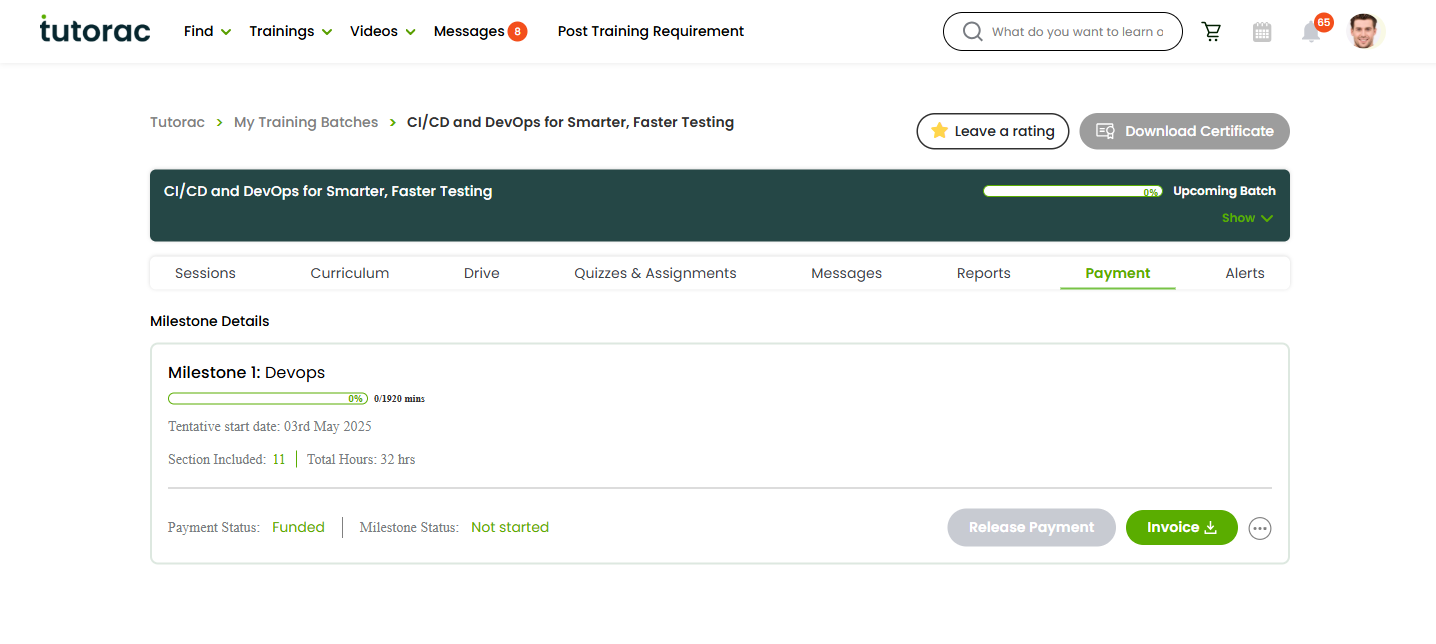
    Tutorac batch payment tab where milestone payments are made.

    Quick fixes to try

    1. Retry once — many declines are transient.
    2. Try a different card — add it via Profile → Card Details and pay with it.
    3. Check your billing address — make sure it matches your card’s registered address.
    4. Enable international / cross-border payments — in your bank’s app, turn on online and international usage for the card. Especially relevant for India-issued cards being charged in $, or non-India cards being charged in ₹.
    5. Raise transaction / daily limits — same place in your bank’s app.
    6. Call your bank — if they explicitly declined, only they can clear it.

    3D Secure / OTP issues

    Most online card payments require 3D Secure (OTP code or in-app approval). This is enforced by the card networks worldwide — India has stricter RBI-mandated rules, but Visa Secure / Mastercard Identity Check apply in most countries. Common pitfalls:

    • OTP not delivered — phone signal issue or wrong number on file with your bank. Update with your bank, then retry.
    • OTP entered too late — the session timed out. Start the payment again.
    • OTP wrong — double-check the number from your latest SMS, not an old one.
    • App-based approval — some banks ask you to approve in their app instead of OTP; check the app for a pending request.
    • 3DS challenge skipped — some US cards rarely show OTP for low-value charges, but still get declined invisibly by the issuer; call the bank to whitelist Tutorac.

    Cross-border / non-local-currency cards

    Tutorac bills in your account’s currency — ₹ for India accounts, $ for all other accounts. If your card is issued in a different country / currency:

    • The card must allow cross-border / international transactions. Many India-issued debit cards have this disabled by default — enable it via your bank’s app or call them.
    • Your bank will convert at its own FX rate when posting the charge. You may see a small foreign-exchange or markup fee on the statement.
    • If the charge currency is blocked by your bank’s card profile (e.g., a domestic-only debit card), the charge will be declined — use a credit card or a debit card with cross-border enabled.
    • A $ Tutorac charge on a non-USD card is normal and not a sign of fraud — it’s how the global account is billed.

    How refunds work

    Refunds come back to the original payment method, in the same currency as the charge — never to a different card or to a wallet. The refunded amount depends on why the refund is happening:

    • Failed transaction — if the bank charged you but the payment didn’t go through on Tutorac, the bank usually auto-reverses within a few days. No action needed on Tutorac’s side.
    • Cancelled milestone — refund is calculated per the Cancellation by Learner / by Tutor rules in the User Agreement (based on % of the milestone completed).
    • Released payment — once released, the milestone is final and is not part of the standard refund flow.

    If your original payment was in $ and your card is in another currency, the bank may use a different FX rate for the refund than the original charge — meaning the refund amount in your local currency might be slightly different from what you originally paid. This is normal bank behaviour, not a Tutorac shortfall.

    Refund timeline

    • Tutorac side — initiates the refund within 1–2 business days of approval.
    • Bank side — typically 5–10 business days for the credit to show on your statement (varies by issuer).
    • International cards — sometimes longer due to cross-border processing.

    If 10 business days have passed and you don’t see the credit, share the refund reference (from Tutorac) with your bank — they can trace it on their end.

    When to contact Tutorac Support

    • You were charged but the milestone shows unpaid for more than 24 hours.
    • A refund hasn’t arrived after 10 business days.
    • You see a payment on your card statement you don’t recognise.
    • The Release Payment button doesn’t work after multiple tries.
    • Any other payment-related dispute.

    When contacting Support, include: batch name, milestone number, transaction date / amount + currency (₹ or $), the last 4 digits of the card, and any error message you saw.

    FAQs

    My bank shows the money was debited but Tutorac says payment failed. What happened?

    Bank temporarily held the amount but the authorisation didn’t complete on Tutorac’s side. The hold drops off automatically within a few days — no separate refund needed. If it doesn’t, contact your bank with the transaction reference.

    Can I get a refund to a different card or method?

    No. Refunds always go to the original payment method, in the original currency. If that card is no longer active (lost, expired, closed account), contact your bank — they usually still route the refund to your linked bank account.

    Why is Tutorac trying to charge me in $ when I’m paying with an INR card (or vice versa)?

    The charge currency is determined by the country on your Tutorac account, not by the card’s currency. India accounts are charged in ₹; all other countries in $. Your bank handles the FX automatically.

    Can I dispute a payment with my bank instead of Tutorac?

    Try Tutorac Support first — chargebacks are slower, can have fees, and may freeze your Tutorac account while under review. Most issues are resolved faster on-platform.

    Will a failed payment cancel my contract?

    No, a failed payment doesn’t cancel anything. The milestone stays pending — just retry payment with the same or a different card.

    What if my tutor cancels a milestone after I’ve paid?

    Tutorac applies the “Cancellation by Tutor” refund rules in the same currency you paid — typically you get back most or all of the milestone amount depending on how much was already taught. See the Tutorac User Agreement for the exact split.


    Related articles

    Last updated: 28 May 2026

  • Where to find invoices, receipts, and payment history on Tutorac

    Every milestone payment you make on Tutorac generates a receipt — in ₹ if you’re on an India account, in $ if you’re on a US or any other country account. This article shows you where to find them — per-batch, across all contracts, and via email — so you can download invoices for reimbursement, tax filing, or your own records.

    In this article

    Per-batch receipts (payment tab)

    Each Training Batch keeps its own payment history on the payment tab.

    1. Sign in to Tutorac.
    2. Go to Trainings → My Training Batches.
    3. Open the batch you’re interested in.
    4. Click the payment tab.

    You’ll see each milestone with its amount (in your account currency — ₹ or $), payment status (paid, in escrow, pending), and a receipt link once paid.

    All payments view: Contracts page

    For payments across all batches, use the contracts pages:

    • Sent Offers — /student/sent-contracts — contracts you’ve sent.
    • Received Contracts — /student/received-contracts — contracts tutors sent to you that you accepted.
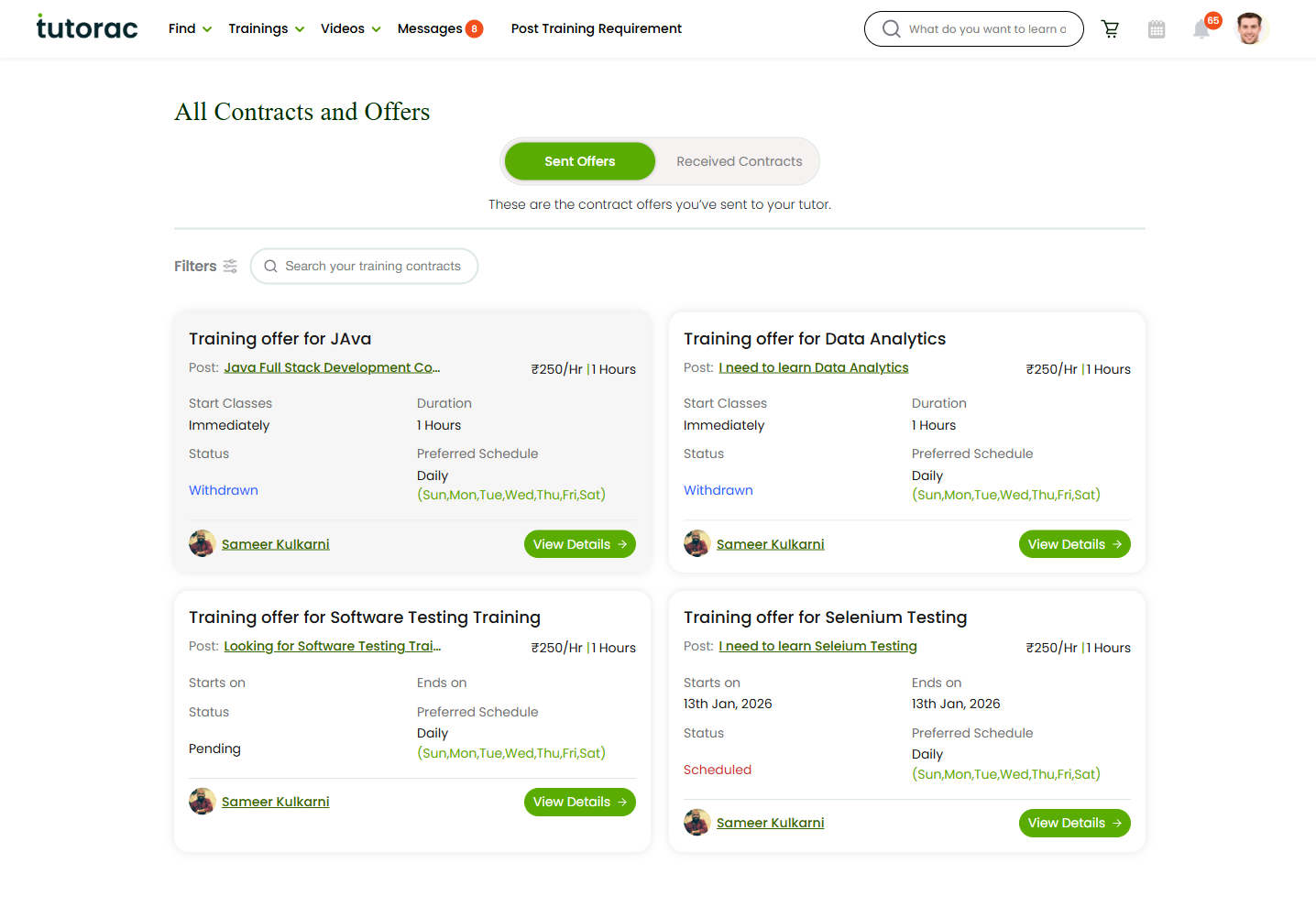
    Tutorac Contracts page showing sent offers and received contracts tabs.

    Click into any contract to see its full milestone payment history with timestamps and amounts.

    Email receipts

    Every milestone payment also triggers a receipt email to the address on your Tutorac account. Subject lines usually read “Payment confirmation — [Batch Name] — Milestone N”.

    If you’re missing receipts:

    • Check your spam / promotions folder.
    • Search your inbox for “Tutorac payment”.
    • Verify your email address under Profile → Basic Information is current.
    • Add no-reply@tutorac.com (and any sender domain Tutorac uses) to your safe senders.

    Download an invoice / receipt

    1. From the batch’s payment tab (or a contract’s detail view), find the milestone you want a receipt for.
    2. Click the Download / Receipt link on that milestone.
    3. The PDF opens or downloads to your device.

    For multi-payment summary (e.g., for an entire course), download each milestone receipt individually and bundle them.

    What an invoice contains

    • Your billing name & address (from your billing address profile setting).
    • Tax ID, if you provided one — GSTIN for India, VAT / EIN / ABN etc. for other regions.
    • Tutorac’s legal entity, address, and (where applicable) tax registration number.
    • Tutor / training name and milestone description.
    • Amount, tax breakup, and total — in your account currency (₹ for India accounts, $ for all other accounts).
    • Payment method (card last 4 digits or wallet) and transaction ID.
    • Invoice number and date.

    FAQs

    Can I get a single consolidated invoice for the full course?

    Tutorac issues one invoice per milestone payment, not one for the whole course. If you need a consolidated record, download each milestone receipt and combine them.

    My employer is reimbursing me — what do I send them?

    The milestone invoice PDF. Make sure your billing address and tax ID (GSTIN, VAT, EIN, ABN — whichever applies to your country) were correct before you paid — invoices lock in those details at the moment of payment.

    Can I get the invoice in a different currency than my account?

    No. Invoices are issued in the account’s billing currency: ₹ for India accounts, $ for all other accounts. If you’re claiming reimbursement in another currency, use your bank’s FX rate from the transaction date.

    Can Tutorac email me a copy of a missing receipt?

    Yes — contact Tutorac Support with your batch name and the milestone in question, and they can re-send.

    How long are receipts stored?

    Indefinitely, while your account is active. Download copies for your own archive anyway, especially if you change email addresses or close the account.

    Where are refund credit notes?

    If you receive a refund (e.g., after cancellation), Tutorac issues a credit note linked to the original payment, in the same currency. It appears on the same payment tab / contract detail view, marked as a refund.


    Related articles

    Last updated: 28 May 2026

  • How to update your billing address on Tutorac

    Your billing address appears on every invoice Tutorac generates for your milestone payments. Keep it accurate so receipts, tax records, and payment confirmations all match the address you use for tax filing and reimbursements — whether you’re in India (INR invoices) or anywhere else (USD invoices).

    In this article

    Where to find Billing Address

    1. Sign in to Tutorac.
    2. Click your avatar in the top right.
    3. Choose My Profile.
    4. In the left sidebar, click BILLING ADDRESS (URL: /student/profile/billing-address).
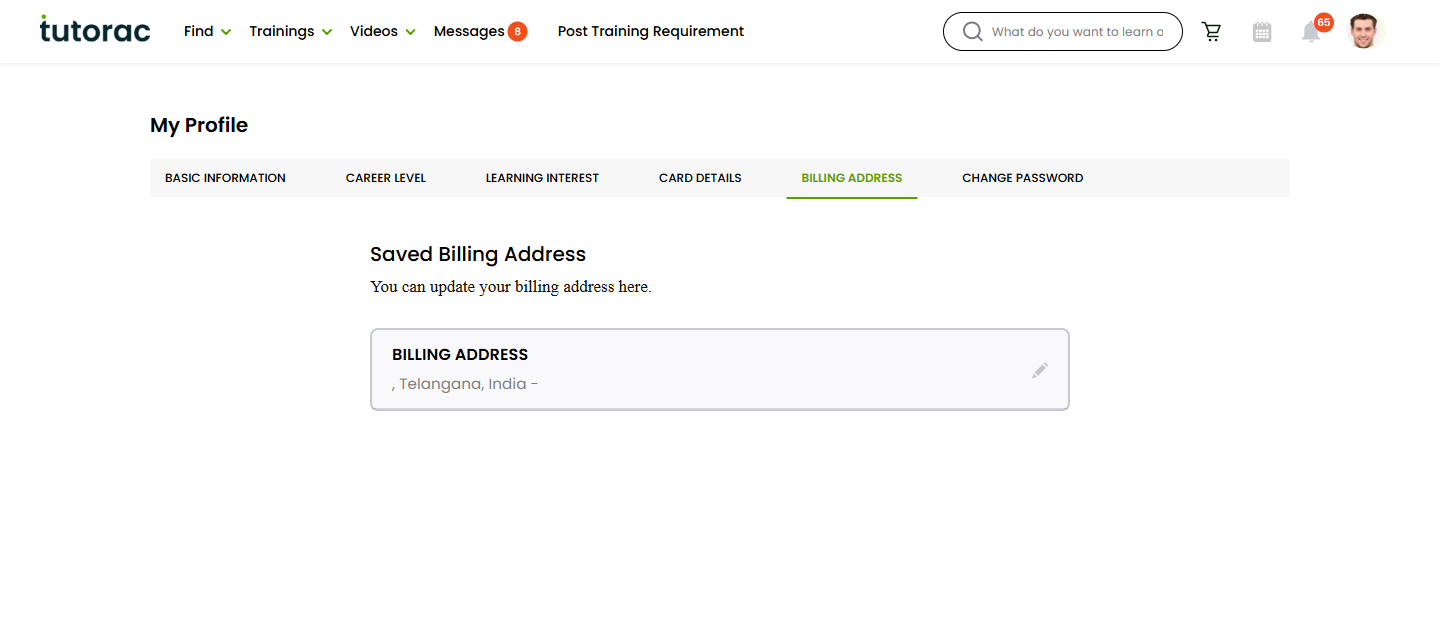
    Billing Address page in the Tutorac learner profile.

    Update your billing address

    1. On the Billing Address page, fill in or update:
      • Full name on the invoice.
      • Address line 1 / line 2.
      • City / Town.
      • State / Province.
      • PIN / ZIP / Postal code.
      • Country.
    2. If your country requires a tax ID, enter it in the tax ID field so it appears on tax invoices — e.g., GSTIN for India, VAT number for EU / UK / UAE, EIN for a US business, ABN for Australia.
    3. Click Save.

    The page confirms the update. From the next milestone payment onward, this address appears on your invoices and receipts — in ₹ for India accounts, in $ for everyone else.

    Why your billing address matters

    • Invoices and receipts — the address printed on every PDF receipt for your milestone payments.
    • Tax compliance — jurisdictions like India require correct address + GSTIN for input credit; the EU / UK need a valid VAT number for reverse charge; US businesses need EIN for 1099 records.
    • Reimbursement claims — if your employer is reimbursing your training, the address must match what they have on file.
    • Payment processor checks — some card issuers run AVS (address verification) on transactions; a mismatch can decline the payment.

    Tax IDs (GSTIN for India, VAT / EIN / SSN elsewhere)

    India accounts (INR invoices)

    • If you’re a business in India (or your employer is) and you need GST input credit on tutoring payments, enter the company’s GSTIN on the Billing Address page.
    • Make sure the Name and Address match the GST registration exactly.
    • Save the change before making the next milestone payment — invoices already generated cannot be edited retroactively.

    Non-India accounts (USD invoices)

    • EU / UK / UAE / GCC businesses — enter your VAT number so reverse charge applies and the invoice carries it.
    • US business — enter your EIN; if you’re paying as an individual, leave the tax ID blank.
    • Australia — enter your ABN.
    • Other countries — enter the local business tax ID if you need it on the invoice; otherwise leave blank.
    • Match the Name and Address to your tax registration. Save before paying the next milestone.

    FAQs

    Can I have a different billing address per payment?

    The billing address on your profile applies to all future invoices. If you need a different address for a specific milestone payment, update the address before paying that milestone, then change it back afterwards.

    Can I edit an invoice that was already generated?

    No. Invoices are point-in-time records and lock in the billing address that was on file when the payment was made. Update your address before paying the next milestone to ensure the new invoice carries the correct details.

    Does the billing address have to match my card’s address?

    It usually should, especially for international cards where AVS (address verification) is enforced. A mismatch can cause the bank to decline the charge.

    Does my billing address change which currency I’m charged in?

    No. The charge currency is set by the country on the account (India → INR, everywhere else → USD), not by the billing address you enter. If you change the address from India to the US without changing the underlying account, you’ll still be billed in INR. To switch currencies you’d typically need a fresh account — contact Tutorac Support first.

    Where will my invoices appear after I update?

    Receipts are visible in the batch’s payment tab and listed under your contracts. See Where to find invoices, receipts, and payment history.

    I’m a learner but my company pays. Whose address goes here?

    If the company will claim tax input credit (GST, VAT, etc.) or reimburse the cost, use the company’s registered address and tax ID. If you’ll claim reimbursement personally, use your home address.


    Related articles

    Last updated: 28 May 2026

  • How to add or remove a payment card on Tutorac

    Tutorac stores your saved cards in your profile so you can pay for milestones in a couple of clicks. This guide shows you how to add a card, remove one, what Tutorac does (and doesn’t) store, and which currency the card will be charged in.

    In this article

    Where to manage your cards

    1. Sign in and click your avatar in the top right.
    2. Choose My Profile.
    3. In the left sidebar, click CARD DETAILS (URL: /student/profile/cards).
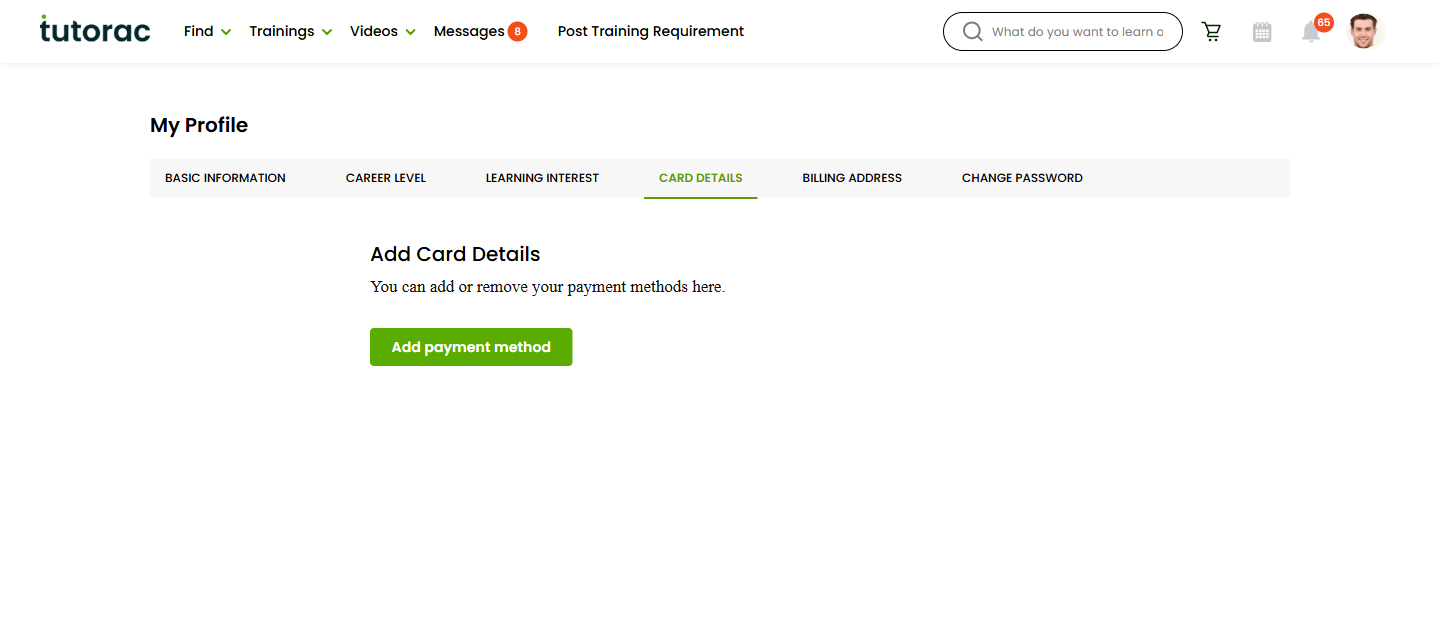
    Tutorac Card Details page with Add payment method button and empty state.

    Saved cards (if any) appear as cards on this page. An empty state means you haven’t added one yet.

    Add a payment card

    1. On the Card Details page, click Add payment method.
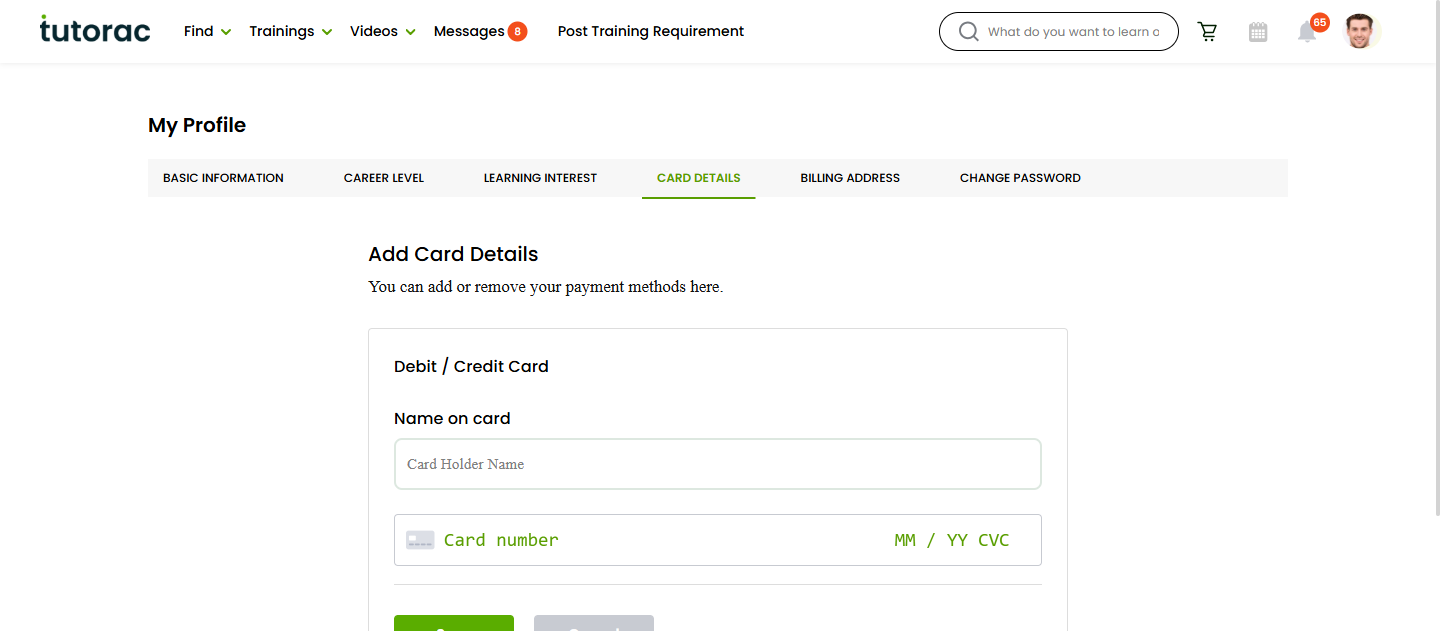
    2. A “Debit / Credit Card” form appears with:
      • Name on card — the cardholder’s name.
      • Card number — entered in Tutorac’s secure card field (handled by the payment processor, not stored on Tutorac’s own servers).
      • Expiry and CVC — in the same secure field.
    3. Fill in the details.
    4. Click Save.
    Add Card Details form on Tutorac with Name on card and card number fields, Save and Cancel buttons.

    Once saved, the card is listed in your Card Details with the last four digits and expiry date.

    Remove a payment card

    1. Go to Profile → CARD DETAILS.
    2. Find the card you want to remove.
    3. Click the Delete (trash) icon on that card.
    4. Confirm in the dialog.

    The card is removed immediately. Tutorac no longer has a token to charge it. Any active subscriptions or recurring payments tied to it will need a new payment method before the next billing cycle.

    How your card data is secured

    • Card numbers, expiry, and CVC are entered into a PCI-compliant secure field embedded in an iframe from Tutorac’s payment processor — Tutorac’s own servers never see your full card number.
    • Tutorac stores only a tokenised reference and the last four digits to display in your profile.
    • All traffic uses HTTPS.

    This is the same model used by major payment processors (Stripe, Razorpay, etc.) for safe card storage.

    Supported card types & charge currency

    Card networks accepted:

    • Visa — debit and credit, worldwide.
    • Mastercard — debit and credit, worldwide.
    • American Express — where supported by the issuer.
    • RuPay — for India-issued debit cards on India accounts.
    • Most regional debit cards backed by Visa / Mastercard rails.

    Which currency will my card be charged in?

    • India account → charged in ₹ INR, regardless of where the card was issued.
    • Account in any other country → charged in $ USD, regardless of where the card was issued.
    • If your card is issued in a third currency (e.g., a GBP card on a USD account), your bank will convert at its own FX rate when posting the transaction.

    If your card is declined, see Troubleshooting failed payments.

    FAQs

    Can I save more than one card?

    Yes — add multiple cards and choose which one to use at checkout for each milestone payment.

    Does Tutorac auto-charge my saved card?

    No. Each milestone payment requires you to confirm the charge. Tutorac doesn’t silently bill your card without your action.

    Can I use UPI, net banking, or a digital wallet instead?

    Card Details only stores cards. UPI / net banking / wallet flows may be available at checkout depending on your region — India accounts typically see UPI and net banking as alternatives; USD accounts typically see card and wallet options through the global payment processor.

    Will Tutorac email my card details?

    No — never. If you receive an email asking for your card number / CVC, it’s phishing. Report it to Tutorac Support.

    My card expired. What happens?

    Expired cards can’t be used to pay. Add a fresh card and delete the old one to keep your profile tidy.


    Related articles

    Last updated: 28 May 2026

  • How to release a milestone payment to your tutor

    Releasing payment is how you tell Tutorac your tutor has completed a milestone and the escrowed amount can move to them. This article walks through exactly how to do it, when to do it, and what to do if something doesn’t look right.

    In this article

    When to release payment

    Release a milestone’s payment when all of these are true:

    • All planned sessions in the milestone are complete.
    • You’re satisfied with the teaching quality and content delivered.
    • Any milestone-linked quizzes / assignments are graded and returned.
    • You don’t intend to dispute anything from this milestone.

    If any of the above are not yet true, wait. Releasing is irreversible — once funds go to the tutor, the milestone cannot be refunded via the standard cancellation flow.

    Release a milestone payment step by step

    1. Sign in to Tutorac.
    2. Go to Trainings → My Training Batches in the top navigation.
    3. Click the batch you want to manage.
    4. Click the payment tab at the top of the batch workspace.
    5. Find the milestone you want to release (e.g., “Milestone 1: DevOps”).
    6. Click the Release Payment button on that milestone’s card.
    7. Confirm in the dialog that appears.
    Milestone Details card on the payment tab of a Tutorac Training Batch with the Release Payment button highlighted.

    The milestone card will then update to show the payment as released, with a timestamp.

    Auto-release after grace period

    If you finish a milestone and forget to release manually, Tutorac may auto-release the funds after a grace period following the milestone’s scheduled completion. This ensures tutors are paid in a timely manner for work delivered.

    You’ll receive notifications (both in-app and via email) before auto-release, so you have time to raise any issues before funds move.

    When to hold off on releasing

    • Missed sessions — check the Sessions tab for “Trainer Missed” entries. Get them rescheduled before releasing.
    • Unclear scope — if you’re unsure whether a topic was actually covered, ask the tutor before releasing.
    • Pending assignments — wait until graded work has been returned.
    • Quality concerns — raise these with the tutor or Tutorac Support before paying out.

    What happens after you release

    • Funds move from Tutorac escrow to the tutor’s payout account (a few business days for them to receive into their bank).
    • The milestone is marked paid in your batch’s payment tab.
    • A receipt / invoice is generated and available in your account (see Where to find invoices and receipts).
    • The next milestone’s payment becomes due before its scheduled start date.

    FAQs

    Can I undo a release?

    No. Once funds move to the tutor, the release is final via the standard flow. If there’s a serious issue, contact Tutorac Support — they may be able to mediate, but it’s no longer an automatic refund.

    Will the tutor see exactly when I released?

    Yes — they get a notification and the milestone in their dashboard shows the release timestamp.

    Do I have to release each milestone separately?

    Yes — each milestone has its own Release Payment button, so you keep granular control.

    What if I cancel a milestone after partial completion instead of releasing?

    Tutorac applies the cancellation policy — you’ll be refunded a portion of the escrowed amount based on how much of the milestone was completed before cancellation. See the Tutorac User Agreement for the exact percentages.

    Can a tutor force me to release?

    No. Only you can click Release Payment. The platform’s auto-release rules are based on milestone completion and grace period, not tutor demand.


    Related articles

    Last updated: 28 May 2026

  • How payments work on Tutorac: milestones, escrow, and releasing funds

    Tutorac uses a milestone-based escrow system so you only pay for training in chunks, and your tutor only gets paid for work you’ve approved. This article explains how money flows on the platform — from booking a tutor to releasing payment after each milestone.

    In this article

    The big picture: contract → milestone → escrow → release

    1. You agree a Training Contract with a tutor — topic, scope, schedule, total price.
    2. The contract is split into milestones (chunks of work mapped to chunks of price).
    3. You pay for each milestone before sessions start on it. The money goes into escrow, not directly to the tutor.
    4. Sessions and assignments for that milestone happen.
    5. When the milestone is done, you click Release Payment. The escrow funds move to the tutor.
    6. You then pay the next milestone, and the cycle repeats until the contract is complete.
    Tutorac Training Batch payment tab showing milestone details, tentative start date, and the Release Payment button.

    Above: an India learner’s view, showing milestone amounts in ₹ (INR). Learners outside India see the same layout with amounts in $ (USD) instead — see Currencies and pricing below.

    What is a milestone?

    A milestone is one logical phase of your training, with its own price and tentative start date. For a 12-week DevOps course you might see:

    • Milestone 1: DevOps fundamentals — weeks 1–4 — e.g., ₹X (INR) or $X (USD)
    • Milestone 2: CI/CD & Containers — weeks 5–8 — e.g., ₹Y (INR) or $Y (USD)
    • Milestone 3: Kubernetes & Project — weeks 9–12 — e.g., ₹Z (INR) or $Z (USD)

    You see the breakdown on the payment tab of your Training Batch. Each milestone has a heading like “Milestone 1: [topic]”, a tentative start date, and the amount due in your account’s currency.

    What is escrow?

    Escrow means Tutorac holds your payment in a neutral account until you confirm the milestone is done. The tutor sees that you’ve paid (so they know it’s safe to teach), but they don’t receive the money yet. This protects both sides:

    • You — never pay for work that hasn’t happened. If something goes wrong, you can cancel and get a refund per the cancellation policy.
    • Tutor — never teach without payment guaranteed. They know the funds are already secured.

    This is why all payments must stay on Tutorac — off-platform payments lose escrow protection entirely.

    Releasing payment to your tutor

    Once a milestone’s sessions are done and you’re satisfied, click the Release Payment button on the milestone card (payment tab of the batch). The escrowed amount moves from Tutorac to the tutor.

    If you don’t click Release Payment manually, the platform may auto-release after a defined grace period following the milestone’s scheduled completion to keep tutors paid for work delivered. Watch for notifications around that point.

    Refunds and cancellations

    If you cancel mid-milestone, Tutorac splits the escrowed amount between you and the tutor based on the percentage of the milestone that was already completed. The split is defined in the Tutorac User Agreement under “Cancellation by Learner” / “Cancellation by Tutor” and ranges from a full refund (very early cancel) to no refund (after most of the milestone is done).

    Refunds are processed back to your original payment method in the same currency you paid in.

    Currencies and pricing (USD & INR)

    Tutorac is a global platform and supports two billing currencies, decided by the country on your account at signup:

    • India learners and tutors — all prices, invoices, and payouts in ₹ (INR).
    • Learners and tutors in all other countries (US, UK, Canada, UAE, Singapore, Australia, etc.) — all prices, invoices, and payouts in $ (USD).

    What this means in practice:

    • A learner with an India account sees tutor rates and milestone amounts in ₹ on Find Tutors, the contract, the cart, and the payment tab.
    • A learner with any non-India account sees the same screens in $.
    • If a tutor wants to teach learners across both regions, Tutorac shows the tutor’s rate in the learner’s currency — you don’t need to do any FX math.
    • Your card issuer (bank) handles any conversion if your card is in a third currency — e.g., a UK-based card paying a $ milestone will see a GBP charge on the statement at the bank’s FX rate.

    You cannot switch currencies on an existing account. The currency is fixed when the account is created.

    FAQs

    Do I have to pay the entire course up front?

    No. You only pay for one milestone at a time, before that milestone starts. This makes long courses far less risky.

    Can a tutor see that I’ve paid?

    Yes — once your payment lands in escrow, the tutor sees the milestone as funded. They don’t receive the money, just confirmation that it’s secured.

    What if the tutor doesn’t deliver?

    Don’t release payment. Cancel the contract instead — Tutorac will refund you per the “Cancellation by Tutor” rules in the User Agreement.

    Can I pay outside Tutorac to save fees?

    Don’t. Off-platform payments are not protected by escrow, cancellation policy, or dispute resolution. Tutorac cannot help you recover money paid outside the platform.

    Is there a platform fee on top of the tutor’s rate?

    Tutorac advertises “zero platform fee” for learners on the safety panel. The number you see on the contract is what you pay — in ₹ or $ depending on your account — and the tutor’s side handles their own fee with Tutorac.

    Can I switch my account from INR to USD or vice versa?

    No. The currency is fixed by the country on the account at signup. If you genuinely need the other currency (e.g., you’ve relocated), contact Tutorac Support — they’ll advise on the best path, which may include creating a fresh account for the new region.


    Related articles

    Last updated: 28 May 2026

  • Managing notifications and unread message counts on Tutorac

    Tutorac surfaces what needs your attention in two places: the bell-icon Notifications feed and the unread message counts in Messages. This article explains both, how to clear them, and how to stay on top of important updates without information overload.

    In this article

    The Notifications page

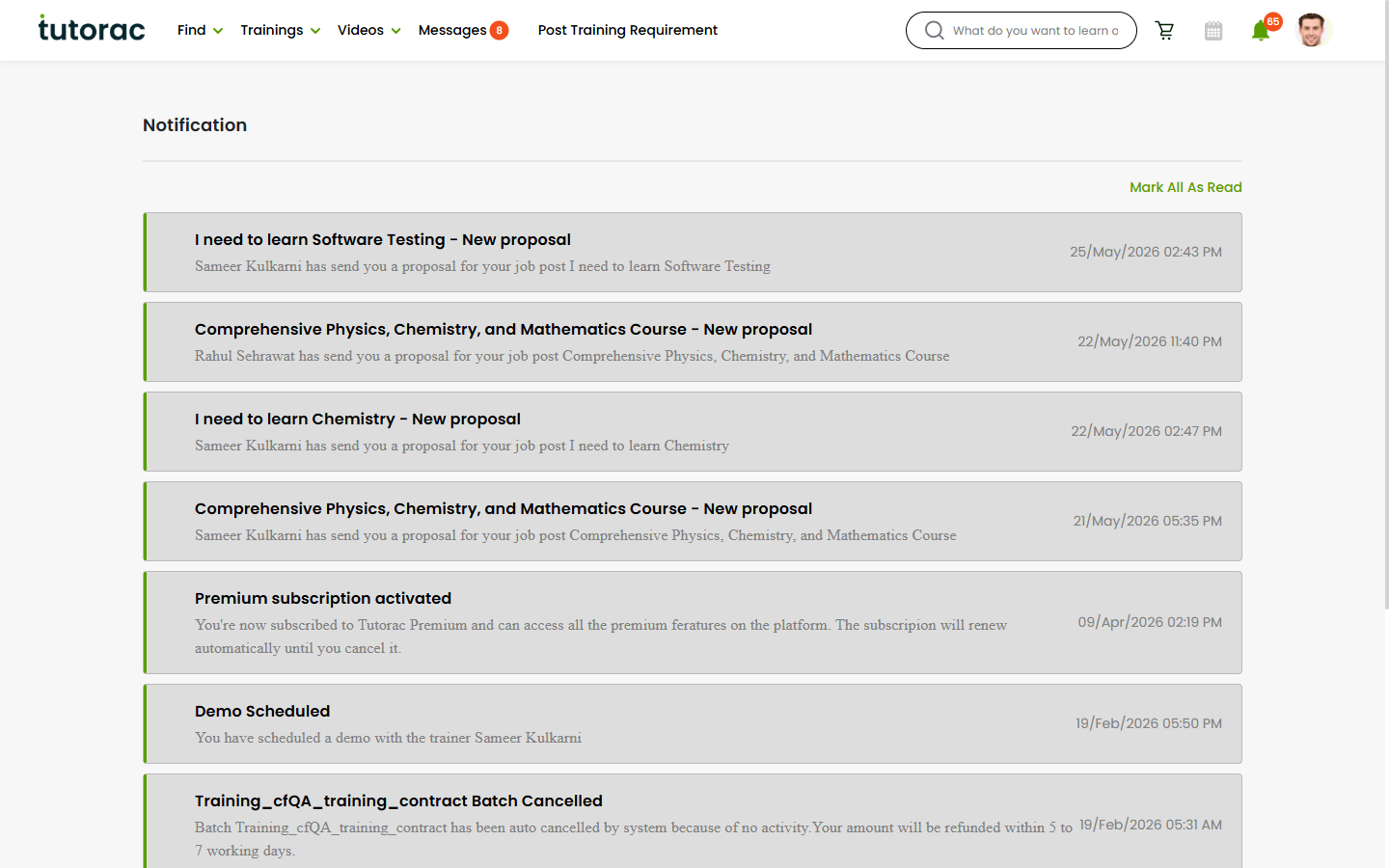
    Tutorac collects every event the platform thinks you should know about into a single feed at tutorac.com/notification. The bell icon in the top bar opens this page and shows an unread badge when there are new items.

    Tutorac Notifications page showing the chronological feed of platform events.

    Each notification has a title, a short message, a timestamp, and (when relevant) a link that takes you to the page where you can act on it.

    What triggers a notification

    Common notification types for learners include:

    • Proposals — “A tutor sent a proposal on your Training Requirement.”
    • Invitations — “You sent an invite to [Tutor Name].”
    • Sessions — reminders before scheduled sessions; “Session starting in 15 minutes”; recordings posted; missed session alerts.
    • Hiring — “Your Training Contract with [Tutor] is active.”
    • Payments — milestone payment due, payment received, refund processed.
    • Free demos — demo scheduled, demo starting soon, demo completed.
    • Cancellations — contract cancelled, refund issued.
    • Quizzes & Assignments — new item published, graded.

    Some notifications also appear as inline system messages inside the relevant chat thread — for example, a hire notification shows up both on the Notifications page and inside the chat with the tutor.

    Unread message counts

    Chat messages are tracked separately from notifications. Unread message counts appear in three spots:

    • Top navigation Messages button — total unread count across all tutor conversations.
    • Each conversation row in the left pane of Messages — per-conversation unread count.
    • Inside a Training Batch, the Messages tab also has its own unread badge for batch-scoped chat.

    Opening a conversation marks all its messages as read. There’s no separate “mark unread” control — once you’ve opened it, it’s read.

    Marking notifications as read

    • Visiting the Notifications page marks items as seen, which removes them from the bell badge.
    • Clicking through a notification (to a session, proposal, or batch) marks that specific notification as read.
    • Old notifications stay in the feed as a history — nothing is deleted automatically.

    Email notifications

    For high-importance events (hiring, payments, scheduled sessions, refunds, password changes), Tutorac also emails you at the address on your account. Make sure:

    • Your email in Profile → Basic Information is current.
    • Tutorac’s sender domain is whitelisted/not in spam (search for emails from @tutorac.com).
    • Calendar invites for scheduled sessions and demos are added to your calendar.

    Low-priority chatter (every chat message) is not emailed by default to avoid noise.

    Tips for staying on top of updates

    • Check the bell at the start of each session — tutors often update materials or send a note just before class.
    • Use the Messages unread badge as your inbox — if the badge is zero, you’re caught up.
    • Pin scheduled sessions to your calendar via the email invite for back-up.
    • Don’t rely on email alone — the most accurate, real-time view is always on tutorac.com.

    FAQs

    Can I turn notifications off?

    You can’t fully disable in-app notifications — they’re core to using the platform safely (you need to know when a session is starting, when a payment is due). Per-channel preferences (e.g., email versus in-app) may be available in account settings; if you don’t see a control there, reach out to Tutorac Support.

    My unread badge says 2 but I’ve read every conversation.

    Try refreshing the page. If the badge persists, scroll the conversation list — an unread message may be in a thread that’s lower down. New tutor responses to old conversations bump the count, even on chats you opened weeks ago.

    Why am I not getting email notifications?

    Check your spam folder, verify the email on your profile, and look for filters that may auto-archive messages. If everything looks right, contact Tutorac Support.

    Are notifications shared between devices?

    Yes — your account’s notification state is the same on every browser/device you sign in to. Read on phone, and the badge clears on desktop too.

    How long does Tutorac keep notification history?

    Notifications remain in the feed indefinitely as a history. Only the unread badge changes; the items themselves don’t expire.


    Related articles

    Last updated: 27 May 2026

  • How to access curriculum, sessions, and quizzes in a Training Batch

    A Training Batch on Tutorac is more than a chat thread. It’s a workspace with tabs for sessions, curriculum, drive, quizzes & assignments, messages, reports, and payments. This article walks you through three of the most important tabs — Sessions, Curriculum, and Quizzes & Assignments — so you know where everything lives.

    In this article

    Opening your Training Batch workspace

    1. Sign in and click Trainings → My Training Batches in the top navigation.
    2. You’ll see a list of your batches with status badges (Upcoming, Ongoing, Completed, Cancelled).
    3. Click any batch to open its workspace.

    The workspace opens on the Sessions tab by default. Across the top you’ll see all available tabs.

    Sessions tab

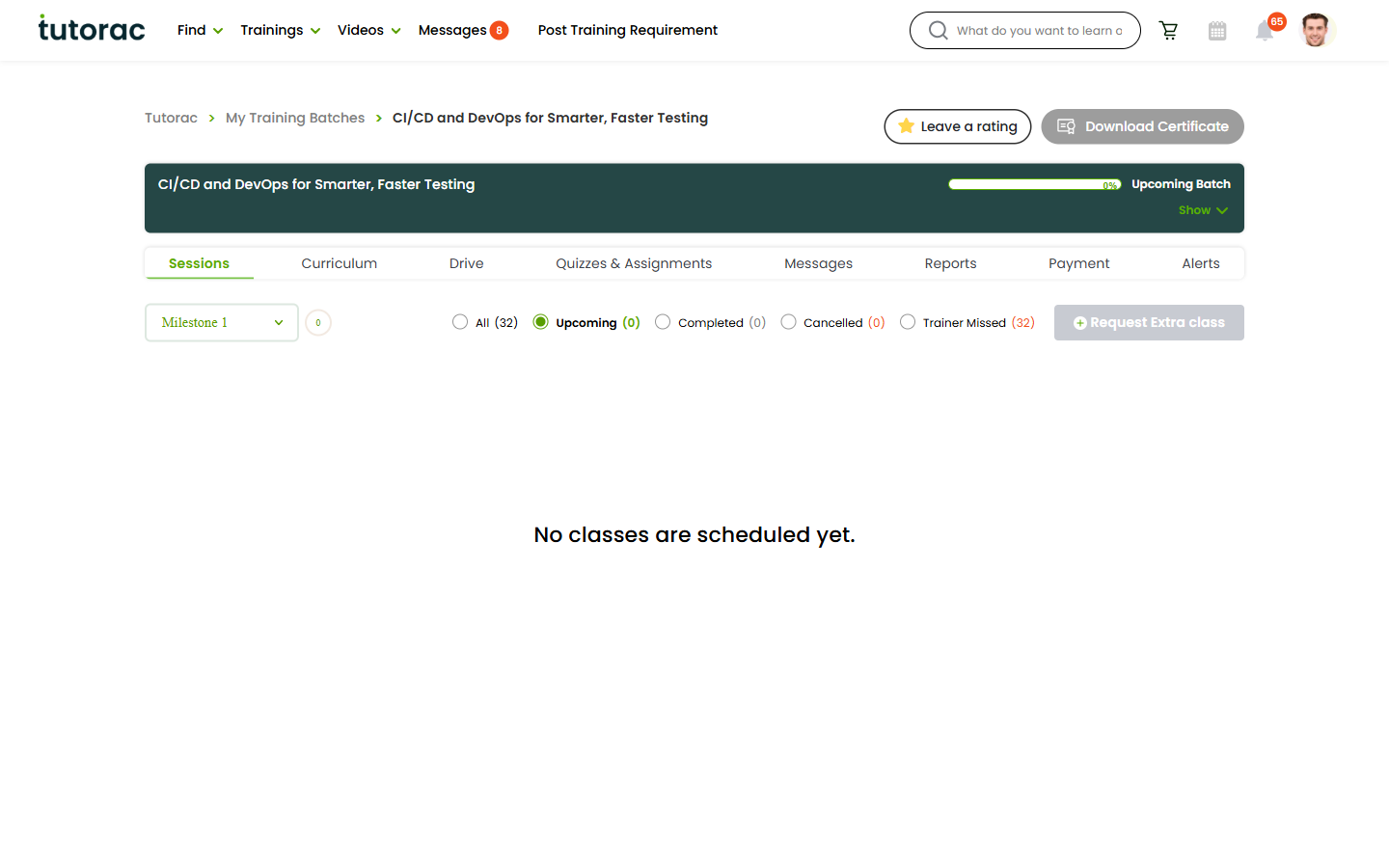
    Tutorac Training Batch Sessions tab showing milestone filter, status sub-tabs (All, Upcoming, Completed, Cancelled, Trainer Missed), and the Request Extra class button.

    The Sessions tab lists every individual class scheduled in your training. Each row shows the session topic, date and time, status, and join controls. Key things to know:

    • Milestone selector on the left lets you switch between milestones (Milestone 1, Milestone 2, etc.).
    • Status sub-tabs filter the list: All / Upcoming / Completed / Cancelled / Trainer Missed. The number in parentheses is the count.
    • Join appears next to a session when it’s about to start.
    • Request Extra class button (top right) lets you ask the tutor for an additional session beyond the planned schedule.
    • Past sessions stay in the list with a Completed badge. Recordings (if available) appear inline.

    Curriculum tab

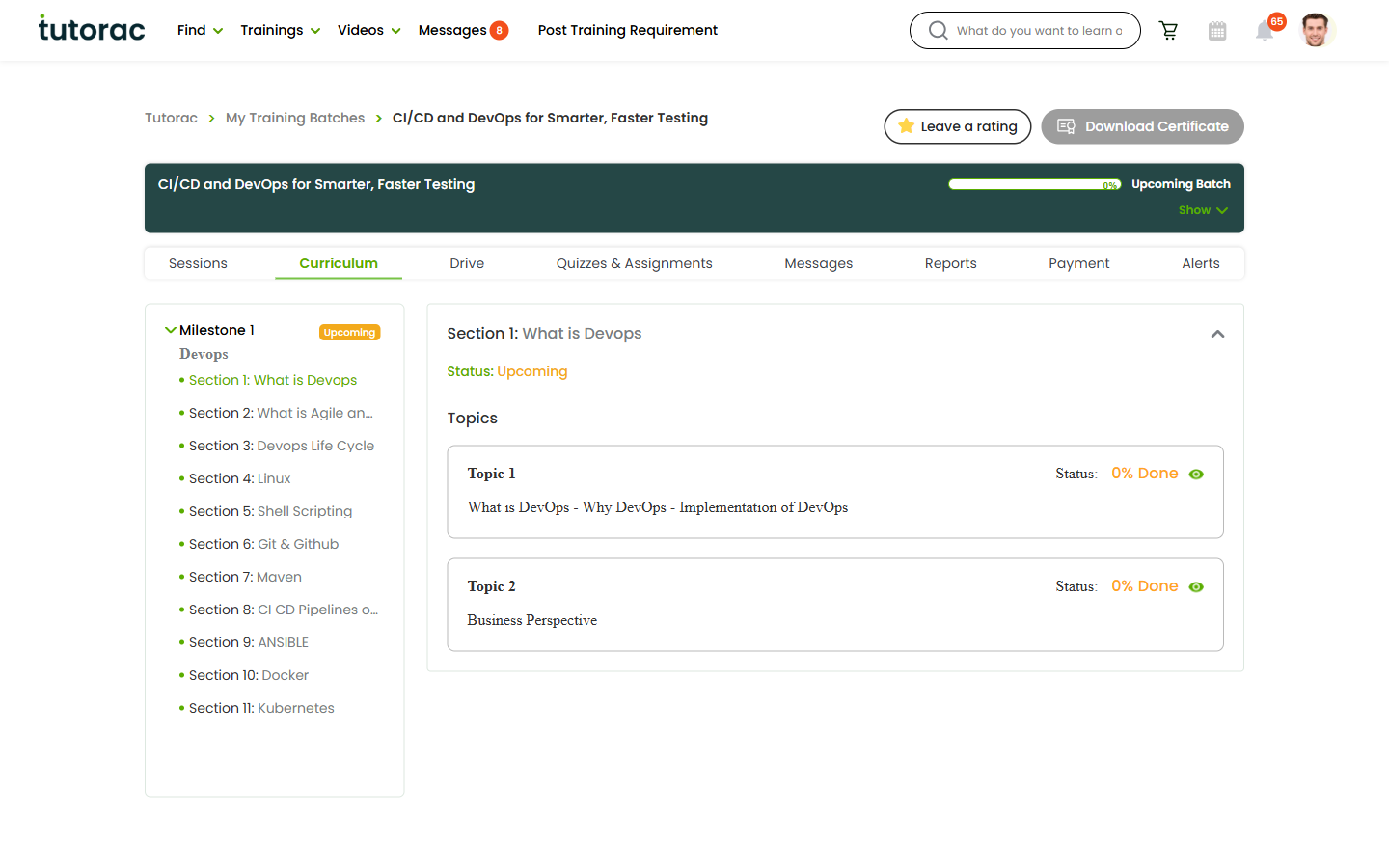
    Tutorac Training Batch Curriculum tab showing the section-by-section course outline.

    The Curriculum tab shows what you’re going to learn, in order. It mirrors the structure of the Drive: every section here corresponds to a folder in Drive and a chunk of teaching time in Sessions.

    • Sections are listed top-to-bottom (Section 1, Section 2, …).
    • Expand a section to see the topics covered.
    • Some courses also show estimated duration per section.

    Use Curriculum as your map of the whole training and check it ahead of sessions to know what’s coming up.

    Quizzes & Assignments tab

    Tutorac Training Batch Quizzes and Assignments tab.

    Tutors can publish quizzes and assignments here for you to complete between sessions. You’ll see:

    • The title of each quiz/assignment.
    • The section or milestone it belongs to.
    • Status — Not started, In progress, Submitted, Graded.
    • Due date (if the tutor set one).
    • A Start or Continue button.

    After you submit, the tutor reviews and grades. Grades feed into your progress reports and feedback.

    Milestone and status filters

    Across the Sessions tab (and to some extent the other tabs), you can filter content by milestone and by status:

    • Milestone selector (left side) — switches which milestone’s sessions/quizzes you’re viewing.
    • Status radio tabs — All / Upcoming / Completed / Cancelled / Trainer Missed. Counts in parentheses make it easy to spot, say, two completed sessions vs. zero upcoming.

    This is especially useful in long batches where you might have dozens of past sessions and want to find just the upcoming ones.

    The other tabs at a glance

    • Drive — the shared file workspace for this batch. See How to use the Drive.
    • Messages — a chat scoped to this batch (distinct from the platform-wide Messages hub).
    • reports — performance reports, attendance, quiz scores.
    • payment — milestone payment status, invoices, and remaining balance.
    • Alerts — system notifications for this batch.

    You can also click the Show button under the batch title to expand a summary card with course name, type (Group / 1-to-1), and current status badge.

    FAQs

    What is the difference between a milestone and a session?

    A milestone is a chunk of your contract (usually mapped to a payment instalment and a set of curriculum sections). A session is one individual class within a milestone. One milestone usually contains several sessions.

    My batch shows “No classes are scheduled yet” — what do I do?

    That means the tutor has not yet scheduled sessions for the selected milestone or filter. Message the tutor through the batch’s Messages tab to confirm timing.

    Can I download a session recording?

    Recordings appear on completed sessions (where enabled). They are streamable from the Sessions tab; downloadability depends on the tutor’s settings.

    Is the Curriculum the same across all batches of a course?

    The base curriculum is the tutor’s template, but they may adapt it slightly per batch based on learner needs. Always refer to the Curriculum tab inside your batch.

    What’s the “Trainer Missed” sub-tab on Sessions?

    Sessions the tutor was supposed to host but did not. These are tracked separately for review; reach out to Tutorac Support if you see a pattern of missed sessions.


    Related articles

    Last updated: 27 May 2026

  • How to use the Drive in your Training Batch

    Every Training Batch on Tutorac comes with its own Drive — a file workspace organised by your course curriculum. This is where your tutor uploads slide decks, datasets, code samples, and worksheets, and where you upload assignment submissions. This article explains how to find and use it.

    In this article

    What is the Drive?

    The Drive is a shared file storage area scoped to a single Training Batch. Everyone in the batch (you, the tutor, and any other co-learners if it’s a group batch) can see and download files. Files added to Drive are organised by the curriculum sections of your course, so you can always find “the slides from Section 4 on Linux” without scrolling through chat history.

    How to open the Drive

    1. Sign in to Tutorac and go to Trainings → My Training Batches.
    2. Click the batch you want to open.
    3. You’re now on the batch workspace. At the top you’ll see tabs: Sessions, Curriculum, Drive, Quizzes & Assignments, Messages, reports, payment, Alerts.
    4. Click Drive.

    The Drive URL has the form tutorac.com/student/classes/drive?id=….

    Drive layout: Global Folder and section folders

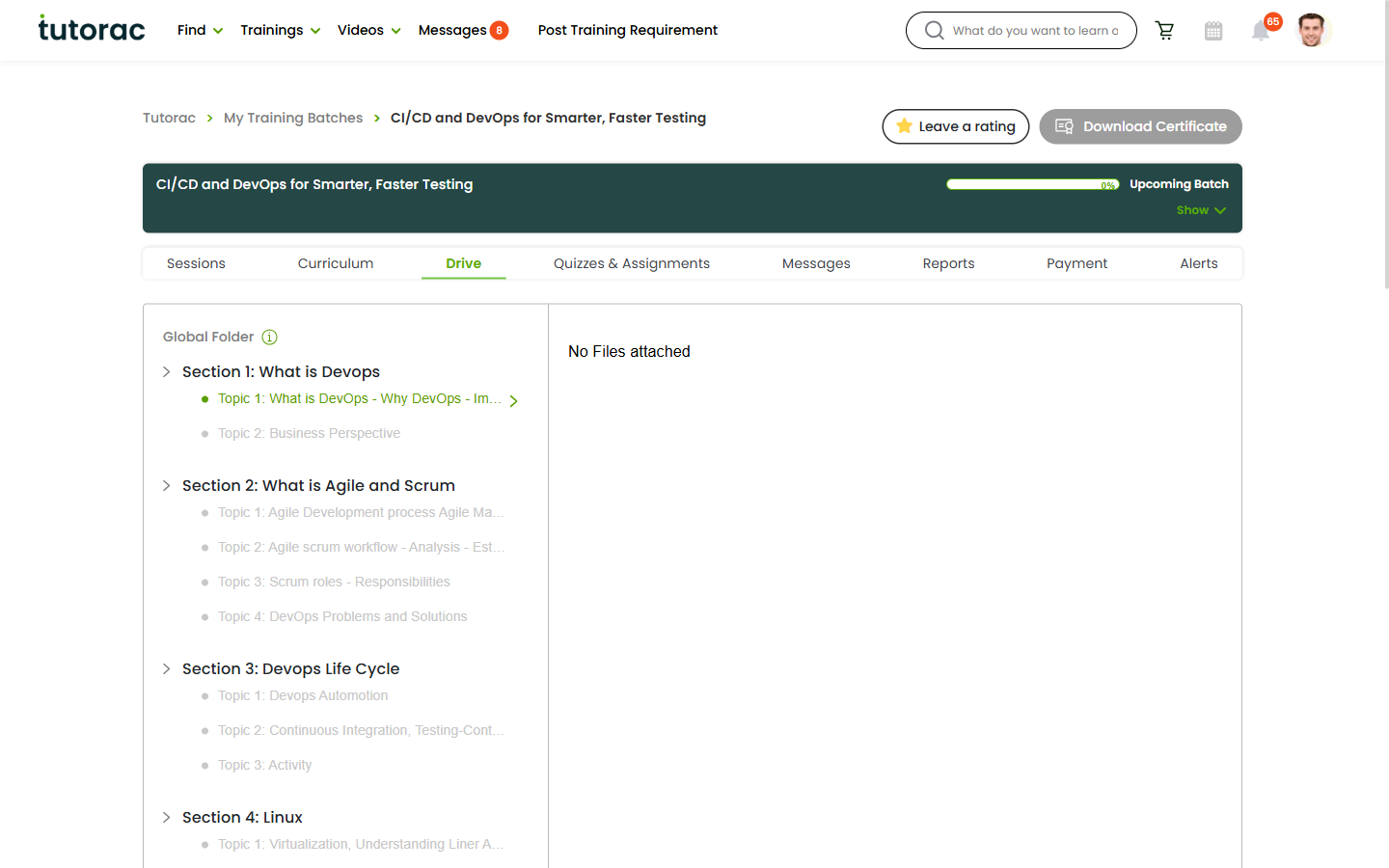
    Tutorac Training Batch Drive tab showing the Global Folder at the top and one folder per curriculum section (Section 1, Section 2, and so on).

    Drive is organised into two layers:

    • Global Folder — at the top of the list. Use this for files that apply to the whole course (welcome doc, course outline, project brief).
    • Section folders — one folder for each section in the curriculum, named after the section (e.g., “Section 1: What is DevOps”, “Section 4: Linux”). Files relevant to a topic go inside the matching section folder.

    The section folders mirror the structure of the Curriculum tab, so anything taught in Section 4 has its materials in the Section 4 folder.

    Upload a file

    1. On the Drive tab, click the folder you want to upload into (Global Folder, or a specific section).
    2. Click the upload button or the upload area inside the folder.
    3. Choose a file from your computer.
    4. The file appears in the folder once the upload finishes.

    The tutor sees your upload too, in the same folder. There’s no separate “learner files” or “tutor files” section — the Drive is shared.

    Download or open a file

    • Click a file’s name to preview it (PDFs, images) or open in a new tab.
    • Click the download icon to save it locally.
    • Right-click and copy the link to share it inside chat or paste into your notes.

    “No Files attached” — what it means

    If a folder is empty you’ll see No Files attached. That means neither you nor the tutor have uploaded to it yet. The folder still exists in the structure — just add a file and it’ll appear.

    It’s normal for a brand-new batch to show empty folders — the tutor will typically upload materials before or during the first session.

    Tips for working with Drive

    • Put files in the right section folder — otherwise you and the tutor will end up scrolling for them.
    • Use clear filenames — e.g., assignment-2-section-4.zip rather than final.zip.
    • Don’t use Drive for chat-style back-and-forth — use the Messages tab for that. Drive is for keeper materials, not conversation.
    • Check Drive before sessions — tutors often pre-upload the slides for the next class so you can skim them in advance.

    FAQs

    Is Drive the same as my computer’s file system?

    No. Drive is a cloud workspace inside Tutorac specific to one Training Batch. It’s only accessible to people enrolled in that batch.

    Will my files still be there after the contract ends?

    Yes — Drive files persist for the lifetime of the batch record. Even after a contract completes, the batch workspace remains accessible to you (read-only) for future reference. Download anything you want to keep locally just in case.

    Who can see files I upload to Drive?

    Only people in the batch — the tutor and any co-learners. Tutorac admin staff may access them for moderation or support purposes when required.

    Can I create my own folders?

    The folder structure is driven by the course curriculum and isn’t user-customisable. Each curriculum section gets its own folder automatically, plus a Global Folder.

    What if Drive is empty even though we’ve had classes?

    Ask the tutor in the batch’s Messages tab if they can upload the materials they’ve been using. Keeping Drive up to date helps you review later.


    Related articles

    Last updated: 27 May 2026