A Training Batch on Tutorac is more than a chat thread. It’s a workspace with tabs for sessions, curriculum, drive, quizzes & assignments, messages, reports, and payments. This article walks you through three of the most important tabs — Sessions, Curriculum, and Quizzes & Assignments — so you know where everything lives.
In this article
- Opening your Training Batch workspace
- Sessions tab
- Curriculum tab
- Quizzes & Assignments tab
- Milestone and status filters
- The other tabs at a glance
- FAQs
Opening your Training Batch workspace
- Sign in and click Trainings → My Training Batches in the top navigation.
- You’ll see a list of your batches with status badges (Upcoming, Ongoing, Completed, Cancelled).
- Click any batch to open its workspace.
The workspace opens on the Sessions tab by default. Across the top you’ll see all available tabs.
Sessions tab
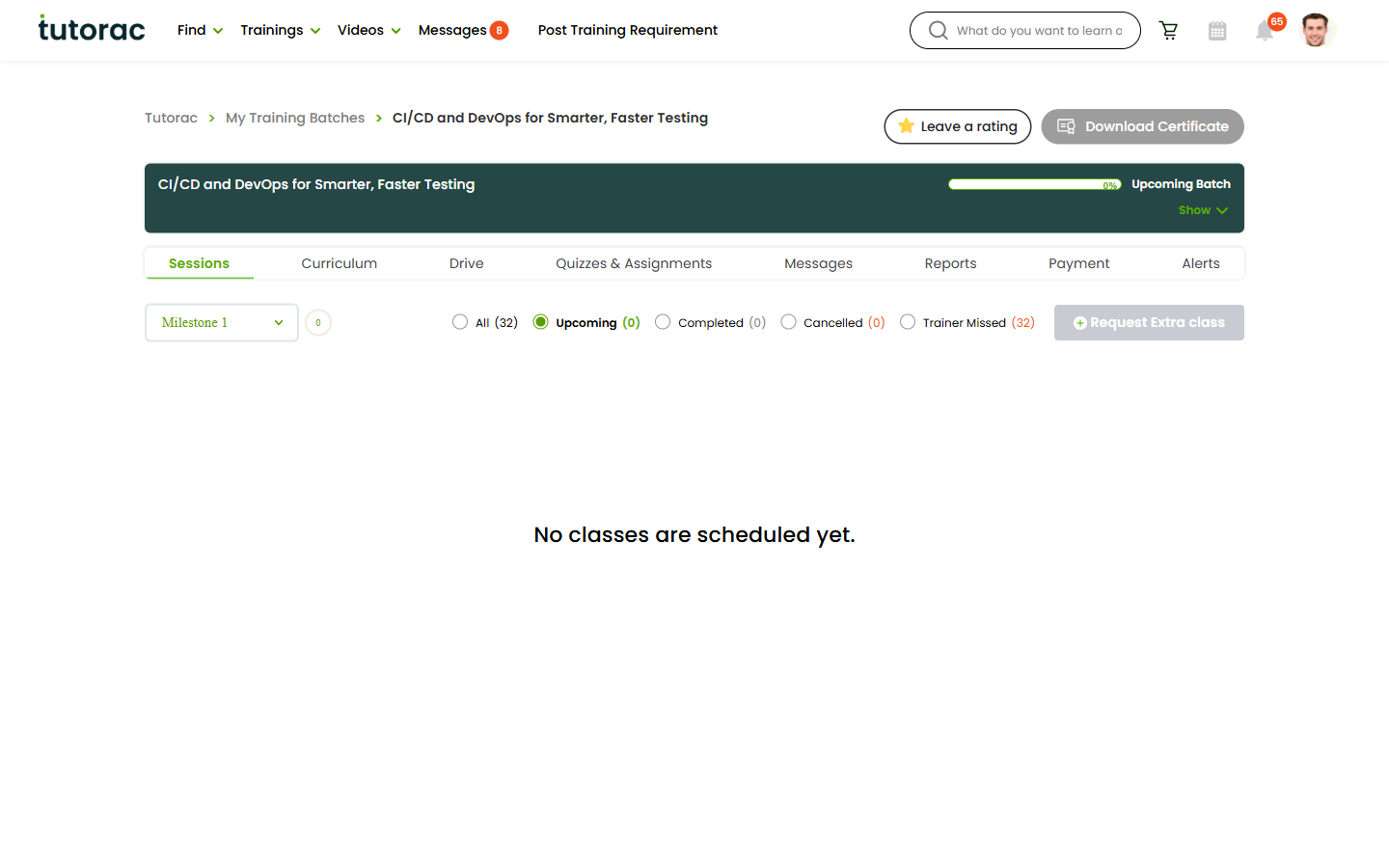
The Sessions tab lists every individual class scheduled in your training. Each row shows the session topic, date and time, status, and join controls. Key things to know:
- Milestone selector on the left lets you switch between milestones (Milestone 1, Milestone 2, etc.).
- Status sub-tabs filter the list: All / Upcoming / Completed / Cancelled / Trainer Missed. The number in parentheses is the count.
- Join appears next to a session when it’s about to start.
- Request Extra class button (top right) lets you ask the tutor for an additional session beyond the planned schedule.
- Past sessions stay in the list with a Completed badge. Recordings (if available) appear inline.
Curriculum tab
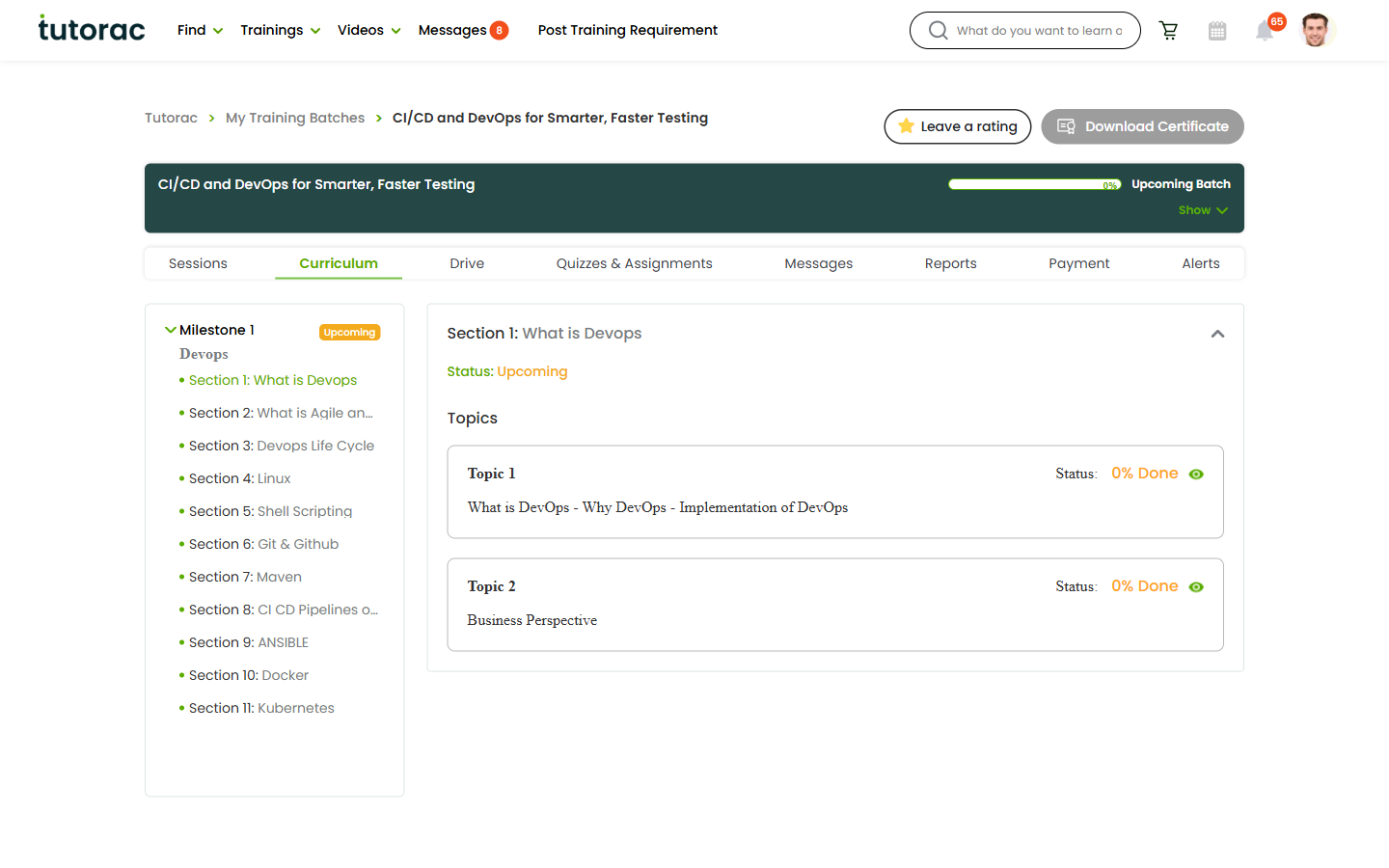
The Curriculum tab shows what you’re going to learn, in order. It mirrors the structure of the Drive: every section here corresponds to a folder in Drive and a chunk of teaching time in Sessions.
- Sections are listed top-to-bottom (Section 1, Section 2, …).
- Expand a section to see the topics covered.
- Some courses also show estimated duration per section.
Use Curriculum as your map of the whole training and check it ahead of sessions to know what’s coming up.
Quizzes & Assignments tab
Tutors can publish quizzes and assignments here for you to complete between sessions. You’ll see:
- The title of each quiz/assignment.
- The section or milestone it belongs to.
- Status — Not started, In progress, Submitted, Graded.
- Due date (if the tutor set one).
- A Start or Continue button.
After you submit, the tutor reviews and grades. Grades feed into your progress reports and feedback.
Milestone and status filters
Across the Sessions tab (and to some extent the other tabs), you can filter content by milestone and by status:
- Milestone selector (left side) — switches which milestone’s sessions/quizzes you’re viewing.
- Status radio tabs — All / Upcoming / Completed / Cancelled / Trainer Missed. Counts in parentheses make it easy to spot, say, two completed sessions vs. zero upcoming.
This is especially useful in long batches where you might have dozens of past sessions and want to find just the upcoming ones.
The other tabs at a glance
- Drive — the shared file workspace for this batch. See How to use the Drive.
- Messages — a chat scoped to this batch (distinct from the platform-wide Messages hub).
- reports — performance reports, attendance, quiz scores.
- payment — milestone payment status, invoices, and remaining balance.
- Alerts — system notifications for this batch.
You can also click the Show button under the batch title to expand a summary card with course name, type (Group / 1-to-1), and current status badge.
FAQs
What is the difference between a milestone and a session?
A milestone is a chunk of your contract (usually mapped to a payment instalment and a set of curriculum sections). A session is one individual class within a milestone. One milestone usually contains several sessions.
My batch shows “No classes are scheduled yet” — what do I do?
That means the tutor has not yet scheduled sessions for the selected milestone or filter. Message the tutor through the batch’s Messages tab to confirm timing.
Can I download a session recording?
Recordings appear on completed sessions (where enabled). They are streamable from the Sessions tab; downloadability depends on the tutor’s settings.
Is the Curriculum the same across all batches of a course?
The base curriculum is the tutor’s template, but they may adapt it slightly per batch based on learner needs. Always refer to the Curriculum tab inside your batch.
What’s the “Trainer Missed” sub-tab on Sessions?
Sessions the tutor was supposed to host but did not. These are tracked separately for review; reach out to Tutorac Support if you see a pattern of missed sessions.
Related articles
- How to use the Drive in your Training Batch
- A tour of Tutorac Messages: your chat hub explained
- How to hire a tutor and start a Training Contract
Last updated: 27 May 2026