A Tutorac chat does more than carry messages back and forth. The right-side panel and the chat input bar surface contextual actions — Meet Now, Hire Now, View Proposal, Progress Tracker, Schedule Free Session, and a safety panel. This article explains what each one does and when it appears.
In this article
- Meet Now
- Hire Now
- View Proposal
- Schedule Free Session
- Progress Tracker
- Learn Safely with Tutorac (safety panel)
- Which buttons appear when
- FAQs
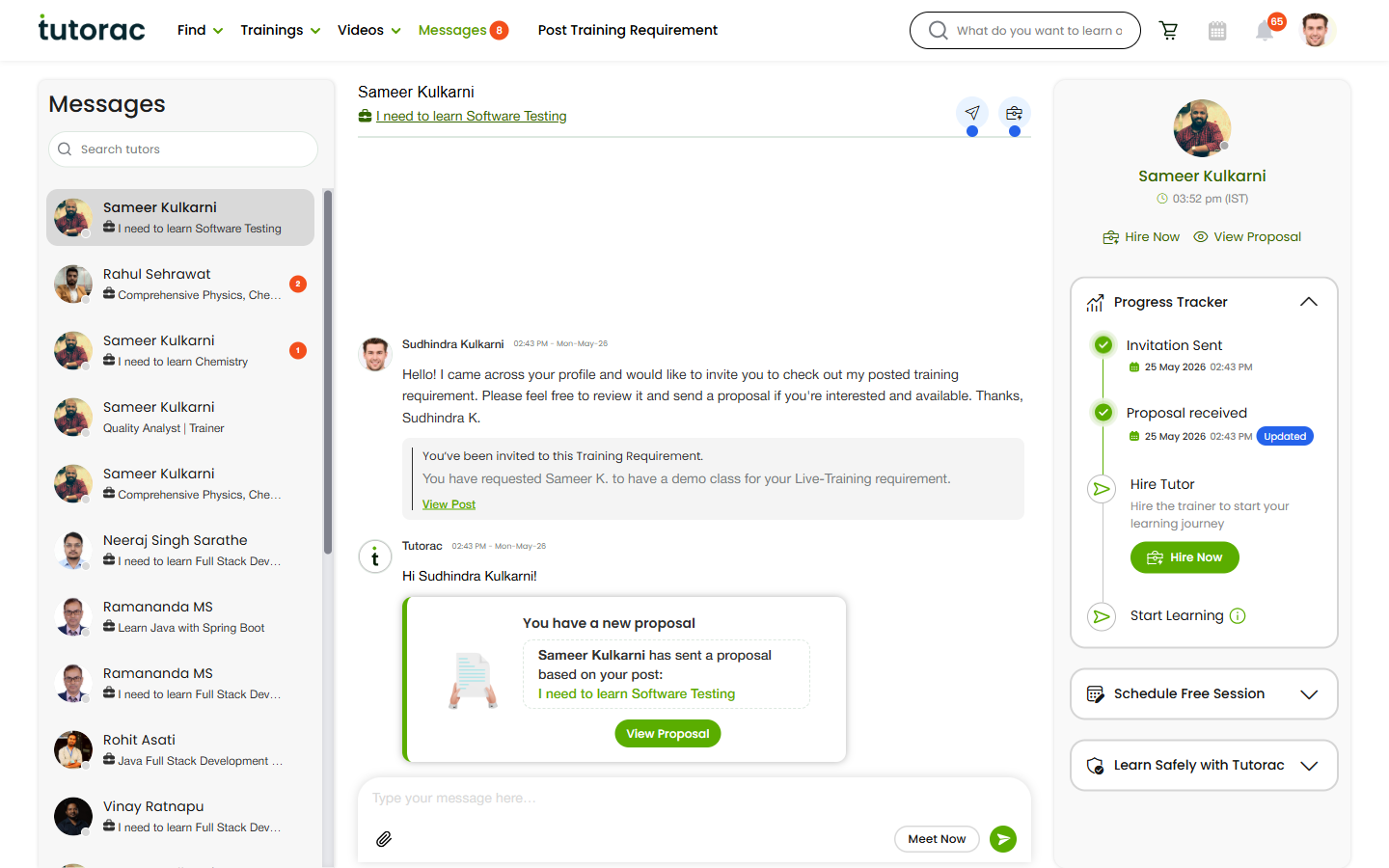
Meet Now
The Meet Now button sits next to your message input box. Clicking it starts an instant video meeting with the tutor — useful when you want to clarify something quickly without scheduling a demo.
- The tutor receives an alert that you’ve started a meeting.
- If they’re online, they can join right away.
- If they’re offline, leave a message and try later, or use Schedule Free Session instead.
Hire Now
Hire Now opens the Send Training Offer page where you set the training scope, milestones, schedule, and price — the contract you want to start with this tutor. It’s only shown before you’ve hired them for this Training Requirement. For the full hiring walkthrough see How to hire a tutor.
View Proposal
If a tutor has sent you a proposal for a Training Requirement, View Proposal jumps straight to that proposal — price, schedule, milestones, and the tutor’s message — so you can review it without leaving Messages. From the proposal page you can Hire, Negotiate, or message the tutor with questions.
Schedule Free Session
Tutorac lets every learner book a 30-minute free demo with a tutor before hiring. The Schedule Free Session action in the right panel opens the booking modal with date and time pickers. Once scheduled, a system message appears in the chat with the confirmed slot. See How to book a Free Demo Session.
Progress Tracker
After you hire a tutor, the right panel switches into post-hire mode and a Progress Tracker appears in place of the Hire Now / View Proposal buttons. It shows:
- The milestones in your active Training Contract with this tutor.
- Which milestone you’re currently on.
- Completed sessions vs. remaining sessions per milestone.
- A quick link into the Training Batch workspace.
This means you can check on your training’s health without leaving the chat thread.
Learn Safely with Tutorac (safety panel)
Below the action buttons, the Learn Safely with Tutorac panel is a persistent reminder of the protections that only apply when you stay on the platform:
- Flexible cancellations — if things don’t work out, you can cancel based on milestone progress.
- Instant refunds — refunds calculated automatically by the cancellation policy.
- Try before you hire — the free 30-minute demo, no payment required.
- Escrow protection — your payments are held by Tutorac until you confirm milestone completion.
The panel also reminds you to avoid moving conversations or payments off Tutorac — doing so removes all of these protections. You may see a “Stay Protected on Tutorac” pop-up the first time you open Messages reinforcing this point.
Which buttons appear when
- You haven’t hired this tutor yet — Hire Now + Schedule Free Session + safety panel. View Proposal appears only if the tutor sent you one.
- You’ve hired this tutor — Progress Tracker + link to the Training Batch + safety panel.
- Contract completed/cancelled — the chat stays open as a record. You can still message but action buttons related to that contract are removed.
Meet Now is always available, regardless of hire status.
FAQs
Does Meet Now cost anything?
No. Meet Now is a quick instant call. Paid sessions only happen inside an active Training Batch (Sessions tab).
If I click Hire Now do I commit to anything?
No. Hire Now opens the Send Training Offer page. You’re only committed once you complete payment for the first milestone, at which point funds go into escrow.
Why is the Hire Now button missing?
Either you’ve already hired this tutor for this Training Requirement (look for Progress Tracker instead), or there’s no Training Requirement attached to this chat yet. Post a Training Requirement first and the action returns.
Can I have multiple Progress Trackers with the same tutor?
Yes — if you have multiple active Training Contracts with the same tutor (e.g., one for QA, one for Selenium). Each conversation row in Messages tracks its own contract.
Does the safety panel ever go away?
No — the Learn Safely panel stays in every chat as a permanent reminder.
Related articles
- A tour of Tutorac Messages: your chat hub explained
- How to hire a tutor and start a Training Contract
- How to book a Free Demo Session with a tutor
Last updated: 27 May 2026