Tutorac stores your saved cards in your profile so you can pay for milestones in a couple of clicks. This guide shows you how to add a card, remove one, what Tutorac does (and doesn’t) store, and which currency the card will be charged in.
In this article
- Where to manage your cards
- Add a payment card
- Remove a payment card
- How your card data is secured
- Supported card types & charge currency
- FAQs
Where to manage your cards
- Sign in and click your avatar in the top right.
- Choose My Profile.
- In the left sidebar, click CARD DETAILS (URL:
/student/profile/cards).
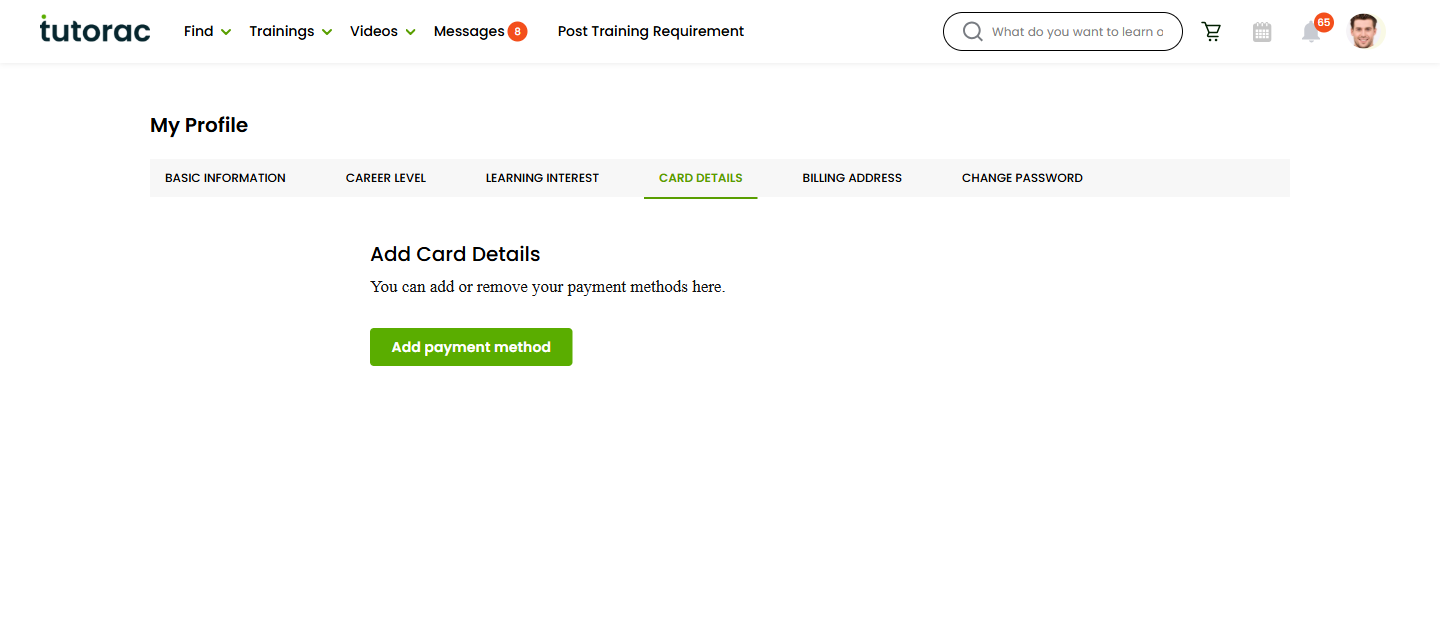
Saved cards (if any) appear as cards on this page. An empty state means you haven’t added one yet.
Add a payment card
- On the Card Details page, click Add payment method.
- A “Debit / Credit Card” form appears with:
- Name on card — the cardholder’s name.
- Card number — entered in Tutorac’s secure card field (handled by the payment processor, not stored on Tutorac’s own servers).
- Expiry and CVC — in the same secure field.
- Fill in the details.
- Click Save.
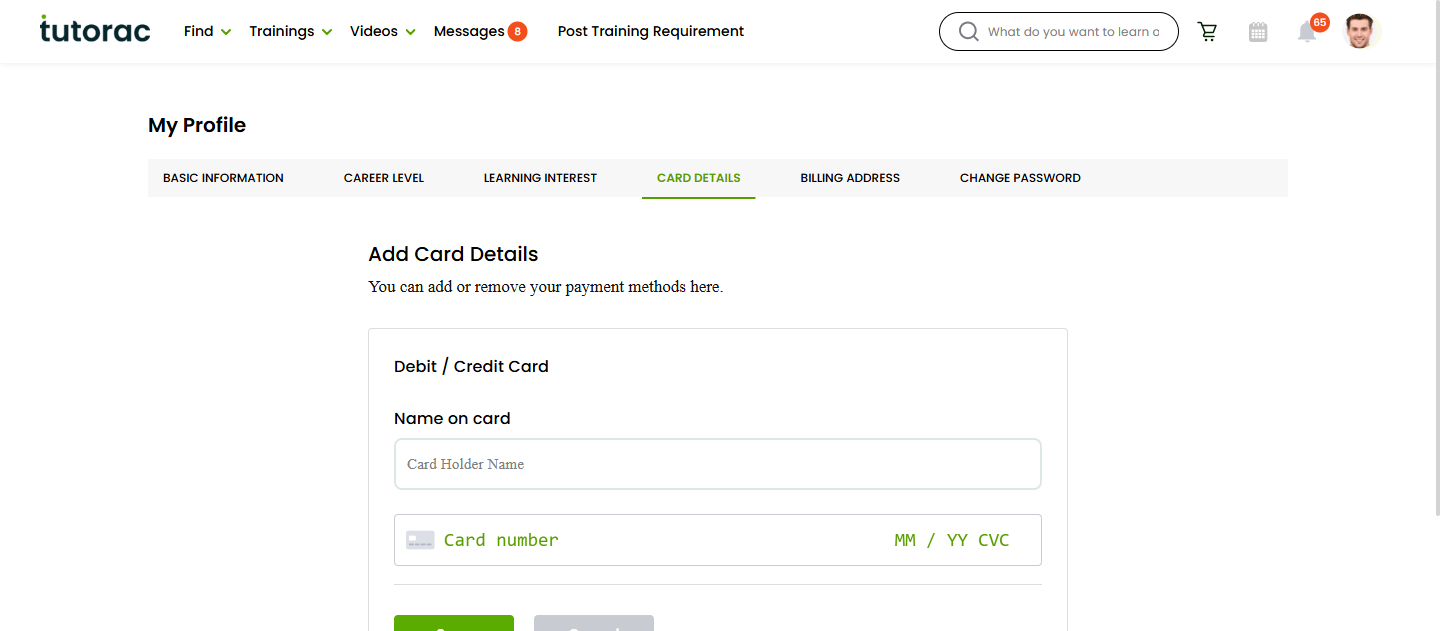
Once saved, the card is listed in your Card Details with the last four digits and expiry date.
Remove a payment card
- Go to Profile → CARD DETAILS.
- Find the card you want to remove.
- Click the Delete (trash) icon on that card.
- Confirm in the dialog.
The card is removed immediately. Tutorac no longer has a token to charge it. Any active subscriptions or recurring payments tied to it will need a new payment method before the next billing cycle.
How your card data is secured
- Card numbers, expiry, and CVC are entered into a PCI-compliant secure field embedded in an iframe from Tutorac’s payment processor — Tutorac’s own servers never see your full card number.
- Tutorac stores only a tokenised reference and the last four digits to display in your profile.
- All traffic uses HTTPS.
This is the same model used by major payment processors (Stripe, Razorpay, etc.) for safe card storage.
Supported card types & charge currency
Card networks accepted:
- Visa — debit and credit, worldwide.
- Mastercard — debit and credit, worldwide.
- American Express — where supported by the issuer.
- RuPay — for India-issued debit cards on India accounts.
- Most regional debit cards backed by Visa / Mastercard rails.
Which currency will my card be charged in?
- India account → charged in ₹ INR, regardless of where the card was issued.
- Account in any other country → charged in $ USD, regardless of where the card was issued.
- If your card is issued in a third currency (e.g., a GBP card on a USD account), your bank will convert at its own FX rate when posting the transaction.
If your card is declined, see Troubleshooting failed payments.
FAQs
Can I save more than one card?
Yes — add multiple cards and choose which one to use at checkout for each milestone payment.
Does Tutorac auto-charge my saved card?
No. Each milestone payment requires you to confirm the charge. Tutorac doesn’t silently bill your card without your action.
Can I use UPI, net banking, or a digital wallet instead?
Card Details only stores cards. UPI / net banking / wallet flows may be available at checkout depending on your region — India accounts typically see UPI and net banking as alternatives; USD accounts typically see card and wallet options through the global payment processor.
Will Tutorac email my card details?
No — never. If you receive an email asking for your card number / CVC, it’s phishing. Report it to Tutorac Support.
My card expired. What happens?
Expired cards can’t be used to pay. Add a fresh card and delete the old one to keep your profile tidy.
Related articles
- How payments work on Tutorac: milestones, escrow, and releasing funds
- How to update your billing address on Tutorac
- Troubleshooting failed payments and refunds
Last updated: 28 May 2026