Author: tutorac

  • How the contract workflow works

    Whether you start the agreement or the learner does, every contract follows the same path — from a draft or an offer through to confirmed, delivered work. This article maps the full lifecycle.
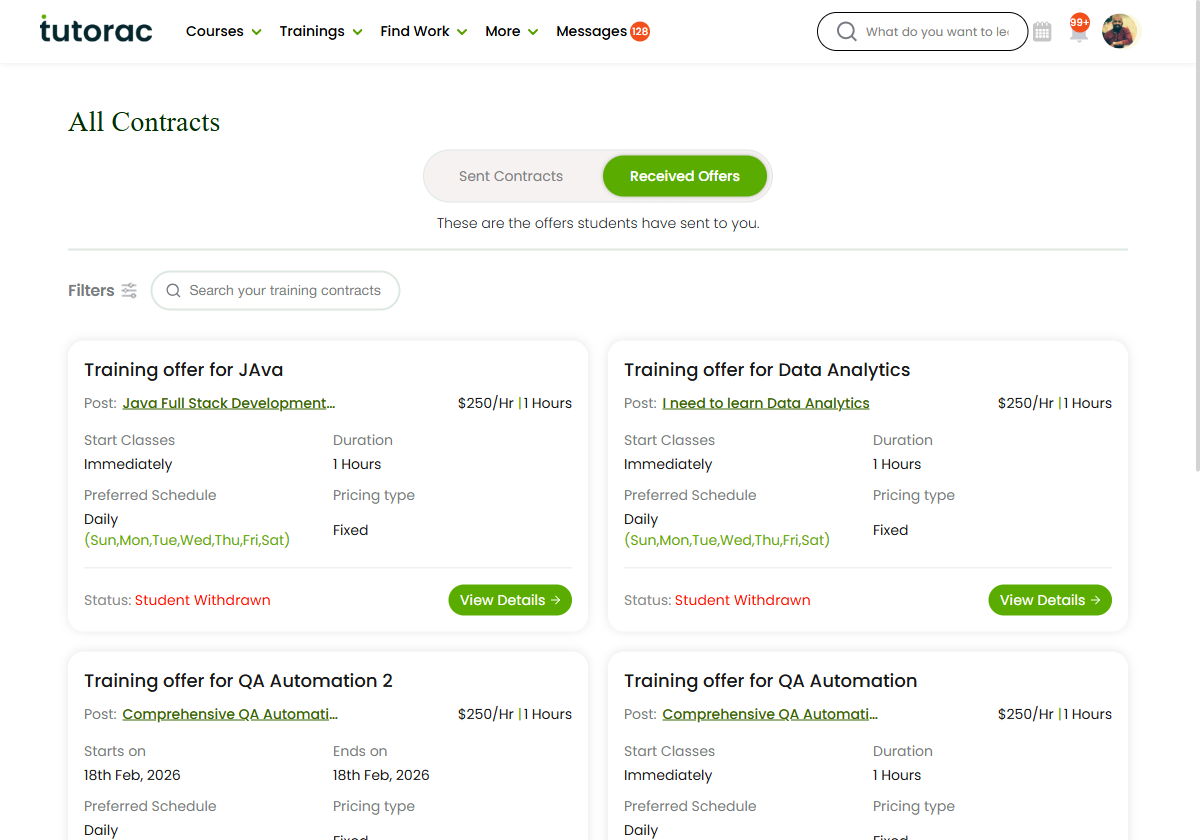
    The Received Offers tab on Tutorac's All Contracts page — offers learners have sent the tutor, showing rate, duration, preferred schedule, pricing type and status (Scheduled / You Declined / Student Withdrawn) with View Details

    In this article

    Two ways an agreement starts

    • You send a Training Contract — you create the agreement and send it to the learner.
    • A learner sends you an offer — the learner proposes the work and you respond.

    Both routes end the same way: an accepted agreement and confirmed work. You can see both at once in All Contracts & Offers.

    The Sent Contract path

    A contract you create moves through these stages:

    • Draft — created but not finished (Finish Ad completes it).
    • Active — live, so the learner can accept and enrol.
    • Expired or Cancelled — the enrol-by date passed, or you called it off.
    • Completed — the training was delivered. The Enrolled count shows how many learners joined.

    The Received Offer path

    An offer from a learner moves through these stages:

    • Received — the offer arrives on the Received Offers tab.
    • Reviewed — you open View Details to check the terms.
    • Accepted — it becomes Scheduled and the engagement is Hired; or you mark it You Declined.
    • Student Withdrawn — the learner can pull the offer back before you accept.

    Once it’s confirmed

    However the agreement starts, once it’s accepted the engagement is Hired and you can begin teaching. You then manage delivery — sessions, attendance and payments — from your training batches. See the Demo & Live Sessions and Drive, Resources & Messages sections.

    FAQs

    Who can start a contract?

    Either side. You can send a Training Contract, or a learner can send you an offer.

    When is the work confirmed?

    As soon as the contract or offer is accepted — the engagement then shows as Hired.

    Where do I watch a contract’s progress?

    In All Contracts & Offers — the status on each card updates as it moves through the workflow.


    Related articles

    Last updated: 17 June 2026

  • Received Offers: offers learners send you

    Sometimes the learner makes the first move. The Received Offers tab lists the offers learners have sent you to deliver training. Here’s how to read each one and what the statuses mean.

    The Received Offers tab on Tutorac's All Contracts page — offers learners have sent the tutor, showing rate, duration, preferred schedule, pricing type and status (Scheduled / You Declined / Student Withdrawn) with View Details

    In this article

    What this tab shows

    The header reads “These are the offers students have sent to you.” A learner sets out what they want and the terms they propose; each offer arrives here for you to review and respond to.

    Reading an offer card

    Each card summarises one offer:

    • Title — for example “Training offer for Java.”
    • Post — the course or requirement the offer relates to.
    • Rate & hours — the price per hour and total hours proposed.
    • Start Classes — Immediately, or a Starts on / Ends on date range.
    • Duration — the length of the engagement.
    • Preferred Schedule — the days the learner wants (for example Daily, or Weekly with specific days).
    • Pricing type — for example Fixed.
    • Status — where the offer stands.

    What each status means

    • Scheduled — accepted with dates set; the training is lined up.
    • You Declined — you turned the offer down.
    • Student Withdrawn — the learner pulled the offer back.
    • An offer awaiting your response stays open until you act, and a delivered offer shows as Completed.

    Reviewing and responding

    Open View Details to see the full offer. From there you can accept it — which confirms the work and marks the engagement Hired — or decline it. If the terms aren’t quite right, talk to the learner first; see “Negotiating terms before you commit.” The full accept flow is in “Receiving and accepting an offer.”

    Inside an offer (View Details)

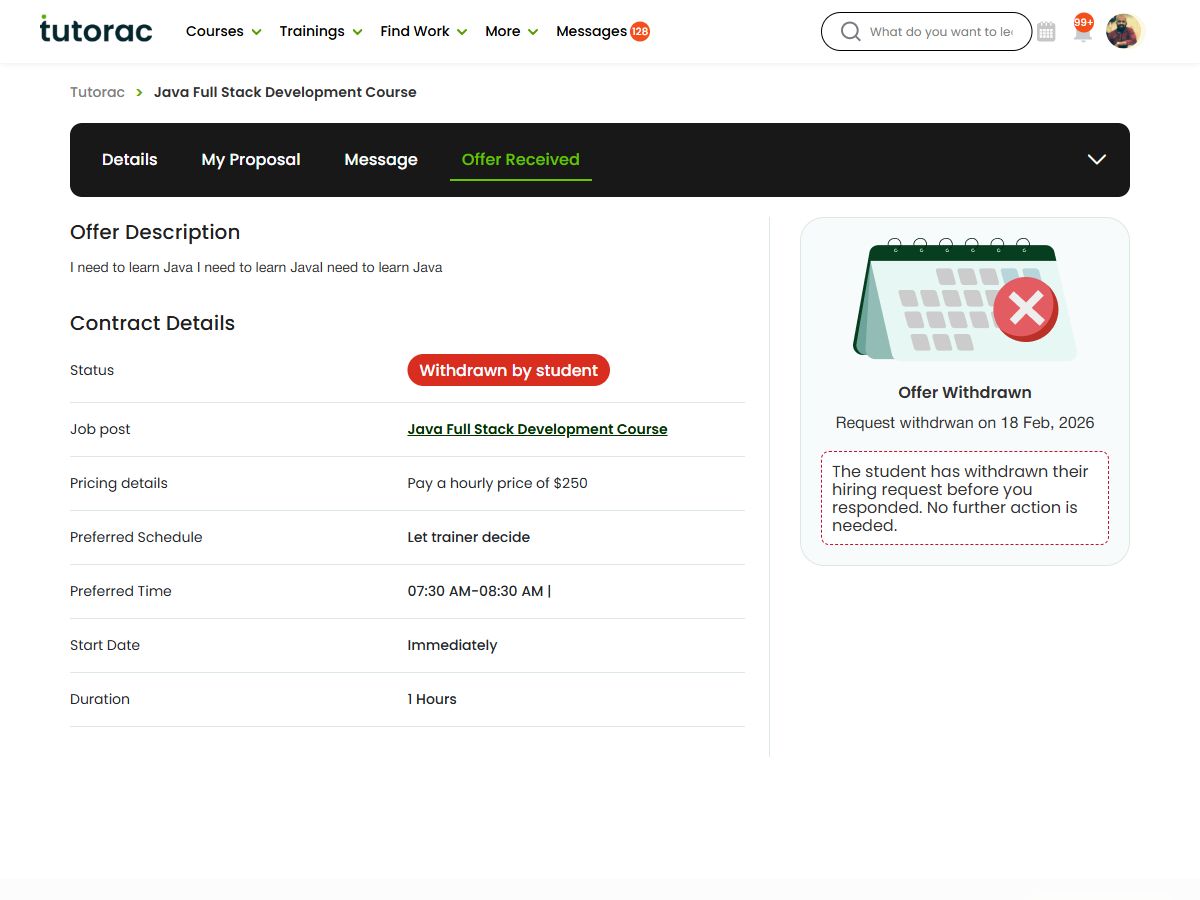
    Opening View Details shows the full offer on a job-style page with Details, My Proposal and Message tabs. The Offer Received panel carries the learner’s Offer Description and a Contract Details block — Status, Job post, Pricing details, Preferred Schedule, Preferred Time, Start Date and Duration. A status note sits at the bottom: when the offer still needs you, your accept and decline options appear there; if the learner has withdrawn it, you’ll see a note that no further action is needed.

    A received offer's View Details page on Tutorac — the Offer Received panel with the learner's Offer Description and a Contract Details block (Status, Job post, Pricing, Preferred Schedule, Preferred Time, Start Date, Duration) plus a status note

    FAQs

    Where do offers from learners appear?

    On the Received Offers tab of All Contracts & Offers (Trainings → All Contracts).

    What does “Student Withdrawn” mean?

    The learner cancelled the offer before it was accepted, so no action is needed from you.

    Do I have to accept straight away?

    No. Review it under View Details, and discuss any changes with the learner before deciding.


    Related articles

    Last updated: 17 June 2026

  • Sent Contracts: contracts you’ve sent to learners

    The Sent Contracts tab lists every Training Contract you’ve created and sent to a learner. Here’s how to read each card, what the statuses mean, and what you can do from here.

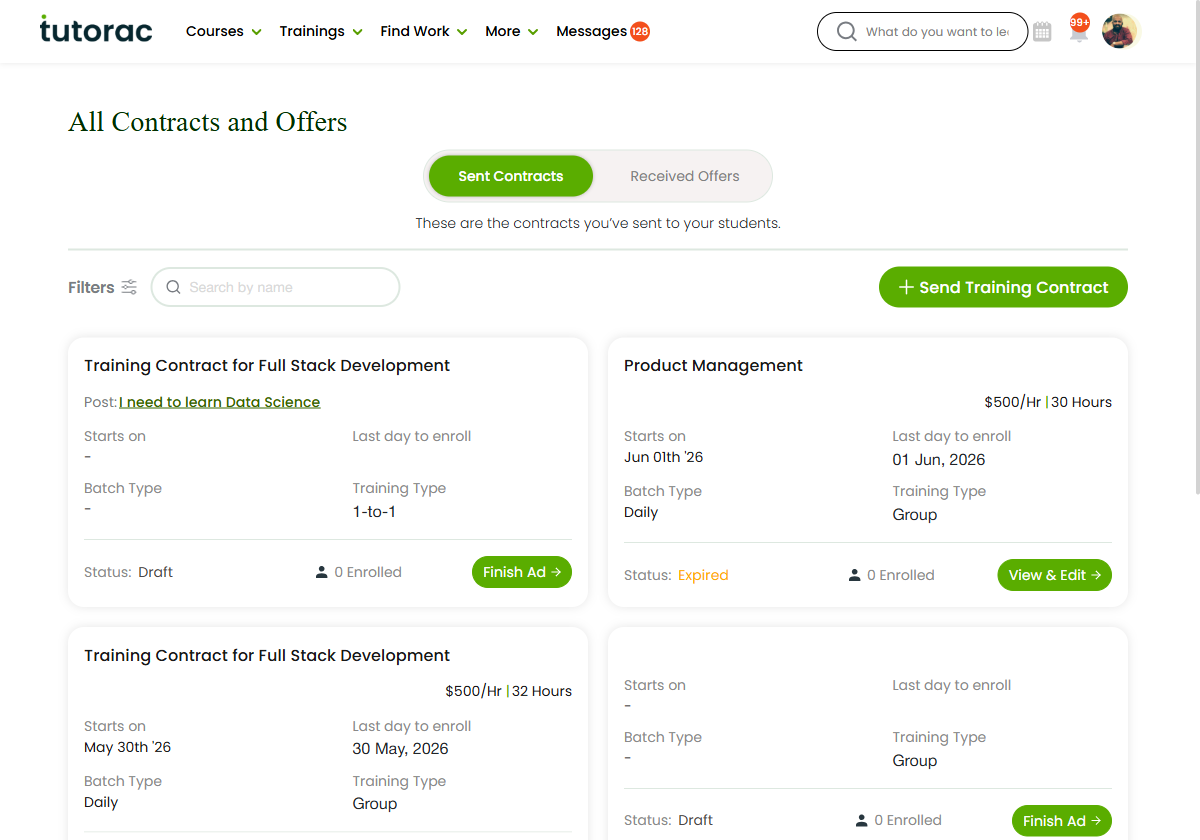
    The All Contracts and Offers page on Tutorac — the Sent Contracts tab listing Training Contracts the tutor has sent, with rate, hours, schedule, training type, status (Draft/Active/Expired) and the Send Training Contract button

    In this article

    What this tab shows

    The header reads “These are the contracts you’ve sent to your students.” Every Training Contract you build with Send Training Contract lands here, so you always have a record of what you’ve offered and to whom.

    Reading a contract card

    Each card summarises one contract:

    • Title — for example “Training Contract for Full Stack Development.”
    • Post — the learner requirement the contract responds to, when it’s linked to one.
    • Rate & hours — your price per hour and the total hours.
    • Starts on / Last day to enroll — when training begins and the cut-off to join.
    • Batch Type — how sessions recur (for example Daily).
    • Training Type — 1-to-1 or Group.
    • Status and Enrolled count — where the contract stands and how many learners have joined.

    What each status means

    • Draft — started but not yet finished or published. Use Finish Ad to complete it.
    • Active — live, so the learner can accept and enrol.
    • Expired — the last day to enrol has passed.
    • Completed — the training has been delivered.
    • Cancelled — the contract was called off.

    Actions you can take

    • Finish Ad — complete a Draft and send it.
    • View & Edit — open an existing contract to review or update it.
    • Send Training Contract — start a brand-new contract from the top of the page.

    Sending a new contract is covered step by step in “Sending a Training Contract to a learner.”

    Opening a contract (View & Edit)

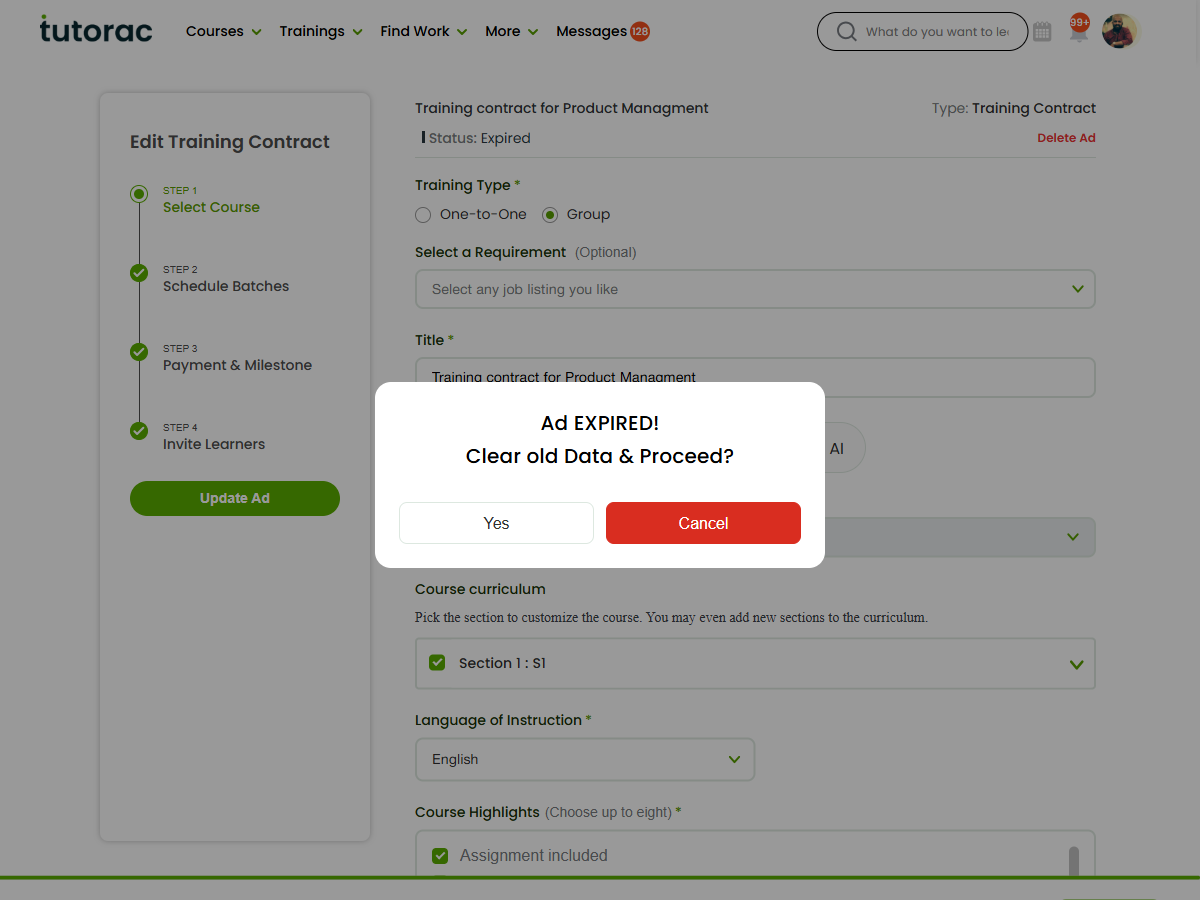
    Selecting View & Edit on a contract opens the Edit Training Contract wizard — the same four steps used to create one: Select Course, Schedule Batches, Payment & Milestone and Invite Learners. The header shows the contract’s Type and Status. Move between the steps to review or change the course, curriculum, language and highlights, then Update Ad to save your changes — or Delete Ad to remove the contract.

    The Edit Training Contract wizard on Tutorac (Step 1 Select Course), opened from a sent contract via View & Edit — Training Type, Title, Select Course, curriculum sections, Language of Instruction and Course Highlights, with Update Ad and Delete Ad

    FAQs

    Where do my sent contracts appear?

    On the Sent Contracts tab of All Contracts & Offers (Trainings → All Contracts).

    What is a Draft contract?

    One you’ve started but not finished. Use Finish Ad to complete and send it.

    Why is my contract Expired?

    Its last day to enrol has passed. Create a new contract if you still want to offer the training.


    Related articles

    Last updated: 17 June 2026

  • All Contracts & Offers: your contracts hub

    All Contracts & Offers is the one place where every training agreement you’ve sent and every offer you’ve received comes together. This article shows where to find it and what each part does.

    The All Contracts and Offers page on Tutorac — the Sent Contracts tab listing Training Contracts the tutor has sent, with rate, hours, schedule, training type, status (Draft/Active/Expired) and the Send Training Contract button

    In this article

    Where to find it

    Open the Trainings menu in the top navigation and choose All Contracts. The page opens on the Sent Contracts view, and you can switch between the two tabs at the top whenever you like.

    The two tabs

    • Sent Contracts — the Training Contracts you’ve created and sent to learners.
    • Received Offers — the offers learners have sent to you.

    Every agreement appears as its own card, so you can scan everything in progress at a glance. Each tab is covered in detail in “Sent Contracts: contracts you’ve sent” and “Received Offers: offers learners send you.”

    Filtering and statuses

    Use Filters at the top of either tab to narrow the list by Status when you have a lot of records — for example Active, Draft, Expired, Completed or Cancelled. Every card also carries its own status label, so you can see where it stands without opening it.

    How it relates to My Proposals

    My Proposals tracks the proposals you submit on training jobs. All Contracts & Offers is the dedicated view of what those conversations become — the contracts you send and the offers you receive. For the concepts behind them, see the Offers & Contracts section.

    FAQs

    Where do I open All Contracts & Offers?

    From the top navigation: Trainings → All Contracts. It opens on the Sent Contracts tab.

    What’s the difference between the two tabs?

    Sent Contracts are agreements you sent to learners. Received Offers are offers learners sent to you.

    Can I filter the lists?

    Yes — use Filters → Status on either tab.


    Related articles

    Last updated: 17 June 2026

  • Managing your work within an agency

    Once you’re working under an agency, staying organized and reliable is what keeps things running well. Here’s how to manage your day-to-day work.

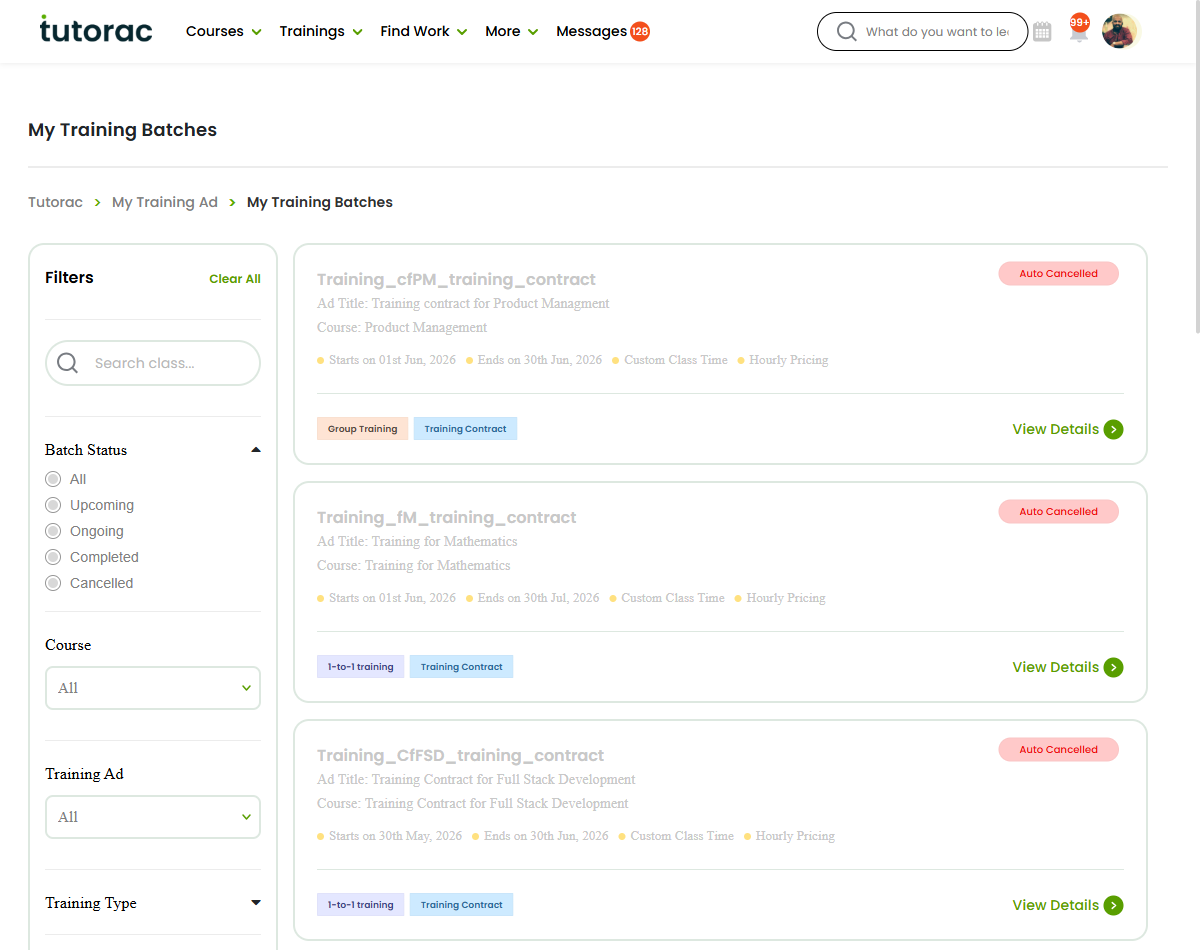
    Managing your work under an agency — the My Training Batches list (Upcoming/Ongoing/Completed/Cancelled) of batches the agency has assigned to you

    In this article

    Stay organized

    Track the sessions, learners, and deadlines you’re responsible for. Staying on top of your schedule means you don’t miss commitments and learners get a dependable experience.

    Keep your agency informed

    Share progress and flag any issues early. If something changes — your availability, a learner concern, a scheduling clash — let your agency know promptly so it can be handled together.

    Deliver quality consistently

    Your teaching reflects on both you and your agency. Prepare for sessions, show up on time, and keep the standard high so learners and the agency can rely on you.

    FAQs

    How do I keep track of my assigned work?

    Keep your own record of sessions and deadlines, and confirm details with your agency where needed.

    What if my availability changes?

    Tell your agency as early as possible so the work can be adjusted.

    Who handles a learner complaint?

    Depends on your arrangement. Raise it with your agency so it’s resolved the right way.


    Related articles

    Last updated: 8 June 2026

  • Coordinating with your agency

    Smooth coordination with your agency keeps training running well and learners happy. These principles help you work together effectively.

    In the agency context, the My Training Batches page shows the batches allotted by the agency, with filters for status, course and training ad — how a tutor coordinates work with the agency

    In this article

    Keep communication clear

    Agree how and how often you’ll stay in touch with your agency — for schedules, learner updates, and any issues. Prompt, clear communication prevents most problems.

    Know who does what

    Be clear on which responsibilities sit with you and which sit with the agency — for example, who handles scheduling, learner queries, or administrative tasks. Clear roles avoid gaps and duplication.

    Put learners first

    Whatever the arrangement, learners should get a consistent, high-quality experience. Coordinate with your agency so handoffs are smooth and nothing falls through the cracks.

    FAQs

    How often should I check in with my agency?

    As often as you both agree. Set a rhythm that keeps everyone informed.

    What if responsibilities are unclear?

    Clarify them with your agency directly so there are no gaps.

    Who does the learner contact?

    That depends on your arrangement — make sure it’s clear so learners always know who to reach.


    Related articles

    Last updated: 8 June 2026

  • Joining and working under an agency

    If you join an agency, the way you take on and deliver work shifts. Here’s what working under an agency generally involves.

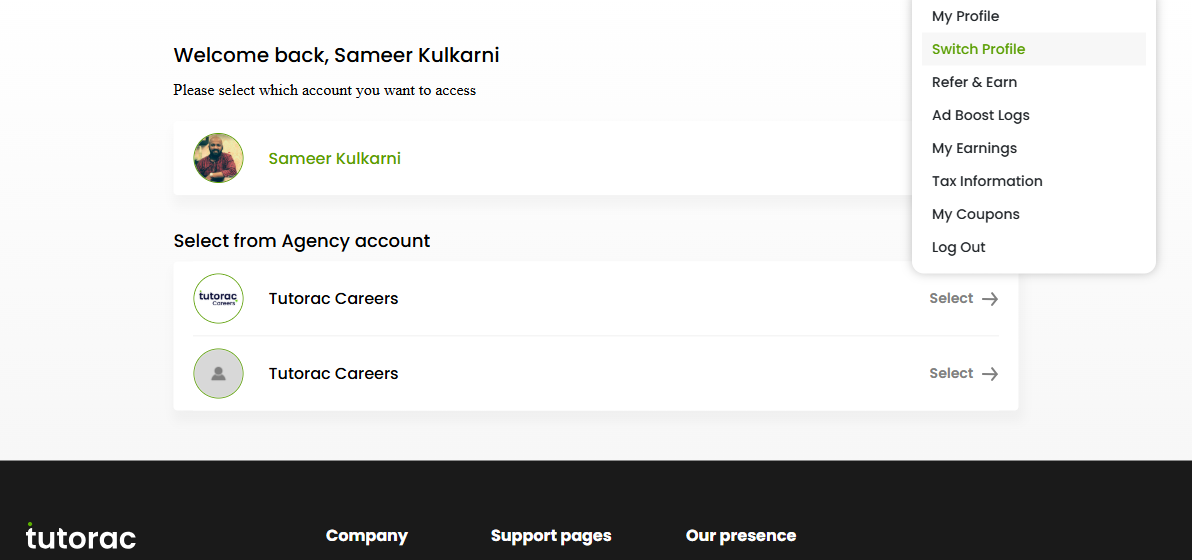
    Joining and working under an agency — the Switch Profile screen lists your agency accounts; selecting one lets you work as a tutor under that agency

    In this article

    Joining an agency

    Working under an agency starts with an arrangement between you and that agency. The agency defines how you’ll work together; you bring your teaching skills and deliver the training.

    How work flows

    Under an agency, opportunities and coordination may come through the agency rather than only through your own efforts. Your main focus stays on delivering good training to the learners you’re assigned.

    Agree the terms

    Make sure you and your agency are clear on the important details up front — responsibilities, communication, and how earnings are handled. Putting this in writing avoids misunderstandings later.

    FAQs

    How do I start working under an agency?

    Through an arrangement you make with the agency itself.

    Will my work come from the agency?

    That depends on your arrangement. Coordination often runs through the agency.

    How are earnings handled?

    As agreed with your agency. Confirm this clearly before you begin.


    Related articles

    Last updated: 8 June 2026

  • Working with an agency: an overview

    Some tutors work independently; others work under an agency. This overview explains what being an agency tutor on Tutorac means.

    Working with an agency on Tutorac — using Switch Profile (top-right menu) to choose an agency account from the list of agencies you belong to

    In this article

    What an agency tutor is

    An agency tutor delivers training on Tutorac while working under an agency rather than entirely on their own. The agency and tutor coordinate on the work, with the tutor focusing on teaching.

    How it differs from going solo

    As an independent tutor, you manage everything yourself — finding work, agreeing terms, and delivering training. Under an agency, some of that coordination is shared with the agency, so the way you find and manage work can differ.

    What to expect

    The exact arrangement — how work is assigned, how communication flows, and how earnings are handled — depends on your agreement with your agency. Clarify these details with your agency directly so you both have the same expectations.

    FAQs

    Do I have to work with an agency?

    No. Many tutors work independently. Working under an agency is one option.

    Who decides how the arrangement works?

    The specifics are set between you and your agency.

    Where can I get help?

    For platform questions, contact support@tutorac.com. For arrangement-specific questions, speak to your agency.


    Related articles

    Last updated: 8 June 2026

  • Sharing teaching materials with learners

    Sharing notes, slides, and other materials helps your learners get the most from your training. Here’s how to do it well on Tutorac.

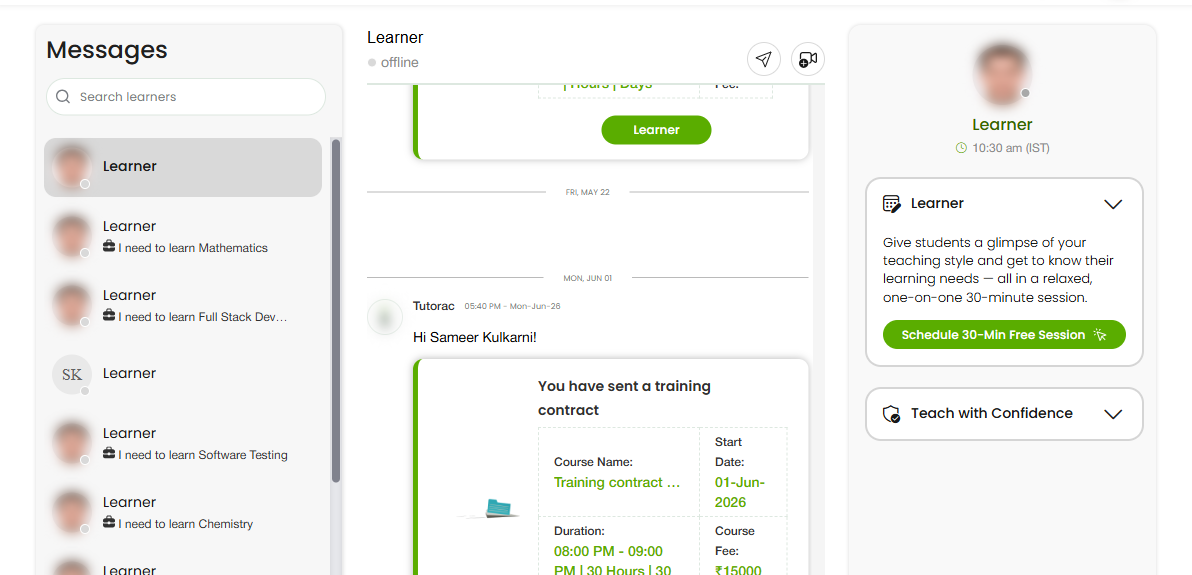
    The Tutorac message thread with the composer and attachment option used to share teaching materials with learners (names masked)

    In this article

    How sharing works

    Materials you keep in your resource library can be shared with the learners you’re training. Sharing through Tutorac keeps everything tied to the right class and learners.

    Use Class Messages

    For a specific class or batch, share materials in Class Messages so they stay with that group and are easy for those learners to find. See “Global Messages vs Class Messages.”

    Good practice

    • Share materials in step with your lessons, so learners get them at the right time.
    • Name files clearly so they’re easy to identify later.
    • Only share what you have the right to distribute.

    FAQs

    Where do shared materials come from?

    From your resource library. See “Drive access and your resource library.”

    Where should I share class materials?

    In Class Messages for that class, so they stay with the group.

    Can I share anything I like?

    Only share materials you have the right to distribute, and keep them appropriate for your learners.


    Related articles

    Last updated: 8 June 2026

  • Drive access and your resource library

    Your teaching materials and shared files have a home on Tutorac. This article explains Drive access and your resource library at a glance.

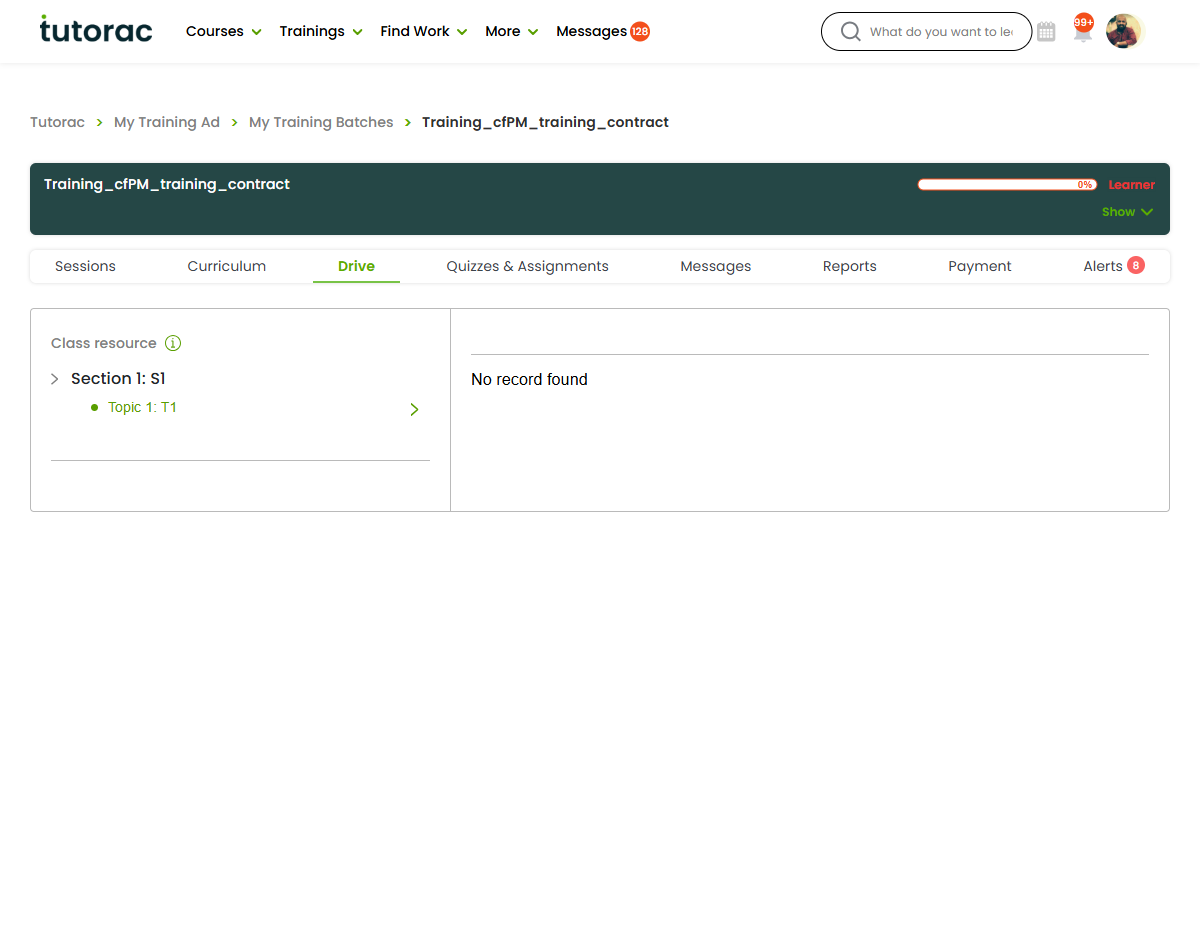
    The Drive tab inside a Class Detail on Tutorac — the class resource library organised by Section and Topic, where tutors access and share teaching materials for a batch

    In this article

    What the resource library is for

    Your resource library is where teaching materials connected to your training live — the files you use and share as part of delivering a course.

    Drive access

    Drive access lets you reach the materials tied to your training so they’re available when you need them. Use it to keep the resources for your classes in one place.

    Keeping it organised

    • Use clear, descriptive file names.
    • Keep only current versions to avoid confusion.
    • Group materials by the class or topic they belong to.

    FAQs

    What goes in my resource library?

    The teaching materials and files connected to your training.

    How do I share these with learners?

    See “Sharing teaching materials with learners.”

    I can’t find something — what should I do?

    If a file you expect is missing, contact support@tutorac.com.


    Related articles

    Last updated: 8 June 2026