Messages is where every conversation with every tutor lives — from your first “hello” before a free demo, through hiring, to ongoing chat with the tutor running your training. This tour walks you through the chat hub at tutorac.com/messages/profile and explains every section.
In this article
- How to open Messages
- The 3-pane layout
- Left pane: your conversations
- Middle pane: the chat thread
- Right pane: tutor context
- System messages
- Unread message counts
- FAQs
How to open Messages
Click Messages in the top navigation bar of any signed-in page, or go directly to tutorac.com/messages/profile. The Messages button shows an unread counter when you have new messages.
The 3-pane layout
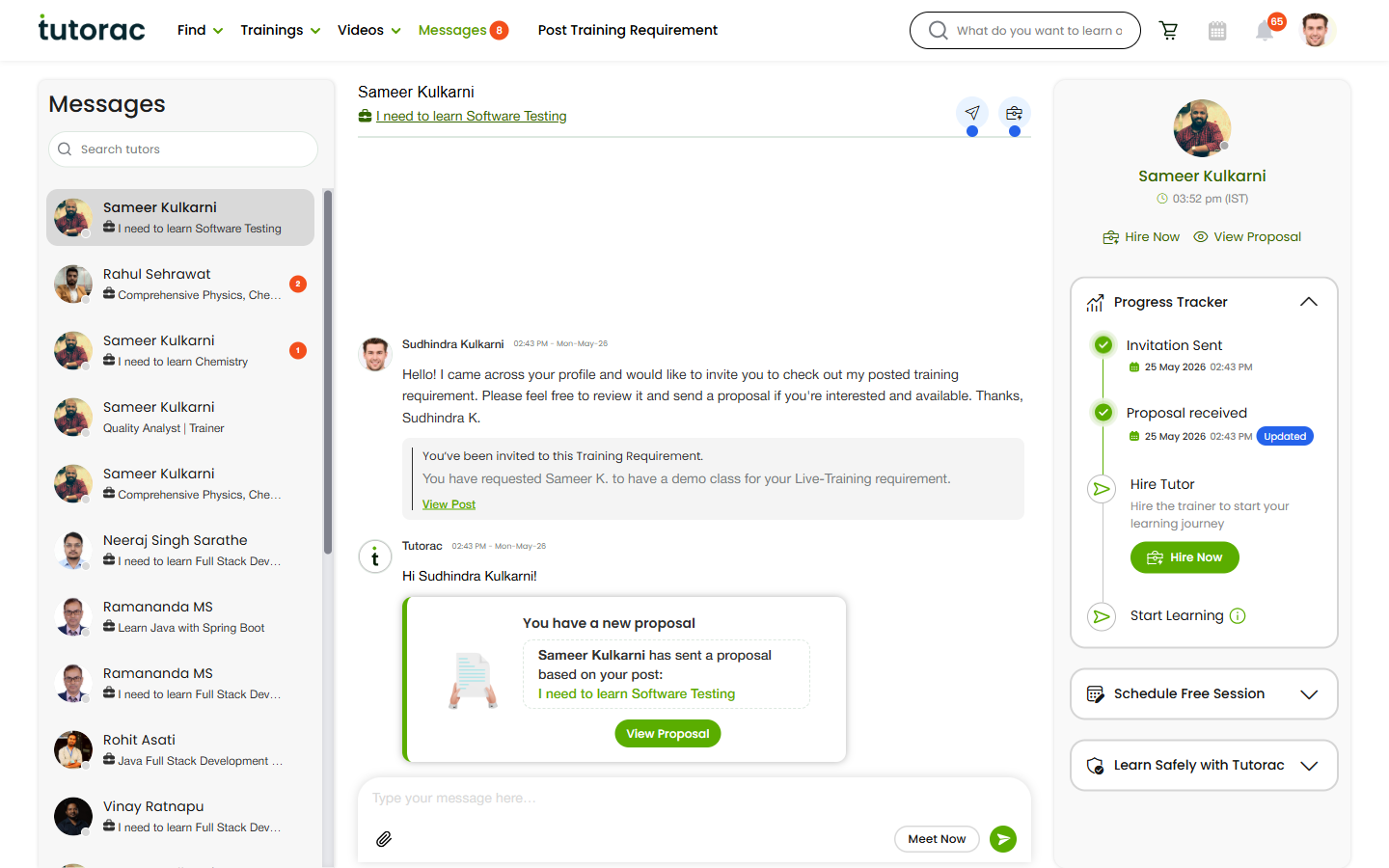
Messages is split into three columns:
- Left — your conversations list, grouped by tutor and Training Requirement.
- Middle — the chat thread for the conversation you’ve selected.
- Right — a context panel about the selected tutor with quick actions (different actions depending on where you are in the hiring journey).
Left pane: your conversations
Each row is one tutor + Training Requirement combination. So if the same tutor messaged you about two different requirements, you’ll see two rows. Each row shows:
- Tutor name and profile photo.
- The Training Requirement or topic this conversation is about (e.g., “I need to learn Software Testing”).
- An unread count badge if there are messages you haven’t read yet.
Use the Search tutors box at the top of the left pane to quickly find a conversation.
Middle pane: the chat thread
The chat thread shows your full message history with this tutor for this Training Requirement. Features:
- Your messages appear on the right; tutor messages on the left.
- Timestamps on every message.
- Type your message here… — the input box at the bottom. Press Enter to send.
- Attachment icon (paperclip) lets you attach files to your message.
- Meet Now button starts an instant video meeting with the tutor.
Files attached to messages also appear in the conversation history and are downloadable later.
Right pane: tutor context
The right pane shows the tutor’s profile summary at the top (name, photo, local time) and a set of action buttons that change based on where you are in the hiring journey:
- Before hiring — you’ll see Hire Now, View Proposal (if they sent one), Schedule Free Session, and the Learn Safely with Tutorac safety panel.
- After hiring — you’ll see a Progress Tracker showing milestone progress, plus links back to the active Training Contract and batch.
This panel saves you from leaving Messages to take the next step — you can hire, schedule a demo, or jump to your batch directly from chat.
System messages
Some messages in the thread come from Tutorac itself rather than you or the tutor. They appear in the centre of the thread and announce events like:
- “Tutor sent you a proposal”
- “You hired this tutor”
- “Free demo session scheduled for [date/time]”
- “Session ended” / “Session missed”
- Safety advisories (e.g., reminders to keep payments on Tutorac)
These are a record of what happened — they don’t need a reply.
Unread message counts
Tutorac surfaces unread messages in three places:
- The Messages item in the top navigation shows a total unread badge.
- The Messages icon in the second top bar shows the same total.
- Each conversation row in the left pane has its own unread badge.
Opening a conversation marks all its messages as read.
FAQs
Can I have multiple chats with the same tutor?
Yes — one per Training Requirement (or one general chat if you’re not yet tied to a requirement). Each appears as a separate row in the left pane.
Where do I find old messages with a tutor I worked with last year?
Scroll through the conversations list or use the Search tutors box. Past conversations stay even after a contract completes.
Will the tutor see when I’ve read their message?
Read receipts are not currently displayed to tutors. Online status indicators and timestamps are visible to both sides.
Can I message a tutor before booking a demo or sending an invite?
Yes. Use the Send Direct Message button on any tutor card from Find Tutors. See How to message a tutor before hiring.
Are tutor chats different from Training Batch chats?
Yes — Messages is the platform-wide chat with the tutor. After hiring, each Training Batch also has its own Messages tab inside the batch workspace, scoped to that specific batch.
Related articles
- How to message a tutor before hiring on Tutorac
- How to book a Free Demo Session with a tutor
- How to hire a tutor and start a Training Contract
Last updated: 27 May 2026