Tutorac surfaces what needs your attention in two places: the bell-icon Notifications feed and the unread message counts in Messages. This article explains both, how to clear them, and how to stay on top of important updates without information overload.
In this article
- The Notifications page
- What triggers a notification
- Unread message counts
- Marking notifications as read
- Email notifications
- Tips for staying on top of updates
- FAQs
The Notifications page
Tutorac collects every event the platform thinks you should know about into a single feed at tutorac.com/notification. The bell icon in the top bar opens this page and shows an unread badge when there are new items.
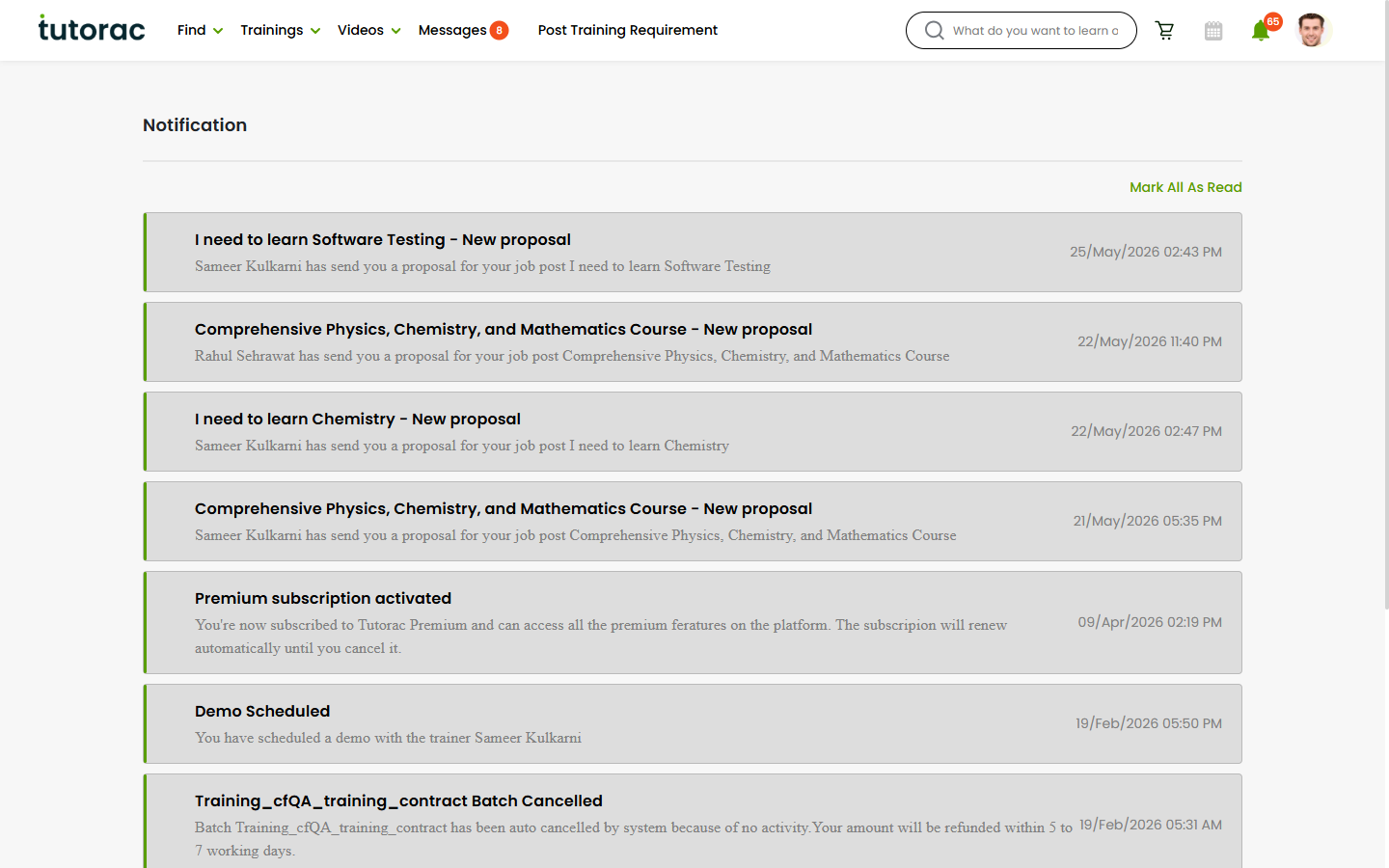
Each notification has a title, a short message, a timestamp, and (when relevant) a link that takes you to the page where you can act on it.
What triggers a notification
Common notification types for learners include:
- Proposals — “A tutor sent a proposal on your Training Requirement.”
- Invitations — “You sent an invite to [Tutor Name].”
- Sessions — reminders before scheduled sessions; “Session starting in 15 minutes”; recordings posted; missed session alerts.
- Hiring — “Your Training Contract with [Tutor] is active.”
- Payments — milestone payment due, payment received, refund processed.
- Free demos — demo scheduled, demo starting soon, demo completed.
- Cancellations — contract cancelled, refund issued.
- Quizzes & Assignments — new item published, graded.
Some notifications also appear as inline system messages inside the relevant chat thread — for example, a hire notification shows up both on the Notifications page and inside the chat with the tutor.
Unread message counts
Chat messages are tracked separately from notifications. Unread message counts appear in three spots:
- Top navigation Messages button — total unread count across all tutor conversations.
- Each conversation row in the left pane of Messages — per-conversation unread count.
- Inside a Training Batch, the Messages tab also has its own unread badge for batch-scoped chat.
Opening a conversation marks all its messages as read. There’s no separate “mark unread” control — once you’ve opened it, it’s read.
Marking notifications as read
- Visiting the Notifications page marks items as seen, which removes them from the bell badge.
- Clicking through a notification (to a session, proposal, or batch) marks that specific notification as read.
- Old notifications stay in the feed as a history — nothing is deleted automatically.
Email notifications
For high-importance events (hiring, payments, scheduled sessions, refunds, password changes), Tutorac also emails you at the address on your account. Make sure:
- Your email in Profile → Basic Information is current.
- Tutorac’s sender domain is whitelisted/not in spam (search for emails from
@tutorac.com). - Calendar invites for scheduled sessions and demos are added to your calendar.
Low-priority chatter (every chat message) is not emailed by default to avoid noise.
Tips for staying on top of updates
- Check the bell at the start of each session — tutors often update materials or send a note just before class.
- Use the Messages unread badge as your inbox — if the badge is zero, you’re caught up.
- Pin scheduled sessions to your calendar via the email invite for back-up.
- Don’t rely on email alone — the most accurate, real-time view is always on tutorac.com.
FAQs
Can I turn notifications off?
You can’t fully disable in-app notifications — they’re core to using the platform safely (you need to know when a session is starting, when a payment is due). Per-channel preferences (e.g., email versus in-app) may be available in account settings; if you don’t see a control there, reach out to Tutorac Support.
My unread badge says 2 but I’ve read every conversation.
Try refreshing the page. If the badge persists, scroll the conversation list — an unread message may be in a thread that’s lower down. New tutor responses to old conversations bump the count, even on chats you opened weeks ago.
Why am I not getting email notifications?
Check your spam folder, verify the email on your profile, and look for filters that may auto-archive messages. If everything looks right, contact Tutorac Support.
Are notifications shared between devices?
Yes — your account’s notification state is the same on every browser/device you sign in to. Read on phone, and the badge clears on desktop too.
How long does Tutorac keep notification history?
Notifications remain in the feed indefinitely as a history. Only the unread badge changes; the items themselves don’t expire.
Related articles
- A tour of Tutorac Messages: your chat hub explained
- Understanding chat features: Meet Now, Hire Now, Progress Tracker, and safety panel
- How to access curriculum, sessions, and quizzes in a Training Batch
Last updated: 27 May 2026