Author: tutorac

  • Creating a Public Ad

    A Public Ad puts your training in front of learners browsing Tutorac. This article explains how to create one and what it’s tied to.
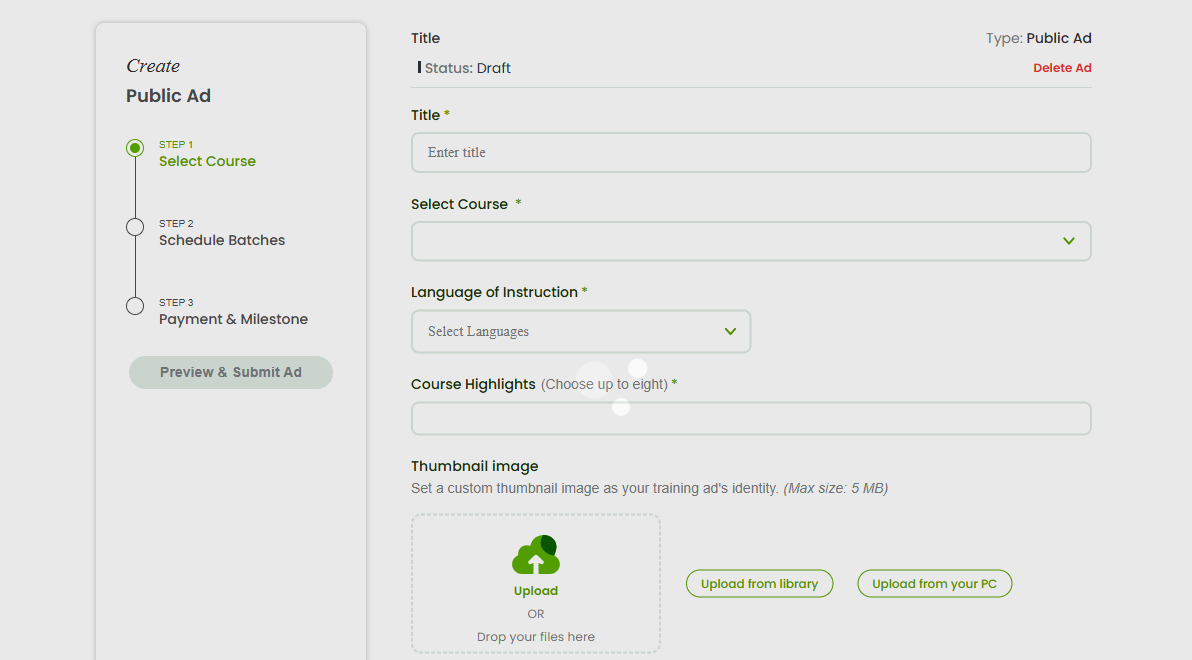
    The Create Public Ad wizard on Tutorac — Step 1 Select Course — with Title, Select Course, Language of Instruction, Course Highlights and Thumbnail image upload, plus Step 2 Schedule Batches and Step 3 Payment & Milestone

    In this article

    Where to start

    You can begin in two places:

    • From your dashboard, choose Create Public Training Ad.
    • Or open My Public Ads and choose + Create Public Ad.

    Tutorac then guides you through the steps to set up the ad.

    A Public Ad promotes a course

    A Public Ad advertises a live training course you offer. Have your course ready first — see the Live Courses section for creating one — so your ad can showcase it to learners.

    Add your intro video

    Your course’s introduction video is what displays in the Public Ad, so make sure it’s uploaded on the course. A clear, welcoming intro video is the single biggest factor in whether a browsing learner stops and engages.

    Create and publish

    Follow the on-screen steps and create the ad. Once live, it appears to learners browsing Tutorac and is listed under My Public Ads, where you can manage it.

    FAQs

    Do I need a course before creating a Public Ad?

    Yes — a Public Ad promotes a live training course, so set up your course first.

    Why does my ad need an intro video?

    The course’s introduction video is what’s shown in the Public Ad. Without it, your ad can’t display properly.

    Where do I find my ads after creating them?

    Under My Public Ads. See “Managing your Public Ads.”


    Related articles

    Last updated: 8 June 2026

  • What are Public Ads and Training Contracts?

    Ads help learners discover you. Tutorac has two kinds — Public Ads and Training Contracts. This article explains what each is and when to use it.

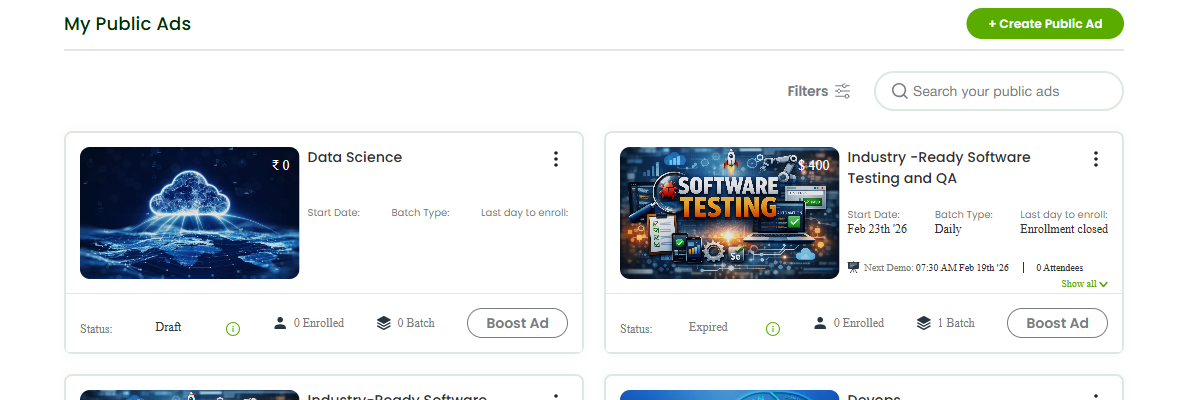
    The My Public Ads page — public ads promote a tutor’s courses to learners

    In this article

    Public Ads

    A Public Ad promotes your training to a broad audience of learners on Tutorac. It’s how you attract new students to a course you offer — anyone browsing can discover it. You manage these under My Public Ads.

    Training Contracts

    A Training Contract is tailored to a specific opportunity rather than broadcast to everyone. Instead of advertising broadly, you respond to a particular learner’s request with an offer suited to what they asked for. This works hand-in-hand with training posts and proposals.

    Which to use

    • Use a Public Ad to reach many learners and fill a course you’re offering.
    • Use a Training Contract when you’re targeting a specific learner’s request or opportunity.

    Many tutors use both: Public Ads to stay discoverable, and Training Contracts to win specific learners. See the Training Jobs & Proposals section for responding to specific requests.

    FAQs

    What’s the main difference?

    A Public Ad is broadcast to attract any interested learner; a Training Contract is tailored to a specific opportunity.

    Where do I manage my ads?

    Public Ads are managed under My Public Ads. See “Creating a Public Ad” and “Managing your Public Ads.”

    Can I use both?

    Yes. They serve different goals — broad reach versus a specific opportunity.


    Related articles

    Last updated: 8 June 2026

  • Winning contracts: best practices

    Sending proposals is only half the job. This article covers practical ways to stand out, move from proposal to offer, and get hired.

    The My Proposals page with proposal and contract statuses — tracking the work that leads to winning contracts

    In this article

    Start with a strong profile

    Learners check your profile before hiring. A complete, verified profile with clear skills and experience makes your proposals far more credible. See the Profile & Verification section.

    Tailor every proposal

    Generic proposals rarely win. Reference the learner’s exact goal, level, and listed skills, and explain specifically how you’d help. Quality beats quantity.

    Respond quickly

    Apply to fresh posts and reply to messages and invitations promptly. Learners often hire the tutors who engage first and clearly.

    Offer a demo

    A free demo lets a hesitant learner see your teaching first-hand and is one of the strongest ways to convert interest into a hire. See the Demo & Live Sessions section.

    From offer to hired

    When a learner is convinced, the proposal moves toward a contract or offer. Watch for Offer Received, then Review & Accept Offer to become Hired. The Offers & Contracts section explains this step in detail.

    FAQs

    Why aren’t my proposals converting?

    Common causes: an incomplete profile, generic cover letters, or slow responses. Tighten all three and consider offering a demo.

    Does offering a demo really help?

    Yes. Seeing you teach builds trust quickly and often tips a learner toward hiring you.

    How do I finalise the hire?

    Review and accept the learner’s offer. See the Offers & Contracts section for the full process.


    Related articles

    Last updated: 8 June 2026

  • Tracking your proposals and invitations

    Once you’ve applied, My Proposals is where you track everything. This article explains the tabs, statuses, and where invitations appear.

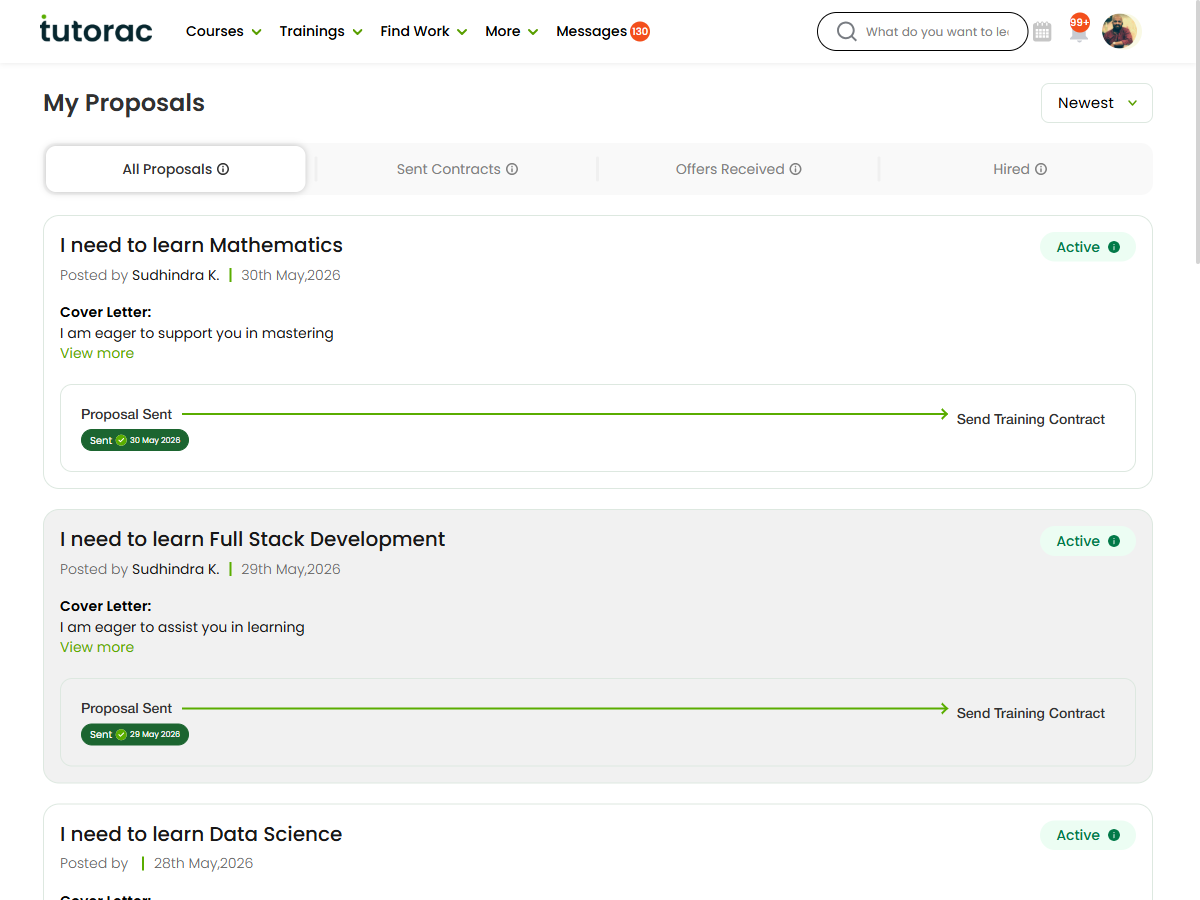
    The My Proposals page on Tutorac, with tabs for All Proposals, Sent Contracts, Offers Received and Hired, and proposal cards showing each request, status (Active / Proposal Sent), and next step toward a training contract

    In this article

    Opening My Proposals

    Open My Proposals to see every proposal you’ve sent. You can sort by Newest or Oldest, and open any proposal to view its cover letter and current stage.

    The tabs

    • All Proposals — everything you’ve submitted.
    • Sent Contracts — proposals where you’ve sent a training contract.
    • Offers Received — posts where the learner has sent you an offer.
    • Hired — proposals that turned into confirmed work.

    Proposal statuses

    Each proposal moves through clear stages, for example:

    • Proposal Sent — your application has been submitted.
    • Send Training Contract — you can send the learner a contract.
    • Offer Received — the learner has made you an offer; Review & Accept Offer.
    • Accepted / Hired — the work is confirmed.

    You may also see labels like Active, Awaiting Your Action, or Post Closed, which tell you whether something needs your attention.

    Invitations

    When a learner invites you to their training post, it appears under the Invited tab in Find Work. Open the invitation and submit a proposal just as you would for any post.

    FAQs

    What does “Awaiting Your Action” mean?

    Something needs you — often an offer to review and accept. Open the proposal to see the next step.

    What does “Post Closed” mean?

    The learner’s post is no longer open. You may still have been hired from it if the status also shows Hired.

    Where do offers from learners show up?

    Under Offers Received, with a Review & Accept Offer action. See the Offers & Contracts section.


    Related articles

    Last updated: 8 June 2026

  • Submitting a proposal

    When a training post is a good fit, you apply by sending a proposal. This article explains what a proposal is and how to submit a strong one.

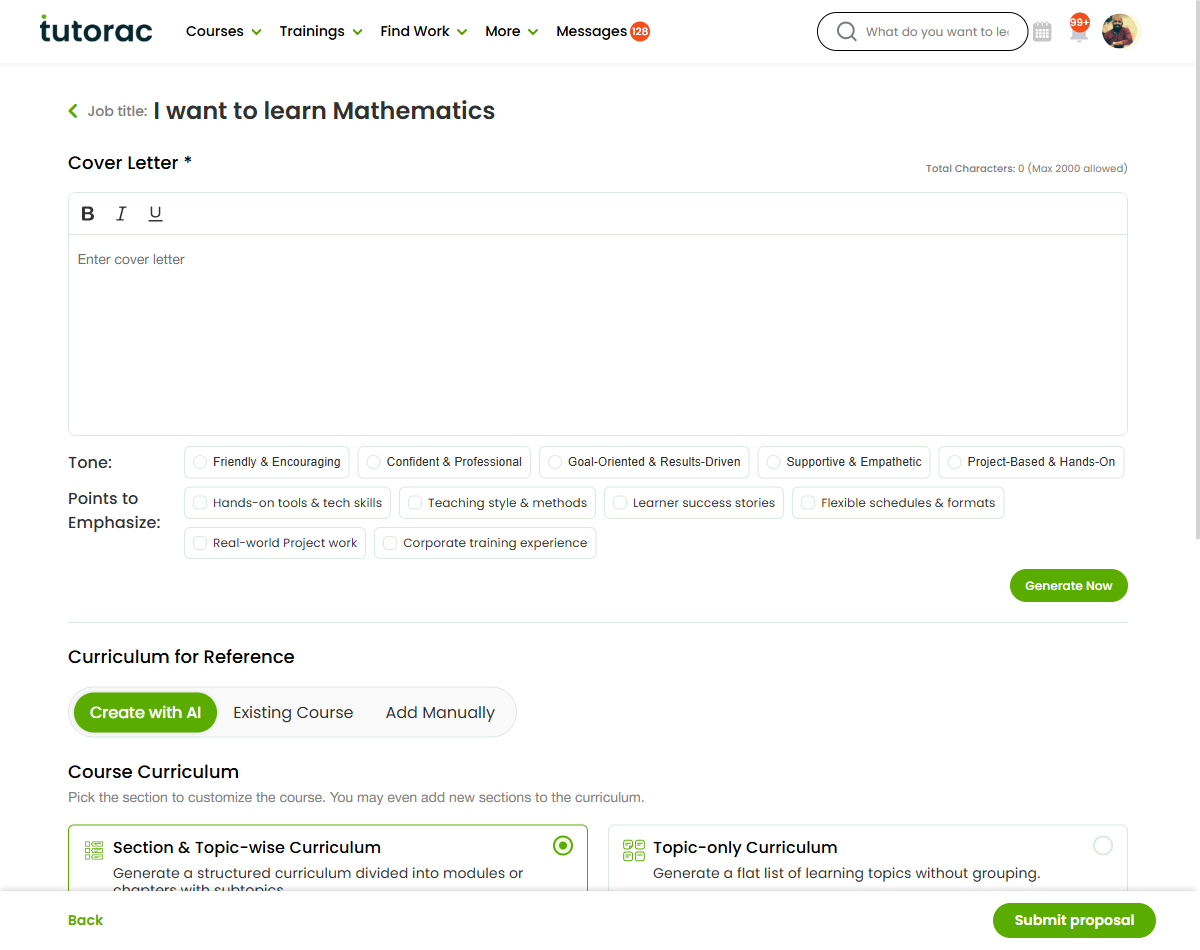
    Submitting a proposal on Tutorac — the Cover Letter editor with AI Tone and Points-to-Emphasize options, a curriculum-for-reference section, and the Submit Proposal button

    In this article

    What a proposal is

    A proposal is your application to a learner’s training post. Its core is a cover letter — a short, personalised message explaining how you can help that learner reach their goal.

    Submitting a proposal

    • From Find Work, open the training post you want to apply to.
    • Review the learner’s goal, level, schedule, and budget.
    • Write your cover letter and submit your proposal.

    Writing a strong cover letter

    • Address the learner’s specific goal, not a generic pitch.
    • Mention relevant experience and the skills they listed.
    • Outline how you’d approach teaching them, briefly.
    • Be clear, friendly, and easy to read.

    After you submit

    Your proposal is marked Proposal Sent and appears under My Proposals, where you can track its status. See “Tracking your proposals and invitations.”

    FAQs

    What’s the most important part of a proposal?

    The cover letter. A tailored, specific message stands out far more than a generic one.

    Where do I see proposals I’ve sent?

    Under My Proposals. Each one shows its current status.

    Can I apply to posts I was invited to?

    Yes. Invitations appear under the Invited tab in Find Work; you submit a proposal the same way.


    Related articles

    Last updated: 8 June 2026

  • Finding training jobs (Find Work)

    Find Work is where you discover learners looking for tutors. This article explains how to browse training posts and filter them to find the right fit.

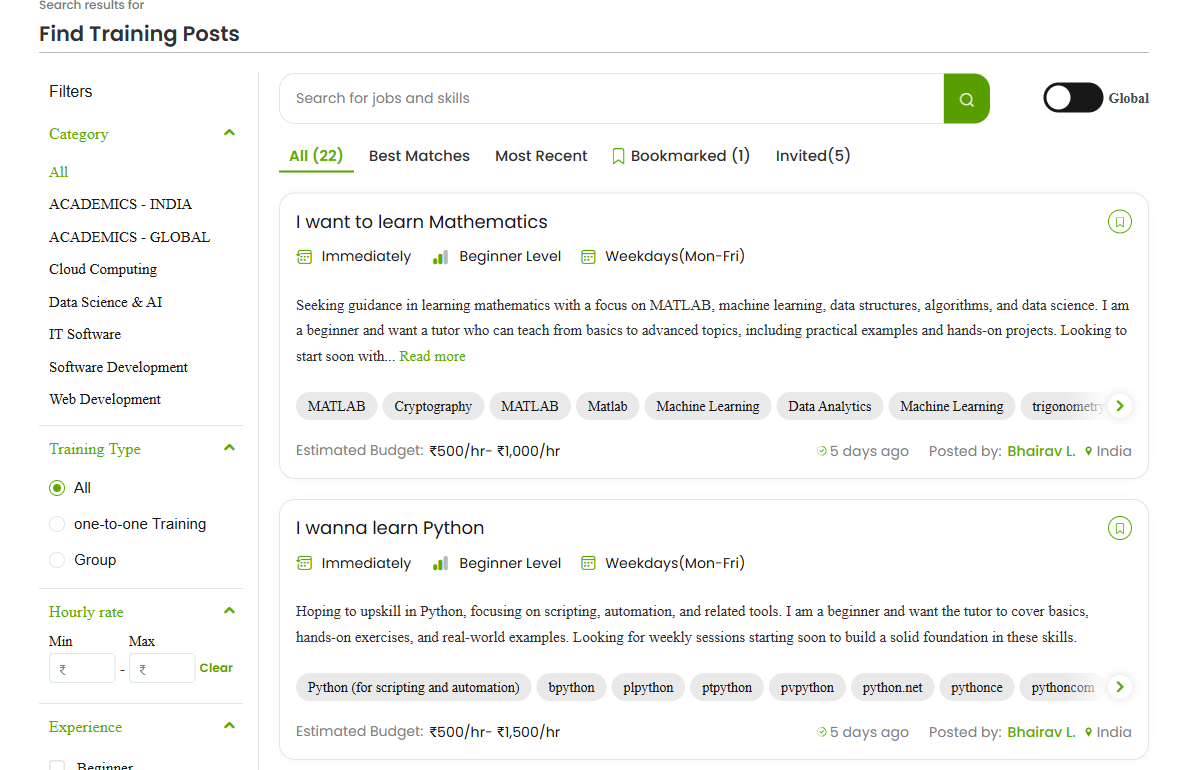
    Tutorac’s Find Training Posts (Find Work) page, where tutors browse learner training requests with category, training-type, rate and experience filters

    In this article

    Opening Find Work

    From the top navigation, choose Find Work to open Find Training Posts — the list of training requests posted by learners.

    What a training post shows

    Each post gives you what you need to judge fit at a glance:

    • Title and description of what the learner wants to learn.
    • Experience level (Beginner, Intermediate, Expert) and preferred schedule.
    • Relevant skills/tags.
    • Estimated Budget (an hourly rate range).
    • Number of employees (for group/organisation requests), when provided.
    • When it was posted, who posted it, and their location.

    Filtering posts

    Use the Filters panel to narrow the list:

    • Category — e.g. Cloud Computing, Data Science & AI, IT Software, Multimedia, Software Development, Web Development.
    • Training Type — one-to-one or Group.
    • Hourly rate — set a Min and Max.
    • Experience — Beginner, Intermediate, Expert.
    • Location — India, United States, or Global.

    Sorting and tabs

    Switch between All, Best Matches, and Most Recent, and check Bookmarked for posts you’ve saved and Invited for posts a learner has invited you to.

    FAQs

    What does Estimated Budget mean?

    It’s the hourly rate range the learner expects. Use it to decide whether a post fits what you charge.

    How do I see only the most relevant posts?

    Use the Best Matches tab and apply Category, Experience, and Location filters.

    Where do invitations appear?

    Under the Invited tab. See “Tracking your proposals and invitations” for more.


    Related articles

    Last updated: 8 June 2026

  • Converting demos into students

    A great demo is only worth it if it leads somewhere. This article covers how to turn demo attendees into paying students.

    The Demo creation screen, including instant and scheduled demos used to convert prospects into students

    In this article

    During the demo

    Show real value. Teach something the learner can use immediately, listen to their goals, and make the session feel personal. A learner who leaves having already learned something is far more likely to continue.

    End with a clear next step

    Don’t let the demo trail off. Summarise what you’d cover next, suggest a plan that fits their goals, and tell them exactly how to continue learning with you.

    Follow up

    Use Messages to thank them and recap the next step soon after the demo, while it’s fresh. A prompt, friendly follow-up often makes the difference.

    Turning interest into a booking

    When the learner is ready to commit, move them into paid training — for example through a course batch or an agreed offer. See the Live Courses, Offers & Contracts, and Training Jobs & Proposals sections for how to set that up.

    FAQs

    How soon should I follow up?

    As soon as possible after the demo, while the learner’s interest is high.

    How do I move a learner into paid training?

    Through a course batch or an agreed offer. See Live Courses and Offers & Contracts for the steps.

    What if they’re not ready yet?

    Stay in touch politely via Messages. Some learners convert later when the timing is right.


    Related articles

    Last updated: 8 June 2026

  • Instant vs scheduled demos

    When you set up a demo, you can start it immediately or schedule it for later. This article explains the difference and when to use each.

    The Create Demo form showing both choices — set a Demo Date and Time to schedule a demo, or use Create Instant Demo for an on-the-spot session

    In this article

    Instant demos

    An instant demo starts right away. On the demo form, use Create Instant Demo when a learner is ready now and you want to begin without setting a future date and time. It’s ideal for spur-of-the-moment interest — someone messages you, and you can demo on the spot.

    Scheduled demos

    A scheduled demo is booked for a future time. You set a Demo Date, Start Time, and End Time, and invite your learners. This gives everyone time to prepare and is best when you’re planning ahead or coordinating with someone’s availability.

    Which to choose

    • Choose instant when a learner is available and keen right now.
    • Choose scheduled when you’re planning ahead or need to fit a learner’s calendar.

    FAQs

    Do I still invite learners for an instant demo?

    Yes — you still select or invite the learners you want to join.

    Can I schedule a demo for a specific date and time?

    Yes. Set the Demo Date, Start Time, and End Time on the demo form.

    Where do scheduled demos appear?

    Under View My Schedule and your Calendar.


    Related articles

    Last updated: 8 June 2026

  • Scheduling a demo session

    Scheduling a demo takes just a minute. This article walks through creating one and inviting the learners you want to attend.

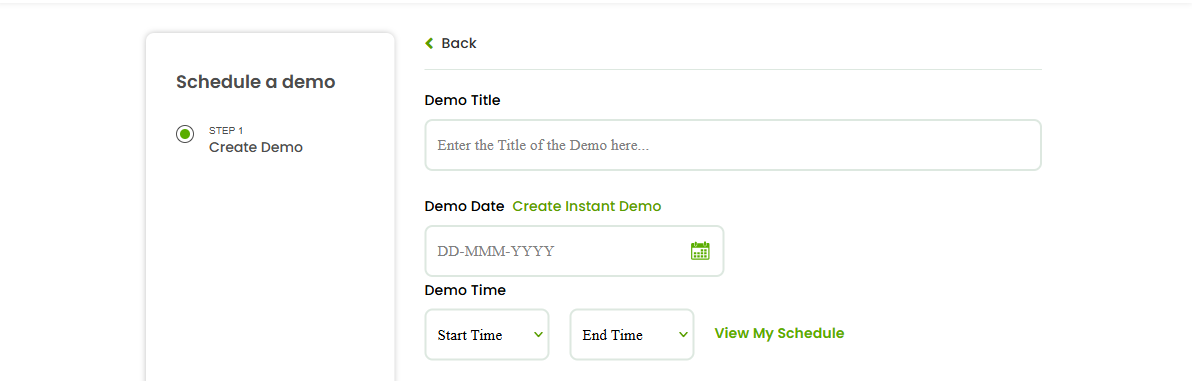
    Tutorac’s Schedule a Demo form (Step 1, Create Demo) with Demo Title, Demo Date, Demo Time start and end, and a Create Instant Demo option

    In this article

    Open the demo form

    From your dashboard, choose Schedule Free Session to open the demo form.

    Set the demo details

    • Demo Title — name the session so learners know what it covers.
    • Demo Date — pick the day.
    • Start Time and End Time — choose from the time slots.
    • Create Instant Demo — use this if you want to start a demo right away instead of scheduling it for later (covered in the next article).

    Invite learners

    You can add attendees two ways:

    • Select learners — search and select from your existing learners.
    • Invite by email — enter an email address and choose Add New to send an invitation to someone not yet on your list.

    Create the demo

    When the details and attendees look right, choose Create Demo. Your invited learners will be notified about the session.

    View your schedule

    Use View My Schedule to see your upcoming demos and keep your sessions organised.

    FAQs

    Can I invite more than one learner?

    Yes. Select multiple existing learners, and/or invite others by email.

    Can I invite someone who isn’t on Tutorac yet?

    Yes — enter their email address and choose Add New to send an invitation.

    Where do I see the demos I’ve scheduled?

    Use View My Schedule on the demo form, or check your Calendar.


    Related articles

    Last updated: 8 June 2026

  • What demos are and why they matter

    Demos are free live sessions where you show learners how you teach. They’re one of the best ways to build trust and win students. This article explains what they are and why they matter.

    The Schedule a Demo screen — demos are short intro sessions tutors offer to prospective learners

    In this article

    What a demo is

    A demo is a free live session you schedule with one or more learners to introduce yourself, show your teaching style, and give them a taste of what learning with you is like. It’s a low-pressure way for a learner to decide whether you’re the right fit.

    Why demos matter

    Learners are far more likely to commit after they’ve seen you teach. A strong demo helps you stand out, build trust quickly, and turn interest into enrolments — making demos a key part of winning and growing your student base.

    What makes a good demo

    • Be clear about what the learner will get out of the session.
    • Keep it focused — teach one useful thing well.
    • Be punctual, prepared, and friendly.
    • End by explaining how they can continue learning with you.

    Getting started

    When you’re ready, schedule a demo from your dashboard using Schedule Free Session. The next article walks through setting one up step by step.

    FAQs

    Are demos free?

    Yes. A demo is a free session you offer to introduce your teaching to a learner.

    Do I have to offer demos?

    They’re optional, but they’re one of the most effective ways to convert interested learners into students.

    Where do I create one?

    From your dashboard, use Schedule Free Session. See “Scheduling a demo session” for the steps.


    Related articles

    Last updated: 8 June 2026