Author: tutorac

  • Earning royalties from your video courses

    Video courses can earn you ongoing, passive income. This article explains how royalties work and where to manage your earnings.
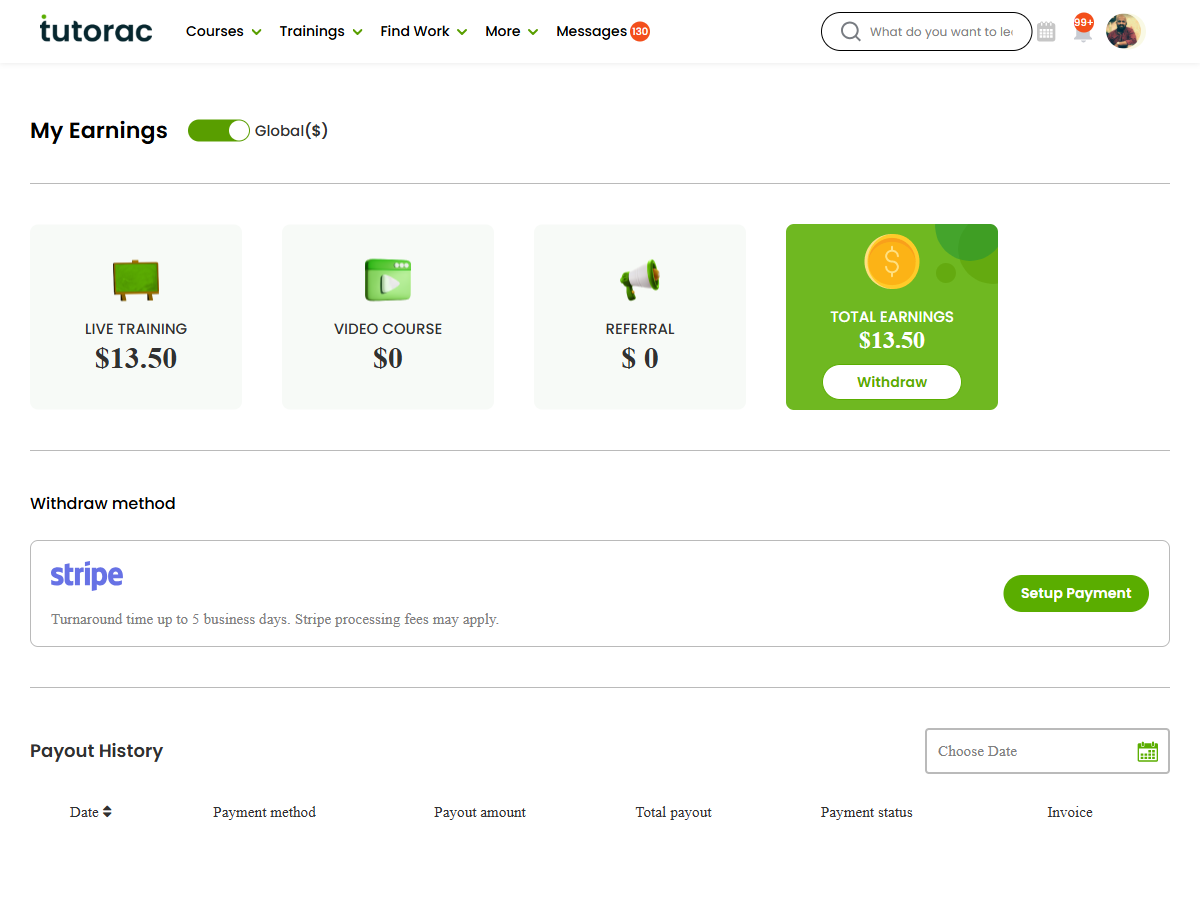
    The My Earnings page showing the Video Course earnings card — where royalties from video courses appear

    In this article

    How royalties work

    For video courses, you earn monthly royalties based on the minutes learners watch. The more your lessons are watched, the more you earn — so engaging, valuable content directly supports your royalties.

    Passive, ongoing earnings

    Because video courses are recorded once and watched on demand, a single course can keep earning over time as new learners discover and watch it. This makes video courses a way to build passive income from your video library alongside any live training you offer.

    Tracking your earnings

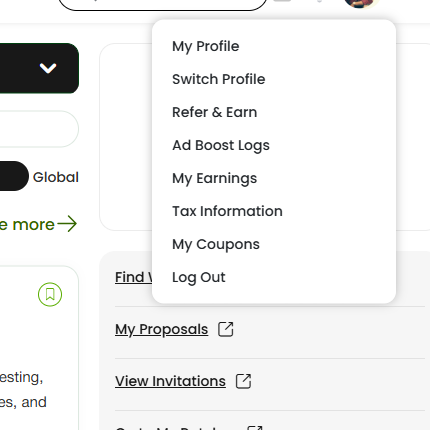
    Open My Earnings from the profile menu to review your earnings across your training and video courses in one place.

    Getting paid out

    Payouts go to the bank details on your profile, so keep your Bank Details complete and accurate. For how payouts are processed, see the Earnings & Payouts section.

    FAQs

    How are video course earnings calculated?

    As monthly royalties based on the minutes learners watch.

    Can one course keep earning over time?

    Yes. A published video course stays in your library and can keep earning as learners watch it.

    Where do I see and receive my earnings?

    Track them in My Earnings; payouts use your Bank Details. See the Earnings & Payouts section for the full process.


    Related articles

    Last updated: 8 June 2026

  • How learners access your video courses

    Video courses are accessed differently from live courses. This article explains how learners reach your video content and what that means for you.

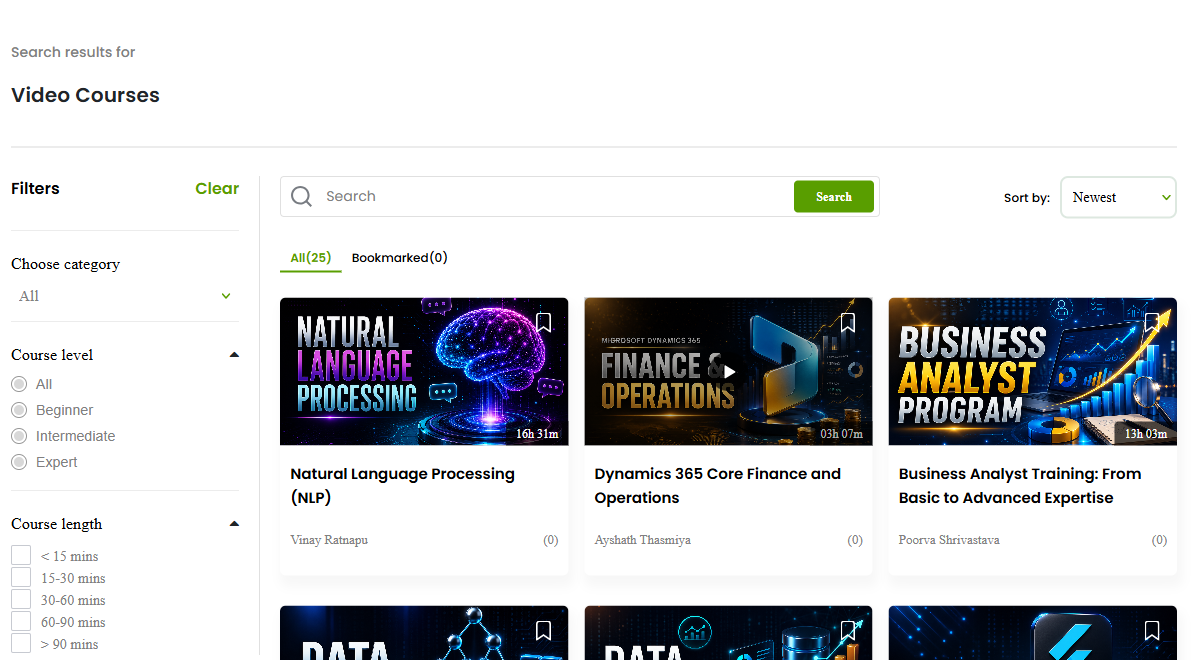
    The Tutorac Video Courses catalog as learners see it — search, category/level/length filters, and video-course cards — how learners discover and access video courses

    In this article

    Your video library

    Once published, your video course joins your video library on Tutorac, where learners can discover and watch it on their own schedule. Because it’s self-paced, the same course can reach many learners over time without you having to deliver it live.

    Access through a subscription

    Learners access video courses through a subscription rather than booking individual live sessions. This subscription model is what makes your video content available for ongoing, on-demand viewing.

    What this means for you

    Since learners watch on demand, the quality and engagement of your lessons drive how much they watch — and your earnings are based on minutes watched. Clear, valuable content that keeps learners engaged tends to perform best over time.

    FAQs

    Do learners book sessions for a video course?

    No. Video courses are self-paced; learners watch them on demand through a subscription rather than booking live sessions.

    Can the same course reach many learners?

    Yes. Once published, your course stays in your video library and can be watched by many learners over time.

    How does this affect my earnings?

    You earn based on minutes watched, so engaging content that learners keep watching supports your earnings. See “Earning royalties from your video courses.”


    Related articles

    Last updated: 8 June 2026

  • Recording and publishing your video course

    Creating a video course on Tutorac follows an easy, guided process. Here’s how to plan, record, build, and publish your course.

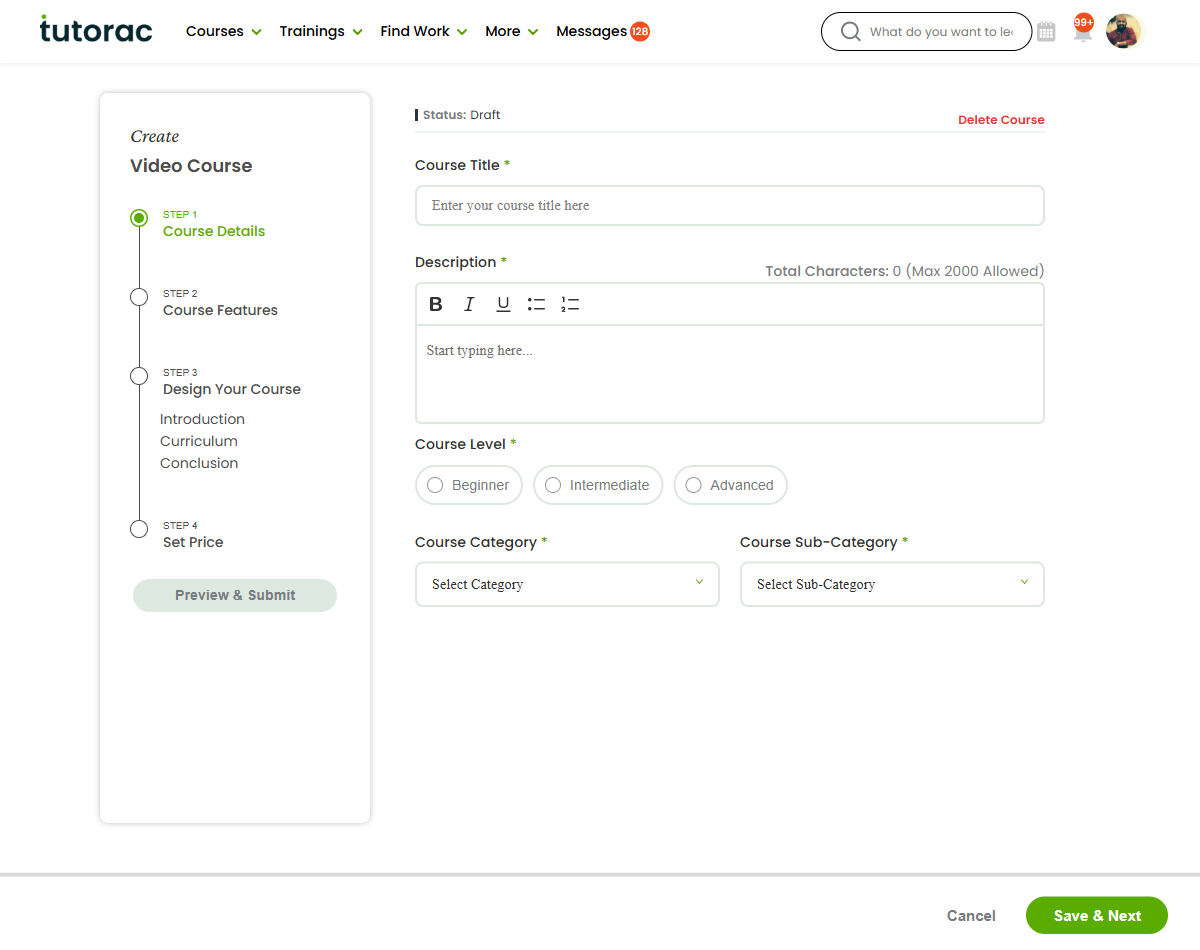
    The Create Video Course builder on Tutorac — Step 1 Course Details (title, description, level, category) with the full wizard: Course Features, Design Your Course (Introduction, Curriculum, Conclusion), and Set Price

    In this article

    Plan your course

    Before recording, decide what your course covers, who it’s for, and the outcomes learners will gain. A clear outline of topics keeps your lessons focused and easy to follow.

    Record your lessons

    Record your video lessons in clear, well-lit segments with good audio. Breaking content into focused lessons makes it easier for learners to follow and return to specific topics.

    Build the course step by step

    Start from Create Course → Video Course, or Video Courses → Create Video Course. Tutorac guides you through the process step by step — you’ll add your course information and upload your video lessons as you go. Follow the on-screen steps and save your progress as you build.

    Publish and update

    When your course is complete, publish it so it becomes available to learners in your video library. You can return to your course later to update or improve it.

    Tips for quality

    • Keep lessons concise and on-topic.
    • Use clear titles so learners can navigate easily.
    • Check your audio and video quality before publishing.
    • Add value early — strong opening lessons keep learners watching.

    FAQs

    Do I have to finish the course in one sitting?

    No. The builder is step by step, so you can save your progress and continue later.

    Can I edit my course after publishing?

    Yes. Open your course from Video Courses to update it.

    How does watch time matter?

    You earn royalties based on minutes watched, so engaging, well-structured lessons help your earnings. See “Earning royalties from your video courses.”


    Related articles

    Last updated: 8 June 2026

  • Creating a video course: an overview

    Video courses let you record once and earn over time. This overview explains what a video course is, how it differs from a live course, and how to start creating one.

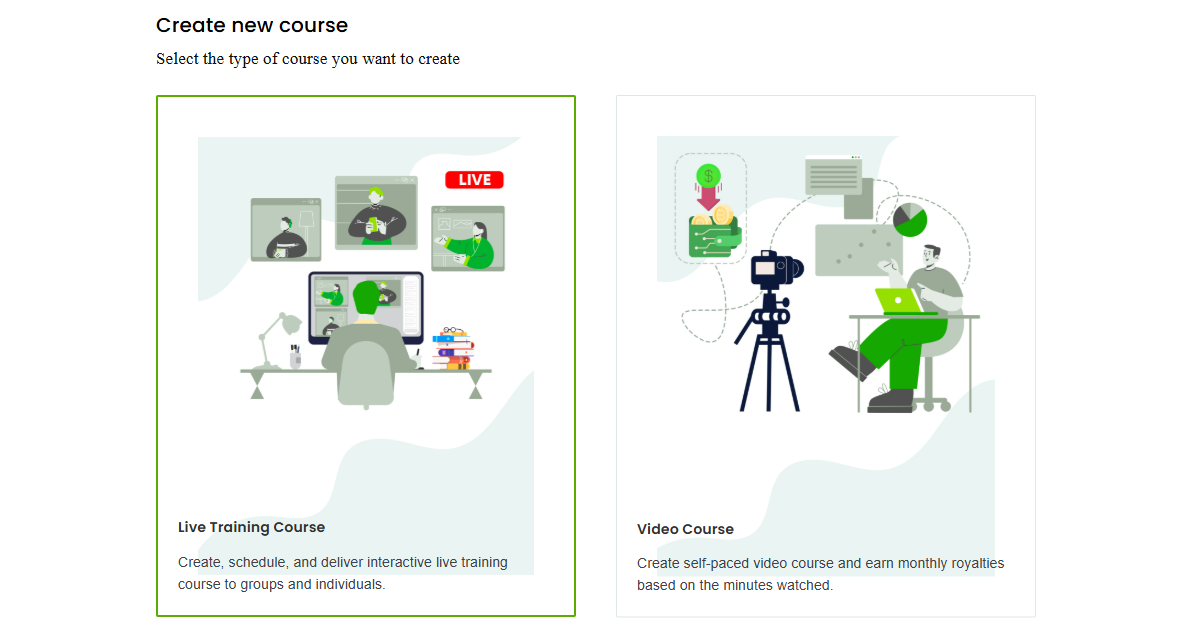
    Tutorac’s Create New Course screen, where a tutor chooses a Video Course to create a self-paced course and earn royalties

    In this article

    What a video course is

    A video course is a self-paced, pre-recorded course that learners watch on their own schedule. You record and publish it once, and it stays available in your video library for learners to access over time.

    Video course vs live course

    The key difference is how you deliver and earn:

    • Live training course — interactive sessions you schedule and deliver to learners in batches.
    • Video course — self-paced and pre-recorded; you earn monthly royalties based on the minutes learners watch.

    For live courses, see the Live Courses section.

    Starting a video course

    There are two ways to begin:

    • From your dashboard, choose Create Course and select Video Course on the selection screen.
    • Or open Video Courses from the Courses menu and choose Create Video Course.

    A guided, step-by-step process

    Tutorac walks you through creating a video course with an easy step-by-step process, even if it’s your first one. The next article covers recording and publishing your course.

    FAQs

    Do I teach video courses live?

    No. Video courses are pre-recorded and self-paced. If you want to teach live, create a live training course instead.

    How do I earn from a video course?

    You earn monthly royalties based on the minutes learners watch. See “Earning royalties from your video courses” for details.

    Where do I start?

    Use Create Course → Video Course, or Video Courses → Create Video Course.


    Related articles

    Last updated: 8 June 2026

  • Earning from live courses on Tutorac

    Live courses are one of the ways you earn on Tutorac. Here’s a high-level look at how earnings work and where to manage them.

    The My Earnings page showing Live Training earnings — how tutors earn from live courses

    In this article

    How you earn from live courses

    When learners enrol in and pay for your live course batches, you earn from that training. The more strong, well-reviewed courses you run, the more opportunities you create to earn.

    Tracking your earnings

    Open My Earnings from the profile menu to see your earnings in one place. This is where you review what you’ve earned across your training activity on Tutorac.

    Getting paid out

    Payouts go to the bank details on your profile, so make sure your Bank Details are complete and accurate. See the Earnings & Payouts section for how payouts work in detail.

    Pricing, taxes, and more

    How you price your training and any discounts you offer are covered in the Pricing & Discounts section. For tax-related details and your financial documents, see the Taxes & Financial Documents section.

    FAQs

    Where do I see my earnings?

    Open My Earnings from the profile menu.

    How do I get paid?

    Payouts use the Bank Details on your profile. Keep them up to date. The Earnings & Payouts section explains the process.

    Where do I set my course price?

    Pricing and discounts are covered in the Pricing & Discounts section.


    Related articles

    Last updated: 8 June 2026

  • Publishing, scheduling, and managing your live course batches

    Once your live course is built, you run it with learners through batches. This article covers publishing your course, managing batches, and keeping your schedule organised.

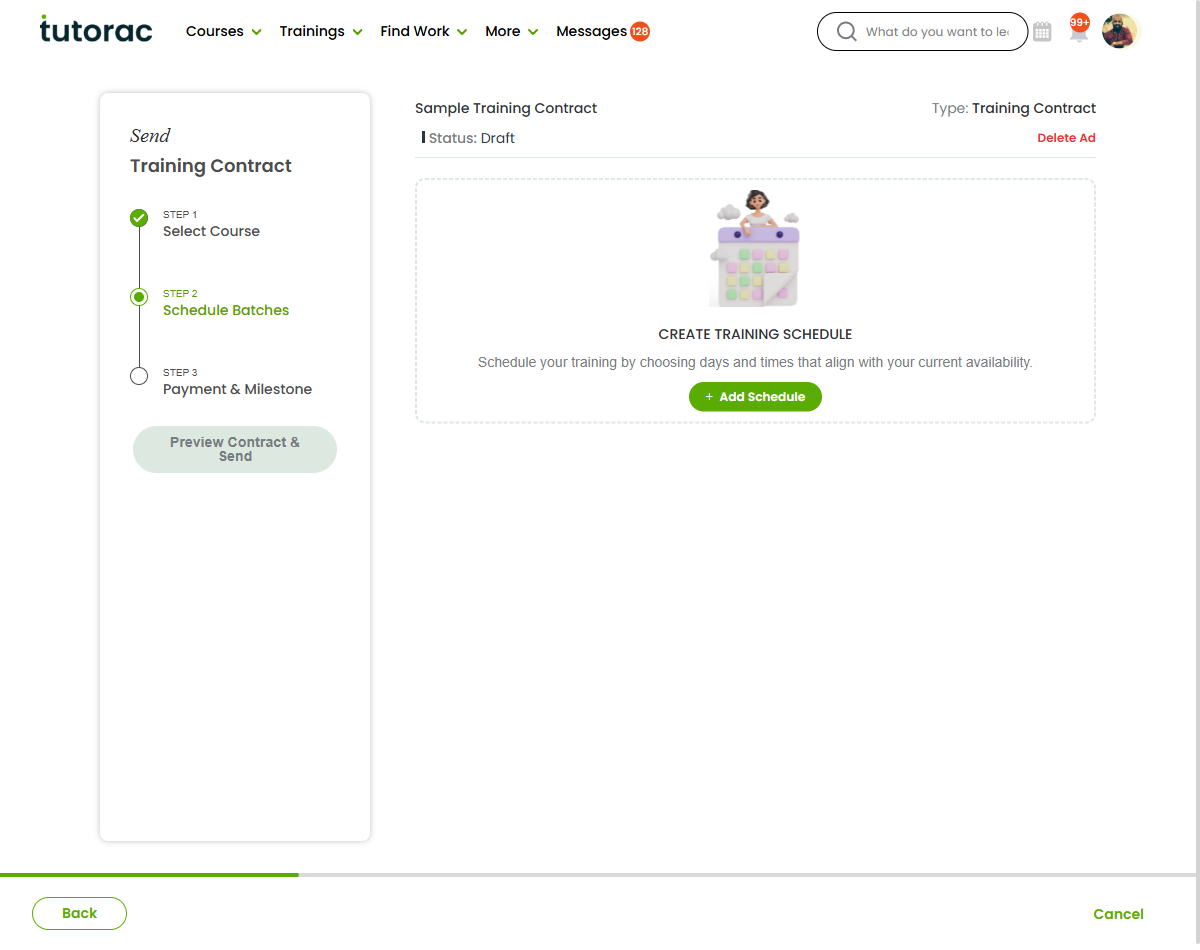
    Step 2, Schedule Batches, of the training-contract flow — Create Training Schedule, where a tutor adds batch days and times (Add Schedule)

    In this article

    Publishing your course

    When your course is ready, set its Course Status to Active and save with Update Course. Active courses are available to learners; keep a course Inactive while you’re still working on it. Courses you haven’t finished appear under your Draft courses.

    What batches are

    A batch is a scheduled run of your live course with a group of learners. One course can have multiple batches over time. Your courses list shows the number of batches against each course, so you can see activity at a glance.

    Managing your batches

    From your dashboard, use Go to My Batches to open your batches list. From there you can see your batches and the learners in them, and manage each one. This is your home base for everything happening in your live courses day to day.

    Keeping track of your schedule

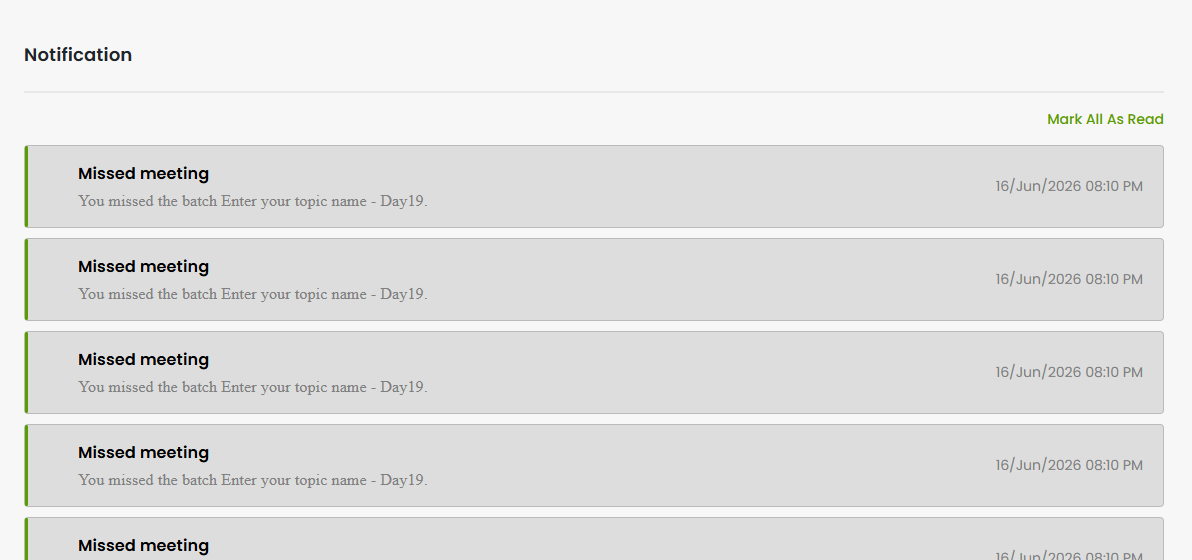
    Use your Calendar to keep your sessions organised and avoid clashes. Checking it regularly — alongside your notifications — helps you stay on top of upcoming sessions and respond to learners promptly.

    FAQs

    How do I make my course visible to learners?

    Set its Course Status to Active and save with Update Course.

    Where do I manage my batches?

    Use Go to My Batches from your dashboard to open your batches list.

    Can one course have more than one batch?

    Yes. A course can run as multiple batches over time, each with its own group of learners.


    Related articles

    Last updated: 8 June 2026

  • Setting up your live course details, features, and curriculum

    Once you’ve started a live training course, you’ll move through four steps to build it: Details, Features, Video, and Curriculum. Here’s what to enter in each.

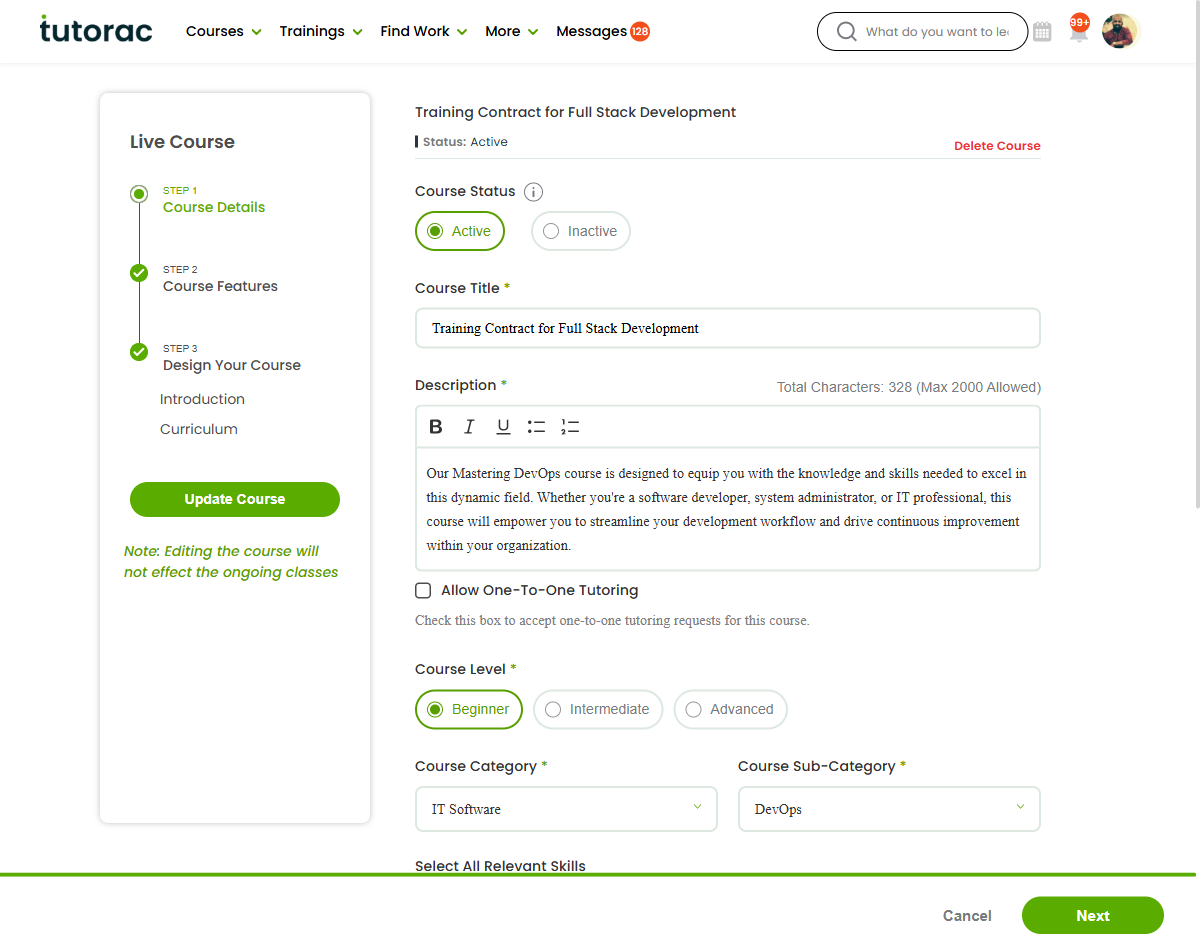
    The Live Course builder on Tutorac — the Step 1/2/3 wizard (Course Details, Course Features, Design Your Course → Introduction & Curriculum) with course title, description, level, category and skills, and an Update Course button

    In this article

    Step 1: Details

    On the Details step, set:

    • Course Title (required).
    • Description (required, up to 2000 characters).
    • Allow One-To-One Tutoring — tick this to accept one-to-one requests for the course.
    • Course Level — Beginner, Intermediate, or Advanced.
    • Course Category and Course Sub-Category (required).
    • Relevant skills — select the skills this course covers.

    Click Next to continue.

    Step 2: Features

    On the Features step, fill in two fields (each up to 2000 characters):

    • Who should take this course? — describe your ideal learner.
    • What will you learn in this course? — the outcomes and skills learners gain.

    Step 3: Video

    On the Video step:

    • Upload an introduction video — a brief MP4 outlining the course’s purpose, curriculum, and outcomes. This video is needed to display your course in a public ad.
    • Thumbnail image — upload an image that matches your course title to make it visually appealing. You can replace or remove it later.

    Step 4: Curriculum

    On the Curriculum step, build your sections, topics, quizzes, and assignments. You can:

    • Add Manually — create sections and topics yourself.
    • Create with AI — generate a starting curriculum to refine.
    • Switch between Sections & Topics and Topics only, and use Add Section to expand your outline.

    Saving your course

    Use Update Course to save your work. Set the Course Status to Active when it’s ready for learners, or keep it Inactive while you finish.

    FAQs

    Is the introduction video required?

    You need an introduction video to display your course in a public ad, so it’s strongly recommended.

    Can I generate my curriculum automatically?

    Yes — use Create with AI on the Curriculum step, then refine the sections and topics.

    Can I edit a course after saving?

    Yes. Open the course from your courses list and use the same steps to edit, then Update Course.


    Related articles

    Last updated: 8 June 2026

  • Creating a live training course: an overview

    Live training courses let you create, schedule, and deliver interactive sessions to groups and individuals. This overview shows how to start one and what the course builder includes.

    Tutorac’s Create New Course screen, where a tutor chooses a Live Training Course to set up scheduled, interactive live training

    In this article

    What a live training course is

    A live training course is interactive, scheduled training you deliver to groups and individuals — as opposed to a self-paced video course. You build the course once, then run it with learners through batches. (For self-paced video courses, see the Video Courses section.)

    Starting a new live course

    From your dashboard, choose Create Course. On the selection screen, pick Live Training Course (“Create, schedule, and deliver interactive live training course to groups and individuals”) and click Next to open the course builder.

    The course builder steps

    The live course builder is organised into steps:

    • Details — course title, description, level, category, sub-category, skills, and one-to-one tutoring option.
    • Features — who the course is for and what learners will achieve.
    • Video — an introduction video and a thumbnail image.
    • Curriculum — your sections and topics.

    The next article walks through each step in detail.

    Course status and saving

    Each course has a Course Status of Active or Inactive, so you control whether it’s available. Use Update Course to save your changes. You can also Delete Course if you no longer need it. New courses you’re still building appear under your Draft courses until they’re ready.

    FAQs

    What’s the difference between a live course and a video course?

    A live training course is delivered interactively in scheduled sessions. A video course is self-paced and pre-recorded. This section covers live courses; see Video Courses for the other.

    Can I offer one-to-one tutoring on a live course?

    Yes — the Details step has an Allow One-To-One Tutoring option to accept one-to-one requests for that course.

    Where do my courses appear after I create them?

    Under your courses list, grouped into Active and Draft. From there you can view and edit each course.


    Related articles

    Last updated: 8 June 2026