Author: tutorac

  • Pricing best practices

    Good pricing wins work without underselling you. These practical principles help you set rates that attract learners and reflect your value.
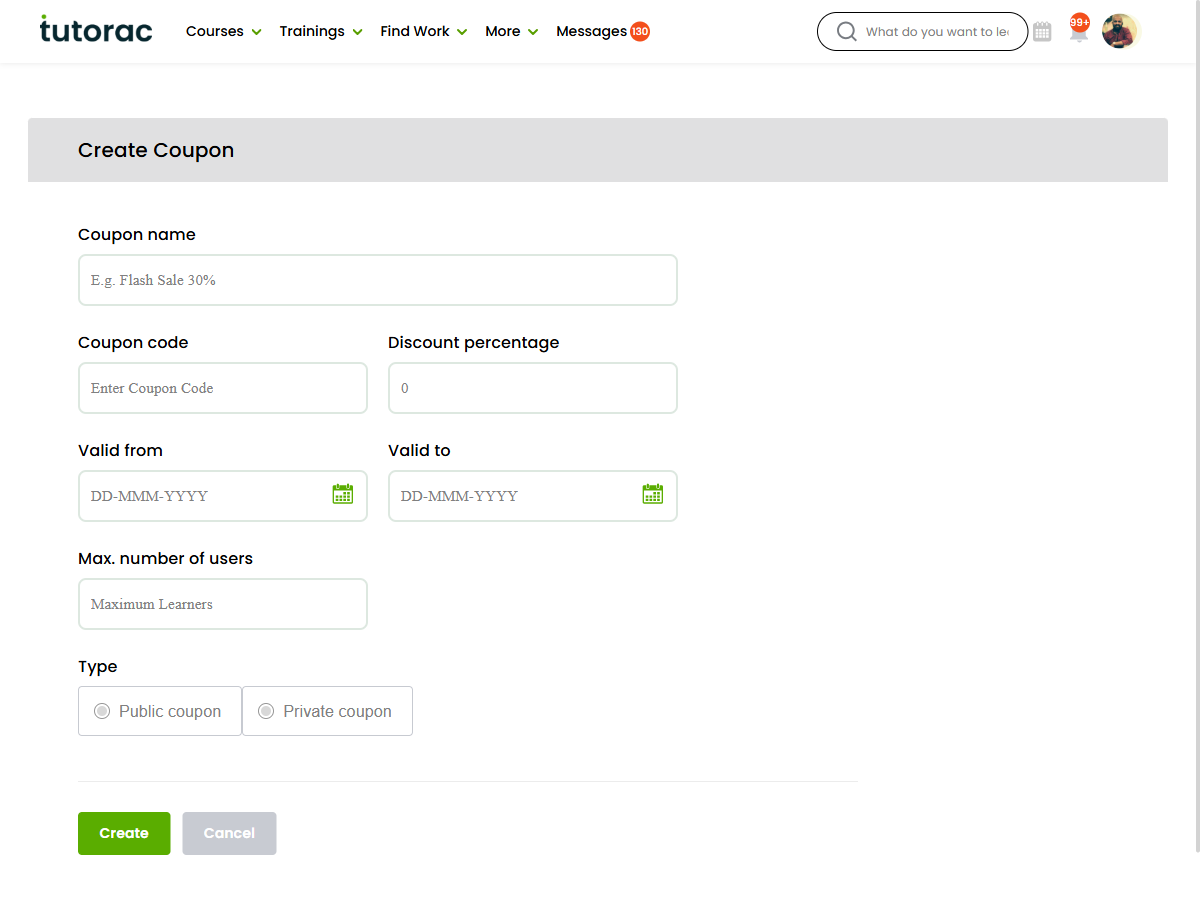
    Tutorac’s Create Coupon screen (discount %, validity, usage limits) — one of the pricing-and-discount levers tutors use as part of pricing best practices

    In this article

    Know the market

    Look at the Estimated Budgets on relevant training posts to understand what learners expect to pay for your subject and level. This gives you a realistic range to position within.

    Price on value

    Base your rate on the outcomes you deliver, not just time. Strong experience, a verified profile, and good feedback all justify charging more.

    Build a track record

    If you’re new, a competitive starting rate can help you win first learners and earn reviews. As your reputation grows, you can raise your rate with confidence.

    Use discounts wisely

    Coupons are useful for winning a first booking or rewarding loyalty, but frequent deep discounts can train learners to expect them. Keep discounts purposeful. See “Offering discounts with coupons.”

    Review regularly

    Revisit your pricing as your experience, demand, and feedback grow. Pricing isn’t set once — adjust it as your value increases.

    FAQs

    Should I start cheap?

    A competitive starting rate can help you win early learners and reviews, but don’t undervalue yourself. Raise it as your track record builds.

    How do I justify a higher rate?

    With experience, a complete verified profile, strong feedback, and clear outcomes for learners.

    How often should I review pricing?

    Periodically — especially as your demand and feedback grow.


    Related articles

    Last updated: 8 June 2026
  • Offering discounts with coupons

    Coupons let you offer discounts to attract and reward learners. This article explains where to manage them and how to use them well.

    The Create Coupon form on Tutorac — fields for coupon name, code, discount percentage, valid-from/to dates, maximum number of users, and Public or Private coupon type

    In this article

    Where to find My Coupon

    Open the profile menu and choose My Coupons to reach your coupon page. This is where your discount coupons are managed.

    Using coupons

    Coupons give learners a discount, which can encourage them to enrol or to choose you over other options. Keep your coupons purposeful so discounts support your goals rather than eroding your rate.

    When to offer a discount

    • To win a first booking from a hesitant learner.
    • To reward returning learners.
    • For a limited-time promotion to build momentum.

    FAQs

    Where do I manage coupons?

    Under My Coupons in the profile menu.

    Should I always discount?

    No — use discounts strategically. Frequent or deep discounts can undervalue your training.

    Do coupons replace my rate?

    No. They apply a discount; your underlying pricing still matters. See “Setting your pricing on Tutorac.”


    Related articles

    Last updated: 8 June 2026
  • Understanding milestones

    Milestones break a training engagement into stages, so work and payment progress in clear steps. Here’s how they work for tutors.

    The training-contract flow — Step 3, Payment & Milestone, is where payment terms and milestones are configured (shown in the wizard steps)

    In this article

    What a milestone is

    A milestone is a defined stage of the work — a portion of the training with its own deliverable. An engagement can be split into one or more milestones, each completed in turn.

    Why use milestones

    • They give the learner confidence by tying progress to clear stages.
    • They make larger engagements easier to manage.
    • They keep expectations clear on both sides.

    Agreeing milestones

    Milestones are set as part of the offer or Training Contract for an engagement. Agree the stages with the learner up front so everyone knows what each milestone covers. See the Offers & Contracts section, and the Earnings & Payouts section for how completed work translates into earnings.

    FAQs

    Do all engagements use milestones?

    Not necessarily — it depends on what you and the learner agree in the contract or offer.

    Where are milestones defined?

    As part of the offer or Training Contract for the engagement.

    How do milestones relate to my earnings?

    Completing agreed stages is what moves an engagement forward. See the Earnings & Payouts section for details.


    Related articles

    Last updated: 8 June 2026
  • Setting your pricing on Tutorac

    How you price your training shapes who hires you and what you earn. This article explains where your pricing comes into play on Tutorac.

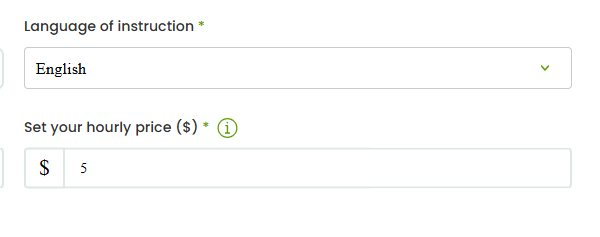
    Setting your rate on Tutorac — the Set Your Hourly Price ($) field (USD), with language of instruction

    In this article

    Your rate is yours to set

    You decide what to charge for your training. Your rate should reflect your experience, the subject, and the value you deliver to learners.

    Reading the learner’s budget

    Training posts in Find Work show an Estimated Budget — the hourly rate range the learner has in mind. Use it to judge fit and to pitch a rate that works for both of you.

    Where pricing is confirmed

    Pricing is agreed as part of the offer or Training Contract for an engagement. Discuss it with the learner first, then make sure the final contract or offer reflects what you agreed. See the Offers & Contracts section.

    Fees and earnings

    For how your earnings are calculated and paid, see the Earnings & Payouts section. Tutorac’s fees are explained in the pricing and earnings sections of your account.

    FAQs

    Who sets my price?

    You do. The learner’s Estimated Budget is guidance, not a fixed price.

    Where is the final price recorded?

    In the offer or Training Contract you and the learner agree to.

    Can I offer a discount?

    Yes. See “Offering discounts with coupons.”


    Related articles

    Last updated: 8 June 2026
  • Negotiating terms before you commit

    Before you lock in a contract or accept an offer, it’s worth getting the terms right. This article covers how to negotiate sensibly so both sides are clear.

    In this article

    Talk before you sign

    Use Messages to discuss the details with the learner before a contract or offer is finalised. It’s much easier to agree expectations up front than to fix misunderstandings later.

    What to agree on

    • Scope — what you’ll teach and the outcomes.
    • Schedule — timing, frequency, and duration.
    • Pricing — your rate and how the work is structured. See the Pricing & Discounts section.

    Formalise the agreed terms

    Once you both agree, reflect those terms in the Training Contract you send, or in the offer you accept. Make sure what’s written matches what you discussed before confirming.

    FAQs

    Where do I discuss terms with a learner?

    In Messages. See the Drive, Resources & Messages section.

    Can I change terms after seeing an offer?

    Discuss the changes with the learner first, then make sure the final contract or offer reflects what you agreed before accepting.

    What should I always confirm?

    Scope, schedule, and pricing — so there are no surprises once you start.


    Related articles

    Last updated: 8 June 2026

  • Receiving and accepting an offer

    Sometimes the learner makes the first move with an offer. This article explains how to find, review, and accept offers sent to you.

    In this article

    Finding offers

    Offers from learners appear under the Offers Received tab in My Proposals. A proposal needing your attention may also show a status such as Awaiting Your Action.

    Reviewing an offer

    Open the offer and check the details carefully — what the learner wants, the scope, and any terms — before you decide. If something needs adjusting, talk it through first (see “Negotiating terms before you commit”).

    Accepting the offer

    When you’re happy with it, choose Review & Accept Offer. Once accepted, the engagement becomes Hired and you can begin the training.

    FAQs

    Where do offers from learners show up?

    Under the Offers Received tab in My Proposals.

    Do I have to accept right away?

    No. Review it first, and discuss any changes with the learner before accepting.

    What happens after I accept?

    The engagement shows as Hired and you can start delivering the training.


    Related articles

    Last updated: 8 June 2026

  • Sending a Training Contract to a learner

    When a learner is ready, you can send them a Training Contract to lock in the work. Here’s how it fits into the proposal flow.

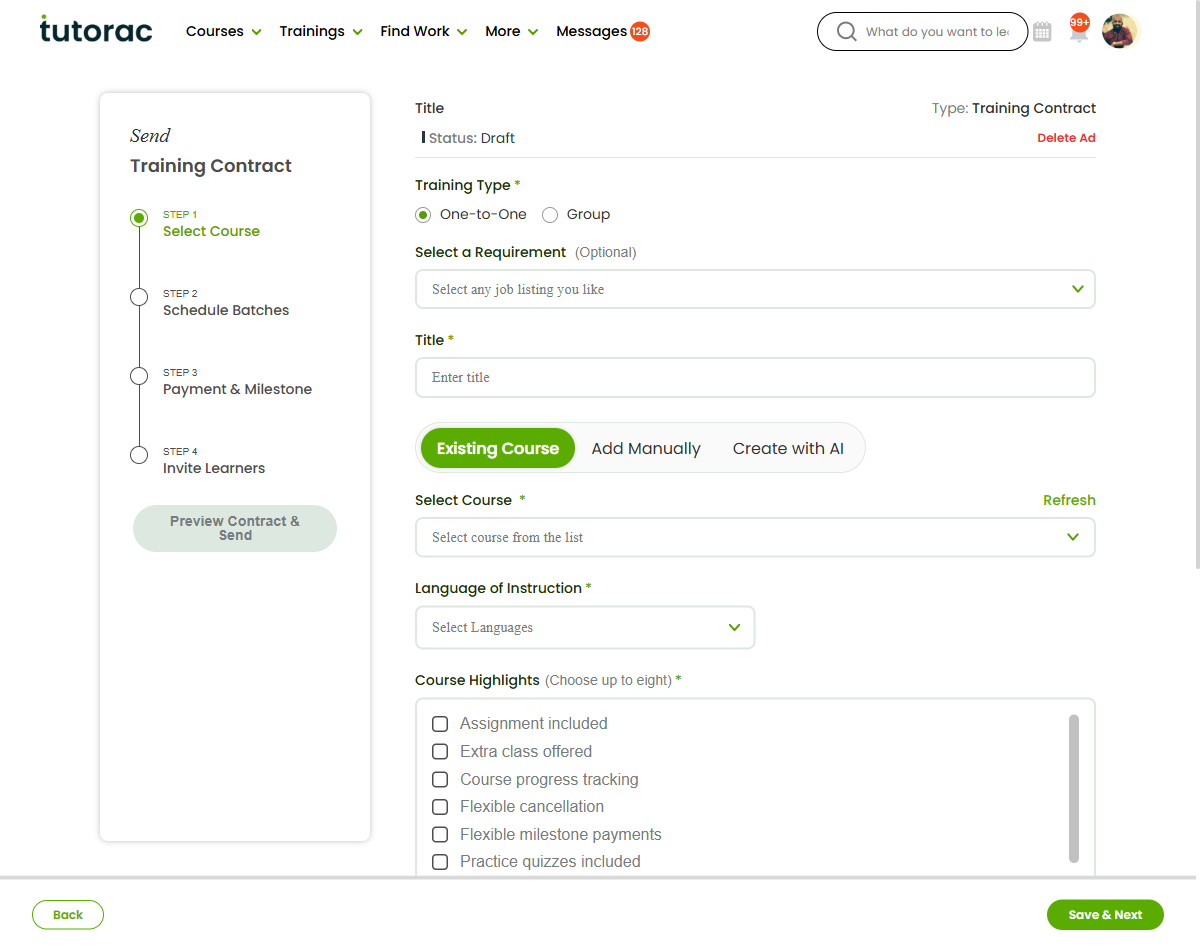
    Sending a Training Contract to a learner — step 1 sets the training type, requirement, title, course, language and contract features

    In this article

    When to send one

    Send a Training Contract once you and the learner have agreed on what you’ll teach — often after a proposal, a message exchange, or a demo. It turns that understanding into a formal agreement.

    Sending the contract

    Open the relevant proposal under My Proposals and choose Send Training Contract. Follow the on-screen steps to confirm the details and send it to the learner.

    Tracking sent contracts

    Contracts you’ve sent appear under the Sent Contracts tab in My Proposals, so you can see what’s still awaiting the learner’s response.

    What happens next

    When the learner accepts, the engagement becomes Hired and you can begin delivering the training. If they want changes first, you can discuss and adjust — see “Negotiating terms before you commit.”

    FAQs

    Where is the Send Training Contract option?

    On the proposal, under My Proposals.

    How do I know if the learner accepted?

    The proposal’s status updates — once accepted, it shows as Hired.

    Can the learner send me an offer instead?

    Yes. See “Receiving and accepting an offer.”


    Related articles

    Last updated: 8 June 2026

  • Understanding offers and Training Contracts

    Offers and Training Contracts are how a proposal becomes confirmed work. This article explains the two directions an agreement can come from and what a Training Contract is.

    The Send Training Contract wizard on Tutorac (Select Course → Schedule Batches → Payment & Milestone → Invite Learners) — how training contracts/offers are created

    In this article

    What a Training Contract is

    A Training Contract is the agreement that sets out the training you’ll deliver to a learner. Once it’s agreed, the work is confirmed and you move from applying to teaching.

    Two ways an agreement starts

    • You send a Training Contract — after submitting a proposal, you can send the learner a contract to formalise the work.
    • The learner sends you an offer — a learner can make you an offer, which you then review and accept.

    Either path ends the same way: an agreed contract and a confirmed (Hired) engagement.

    Where to track them

    Everything is visible under My Proposals, using the Sent Contracts, Offers Received, and Hired tabs. See “Tracking your proposals and invitations” in the Training Jobs & Proposals section.

    FAQs

    Who starts the contract — me or the learner?

    Either of you. You can send a Training Contract, or a learner can send you an offer to review and accept.

    When is the work confirmed?

    Once the contract or offer is accepted, the engagement shows as Hired.

    Where do I see my contracts and offers?

    Under My Proposals, in the Sent Contracts, Offers Received, and Hired tabs.


    Related articles

    Last updated: 8 June 2026

  • Training Contracts for specific opportunities

    Training Contracts are about precision — reaching a specific learner with an offer built for them, instead of broadcasting to everyone. Here’s how they fit into winning work.

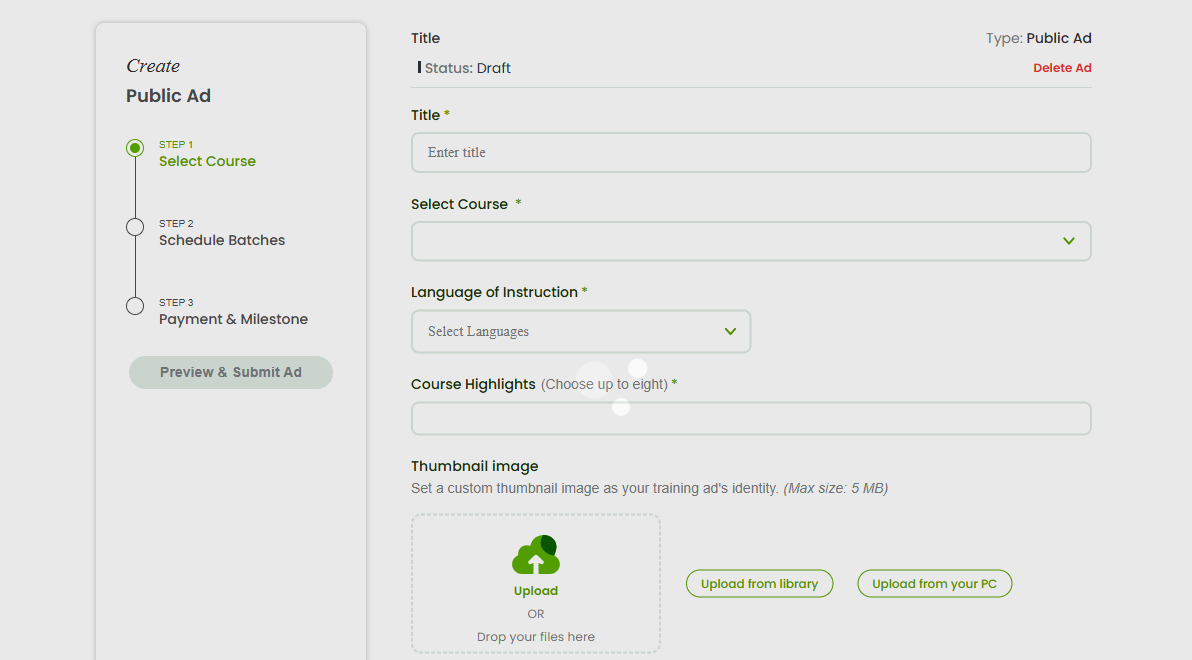
    The Create Public/Training Contract wizard, used to build ads (including Training Contracts for specific opportunities)

    In this article

    What a Training Contract is for

    Unlike a Public Ad, which is broadcast to attract any interested learner, a Training Contract is tailored to a specific opportunity. It’s how you respond to one learner’s particular need with something built around what they asked for.

    When to use one

    • A learner has posted a specific training request.
    • You’ve spoken with a learner who wants something particular.
    • You want to pitch a focused offer rather than a general course.

    How it works

    Training Contracts work hand-in-hand with training posts and proposals. You find the specific opportunity, then respond with a tailored offer. The Training Jobs & Proposals and Offers & Contracts sections walk through finding requests and sending offers.

    Making it land

    • Reference the learner’s exact goal and level.
    • Be specific about what you’ll deliver for them.
    • Keep it personal — the value of a Training Contract is that it isn’t generic.

    FAQs

    How is this different from a Public Ad?

    A Public Ad is broadcast broadly; a Training Contract targets one specific opportunity with a tailored offer.

    Where do I find specific opportunities?

    In Find Work training posts. See the Training Jobs & Proposals section.

    How do I send the offer?

    Through proposals and offers. See the Offers & Contracts section.


    Related articles

    Last updated: 8 June 2026

  • Managing your Public Ads

    Once your ads are live, My Public Ads is where you keep them organised and track how they’re doing. Here’s what’s available.

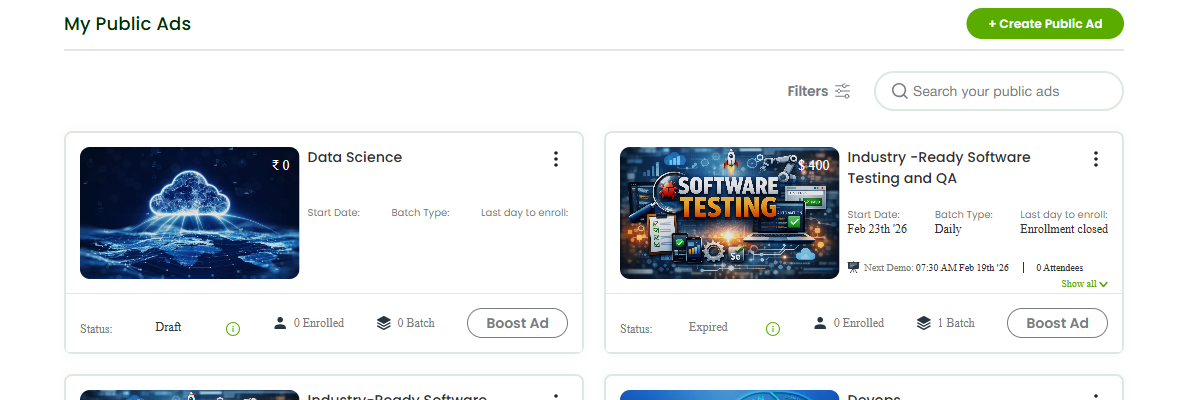
    The My Public Ads page on Tutorac, showing a tutor’s public ad cards with status (Draft/Expired), enrolment and batch counts, Boost Ad buttons, filters, and the Create Public Ad button

    In this article

    My Public Ads

    My Public Ads lists the ads you’ve created. From here you can review them and create new ones with + Create Public Ad.

    Filtering your ads

    Use the Filters on the page to narrow the list when you have several ads, so you can quickly find the one you want to review.

    Ad Posting Reports

    For how your ads are performing, open Ad Posting Reports from your dashboard. This is where you review your ad activity rather than on the ad list itself.

    Keeping ads effective

    • Keep the course behind your ad up to date.
    • Make sure the intro video is clear and current.
    • Review your reports periodically and adjust.

    FAQs

    Where do I see all my ads?

    Under My Public Ads. Use Filters to narrow the list.

    Where can I check ad performance?

    In Ad Posting Reports from your dashboard.

    How do I add another ad?

    Use + Create Public Ad. See “Creating a Public Ad.”


    Related articles

    Last updated: 8 June 2026