Scheduling a demo takes just a minute. This article walks through creating one and inviting the learners you want to attend.
In this article
Open the demo form
From your dashboard, choose Schedule Free Session to open the demo form.
Set the demo details
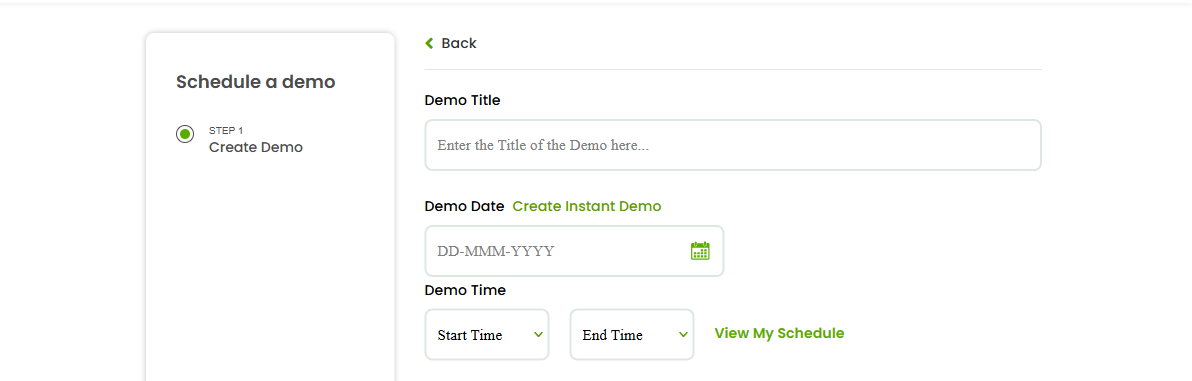
- Demo Title — name the session so learners know what it covers.
- Demo Date — pick the day.
- Start Time and End Time — choose from the time slots.
- Create Instant Demo — use this if you want to start a demo right away instead of scheduling it for later (covered in the next article).
Invite learners
You can add attendees two ways:
- Select learners — search and select from your existing learners.
- Invite by email — enter an email address and choose Add New to send an invitation to someone not yet on your list.
Create the demo
When the details and attendees look right, choose Create Demo. Your invited learners will be notified about the session.
View your schedule
Use View My Schedule to see your upcoming demos and keep your sessions organised.
FAQs
Can I invite more than one learner?
Yes. Select multiple existing learners, and/or invite others by email.
Can I invite someone who isn’t on Tutorac yet?
Yes — enter their email address and choose Add New to send an invitation.
Where do I see the demos I’ve scheduled?
Use View My Schedule on the demo form, or check your Calendar.
Related articles
Last updated: 8 June 2026