Author: tutorac

  • Global Messages vs Class Messages

    Tutorac messaging works in two contexts. Knowing which to use keeps conversations organised and easy to find later.
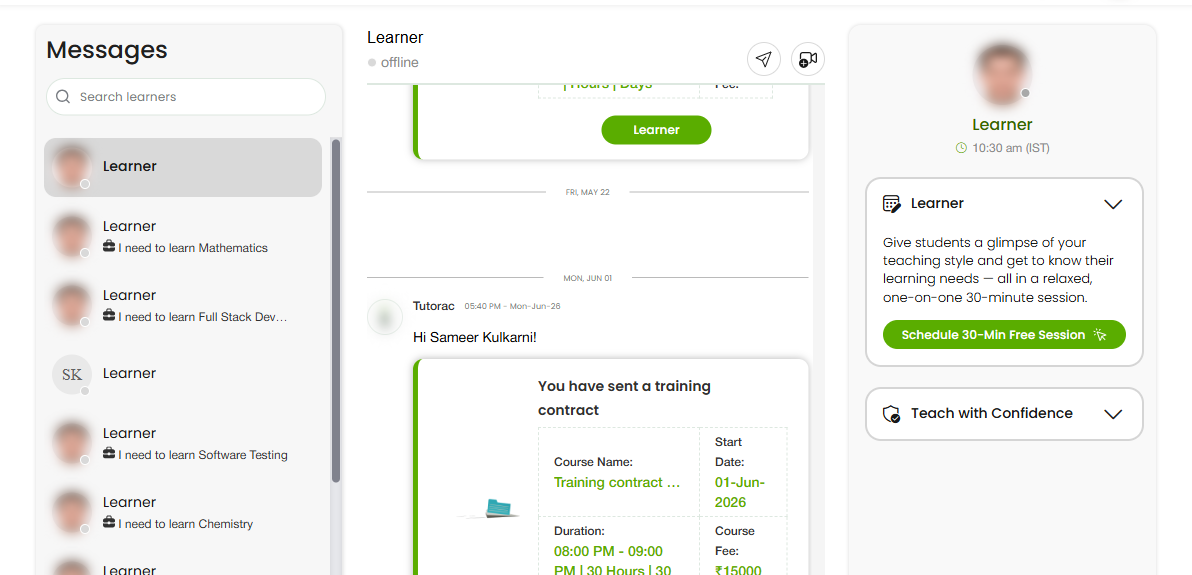
    The Tutorac Messages interface showing conversations with learners and the message thread (names masked for privacy)

    In this article

    Global Messages

    Global Messages are your general conversations — for example, early enquiries from prospective learners or messages that aren’t tied to one particular class. They live in your main Messages area.

    Class Messages

    Class Messages are tied to a specific class or batch you’re running. They keep all communication for that group in one place, alongside the work you’re delivering.

    Which to use

    • Use Global Messages for general or pre-enrolment conversations.
    • Use Class Messages for anything specific to an ongoing class so it stays with that group.

    FAQs

    Can I message a learner before they enrol?

    General conversations happen in Global Messages.

    Where do class-specific chats go?

    In Class Messages, tied to that class or batch.

    Why keep them separate?

    It keeps each class’s communication together and easy to find.


    Related articles

    Last updated: 8 June 2026

  • Messaging on Tutorac: an overview

    Messaging keeps you connected with learners before, during, and after training. This overview explains where messages live and the two ways they work.

    The Tutorac Messages interface (learner names masked) — a list of conversations on the left, the message thread in the centre, and learner/session details on the right

    In this article

    Where to find Messages

    Messages is in the top navigation of your tutor account. Open it to see your conversations with learners.

    Two kinds of messages

    • Global Messages — your general conversations, not tied to a single class.
    • Class Messages — conversations connected to a specific class or batch you’re running.

    See “Global Messages vs Class Messages” for how each is used.

    Staying responsive

    Prompt, clear replies help you win and keep learners. Check Messages regularly, especially when you have active proposals, demos, or classes.

    FAQs

    Where are my messages?

    Under Messages in the top navigation.

    What’s the difference between Global and Class Messages?

    Global Messages are general; Class Messages are tied to a specific class or batch. See the next article.

    Why does responsiveness matter?

    Quick replies build trust and help convert enquiries and demos into students.


    Related articles

    Last updated: 8 June 2026

  • Financial reports and documents

    Tutorac gives you reports to track your income and activity. Keeping these helps with your own records and tax preparation.

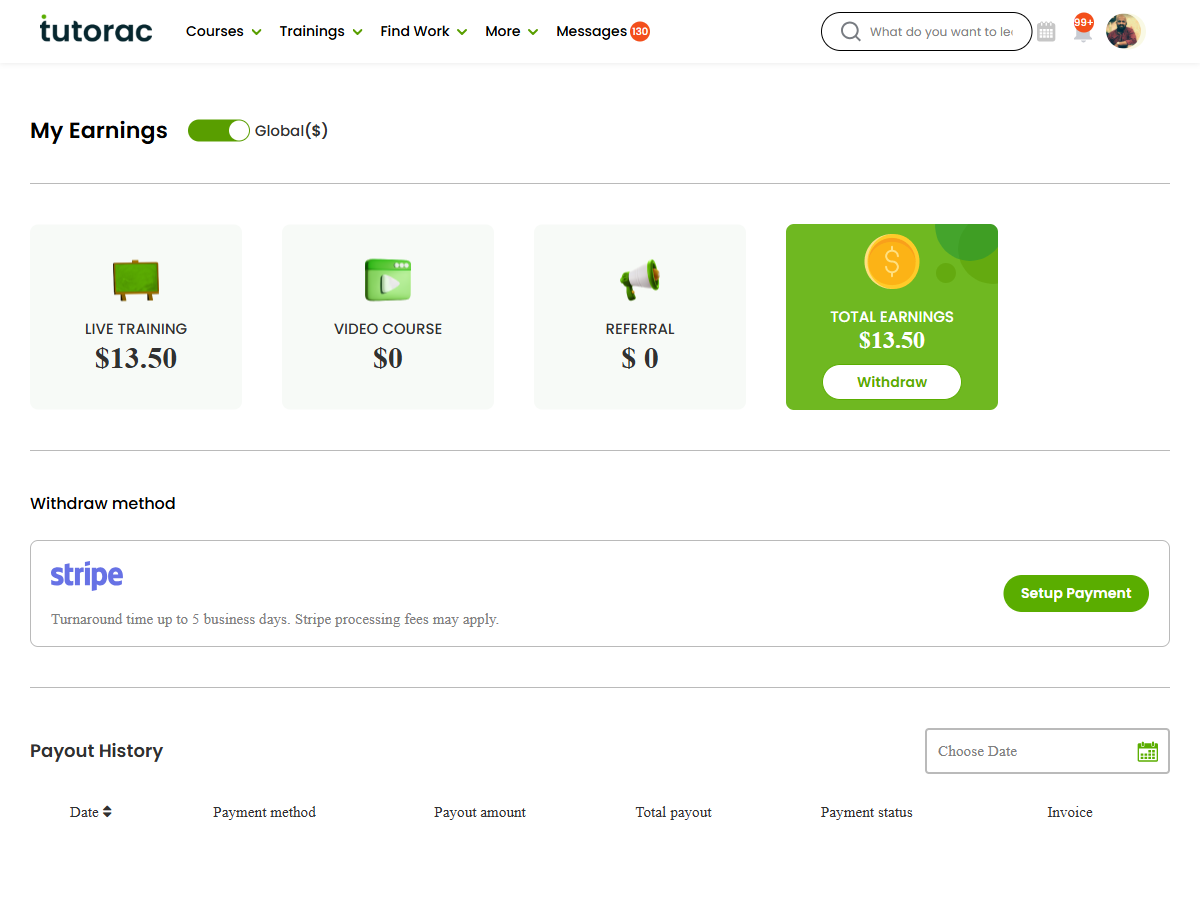
    The My Earnings page (USD) including the Payout History table with dates, amounts, payment status and an Invoice column — the financial reports and documents tutors can access

    In this article

    My Earnings

    Your central view of income is My Earnings, where your live training and video course earnings come together. See “Tracking your earnings.”

    Reports in your account

    Your account also includes activity and earnings reports, such as:

    • Live Training Earnings — earnings linked to your training ads and engagements.
    • Ad Posting Reports — activity relating to your ads.

    You’ll find these in the reports area of your account, alongside the dashboard links for your ads.

    Keeping records

    Keep your own copies of the figures you’ll need at tax time. If you need a specific document that you can’t find, contact support@tutorac.com.

    FAQs

    Where do I see my income?

    Under My Earnings, with more detail in your account reports.

    What reports are available?

    These include Live Training Earnings and Ad Posting Reports.

    I need a document I can’t find — what do I do?

    Contact support@tutorac.com.


    Related articles

    Last updated: 8 June 2026

  • Taxes for international tutors

    Tutorac works with tutors around the world. If you’re outside India, your local tax rules apply to your earnings. Here’s the high-level picture.

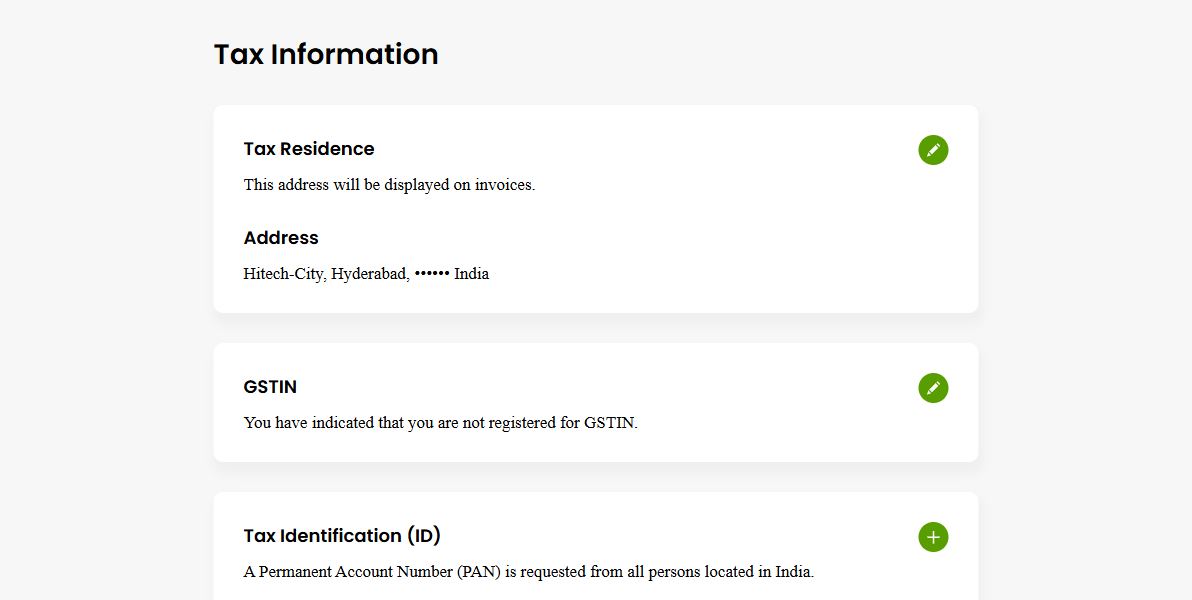
    The Tax Information page — Tax Residence and Tax Identification, which determine how tax applies to tutors, including international tutors

    In this article

    Your local rules apply

    Tax obligations differ from country to country. Wherever you’re based, you’re responsible for reporting and paying tax on your tutoring income according to your local laws.

    Managing your details

    Keep your tax-related details current in the Tax Information area of your profile, and use My Earnings and your account reports to track income for your own records.

    Get local advice

    Because rules vary by country and change over time, Tutorac can’t advise on your specific obligations. Consult a qualified tax professional in your country for accurate guidance.

    FAQs

    Which country’s rules apply to me?

    Generally those of the country where you’re tax resident. Confirm with a local tax professional.

    Does Tutorac withhold tax for me?

    You’re responsible for your own tax obligations. For specifics, consult a professional in your country.

    How do I track my income?

    Use My Earnings and your account reports. See “Financial reports and documents.”


    Related articles

    Last updated: 8 June 2026

  • GST and tax for tutors in India

    If you’re a tutor based in India, Indian tax rules such as GST and TDS may apply to your earnings. This article explains the idea at a high level — not specific advice.

    The Tax Information page showing the GSTIN section where India-based tutors record their GST registration status

    In this article

    What may apply

    Depending on your circumstances, Indian tax rules — including GST (Goods and Services Tax) and TDS (Tax Deducted at Source) — may be relevant to income you earn as a tutor. Whether and how they apply depends on your registration status, your turnover, and the nature of your work.

    Where to manage it

    Your tax-related details on Tutorac are managed in the Tax Information area of your profile. Keep it accurate and up to date. You can track your income under My Earnings and in your account reports.

    Getting it right

    Tax rules change and depend on your individual situation. Tutorac can’t tell you what you specifically owe. For accurate, up-to-date guidance on GST, TDS, and filing, consult a qualified tax professional or chartered accountant.

    FAQs

    Do GST and TDS apply to me?

    It depends on your personal circumstances. Check with a qualified tax professional.

    Where do I manage my tax details?

    In the Tax Information area of your profile.

    Can Tutorac tell me what I owe?

    No. Tutorac isn’t a tax adviser. Speak to a professional for advice specific to you.


    Related articles

    Last updated: 8 June 2026

  • Tax information on Tutorac

    Tutorac gives you a place to manage your tax-related information. This overview explains where it lives and what you’re responsible for.

    The Tax Information page on Tutorac — Tax Residence/billing address shown on invoices, GSTIN status, and Tax Identification (PAN) sections

    In this article

    Where Tax Information lives

    Open the profile menu and choose Tax Information. This is where your tax-related details for Tutorac are managed.

    Your tax obligations

    As a tutor, you’re responsible for understanding and meeting the tax obligations that apply to your earnings. What applies depends on where you live and your personal circumstances. Tutorac can’t act as your tax adviser, so for anything specific to your situation, consult a qualified tax professional.

    Keep your records

    Keep your own records of what you earn. You can review your earnings under My Earnings and use the reports available in your account. See “Financial reports and documents.”

    FAQs

    Where is my tax information?

    Under Tax Information in the profile menu.

    Does Tutorac handle my taxes for me?

    No. You’re responsible for your own tax obligations. For specifics, speak to a qualified tax professional.

    Where can I see what I’ve earned?

    Under My Earnings, plus the reports in your account.


    Related articles

    Last updated: 8 June 2026

  • Your earnings balance and the Tutorac Wallet

    As you earn, your money is held as a balance until it’s paid out. This article explains the idea of your earnings balance and the Tutorac Wallet.

    The My Earnings page showing the total earnings balance and the Withdraw option used to move funds out of the Tutorac wallet

    In this article

    Your earnings balance

    The money you earn from training and video courses builds up as a balance you can review under My Earnings. It’s the running total of what you’ve earned on the platform.

    The Tutorac Wallet

    The Tutorac Wallet is where your earnings balance is held on the platform before it’s paid out to you. Think of it as the holding place between earning and receiving the money in your bank.

    From balance to payout

    When your balance is paid out, it goes to the payout details saved in your Bank Details tab. So the flow is: you earn → your balance grows → it’s paid out to your bank. See “How and when you get paid” and “Setting up payouts: your Bank Details.”

    FAQs

    Where do I see my balance?

    Under My Earnings in the profile menu.

    Is the Wallet the same as my bank account?

    No. The Wallet holds your earnings on Tutorac; your bank account (set in Bank Details) is where payouts are sent.

    How does money leave the Wallet?

    Through a payout to your Bank Details. The exact options shown in your account are the ones that apply to you.


    Related articles

    Last updated: 8 June 2026

  • How and when you get paid

    Once you’ve earned on Tutorac, here’s how that money reaches you and what to check so payouts go smoothly.

    The My Earnings page with the Total Earnings balance and Withdraw option — how and when tutors get paid

    In this article

    How you get paid

    Your earnings are paid out to the payout details saved in your Bank Details tab. You can review what you’ve earned at any time under My Earnings.

    Live training earnings

    Earnings from live training come from the engagements you deliver and the terms agreed in each offer or Training Contract. See the Offers & Contracts and Pricing & Discounts sections for how those terms are set.

    Video course royalties

    Video courses earn monthly royalties based on the minutes learners watch. The more your content is watched, the more you earn. See the Video Courses section for details.

    Make sure you’re payout-ready

    • Complete and verify your profile.
    • Add accurate payout details in Bank Details.
    • Keep those details up to date.

    The exact payout options and timing shown in your account are the ones that apply to you. If anything is unclear, contact support@tutorac.com.

    FAQs

    Where does my money go?

    To the payout details in your Bank Details tab.

    How are video course earnings calculated?

    As monthly royalties based on the minutes learners watch.

    Where do I see what I’ve earned?

    Under My Earnings. See “Tracking your earnings.”


    Related articles

    Last updated: 8 June 2026

  • Setting up payouts: your Bank Details

    Before you can be paid, Tutorac needs your payout details. These live in the Bank Details tab of your profile.

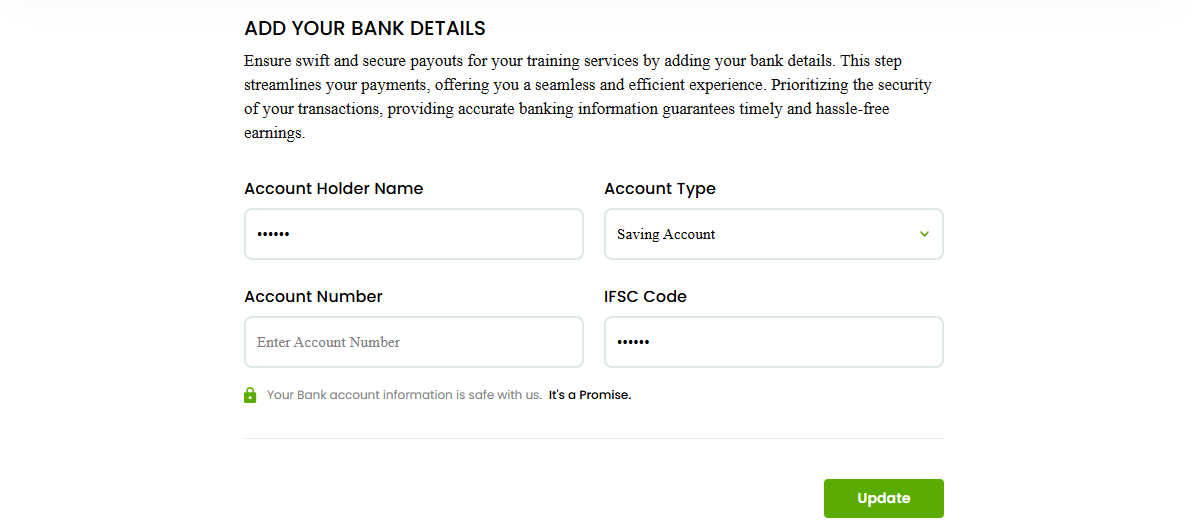
    The Bank Details section of the Tutorac profile (sensitive values masked) — Account Holder Name, Account Type, Account Number and IFSC Code, used to set up payouts

    In this article

    Where Bank Details lives

    Go to My Profile and open the Bank Details tab. This is where your payout information is stored.

    Why it matters

    Your earnings are paid out using the details you save here. Without complete, correct payout details, payouts can’t reach you.

    Keep it accurate

    • Make sure your details are complete and match your records.
    • Update them promptly if anything changes.
    • Double-check for typos before saving.

    FAQs

    Where do I add my payout details?

    In the Bank Details tab under My Profile.

    What happens if my details are wrong?

    Payouts may be delayed or fail. Keep your details accurate and up to date.

    Can I update them later?

    Yes — return to the Bank Details tab any time to update them.


    Related articles

    Last updated: 8 June 2026

  • Tracking your earnings (My Earnings)

    My Earnings is your hub for seeing what you’ve made across all your training and courses. This article explains where to find it and what it covers.

    The My Earnings page (USD view) with Live Training, Video Course, Referral and Total Earnings cards, the Withdraw option, and payout history

    In this article

    Opening My Earnings

    Open the profile menu and choose My Earnings. This is your central place to review what you’ve earned on Tutorac.

    What it covers

    My Earnings brings your income together in one view, so you can see how your training and courses are performing over time rather than checking each engagement separately.

    Your earning sources

    • Live training — from the courses and engagements you deliver.
    • Video courses — monthly royalties based on the minutes learners watch.

    For how each is calculated, see the Live Courses and Video Courses sections.

    FAQs

    Where do I see my earnings?

    Under My Earnings in the profile menu.

    Does it include both live and video courses?

    Yes — it brings your earning sources together in one place.

    How do I get this money paid out?

    Through your payout details. See “Setting up payouts: your Bank Details” and “How and when you get paid.”


    Related articles

    Last updated: 8 June 2026