Author: tutorac

  • Account suspension and reactivation for tutors

    In rare cases a tutor account may be suspended. This article explains why that can happen, what it means, and how to work toward reactivation.

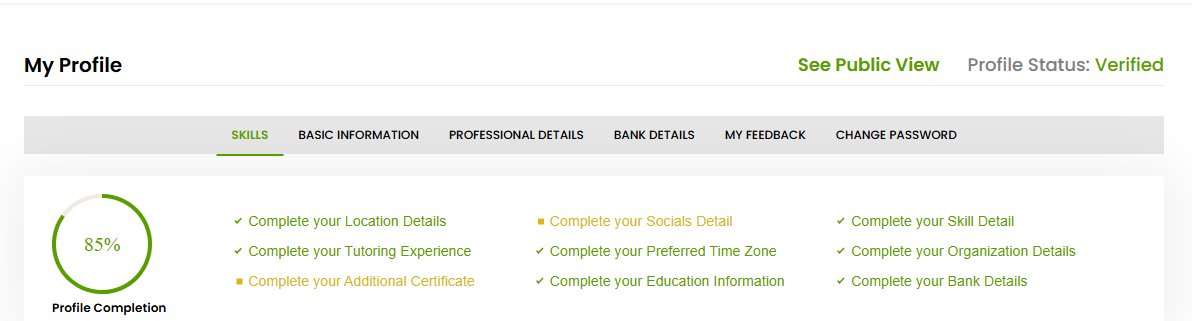
    The My Profile page showing Profile Status (Verified) — where account standing appears; a suspended account would show a different status

    In this article

    Why accounts get suspended

    Tutorac may suspend an account when something puts learners, other tutors, or the marketplace at risk. Common reasons include breaching Tutorac’s policies, conduct or acceptable-use violations, misleading or inaccurate profile information, or activity that takes payments off-platform. The goal is to keep the marketplace safe and trustworthy for everyone.

    What suspension means

    While an account is suspended, your access to tutor features may be limited or paused. If this happens, the fastest way to understand the specifics of your case is to contact Tutorac support.

    How to work toward reactivation

    • Contact support@tutorac.com to understand the reason and the steps required.
    • Resolve the underlying issue — for example, correct inaccurate information or address the policy concern raised.
    • Provide any details support asks for, and keep communication clear and honest.

    Reactivation depends on the situation and Tutorac’s review.

    How to avoid suspension

    • Keep your profile accurate and honest.
    • Follow Tutorac’s terms, conduct standards, and acceptable-use policy.
    • Keep payments and communication on the platform.
    • Treat learners professionally and deliver what you promise.

    See the Safety & Policies section for the full standards tutors are expected to meet.

    FAQs

    Who do I contact if my account is suspended?

    Email support@tutorac.com. They can explain the reason and the steps for your specific case.

    Will I be told why my account was suspended?

    Contact support for the details that apply to your account.

    Can a suspended account be reactivated?

    It depends on the situation and Tutorac’s review. Resolving the underlying issue and working with support gives you the best chance.


    Related articles

    Last updated: 8 June 2026

  • Editing and keeping your tutor profile up to date

    Your profile isn’t a set-and-forget task. Keeping it accurate and current helps you stay discoverable, trusted, and verified. This article shows how to edit and maintain it.

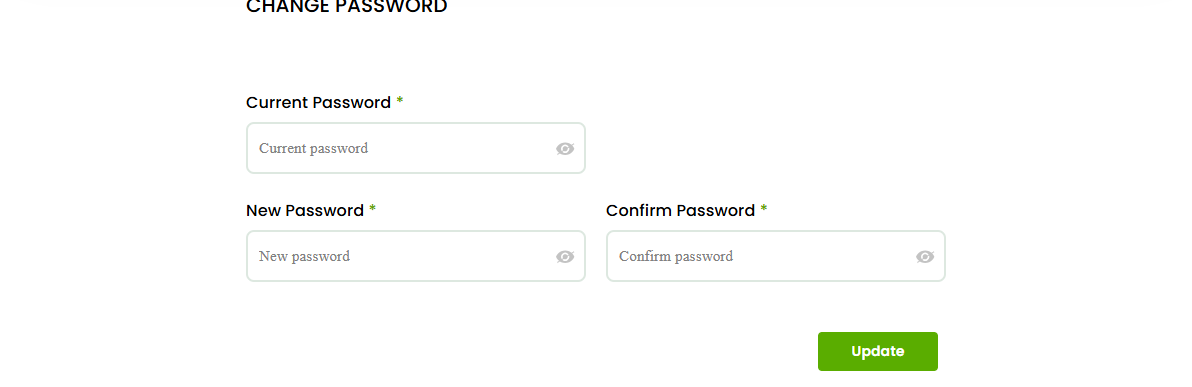
    The Change Password section of the Tutorac tutor profile, with Current Password, New Password and Confirm Password fields and an Update button

    In this article

    Editing your profile

    Open My Profile and use the sections — Skills, Basic Information, Professional Details, and Bank Details — to update any part of your profile. Make your changes in the relevant section and save.

    Check the public view

    After editing, use See Public View to confirm your profile reads well to learners. This is the same view prospective learners see, so it’s worth a quick check after any change.

    Your feedback

    The My Feedback section shows the reviews learners have left for you. Strong feedback builds your reputation, so deliver great sessions and keep an eye on what learners say.

    Changing your password

    Use the Change Password section to update your account password. Choose a strong, unique password to keep your account secure.

    When to update

    • When you add new skills or start teaching new topics.
    • When your experience, education, or certificates change.
    • When your location, time zone, or contact details change.
    • When your payout (bank) details change.

    FAQs

    Will editing my profile affect my verified status?

    Keeping your profile accurate supports your status. Avoid adding misleading information — honest, current details are what verification depends on.

    Do changes show to learners immediately?

    Use See Public View to confirm how your updated profile appears to learners.

    Can I respond to feedback?

    You can review your feedback in the My Feedback section. The best way to build great feedback is to deliver strong, reliable sessions.


    Related articles

    Last updated: 8 June 2026

  • Understanding your profile verification status

    Your profile shows a status that tells you and learners where your account stands. This article explains what the verification status means and what affects it.

    Where to find your Profile Status on the Tutorac profile — shown as Verified next to the Profile Completion percentage

    In this article

    Where to find your status

    Open My Profile. Your Profile Status is shown on your profile, alongside your Profile Completion percentage. This is the quickest way to see whether your account is verified.

    What “Verified” means

    When your status reads Verified, Tutorac has reviewed and approved your account. Learners can see that you’re a genuine, trusted tutor, which helps you win their confidence.

    If you’re not verified yet

    If your status isn’t verified, the most common reason is an incomplete or inconsistent profile. Work through your Profile Completion checklist, make sure your details are accurate, and give the review time to complete. If you’re stuck, reach out to support@tutorac.com.

    Keeping your verified status

    Keep your profile accurate and follow Tutorac’s policies. Misleading information or policy breaches can affect your standing. See the Safety & Policies section for the standards tutors are expected to meet.

    FAQs

    Where exactly do I see my status?

    On your profile, shown as Profile Status near your profile completion details.

    My profile is 100% complete but not verified — why?

    Completion and verification are related but separate. Completion measures your checklist; verification is Tutorac’s review. If completion is full and you’re still not verified, contact support.

    Can my verified status change?

    Yes — inaccurate information or policy breaches can affect it. Keep your profile honest and current.


    Related articles

    Last updated: 8 June 2026

  • How tutor verification works on Tutorac

    Verification is how Tutorac confirms you’re a genuine tutor and signals that trust to learners. This article explains how verification works and how to give yourself the best chance of being verified.

    The Tutorac My Profile page showing the Profile Completion meter and Profile Status marked Verified, which Tutorac sets after reviewing the account

    In this article

    What verification means

    A verified profile shows learners that Tutorac has reviewed your account and confirmed you’re a genuine tutor. Your profile displays a Profile Status, and once approved it reads Verified. Verified tutors stand out and build trust more easily with learners.

    How verification works

    Verification is based on the information in your profile. When your profile details are complete and accurate, Tutorac reviews your account and updates your status. The more complete and truthful your profile — skills, professional details, education, and identity information — the smoother the review.

    How to support your verification

    • Complete every item on your Profile Completion checklist.
    • Make sure your details are accurate and consistent.
    • Add your professional details, education, and any certificates.
    • Keep your information current if anything changes.

    If you have questions about your verification, contact support@tutorac.com.

    After you’re verified

    Once your status shows Verified, learners can see that you’re a trusted tutor. Keep your profile accurate to maintain your standing, and use See Public View to check how your verified profile appears.

    FAQs

    How long does verification take?

    Timelines can vary. The best way to avoid delays is to complete your profile fully and accurately. If you’re waiting longer than expected, contact support.

    Can I teach before I’m verified?

    Focus on completing your profile first. A verified status helps you win learner trust, so it’s worth completing everything as early as you can.

    What if my details change after verification?

    Update your profile whenever your details change so your information stays accurate.


    Related articles

    Last updated: 8 June 2026

  • Reaching 100% profile completion and getting verified

    A complete, verified profile is what turns a new account into a tutor learners trust and can pay. This article shows how to finish your profile, add your bank details, get verified, and be ready to receive students.

    The Tutorac My Profile page showing the 85% Profile Completion meter with its checklist and Profile Status marked Verified

    In this article

    Work through your completion checklist

    Your profile shows a Profile Completion percentage with a checklist of what’s still missing. Work through each item to reach 100%:

    • Location details
    • Socials detail
    • Skill detail
    • Tutoring experience
    • Preferred time zone
    • Organisation details
    • Additional certificate
    • Education information
    • Bank details

    As you complete each one, the percentage rises and the item drops off the list.

    Add your bank details

    Open the Bank Details section of your profile and add your payout details. This is how Tutorac pays your earnings, so completing it is essential before you start earning. For more on payouts, see the Earnings & Payouts section.

    Getting verified

    Your profile displays a Profile Status. Once your profile is reviewed and approved, the status shows as Verified. A verified status signals to learners that you’re a genuine, trusted tutor and helps you stand out. Keep your details accurate and complete to support verification.

    Check your public view

    Use the See Public View link to preview your profile exactly as learners see it. Review it once you’re near 100% so you know your public profile is complete and reads well.

    Get ready to receive students

    With your profile complete and verified, set your availability so learners can book you — use the View & Edit Your Availability option from your dashboard. From here you’re ready to find work, send proposals, and take on learners. See the Training Jobs & Proposals and Demo & Live Sessions sections for the next steps.

    FAQs

    Do I need 100% completion to get verified?

    A complete, accurate profile gives you the best chance. Fill in every checklist item, especially your skills, professional details, and bank details.

    Why do I need to add bank details?

    Your bank details are how Tutorac pays your earnings. Without them, you can’t receive payouts.

    How do I know when I’m verified?

    Your profile’s Profile Status will show as Verified.


    Related articles

    Last updated: 8 June 2026

  • Completing your basic and professional information

    Beyond your skills, two profile sections tell learners who you are and why to choose you: Basic Information and Professional Details. This article explains what goes in each.

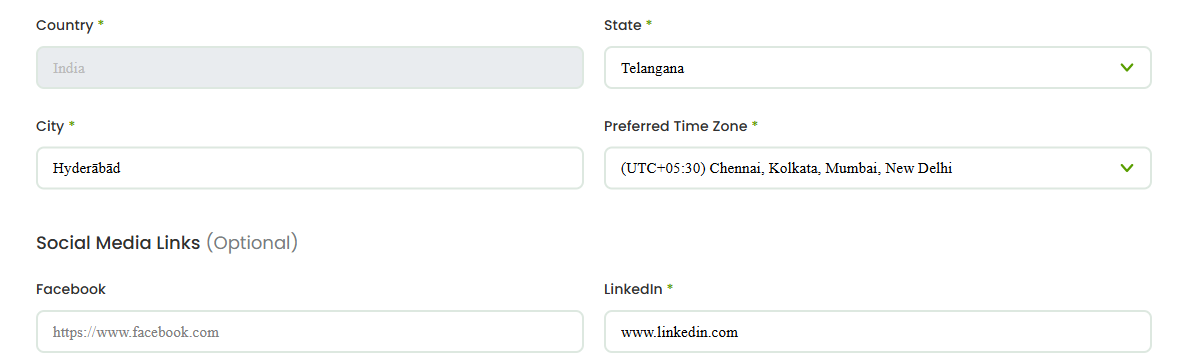
    The Basic Information section of the Tutorac tutor profile — the Country, State, City and Preferred Time Zone fields and the optional Social Media Links

    In this article

    Basic Information

    Open My Profile and go to the Basic Information section. This is where you set the details learners see first, including your location, your social links, and your preferred time zone. Your time zone matters because it affects how session times are shown and scheduled with learners.

    Professional Details

    In the Professional Details section, add the background that builds credibility:

    • Tutoring experience — your relevant teaching or professional experience.
    • Education information — your academic background.
    • Additional certificates — any certifications that support your expertise.
    • Organisation details — organisation information where relevant.

    These details appear on your public profile and help learners decide that you’re the right tutor for them.

    Saving each section

    Fill in each section and save it. As you complete these details, your Profile Completion percentage rises and the matching items drop off your completion checklist.

    Tips for a strong profile

    • Be specific about your experience and the outcomes you help learners achieve.
    • Keep your time zone accurate so scheduling works smoothly.
    • Use See Public View to check how everything reads to a learner.

    FAQs

    Which details are most important?

    Your tutoring experience, education, and a clear, accurate basic profile carry the most weight with learners. Complete these early.

    Can I edit these later?

    Yes. You can update Basic Information and Professional Details whenever your experience or details change.

    Where do bank details go?

    Bank details have their own section, covered in the next article on reaching 100% completion and getting verified.


    Related articles

    Last updated: 8 June 2026

  • Choosing your teaching categories and skills

    Your skills decide which learners find you. This article shows how to set your teaching categories, sub-categories, and skills in the Skills section of your profile.

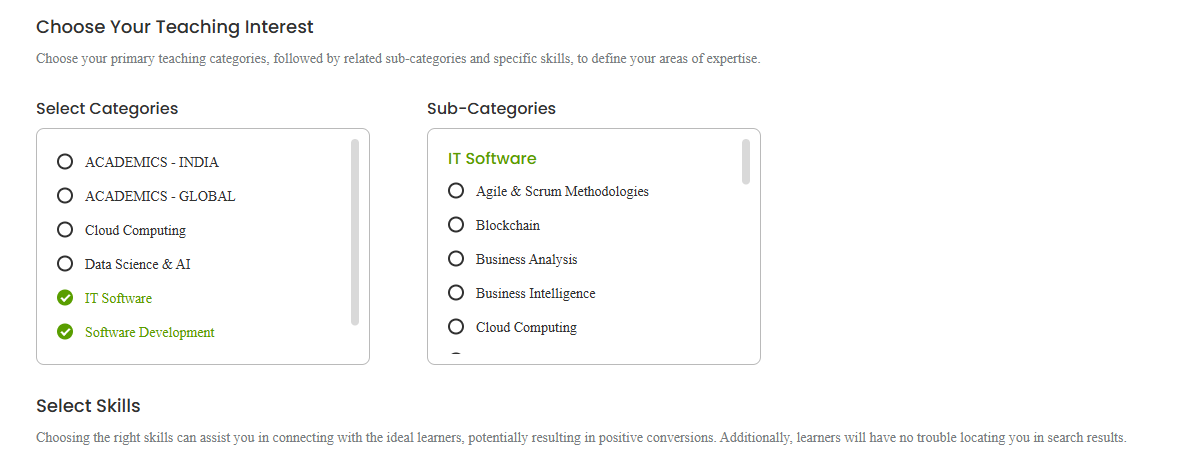
    The Skills section of the Tutorac tutor profile — Choose Your Teaching Interest, with the Select Categories list (IT Software and Software Development selected) and the Sub-Categories list, used to set teaching categories, sub-categories, and skills

    In this article

    Open the Skills section

    Go to My Profile from the top-right menu and open the Skills section. You’ll see the heading Choose Your Teaching Interest, where you define your areas of expertise.

    Select your categories

    Under Select Categories, choose your primary teaching categories — for example Cloud Computing, Data Science & AI, IT Software, Multimedia, Software Development, or Web Development. Pick the ones that genuinely match what you teach.

    Choose sub-categories

    Once you pick a category, its Sub-Categories appear. For example, under Web Development you’ll see options such as Backend Development, CMS, Front End Development, Fullstack Development, Progressive Web Apps, and Web Design. Select the sub-categories that fit your expertise.

    Select your skills

    Under Select Skills, choose the specific skills you teach (for example HTML, CSS, JavaScript, React, Node.js, SQL, and so on). As Tutorac notes on this page, choosing the right skills helps you connect with the ideal learners and makes you easier to find in search results, so be specific and accurate.

    Save your changes

    When you’re done, click Update to save. You can come back and refine your categories and skills any time as your offering grows.

    FAQs

    How many skills should I add?

    Add the skills you can genuinely teach well. Enough to cover your expertise so learners can find you, but accurate — don’t list skills you can’t deliver.

    Can I teach across more than one category?

    Yes. You can select multiple categories and sub-categories if you genuinely teach across them.

    Will updating my skills affect how I appear in search?

    Yes — your categories and skills are a key part of how learners find you, so keeping them accurate and current helps the right learners reach you.


    Related articles

    Last updated: 8 June 2026

  • Setting up your tutor profile: an overview

    Your profile is the foundation of everything you do as a tutor on Tutorac. This overview shows you where your profile lives, the sections it’s made of, and how to track your progress toward a complete, verified profile.

    The Tutorac My Profile page: the section tabs (Skills, Basic Information, Professional Details, Bank Details, My Feedback, Change Password), the 85% Profile Completion meter with its checklist, the See Public View link, and Profile Status marked Verified

    In this article

    Opening your profile

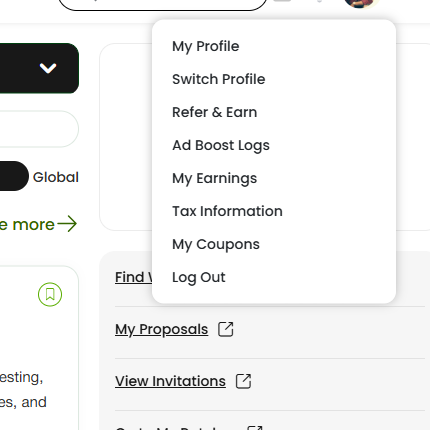
    Open the profile menu in the top-right of any page and choose My Profile. This takes you to your tutor profile, where all of your details are organised into sections you can edit.

    The profile sections

    Your profile is split into these sections:

    • Skills — the teaching categories, sub-categories, and skills that define your expertise.
    • Basic Information — your personal and contact details, location, socials, and preferred time zone.
    • Professional Details — your tutoring experience, education, certificates, and organisation details.
    • Bank Details — the payout details Tutorac uses to pay your earnings.
    • My Feedback — the reviews and feedback learners have left for you.
    • Change Password — update your account password.

    Profile completion

    Your profile shows a Profile Completion percentage along with a checklist of what’s still missing — for example your location details, socials, skills, tutoring experience, preferred time zone, organisation details, certificates, education information, and bank details. Work through the checklist to reach 100%. A more complete profile helps you appear in more learner searches and builds trust.

    Preview with See Public View

    Use the See Public View link on your profile to see exactly how learners see you. Check it after making changes so you know your public profile reads the way you intend.

    Profile status and verification

    Your profile shows a Profile Status — once your profile is verified, it displays as Verified. Verification reassures learners that you’re a genuine, trusted tutor. See the Profile & Verification section for more on the verification process.

    FAQs

    Do I have to complete every section before I can teach?

    The more complete your profile, the better. Skills, basic information, professional details, and bank details are the most important to fill in early so you can be found and paid.

    Why does profile completion matter?

    A complete profile helps you rank in learner searches, gives learners confidence, and unlocks a stronger public profile. The completion checklist tells you exactly what’s left.

    Where do I see my reviews?

    In the My Feedback section of your profile.


    Related articles

    Last updated: 8 June 2026