Find Work is where you discover learners looking for tutors. This article explains how to browse training posts and filter them to find the right fit.
In this article
Opening Find Work
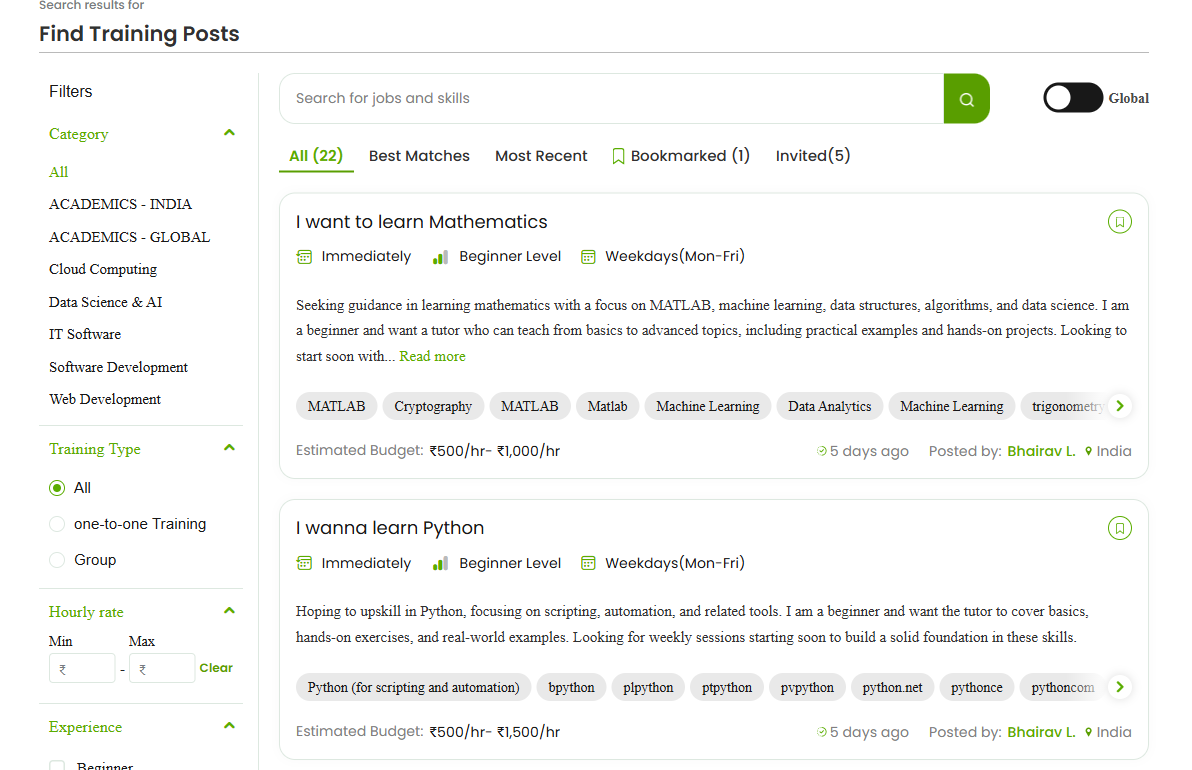
From the top navigation, choose Find Work to open Find Training Posts — the list of training requests posted by learners.
What a training post shows
Each post gives you what you need to judge fit at a glance:
- Title and description of what the learner wants to learn.
- Experience level (Beginner, Intermediate, Expert) and preferred schedule.
- Relevant skills/tags.
- Estimated Budget (an hourly rate range).
- Number of employees (for group/organisation requests), when provided.
- When it was posted, who posted it, and their location.
Filtering posts
Use the Filters panel to narrow the list:
- Category — e.g. Cloud Computing, Data Science & AI, IT Software, Multimedia, Software Development, Web Development.
- Training Type — one-to-one or Group.
- Hourly rate — set a Min and Max.
- Experience — Beginner, Intermediate, Expert.
- Location — India, United States, or Global.
Sorting and tabs
Switch between All, Best Matches, and Most Recent, and check Bookmarked for posts you’ve saved and Invited for posts a learner has invited you to.
FAQs
What does Estimated Budget mean?
It’s the hourly rate range the learner expects. Use it to decide whether a post fits what you charge.
How do I see only the most relevant posts?
Use the Best Matches tab and apply Category, Experience, and Location filters.
Where do invitations appear?
Under the Invited tab. See “Tracking your proposals and invitations” for more.
Related articles
Last updated: 8 June 2026