Author: tutorac

  • Managing your Tutorac Video Courses subscription and saved cards

    Once you’ve subscribed to Tutorac Video Courses, you’ll want a single place to check your renewal date, update your saved card, switch plans, or cancel when you no longer need it. This article walks through the subscription management options.

    In this article

    Open My Subscription

    Sign in to Tutorac and open the profile menu in the top right of the page. Once you have an active subscription, the profile menu shows extra options:

    • My Subscription — your live subscription details.
    • Buy Subscription — opens the plans page if you want to change tier.
    • My Profile → Invoices — a record of every renewal payment.

    Click My Subscription to open the subscription management page.

    Review your active plan

    The My Subscription page shows everything about your current plan in one view:

    • The plan name and price (for example, monthly or yearly).
    • The renewal date when the next payment will be taken.
    • The card on file that will be charged.
    • The status of the subscription — Active, Pending, or Cancelled.

    Update or change your saved card

    Use Change Your Card on the My Subscription page to update payment details. You’ll be prompted to:

    • Enter the new card number, expiry, and CVV.
    • Confirm the change.

    From the next renewal onwards, the new card is used. You can also manage saved cards from My Profile → Card Details to add or remove cards used for any purchase on Tutorac.

    Tip: update your card a few days before the renewal date if your existing card is about to expire. This avoids a failed payment and a paused subscription.

    Switch plans

    To change between monthly and yearly plans (or to a different tier):

    • Open the profile menu and click Buy Subscription.
    • Choose the new plan and complete payment.
    • The new plan takes over from your next billing cycle.

    Cancel a subscription

    If you want to stop auto-renewing, look for the cancel option on the My Subscription page. After confirming:

    • Your subscription status changes to Cancelled.
    • You keep access to the Video Courses library until the end of your current paid period.
    • No further renewal payments will be taken.
    • You can re-subscribe any time by opening Buy Subscription from the profile menu.

    Find your invoices

    Every subscription payment generates an invoice you can download for your records. To access them:

    • Open the profile menu in the top right.
    • Go to My Profile → Invoices.
    • Click any invoice to view or download it as a PDF.

    FAQs

    When is my next payment?

    The renewal date is shown on the My Subscription page. Tutorac will automatically charge your saved card on that date for the next billing period.

    What happens if my card payment fails?

    Tutorac will retry the payment and email you. If renewal still fails, your subscription pauses at the end of your current paid period until you update the card and re-subscribe.

    Can I get a refund for an unused part of my subscription?

    Subscription payments are generally non-refundable once a billing period has started. If you believe you were charged in error, email support@tutorac.com with your invoice details and the team will look into it.

    Will I lose my saved progress if I cancel?

    No. Your Watch History, bookmarks, and any individually purchased courses stay in your account. You’ll lose subscription-only access to the library, but anything you bought outright remains available in Purchased Courses.

    Can I remove a saved card I no longer use?

    Yes. Open My Profile → Card Details and remove the card you don’t need. Make sure at least one valid card is on file if you have an active subscription, so renewals can be processed.


    Related articles

    Last updated: 1 June 2026

  • Completion certificates for Tutorac Video Courses

    Every Tutorac Video Course ends with a completion certificate you can download, share, and add to your CV or LinkedIn profile. The certificate is generated automatically once you finish the course — here’s how it works and how to use it.

    In this article

    What the completion certificate is

    A Tutorac completion certificate is a personalised, verifiable PDF that confirms you’ve finished a specific video course. Each certificate includes:

    • Your full name (as set in your Tutorac profile).
    • The course title.
    • The completion date.
    • A unique certificate ID for verification.
    • The Tutorac signature.

    You can preview what the certificate will look like in the Your Certificate Awaits section on any course detail page before you start the course.

    How to earn one

    A certificate is unlocked when you complete 100% of the course — that is, when you’ve finished every lesson in the curriculum. Tutorac tracks your progress automatically as you watch lessons, so just keep working through the course and the certificate will become available the moment you reach the end.

    Tip: you can check your current progress on each course tile in Videos → My Courses → Watch History. The percentage shown on the tile is the amount of the course you’ve completed.

    Download your certificate

    Once the course is 100% complete:

    • Open the course detail page (or jump back to My Courses and click the completed course).
    • Scroll to the Completion Certificate section.
    • Click the green Download Certificate button.

    The certificate downloads as a PDF you can save, print, or share.

    Share it on LinkedIn, your CV, or with employers

    Ways you can use your Tutorac certificate:

    • LinkedIn — add it under the Licenses & certifications section of your profile. Use the course title and Tutorac as the issuing organisation.
    • CV / resume — list it under Certifications or Continuing Education, including the certificate ID.
    • Job applications — attach the PDF directly to demonstrate skills you’ve completed.

    FAQs

    Is there a cost to get the certificate?

    No. The completion certificate is included with the course — whether you took the course through a subscription or bought it individually, finishing the course unlocks the certificate at no extra charge.

    What name will appear on the certificate?

    The certificate uses the full name in your Tutorac profile. If you need to change it, go to My Profile → Basic Info, update your name, and then re-download the certificate.

    Can I download a certificate before completing the course?

    No. The Download Certificate button activates only after the course reaches 100% completion. The Your Certificate Awaits preview on the course page is just a sample showing what the design will look like.

    Can employers verify the certificate?

    Yes. Each certificate carries a unique ID that can be matched back to the issuing record. If a verification process is required, you can share the certificate ID along with the PDF.

    What if I lose the PDF?

    You can always re-download the certificate from the same course page — the Download Certificate button stays available for any course you’ve completed.

    Do live training batches also issue certificates?

    This article covers Video Courses only. Live training batches and tutor-led courses have their own completion process. Reach out to your tutor at the end of your batch to discuss any certificate of completion they may provide.


    Related articles

    Last updated: 1 June 2026

  • Watching your video courses and tracking progress

    Once you subscribe or buy a video course, it lives in your My Courses hub. From there you can watch lessons at your own pace, pick up where you left off, bookmark the parts you want to revisit, and see your progress at a glance.

    In this article

    Open My Courses

    Sign in to Tutorac, then hover over Videos in the top navigation and click My Courses. This is your personal video library — it shows every video course you’ve started, bookmarked, or purchased.

    Tip: if My Courses looks empty, you haven’t watched or bought any video courses yet. Open Videos → All Courses and start one to see it appear here.

    Understand the three tabs

    The My Courses page has three tabs along the top:

    • Watch History — every course you’ve started, with your last watched lesson on top. Use this to resume quickly.
    • Bookmarked — lessons or courses you’ve saved with the bookmark icon. Use this to build a watchlist.
    • Purchased Courses — only the courses you bought outright (one-time payment). Subscription-only courses don’t appear here — they show under Watch History after you start them.

    Filter your courses

    To find a specific course quickly, use the filters at the top of each tab:

    • Status — All, In progress, or Completed.
    • Course length — less than 15 mins, 15–30 mins, 30–60 mins, or 60–90+ mins.

    Combine filters to narrow down — for example, In progress + 30–60 mins shows just the medium-length courses you still need to finish.

    Watch a lesson

    Click any course tile to open the course player. The player has:

    • The video itself with standard playback controls (play, pause, speed, fullscreen).
    • The lesson list on the side so you can jump to any lesson.
    • A bookmark icon to mark the current lesson for later.
    • Notes, captions, and lesson resources where the trainer has added them.

    When you close the player, Tutorac remembers where you stopped — next time you open the same course, it resumes from that point.

    Track your progress

    Each course tile shows a progress indicator (for example, 40% complete) based on how many lessons you’ve finished. Once you reach 100%, the course is marked as Completed and the completion certificate becomes available to download.

    You can switch the Status filter to Completed to see every course you’ve finished, or In progress to see what’s still left.

    FAQs

    Does my progress save automatically?

    Yes. Tutorac auto-saves your last watched position. Close the tab, switch devices, or come back days later — you can resume from where you stopped.

    Can I watch courses on my phone?

    Yes. The Tutorac website is responsive, so you can sign in and watch on any modern browser — desktop, tablet, or mobile.

    How do I bookmark a lesson?

    Inside the course player, click the bookmark icon next to the lesson. The lesson then appears in the Bookmarked tab in My Courses so you can return to it quickly.

    What’s the difference between Watch History and Purchased Courses?

    Watch History includes every course you’ve started — whether you watched it via subscription or bought it individually. Purchased Courses only lists the courses you paid for outright as a one-time purchase.

    Will I lose access to a course if my subscription ends?

    If you accessed a course through a subscription, your access ends when the subscription ends. Courses you bought individually stay in Purchased Courses permanently and you can keep watching them.


    Related articles

    Last updated: 1 June 2026

  • How to browse and find video courses on Tutorac

    Tutorac’s Video Courses library has hundreds of pre-recorded IT and tech courses. This article shows you the fastest ways to find the course you need — by category, by search, or by browsing the full catalogue.

    In this article

    Open the Videos menu

    Sign in to Tutorac. In the top navigation, hover over Videos to reveal three options:

    • Home — the Video Courses landing page with featured courses and category tiles.
    • All Courses — the full catalogue with filters and sorting.
    • My Courses — the courses you’ve already started, bookmarked, or purchased.
    Tutorac Video Courses landing page

    Browse by category

    The Videos landing page and the All Courses page group courses into six topic categories. Click any tile to see only the courses in that area:

    • Cloud Computing — AWS, Azure, GCP, DevOps and infrastructure.
    • Data Science & AI — Python for data, machine learning, analytics, AI/ML tools.
    • IT Software — system administration, networking, certifications.
    • Multimedia — design, video, audio, and creative tools.
    • Software Development — programming languages, software engineering, testing.
    • Web Development — frontend, backend, frameworks, full-stack.

    Browse the full catalogue

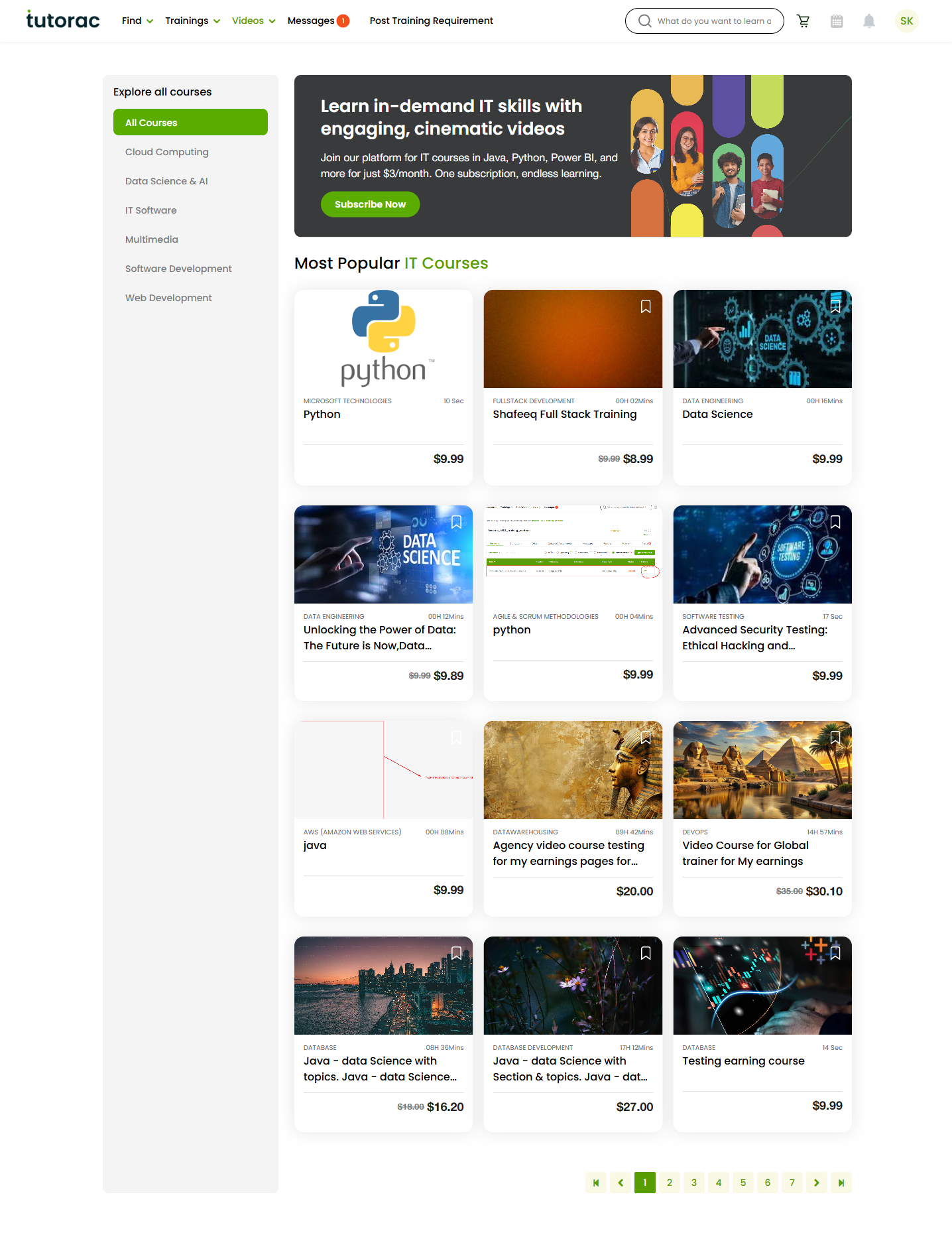
    Click Videos → All Courses to see every video course in one place. The page is paginated and shows each course as a tile with:

    • The course thumbnail and title.
    • The trainer who created it.
    • Course length and total lessons.
    • The price for individual purchase.
    Tutorac All Courses page

    Use the page filters to narrow your results by category or course length. Click any tile to open the course detail page.

    The search bar in the top navigation (“What do you want to learn?”) is the fastest way to find a specific topic. Type a keyword — for example, Python, Kubernetes, React, or AWS — and pick a result to jump straight to a matching course or to a search results page.

    Tip: search matches course titles, descriptions, and skill keywords, so even broad terms like “data analysis” or “cybersecurity” will surface relevant courses.

    What’s on the course detail page

    When you open a course, you’ll see everything you need to decide if it’s right for you:

    • Course player preview — a sample lesson at the top.
    • About and Skills — what the course covers.
    • Who should take this course — the intended audience and prerequisites.
    • What will you learn — the learning outcomes.
    • Curriculum — the full lesson breakdown.
    • About tutor — the instructor’s background.
    • Course Highlights — features such as unlimited access, progress tracking, and completion certificates.
    • Your Certificate Awaits — a preview of the certificate you’ll receive on completion.

    At the top, three action buttons let you start learning: Start Subscription, Add to cart, and Buy now.

    FAQs

    Do I need to sign in to browse courses?

    You can browse the catalogue, search, and view course details without signing in. You only need an account when you’re ready to subscribe or purchase.

    How many video courses are available?

    The library has hundreds of IT and tech video courses across six categories, and new courses are added regularly. The All Courses page always shows the current total at the top.

    Can I preview a course before buying?

    Yes. Most courses include a preview lesson on the course detail page so you can sample the trainer’s teaching style before you commit.

    Is there a way to save courses for later?

    Yes. Use Add to cart on the course detail page to keep a list of courses you’re considering, or once you start a course you can bookmark individual lessons.

    Can I take more than one course at the same time?

    Absolutely. With a subscription you can switch between any courses in the library, and individual purchases stay in your My Courses for whenever you want to come back.


    Related articles

    Last updated: 29 May 2026

  • How to buy a single video course on Tutorac

    You don’t have to subscribe to learn on Tutorac. Every video course can also be purchased on its own as a one-time buy, so you can pick exactly the courses you want and pay only for those. This article walks through the single-course purchase flow.

    In this article

    Choose a video course

    Sign in to Tutorac and open Videos → Home from the top navigation, or browse Videos → All Courses to see the full catalogue. Use the category tiles (Cloud Computing, Data Science & AI, IT Software, Multimedia, Software Development, Web Development) to narrow your search, then click any course thumbnail to open its detail page.

    On the course detail page, scan through:

    • About and Who should take this course — confirm the course matches your goals.
    • What will you learn and Curriculum — review the topics covered and the structure.
    • About tutor — see who created the course.
    • The course price, displayed next to the Buy now button.

    Add to cart or Buy now

    Below the course title you’ll see two purchase buttons next to the price:

    • Add to cart — saves the course to your cart so you can keep browsing and buy several courses together in one payment.
    • Buy now — sends you straight to checkout for just this course.

    Use Add to cart if you’re still shopping. Open the cart icon in the top navigation any time to review the courses you’ve added, change quantities, or remove items before paying.

    Complete checkout

    From the cart (or directly from Buy now), follow the on-screen prompts to:

    • Confirm the courses and total amount.
    • Enter or select a saved card.
    • Complete the payment.

    Once the payment succeeds, the course is added to your account immediately and an invoice is generated for your records.

    Tip: pricing is shown in your account region’s currency. Sign in before adding to cart so the total is calculated correctly.

    Access your purchased course

    After purchase, your course appears in Videos → My Courses, on the Purchased Courses tab. From there you can:

    • Start watching from the first lesson.
    • Track your progress as you complete each module.
    • Bookmark lessons you want to come back to.
    • Download the completion certificate once you’ve finished the course.

    To find your invoice, open the profile menu in the top right and go to My Profile → Invoices.

    FAQs

    How long do I have access to a course I buy?

    Single-course purchases give you ongoing access to that course in My Courses. You can come back and rewatch lessons or download materials at any time.

    Can I buy multiple courses in one payment?

    Yes. Use Add to cart on each course, then open your cart and check out once. You’ll receive a single invoice covering all the courses in that order.

    What’s the difference between Buy now and Start Subscription?

    Buy now is a one-time payment that unlocks the single course you’re viewing. Start Subscription opens the subscription plans, which give you unlimited access to the entire video library for the duration of the plan. Pick subscription if you plan to watch several courses; pick Buy now if you only want one or two.

    Can I get a refund on a purchased course?

    Single-course purchases are generally non-refundable once payment is complete. If you believe you were charged in error, email support@tutorac.com with your invoice details and the team will look into it.

    Where do I find an invoice for my purchase?

    Open the profile menu in the top right and go to My Profile → Invoices. Every paid order has its own invoice you can view or download.


    Related articles

    Last updated: 29 May 2026

  • How to subscribe to Tutorac Video Courses

    Tutorac Video Courses are a library of pre-recorded IT and tech courses you can watch on demand. A subscription unlocks unlimited access to every video course in the library, so you can learn at your own pace without buying courses one by one.

    In this article

    Where to find Video Courses

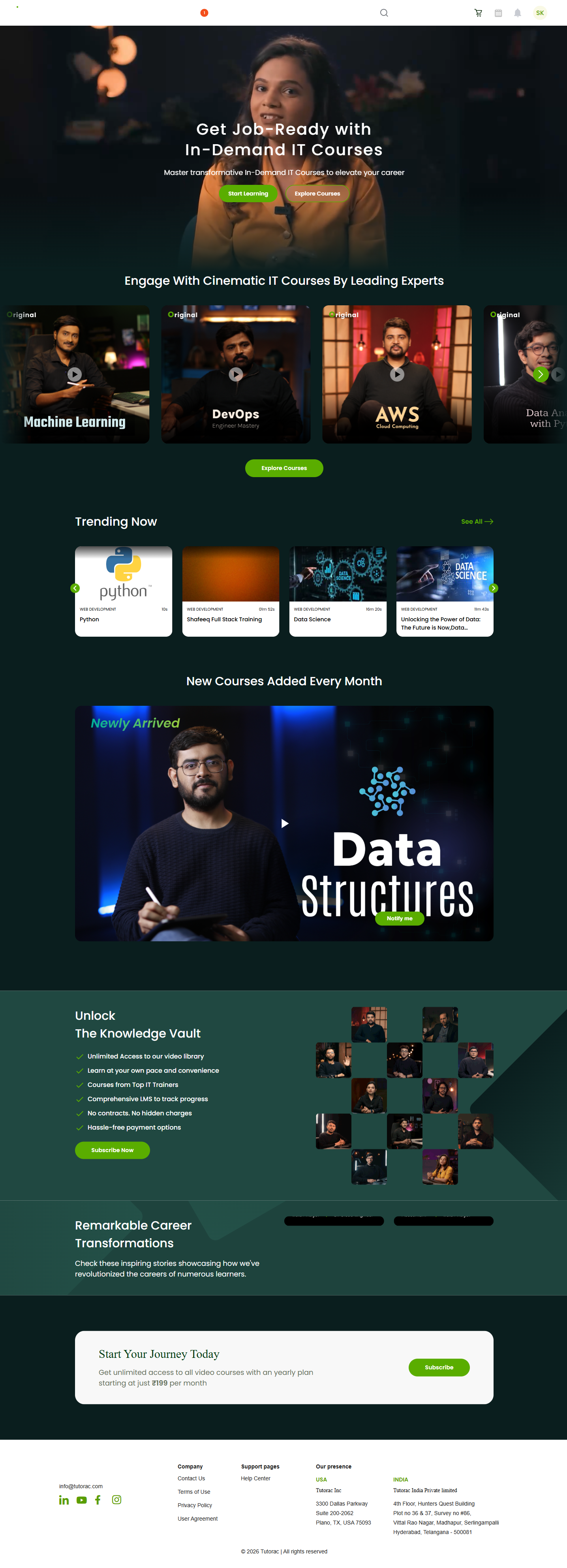
    Sign in to Tutorac. In the top navigation, hover over Videos and choose Home. This opens the Video Courses landing page where you can browse the full catalogue.

    Tutorac Video Courses landing page

    Use the Videos menu’s All Courses link or the category tiles on the landing page to drill into a specific area such as Cloud Computing, Data Science & AI, IT Software, Multimedia, Software Development, or Web Development.

    Start a subscription

    Open any video course you’re interested in. On the course detail page you’ll see a green Start Subscription button below the course title, alongside Add to cart and Buy now for single-course purchase.

    Click Start Subscription to open the subscription plans page. You’ll see plan options with their prices and renewal periods (for example, monthly and yearly).

    Tip: pricing and the available plans depend on your account region. Sign in first so the plans page shows the correct currency and rates for you.

    Complete payment

    Pick the plan that suits you and follow the on-screen prompts to enter your card details and confirm the payment. Once the payment is successful:

    • Your account is upgraded to an active subscription immediately.
    • You get unlimited access to the entire Video Courses library for the duration of the plan.
    • An invoice is generated and added to your Invoices page.

    Manage your subscription

    After you subscribe, you can manage your plan from the profile menu in the top right. The new options that appear are:

    • My Subscription — see your active plan, renewal date, and saved card.
    • Buy Subscription — opens the plans page if you ever need to change plans.
    • My Profile → Invoices — download past invoices for every renewal.

    FAQs

    Do I need to subscribe to watch video courses?

    No. You can also buy individual courses one at a time with Add to cart or Buy now. A subscription is the better choice if you plan to watch more than two or three courses, because it gives you unlimited access to the whole library.

    Can I switch between monthly and yearly plans?

    Yes. Open the profile menu, click Buy Subscription, and choose the plan you want. The new plan takes over from your current billing cycle.

    What happens if my payment fails on renewal?

    Tutorac will retry the payment and email you. If renewal still fails, your subscription will end at the end of your current paid period and your access will be paused until you update your card and subscribe again.

    Will I be billed automatically?

    Yes. Subscriptions renew automatically using the card you saved at checkout. You can update the card from My Subscription at any time.

    Can I get a refund on a subscription?

    Subscription payments are generally non-refundable once a billing period has started. If you believe you were charged in error, email support@tutorac.com and the team will look into it.


    Related articles

    Last updated: 29 May 2026

  • Subscription vs individual purchase: which is right for you?

    Tutorac offers two ways to pay for video learning: a subscription that unlocks the entire library, or buying individual courses one at a time. This article compares both so you can pick what fits.

    In this article

    Subscription

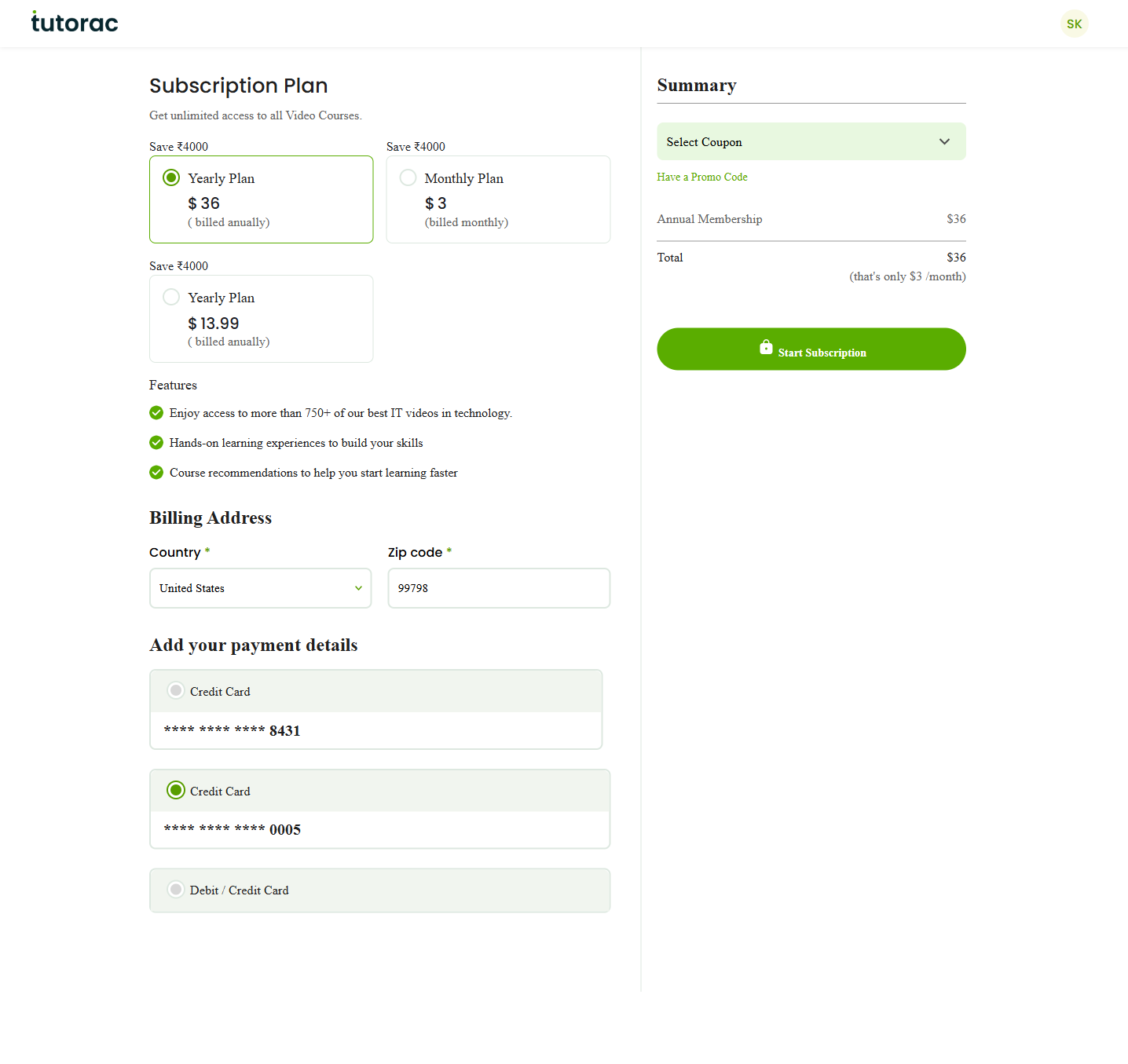
    The Tutorac subscription gives you unlimited access to every video course in the library for a flat fee. While your subscription is active you can start, stop, and switch between as many courses as you like.

    • Monthly Plan: $3 / month, billed monthly.
    • Yearly Plan: $36 / year, billed annually.
    • A promotional $13.99 Yearly Plan may be offered to eligible accounts.

    The subscription includes access to 750+ courses, hands-on learning experiences, and personalised course recommendations.

    Tutorac subscription plans

    Individual purchase

    Every course also has its own one-time price. On the course detail page you will see Add to cart and Buy now buttons. Once you complete the purchase, the course is yours — you can watch it whenever you want, even if you do not have an active subscription.

    Course prices vary by tutor and topic. Some courses are also discounted from their original price.

    Side-by-side comparison

    • Access: Subscription = all 750+ courses. Individual purchase = only the course(s) you bought.
    • Cost: Subscription = flat $3/mo or $36/yr. Individual = per-course price.
    • What happens if you stop paying: Subscription = library access ends when your plan expires. Individual = course remains yours.
    • Best for: Subscription = broad, exploratory learning. Individual = one specific skill you want to own long-term.

    Which one is right for you?

    Choose the subscription if you plan to explore multiple topics, take more than one or two courses, or use Tutorac videos regularly. Choose individual purchase if you want one specific course you know you will return to.

    You can also combine the two — keep the subscription for exploring, and buy a key course you want to keep permanently.

    FAQs

    If my subscription ends, do I lose courses I bought individually?

    No. Individually purchased courses remain in your library regardless of subscription status.

    Can I switch between monthly and yearly plans?

    Yes. Go to Profile > My Subscription to manage your plan. Plan changes typically take effect at the start of the next billing cycle.

    Is the $13.99 yearly plan always available?

    It is a promotional offer and may not be visible to every account. If you see it on your subscription page, it is available for you to select.

    Will I see prices in my local currency?

    Subscription pricing is shown in USD globally. Individual course prices show in your account currency — ₹ INR for India accounts, $ USD for everyone else.


    Related articles

    Last updated: 29 May 2026

  • Video Courses on Tutorac: an overview

    Tutorac Video Courses are expert-led, on-demand IT courses you watch at your own pace. This article gives you a quick tour of what’s available, how to access them, and how the experience is organised.

    In this article

    What are Tutorac Video Courses?

    Tutorac Video Courses are self-paced, expert-led IT courses delivered as cinematic video lessons. Each course is built around a structured curriculum with chapters, topics, and an end-of-course completion certificate. The library currently includes 750+ courses across the most in-demand IT skills.

    Tutorac Videos landing page

    Course categories

    Video Courses are organised into the following categories so you can navigate by skill area:

    • Cloud Computing
    • Data Science & AI
    • IT Software
    • Multimedia
    • Software Development
    • Web Development

    Two ways to access videos

    You can access Tutorac videos in two ways:

    • Subscription — one plan, unlimited access to every video course in the library.
    • Individual purchase — buy a single course with Add to Cart or Buy Now and keep it.

    You can mix and match — for example, start with the subscription to explore the catalogue, and buy a specific course you want to keep long-term.

    Finding videos in the platform

    From your dashboard, hover the Videos nav item in the top bar. You will see a dropdown with three options:

    • Home — the Video Courses landing page with curated highlights.
    • All Courses — the full catalogue with category filters and search.
    • My Courses — your watch history, bookmarked courses, and purchased courses.

    FAQs

    Do I need a subscription to watch any course?

    Not necessarily. You can buy a single course individually without subscribing. The subscription unlocks the entire library at a flat monthly or yearly rate.

    Are video courses different from live courses on Tutorac?

    Yes. Live courses are scheduled training sessions with a tutor at a set time. Video Courses are pre-recorded and self-paced — you watch on your own schedule.

    What devices can I watch on?

    You can watch Video Courses on any modern web browser — desktop, laptop, tablet, or phone. There is no separate app required.

    Do I get a certificate?

    Yes. Each course offers a completion certificate when you finish all the chapters. See the article on completion certificates for details.


    Related articles

    Last updated: 29 May 2026

  • Reading your invoice and payment receipt on Tutorac

    Every milestone payment on Tutorac generates an invoice and an email receipt. This article shows where to find them, what each field means, and how to download a PDF copy for your records or tax filing.

    In this article

    Where to find your invoice

    You have two places to access invoices: Profile menu > Invoices for a list of every payment across all batches, or open a specific batch > Payment tab to see invoices for that batch only. Each invoice has a View and Download button.

    Email receipt after every payment

    After every successful milestone funding or release, Tutorac sends a receipt email to your registered address. The email summarises the amount, batch, milestone, and payment method, and includes a link to download the full PDF invoice. Keep these emails for your records.

    Fields on your invoice

    Your invoice includes:

    • Invoice number — unique reference (use this when contacting support)
    • Invoice date — date the payment was processed
    • Bill to — your name and billing address at the time of payment
    • Batch ID — the training batch this milestone belongs to
    • Milestone reference — which milestone was funded or released
    • Tutor’s fee — the amount that goes to your tutor
    • Tutorac service fee — the platform fee
    • Discount or promo applied — if any
    • Tax — GST (India) or local sales tax/VAT (other regions)
    • Total paid — the amount charged to your card
    • Currency — ₹ INR or $ USD
    • Payment method — last 4 digits of card used

    Downloading as PDF

    From the Invoices list, click the Download button next to any invoice to save it as a PDF. The PDF is identical to what you see on screen and is signed/stamped where required by local tax regulations. You can also forward the original receipt email to your accountant.

    GST invoice for India accounts

    If your account is based in India, your invoice is a tax invoice with Tutorac’s GSTIN, your GSTIN (if you provided one), HSN/SAC code, and a separate GST line. Use this invoice to claim input tax credit where eligible. Add your business GSTIN under Profile > Billing Address so future invoices include it.

    Update billing address for invoices

    To change the address that appears on future invoices, go to Profile > Billing Address, update the fields, and save. The new address applies to invoices generated after the change. Older invoices keep the address they were issued with — contact support if you need a reissue.

    FAQs

    I never got the receipt email — what now?

    Check your spam folder first. If it is not there, sign in and go to Profile > Invoices to download the invoice directly. You can also update your notification email in Profile > Basic Info.

    Can I get a single invoice covering multiple milestones?

    No. Each milestone payment generates its own invoice. This keeps refund and audit handling clean.

    The name on my invoice is wrong — can it be changed?

    Update Profile > Basic Info and Profile > Billing Address. Future invoices use the corrected details. For an existing invoice, contact support with the invoice number and the correction needed.

    How long are invoices stored?

    All your invoices remain available in your account for as long as the account is active. We recommend downloading and archiving PDFs for your own tax records.

    If a milestone is refunded, do I get a new invoice?

    Yes. A credit note is issued when a refund is processed, referencing the original invoice. The credit note appears in Profile > Invoices alongside your payment invoices.


    Related articles

    Last updated: 29 May 2026

  • Coupon codes on Tutorac

    Tutors on Tutorac can issue coupon codes to their learners. You apply these codes at the time of enrolling in a live course to get a discount on the course fee. This article explains where coupons come from, how to apply one, and the rules around them.

    In this article

    What are coupon codes on Tutorac?

    Coupon codes on Tutorac are discount codes created and shared by tutors. A tutor can offer a code to a specific learner or a group of learners as a promotion on their live courses. The discount is applied to the course fee at the time of enrolment.

    How you receive a coupon code

    Coupon codes are shared directly by tutors. You may receive a code through a message on Tutorac, in an announcement from a tutor you follow, or as part of a promotional campaign the tutor is running. Tutorac itself does not issue coupon codes — they always come from a tutor.

    How to apply a coupon code at live course enrolment

    1. Open the live course you want to enrol in.
    2. Click Enrol to go to the enrolment page.
    3. Look for the coupon code field above the total.
    4. Enter the code exactly as the tutor shared it and click Apply.
    5. The discount appears as a separate line item, and the updated total is shown.
    6. Complete the payment to confirm your enrolment.

    Codes are case-sensitive. If a code is invalid, expired, or not meant for that course, you will see an error message and the discount will not apply.

    Rules and restrictions

    • Coupon codes can only be applied during live course enrolment.
    • Each coupon code can usually be used once per learner (the tutor sets the limit).
    • Codes have an expiry date set by the tutor.
    • A code is tied to the issuing tutor’s courses — it will not work on another tutor’s course.
    • The discount applies to the course fee. GST or local taxes are still calculated on the discounted amount.
    • If you cancel an enrolment, the refund follows the standard cancellation policy on the amount you actually paid after the coupon.

    FAQs

    Where do I find a coupon code?

    Coupon codes are shared by tutors. Check messages from your tutor on Tutorac, their course page, or any promotional emails or social posts they have sent. Tutorac does not publish a public list of codes.

    My code says “invalid” — what do I do?

    Check for typos and capitalisation. Make sure the code has not expired and that you are applying it to a live course offered by the tutor who gave you the code. If it still does not work, contact the tutor.

    Can I use more than one coupon at the same time?

    No. Only one coupon code can be applied per enrolment.

    Does a coupon work on a hire or 1-on-1 booking?

    No. Coupon codes apply at live course enrolment only.

    If I cancel my enrolment, do I get the coupon back?

    The coupon itself is not refunded as cash. Your refund is based on the amount you actually paid after the discount, following Tutorac’s cancellation policy.


    Related articles

    Last updated: 29 May 2026