Tutorac handles cancellations entirely inside the platform — there’s no Support ticket to raise. There are two flows depending on where you are in the process: Withdraw an offer the tutor hasn’t accepted yet (full refund), or Cancel class on a batch that’s already running (refund per the milestone-completion policy). This guide walks through both, screen by screen.
In this article
- Which flow applies to you
- Case 1: Withdraw an offer (before the tutor accepts)
- Case 2: Cancel class on an active batch
- Refund timing & payment method
- Before you cancel — quick checklist
- FAQs
Which flow applies to you
Tutorac splits cancellations into two distinct states, and the button you’ll see depends on which state your hire is in:
- Tutor hasn’t accepted yet (status: Awaiting Approval) — you’ll see a Withdraw link on the contract details page. Withdrawing returns the full amount — nothing has started yet.
- Tutor has accepted and the batch is running (status: Upcoming or Ongoing) — you’ll see a Cancel class link inside the batch’s Payment tab, next to the active milestone. The refund follows the milestone-completion-percentage policy (full table in Cancellation policy: when you (the learner) cancel).
There is no email-Support route for routine cancellations — both buttons live in your dashboard.
Case 1: Withdraw an offer (before the tutor accepts)
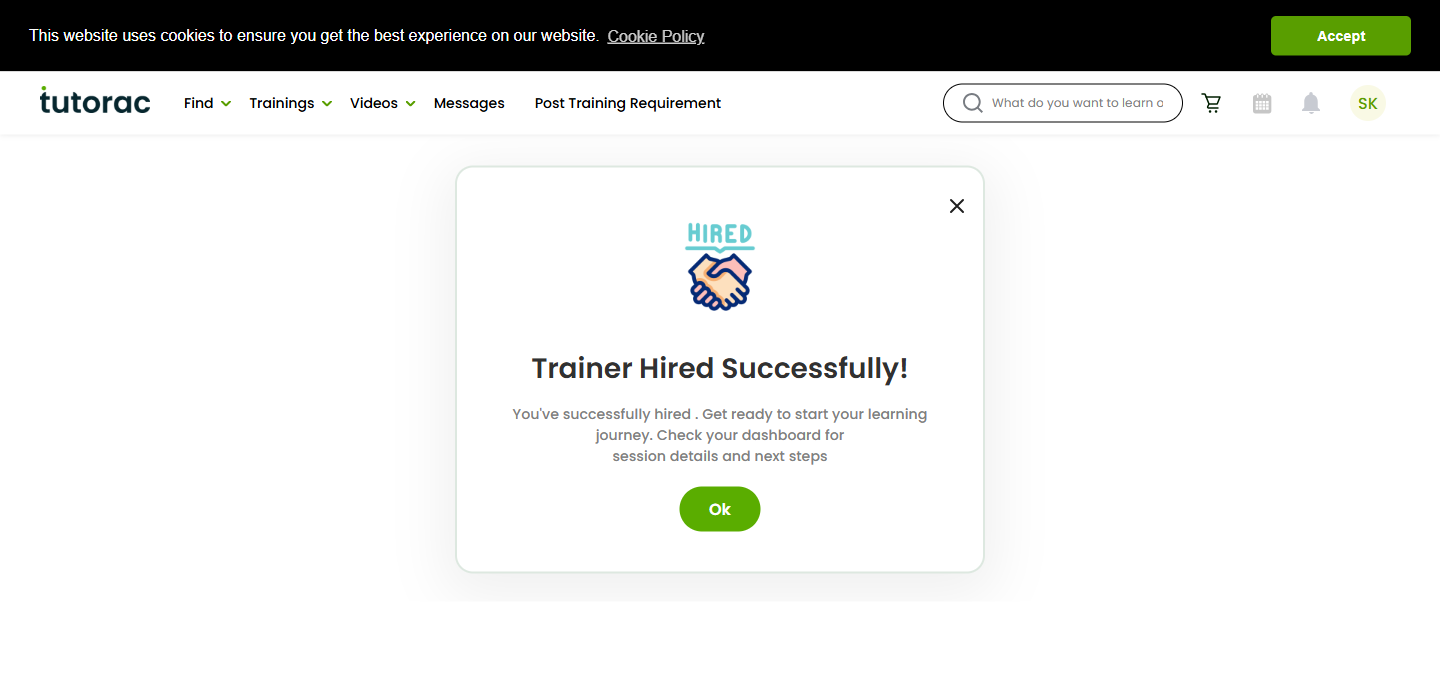
When you click Hire Now on a tutor’s profile and complete the hire form, Tutorac sends the offer to the tutor and holds your payment in escrow. The tutor has 2 days to respond, or the offer expires automatically. While the offer is in Awaiting Approval, you can withdraw it at any time for a full refund.
Step 1: Open the contract
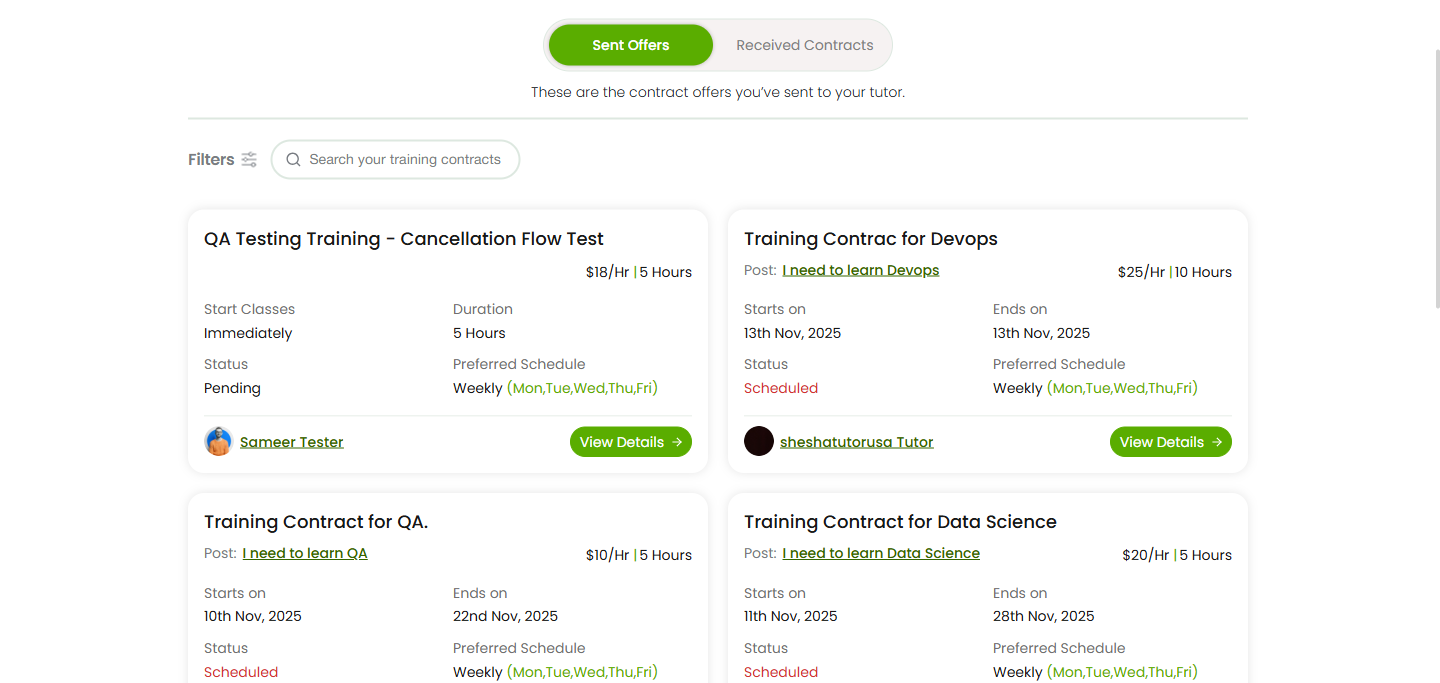
- From your dashboard avatar menu (or the side nav), go to Trainings > All Contracts.
- Switch to the Sent Offers tab.
- Find the contract you want to cancel — its status will read Pending.
- Click View Details.
Step 2: Withdraw the offer
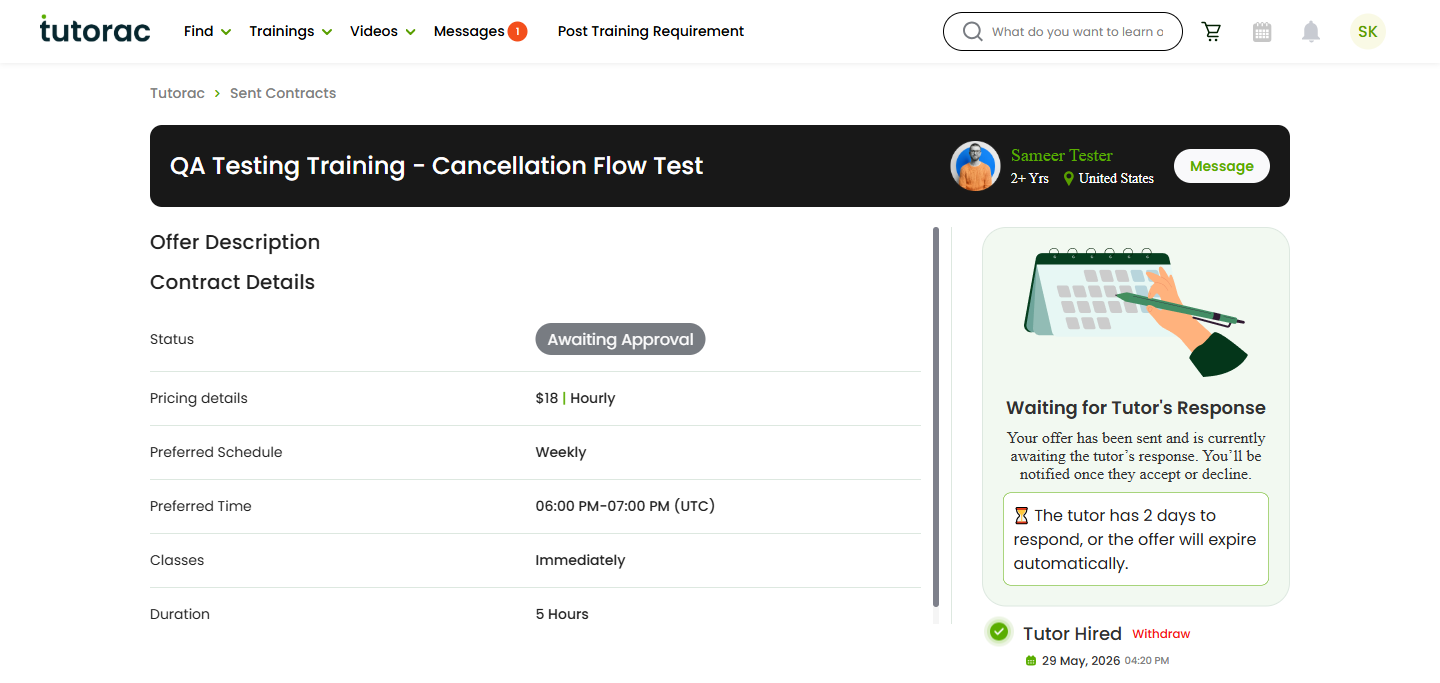
On the contract details page you’ll see Status: Awaiting Approval, the message “Your offer has been sent and is currently awaiting the tutor’s response”, and below it a Tutor Hired section with a Withdraw link on the right.
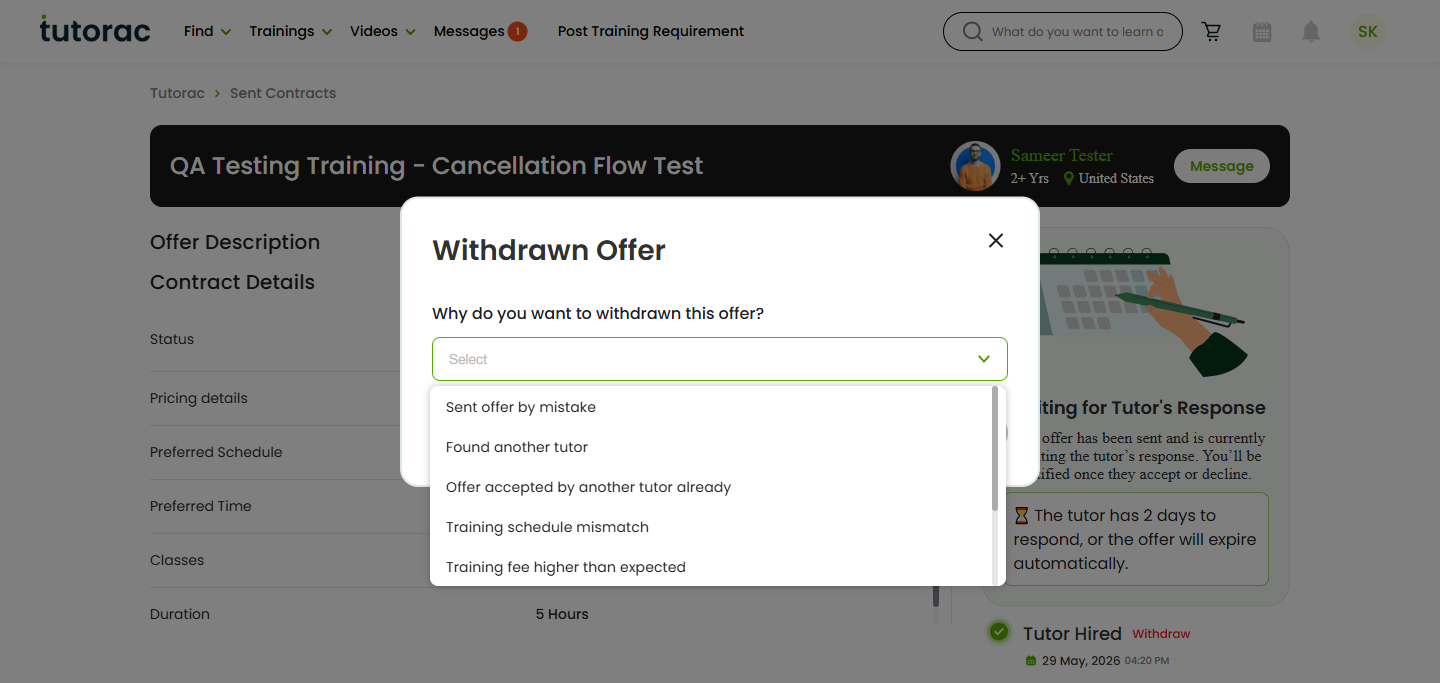
- Click Withdraw.
- A Withdrawn Offer dialog opens asking “Why do you want to withdrawn this offer?”
- Pick a reason from the dropdown. Available reasons:
- Sent offer by mistake
- Found another tutor
- Offer accepted by another tutor already
- Training schedule mismatch
- Training fee higher than expected
- Course content not suitable
- No longer need this training
- Other (please specify)
- Click Withdraw in the dialog to confirm. (Cancel closes the dialog without changes.)
Step 3: Confirmation
Tutorac shows an Offer Withdrawn confirmation: “You have withdrawn your training request sent to [Tutor Name]. The trainer has been notified and the request is now closed. Your refund will be processed.” Click Ok to close it.
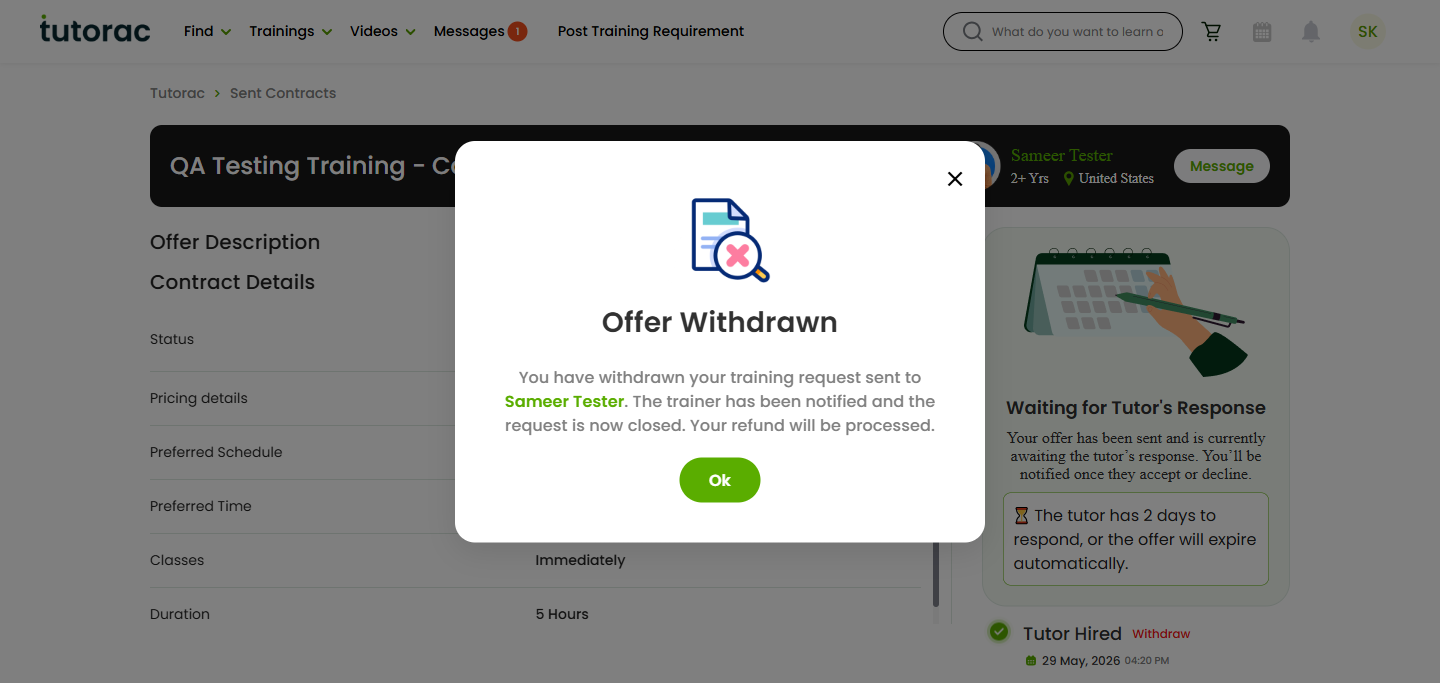
Because nothing on the contract has started, the full amount returns to your original payment method — nothing is deducted.
Case 2: Cancel class on an active batch
Once the tutor accepts your hire, Tutorac creates a Training Batch with one or more milestones. The Withdraw option is gone — you now use Cancel class from the batch’s Payment tab. How much you get back depends on the active milestone’s completion percentage at the time you cancel.
Step 1: Open the batch’s Payment tab
- Go to Trainings > My Training Batches.
- Find the batch you want to cancel (status: Upcoming or Ongoing) and click View Details.
- Inside the batch, click the Payment tab in the secondary nav.
Step 2: Locate the active milestone
You’ll see Milestone Details with each milestone listed in a card. The active one shows:
- A completion percentage with a progress bar (e.g., 0%, 15%, 60%).
- Payment Status: Funded (the money is in escrow with Tutorac).
- Milestone Status (e.g., Not started, In progress).
- A Release Payment button (used when you’re satisfied — don’t click this if you’re about to cancel).
- Below the milestone card, a small action row containing Milestone activity, Payment details, and Cancel class.
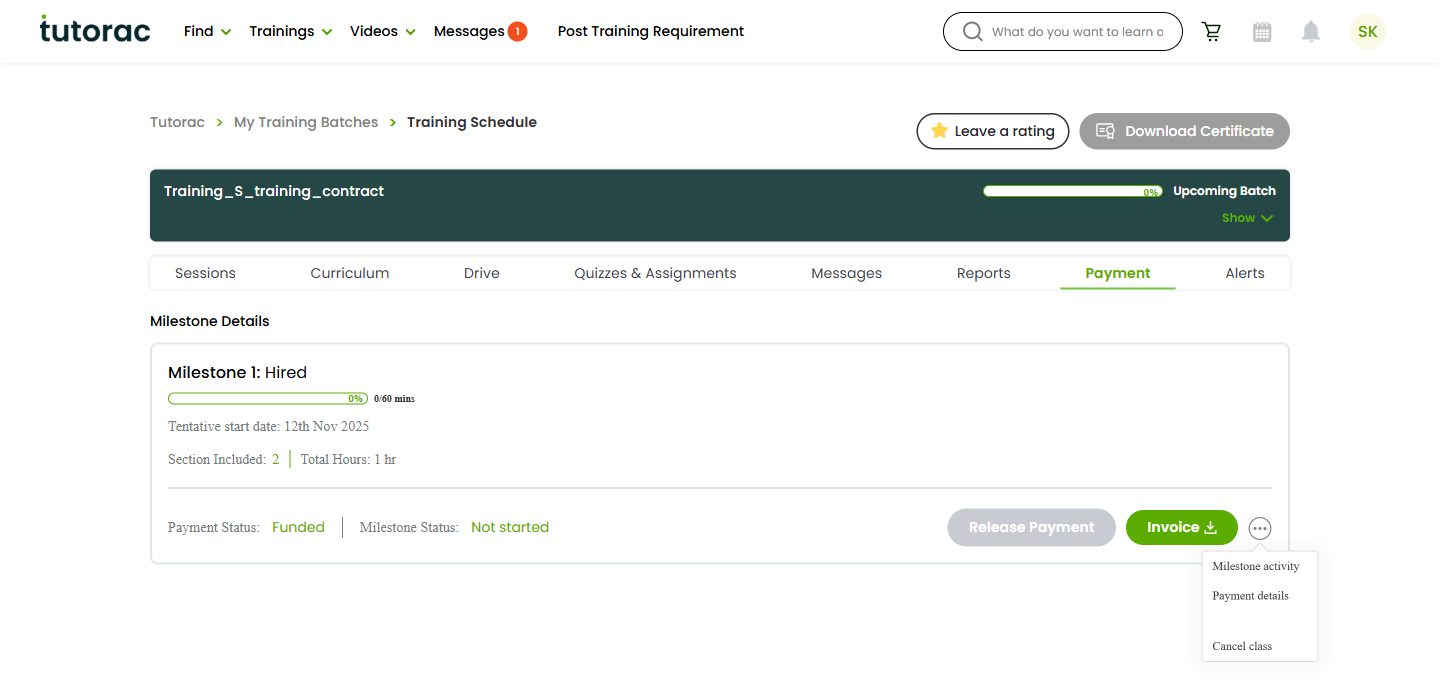
Note the current milestone-completion percentage — that’s what determines your refund split.
Step 3: Cancel and confirm
- Click Cancel class.
- The cancellation dialog shows the milestone breakdown, the refund preview based on the policy bracket you fall into, and a cancellation reason dropdown.
- Review the refund amount, pick a reason, and confirm.
Once processed, the batch shows the badge Cancelled Batch and a message at the top: “Cancellation completed, You are no longer part of this class.” The affected milestone now displays Payment Status: Refunded, Milestone Status: Cancelled, and a Refunded amount line showing exactly what came back to your original payment method.
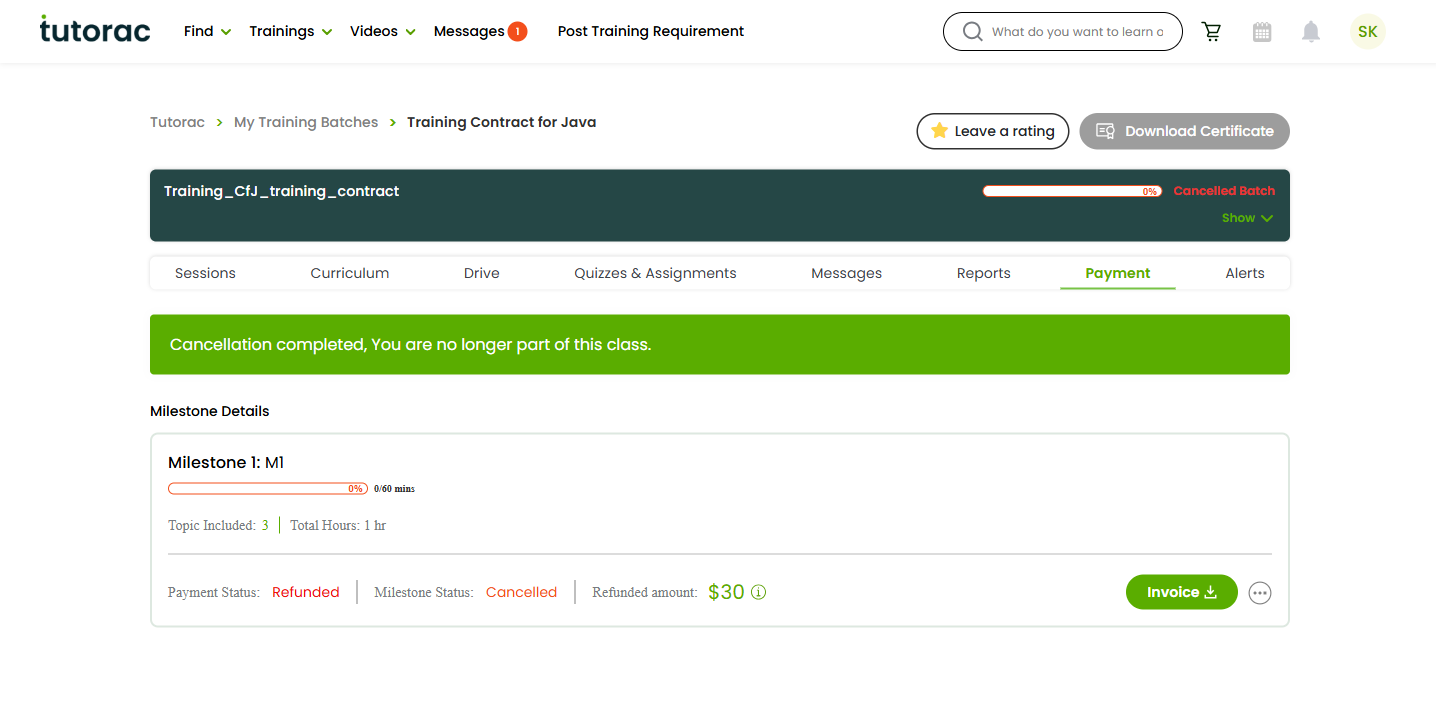
How much you’ll get back (refund brackets)
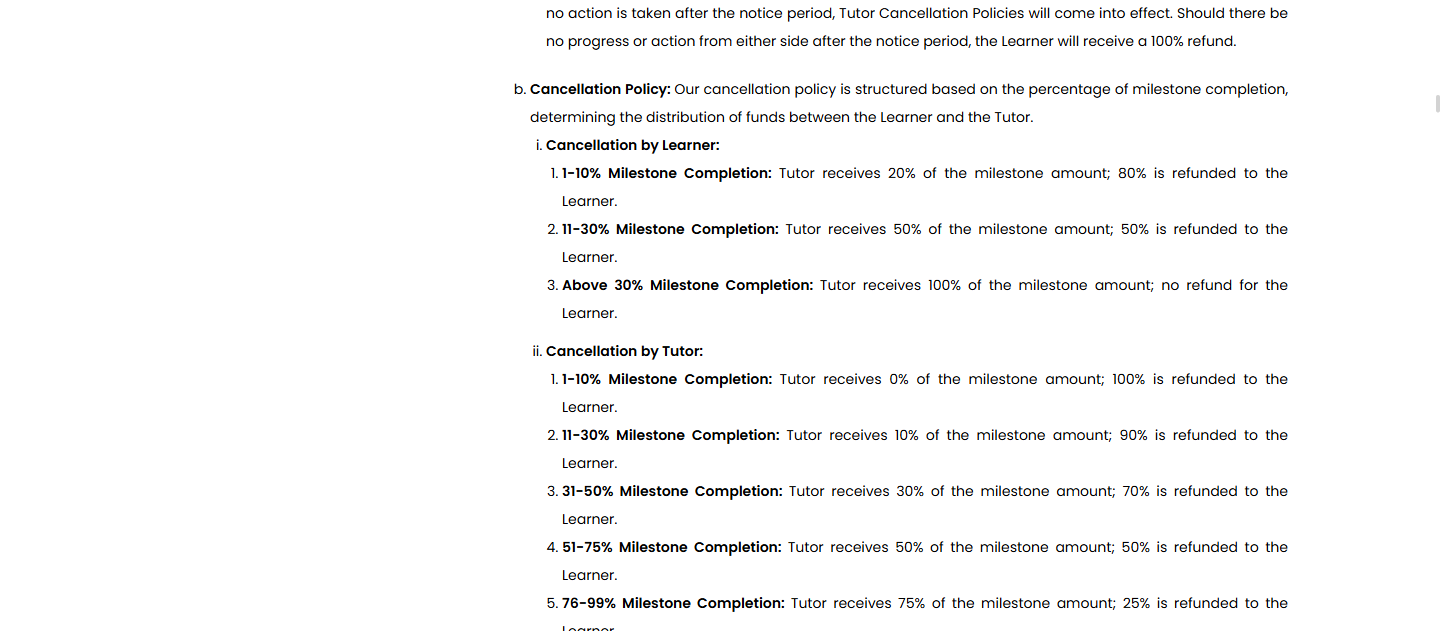
The split is based on the active milestone’s completion percentage when you cancel:
- 0% completed — 100% refund (full milestone amount back).
- 1–10% completed — 80% refund (tutor keeps 20%).
- 11–30% completed — 50% refund (50/50 split).
- Above 30% completed — 0% refund (tutor keeps the milestone in full).
Only the current milestone’s funds are subject to this split. Future milestones in the batch that you funded but hadn’t started yet are refunded in full. Already-released milestones aren’t refundable — the money has left escrow. See Cancellation policy: when you (the learner) cancel for the complete table and edge cases.
Refund timing & payment method
- Refunds are processed automatically once you confirm — no separate request is needed.
- The money returns to the same payment method you originally used (card-network rule, not a Tutorac choice).
- Currency stays as on your account: ₹ INR for India accounts, $ USD for accounts elsewhere.
- Bank/card-issuer turnaround is usually 5–10 business days after Tutorac initiates — the exact gap is on your bank’s side, not Tutorac’s.
- If 10 business days pass with no credit, get the reference from your batch’s invoice and contact your card issuer first — they can trace it.
Before you cancel — quick checklist
- Talk to the tutor first if you can. Sometimes a schedule mismatch or scope concern is fixable on Messages — you don’t need to lose milestone time.
- Check the current milestone’s completion %. If you’re close to a bracket boundary (e.g., at 9% vs 11%), the refund difference can be significant.
- Don’t click Release Payment on a milestone you intend to cancel — once released, the money leaves escrow and can’t be pulled back.
- If the cancellation is because the tutor is the one at fault (no-shows, dormancy, misconduct), the policy is different and more favourable to you — see Cancellation policy: when your tutor cancels and Tutorac dormancy policy.
FAQs
What if the tutor accepts the offer right as I’m about to withdraw?
Once they accept, the status flips to Scheduled/Upcoming and the Withdraw option disappears. From that moment you’d need to use Cancel class on the Payment tab instead — and the milestone-completion-percentage policy applies. If the milestone hasn’t started yet (0% completion), the refund is still 100%.
Can I cancel just one milestone and keep the rest of the batch?
No — Cancel class cancels the whole batch. If you want to drop just the remaining scope and keep what’s been done, talk to the tutor on Messages and adjust the next milestone’s scope rather than cancelling.
Is there a Support email I should write to instead?
For routine cancellations, no — the in-product Withdraw and Cancel class flows are the official routes. Tutorac Support gets involved only if you and the tutor disagree on the completion percentage, or in edge cases like dormancy or misconduct disputes.
Where do I see the refund amount before I confirm Cancel class?
The cancellation dialog shows a refund preview based on the current milestone-completion percentage and the policy bracket. Review it before confirming — once you submit, the refund initiates immediately.
What happens to a withdrawn offer if I want to re-hire later?
Withdrawing closes the contract — the tutor sees that you withdrew. You can send a fresh Hire Now request to the same tutor any time afterwards; it’s a brand-new offer and a brand-new escrow.
Related articles
- How cancellations and refunds work on Tutorac
- Cancellation policy: when you (the learner) cancel
- Cancellation policy: when your tutor cancels
- Tutorac dormancy policy
- Troubleshooting failed payments and refunds on Tutorac
Last updated: 29 May 2026