Your profile isn’t a set-and-forget task. Keeping it accurate and current helps you stay discoverable, trusted, and verified. This article shows how to edit and maintain it.
In this article
Editing your profile
Open My Profile and use the sections — Skills, Basic Information, Professional Details, and Bank Details — to update any part of your profile. Make your changes in the relevant section and save.
Check the public view
After editing, use See Public View to confirm your profile reads well to learners. This is the same view prospective learners see, so it’s worth a quick check after any change.
Your feedback
The My Feedback section shows the reviews learners have left for you. Strong feedback builds your reputation, so deliver great sessions and keep an eye on what learners say.
Changing your password
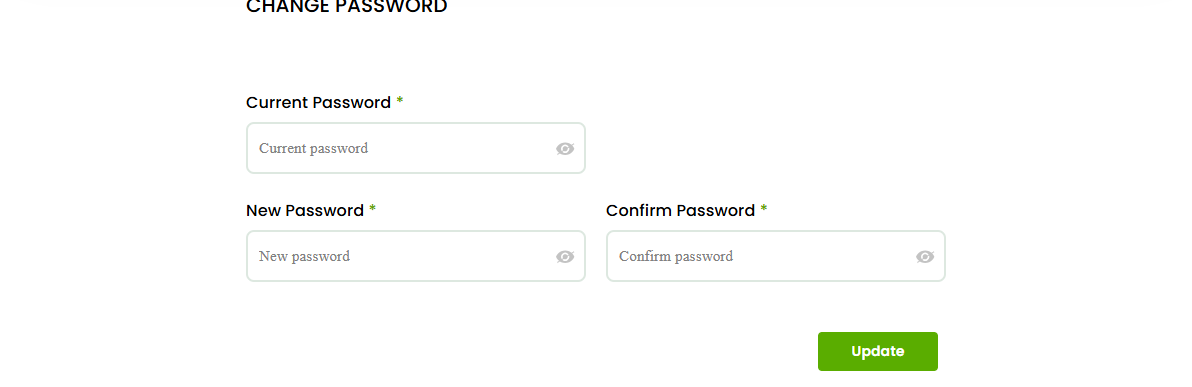
Use the Change Password section to update your account password. Choose a strong, unique password to keep your account secure.
When to update
- When you add new skills or start teaching new topics.
- When your experience, education, or certificates change.
- When your location, time zone, or contact details change.
- When your payout (bank) details change.
FAQs
Will editing my profile affect my verified status?
Keeping your profile accurate supports your status. Avoid adding misleading information — honest, current details are what verification depends on.
Do changes show to learners immediately?
Use See Public View to confirm how your updated profile appears to learners.
Can I respond to feedback?
You can review your feedback in the My Feedback section. The best way to build great feedback is to deliver strong, reliable sessions.
Related articles
- Setting up your tutor profile: an overview
- How tutor verification works on Tutorac
- Understanding your profile verification status
Last updated: 8 June 2026