Once you’ve started a live training course, you’ll move through four steps to build it: Details, Features, Video, and Curriculum. Here’s what to enter in each.
In this article
Step 1: Details
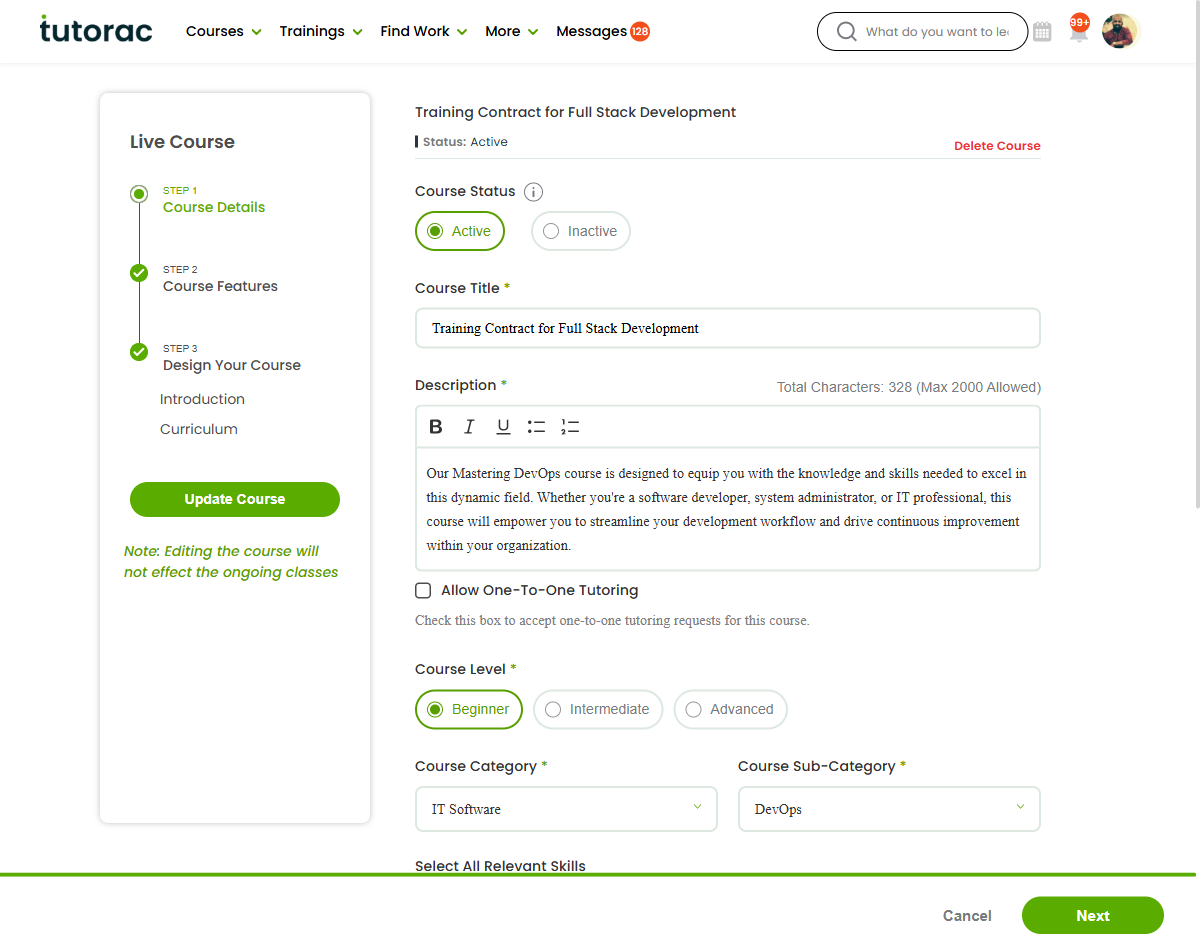
On the Details step, set:
- Course Title (required).
- Description (required, up to 2000 characters).
- Allow One-To-One Tutoring — tick this to accept one-to-one requests for the course.
- Course Level — Beginner, Intermediate, or Advanced.
- Course Category and Course Sub-Category (required).
- Relevant skills — select the skills this course covers.
Click Next to continue.
Step 2: Features
On the Features step, fill in two fields (each up to 2000 characters):
- Who should take this course? — describe your ideal learner.
- What will you learn in this course? — the outcomes and skills learners gain.
Step 3: Video
On the Video step:
- Upload an introduction video — a brief MP4 outlining the course’s purpose, curriculum, and outcomes. This video is needed to display your course in a public ad.
- Thumbnail image — upload an image that matches your course title to make it visually appealing. You can replace or remove it later.
Step 4: Curriculum
On the Curriculum step, build your sections, topics, quizzes, and assignments. You can:
- Add Manually — create sections and topics yourself.
- Create with AI — generate a starting curriculum to refine.
- Switch between Sections & Topics and Topics only, and use Add Section to expand your outline.
Saving your course
Use Update Course to save your work. Set the Course Status to Active when it’s ready for learners, or keep it Inactive while you finish.
FAQs
Is the introduction video required?
You need an introduction video to display your course in a public ad, so it’s strongly recommended.
Can I generate my curriculum automatically?
Yes — use Create with AI on the Curriculum step, then refine the sections and topics.
Can I edit a course after saving?
Yes. Open the course from your courses list and use the same steps to edit, then Update Course.
Related articles
- Creating a live training course: an overview
- Publishing, scheduling, and managing your live course batches
- Earning from live courses on Tutorac
Last updated: 8 June 2026