Sometimes the learner makes the first move. The Received Offers tab lists the offers learners have sent you to deliver training. Here’s how to read each one and what the statuses mean.
In this article
- What this tab shows
- Reading an offer card
- What each status means
- Reviewing and responding
- Inside an offer (View Details)
- FAQs
What this tab shows
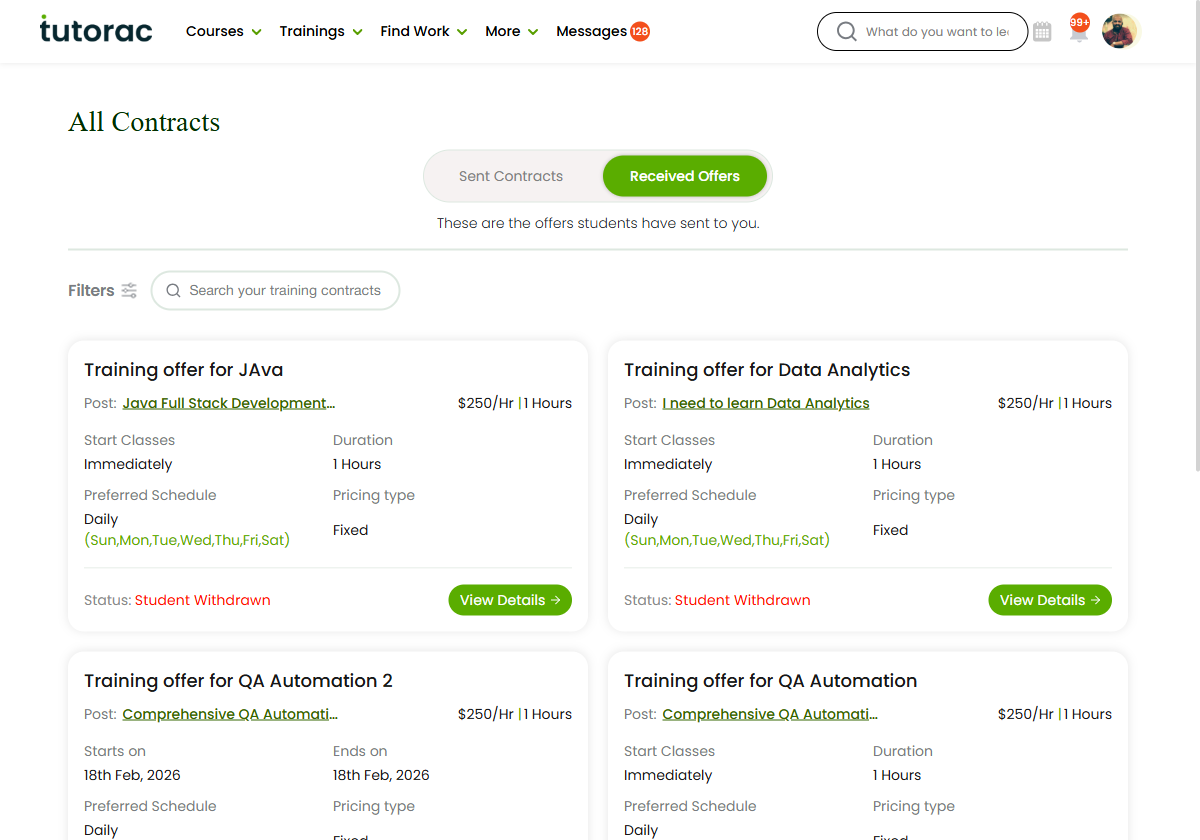
The header reads “These are the offers students have sent to you.” A learner sets out what they want and the terms they propose; each offer arrives here for you to review and respond to.
Reading an offer card
Each card summarises one offer:
- Title — for example “Training offer for Java.”
- Post — the course or requirement the offer relates to.
- Rate & hours — the price per hour and total hours proposed.
- Start Classes — Immediately, or a Starts on / Ends on date range.
- Duration — the length of the engagement.
- Preferred Schedule — the days the learner wants (for example Daily, or Weekly with specific days).
- Pricing type — for example Fixed.
- Status — where the offer stands.
What each status means
- Scheduled — accepted with dates set; the training is lined up.
- You Declined — you turned the offer down.
- Student Withdrawn — the learner pulled the offer back.
- An offer awaiting your response stays open until you act, and a delivered offer shows as Completed.
Reviewing and responding
Open View Details to see the full offer. From there you can accept it — which confirms the work and marks the engagement Hired — or decline it. If the terms aren’t quite right, talk to the learner first; see “Negotiating terms before you commit.” The full accept flow is in “Receiving and accepting an offer.”
Inside an offer (View Details)
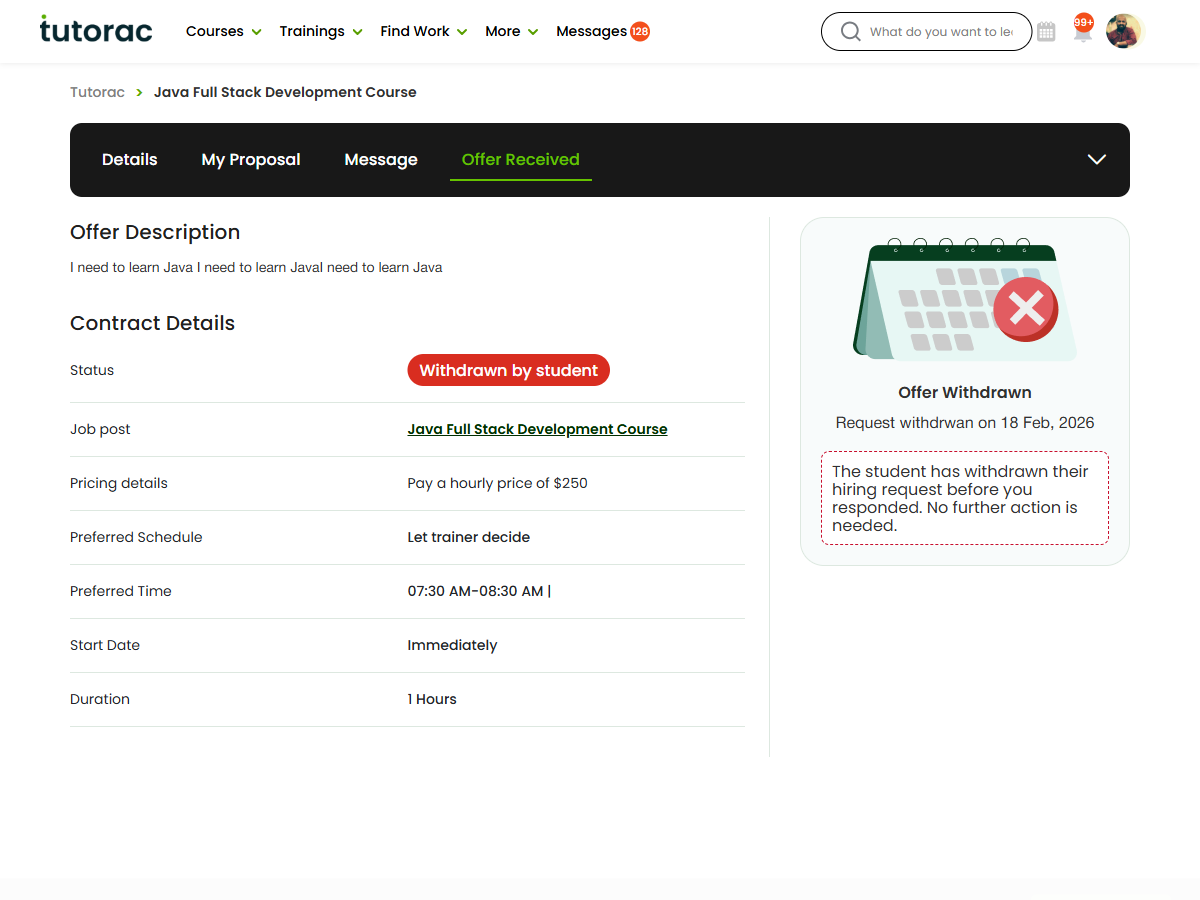
Opening View Details shows the full offer on a job-style page with Details, My Proposal and Message tabs. The Offer Received panel carries the learner’s Offer Description and a Contract Details block — Status, Job post, Pricing details, Preferred Schedule, Preferred Time, Start Date and Duration. A status note sits at the bottom: when the offer still needs you, your accept and decline options appear there; if the learner has withdrawn it, you’ll see a note that no further action is needed.
FAQs
Where do offers from learners appear?
On the Received Offers tab of All Contracts & Offers (Trainings → All Contracts).
What does “Student Withdrawn” mean?
The learner cancelled the offer before it was accepted, so no action is needed from you.
Do I have to accept straight away?
No. Review it under View Details, and discuss any changes with the learner before deciding.
Related articles
- Sent Contracts: contracts you’ve sent
- All Contracts & Offers: your contracts hub
- Receiving and accepting an offer
- How the contract workflow works
Last updated: 17 June 2026