When a learner is ready, you can send them a Training Contract to lock in the work. Here’s how it fits into the proposal flow.
In this article
When to send one
Send a Training Contract once you and the learner have agreed on what you’ll teach — often after a proposal, a message exchange, or a demo. It turns that understanding into a formal agreement.
Sending the contract
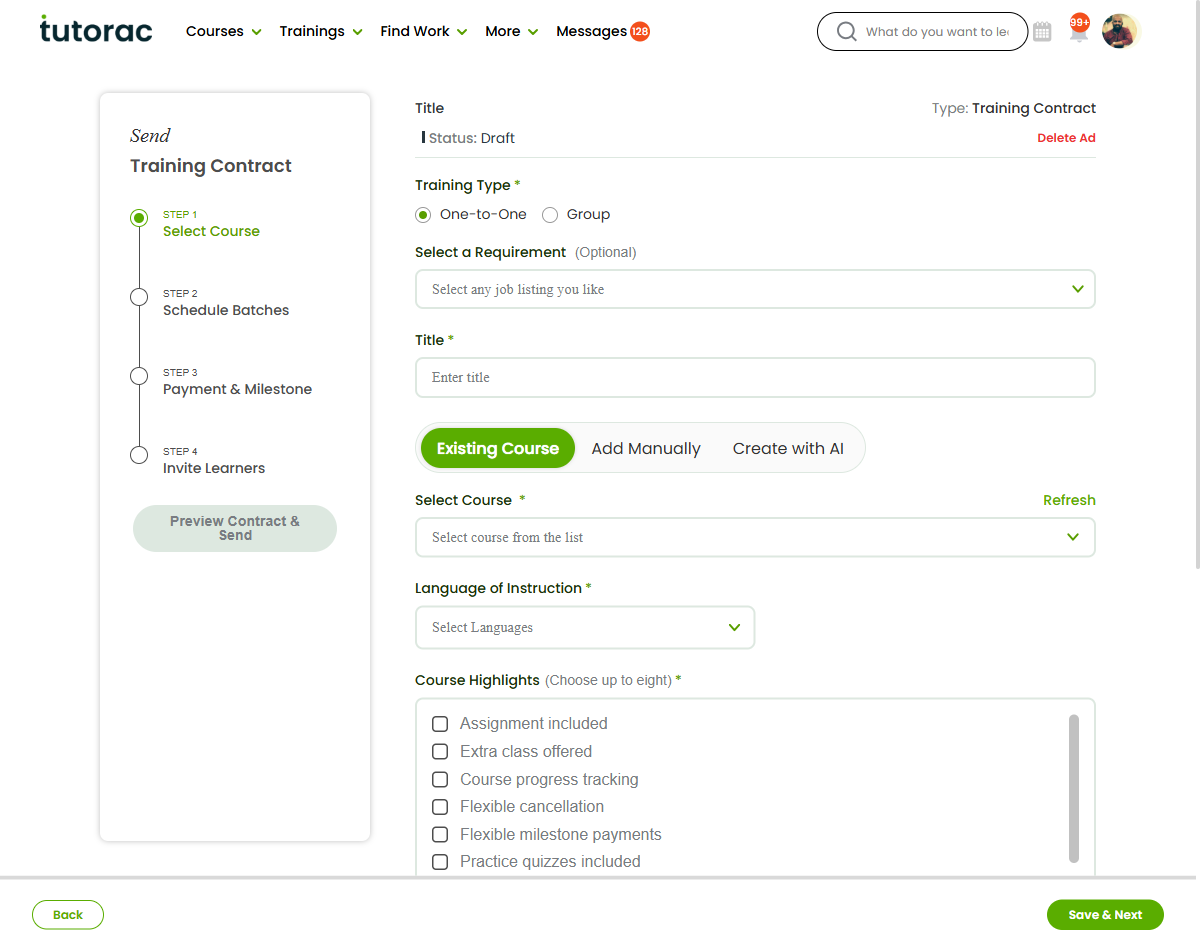
Open the relevant proposal under My Proposals and choose Send Training Contract. Follow the on-screen steps to confirm the details and send it to the learner.
Tracking sent contracts
Contracts you’ve sent appear under the Sent Contracts tab in My Proposals, so you can see what’s still awaiting the learner’s response.
What happens next
When the learner accepts, the engagement becomes Hired and you can begin delivering the training. If they want changes first, you can discuss and adjust — see “Negotiating terms before you commit.”
FAQs
Where is the Send Training Contract option?
On the proposal, under My Proposals.
How do I know if the learner accepted?
The proposal’s status updates — once accepted, it shows as Hired.
Can the learner send me an offer instead?
Yes. See “Receiving and accepting an offer.”
Related articles
- Understanding offers and Training Contracts
- Receiving and accepting an offer
- Negotiating terms before you commit
Last updated: 8 June 2026