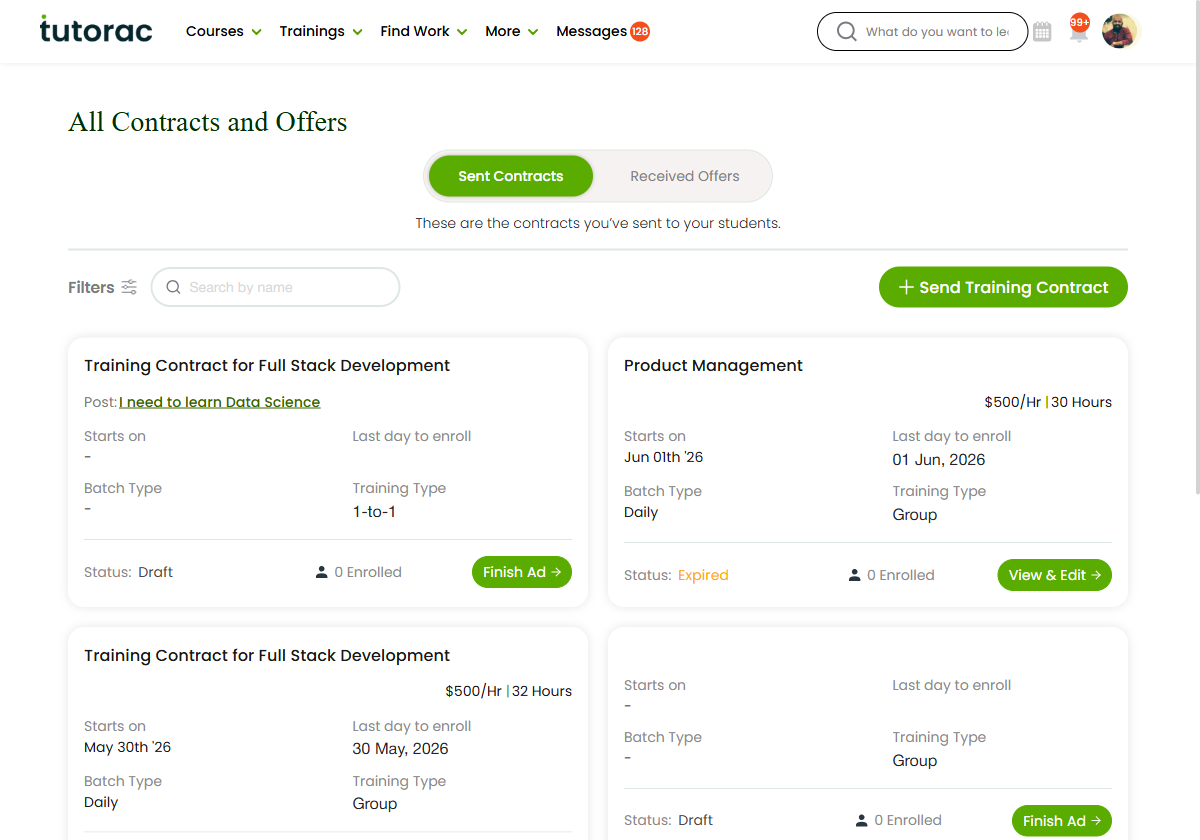
The Sent Contracts tab lists every Training Contract you’ve created and sent to a learner. Here’s how to read each card, what the statuses mean, and what you can do from here.
In this article
- What this tab shows
- Reading a contract card
- What each status means
- Actions you can take
- Opening a contract (View & Edit)
- FAQs
What this tab shows
The header reads “These are the contracts you’ve sent to your students.” Every Training Contract you build with Send Training Contract lands here, so you always have a record of what you’ve offered and to whom.
Reading a contract card
Each card summarises one contract:
- Title — for example “Training Contract for Full Stack Development.”
- Post — the learner requirement the contract responds to, when it’s linked to one.
- Rate & hours — your price per hour and the total hours.
- Starts on / Last day to enroll — when training begins and the cut-off to join.
- Batch Type — how sessions recur (for example Daily).
- Training Type — 1-to-1 or Group.
- Status and Enrolled count — where the contract stands and how many learners have joined.
What each status means
- Draft — started but not yet finished or published. Use Finish Ad to complete it.
- Active — live, so the learner can accept and enrol.
- Expired — the last day to enrol has passed.
- Completed — the training has been delivered.
- Cancelled — the contract was called off.
Actions you can take
- Finish Ad — complete a Draft and send it.
- View & Edit — open an existing contract to review or update it.
- Send Training Contract — start a brand-new contract from the top of the page.
Sending a new contract is covered step by step in “Sending a Training Contract to a learner.”
Opening a contract (View & Edit)
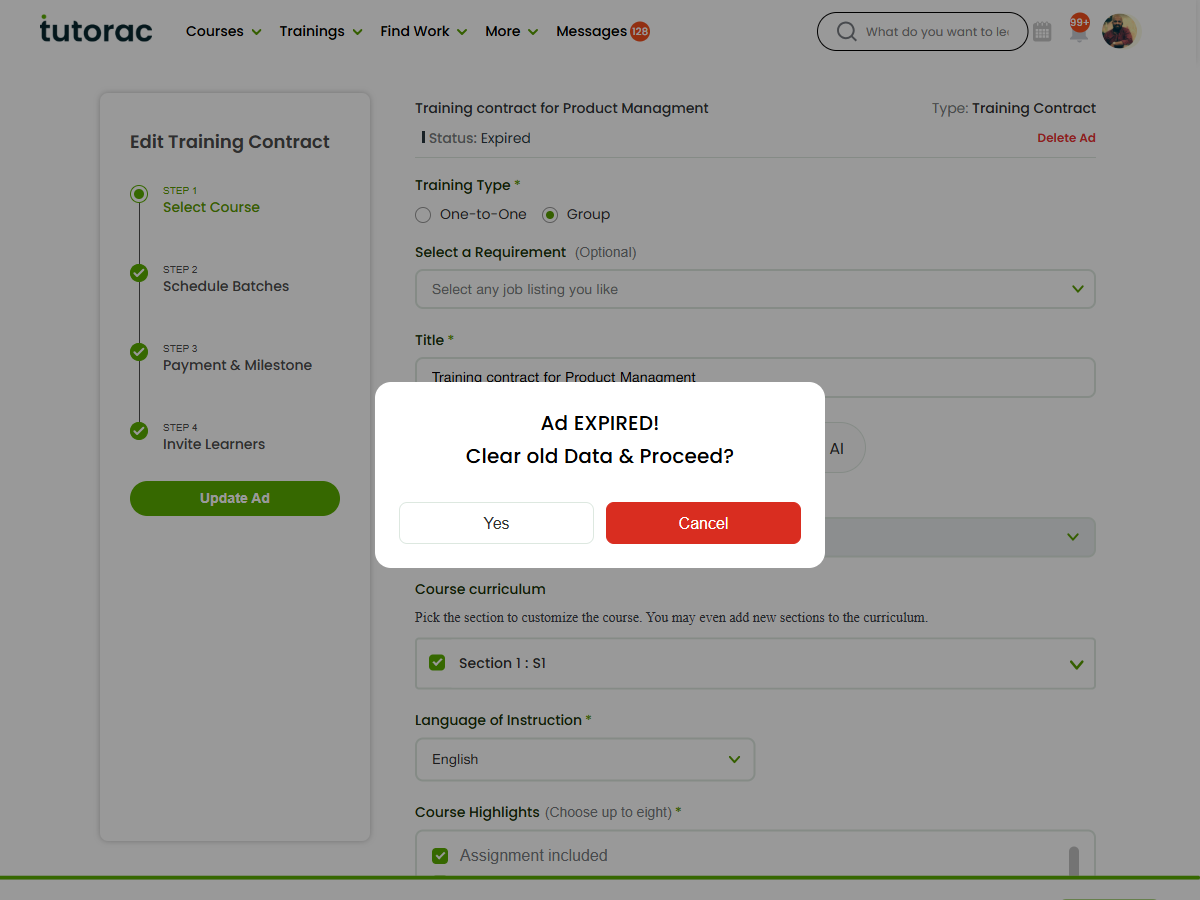
Selecting View & Edit on a contract opens the Edit Training Contract wizard — the same four steps used to create one: Select Course, Schedule Batches, Payment & Milestone and Invite Learners. The header shows the contract’s Type and Status. Move between the steps to review or change the course, curriculum, language and highlights, then Update Ad to save your changes — or Delete Ad to remove the contract.
FAQs
Where do my sent contracts appear?
On the Sent Contracts tab of All Contracts & Offers (Trainings → All Contracts).
What is a Draft contract?
One you’ve started but not finished. Use Finish Ad to complete and send it.
Why is my contract Expired?
Its last day to enrol has passed. Create a new contract if you still want to offer the training.
Related articles
- Received Offers: offers learners send you
- All Contracts & Offers: your contracts hub
- Sending a Training Contract to a learner
- How the contract workflow works
Last updated: 17 June 2026