Messaging is the lowest-commitment way to start a conversation with a tutor on Tutorac. This guide walks through the Send Direct Message modal, how to resume the conversation later from the Messages tab, what you can do from there, and how messaging differs from a Free Demo or an Invite.
In this article
- Why message a tutor first
- Step 1: Find the tutor
- Step 2: Click Message
- Step 3: (Optional) link a Training Requirement
- Step 4: Write a clear message
- Step 5: Send the message
- What happens after you send
- Resume the conversation from the Messages tab
- What you can do from a chat thread
- Message vs Free Demo vs Invite
- FAQs
Why message a tutor first
A direct message is the simplest way to make first contact — no booking, no proposal, no commitment. Use it when you want to:
- Ask a quick question about availability, syllabus, or pricing.
- Check if the tutor handles a specific tool or version you need.
- Confirm time-zone or language fit before booking a Demo.
- Discuss a custom requirement that doesn’t fit neatly into a Training Requirement yet.
Messaging is free and creates a chat thread you can return to under Messages in the top nav.
Step 1: Find the tutor
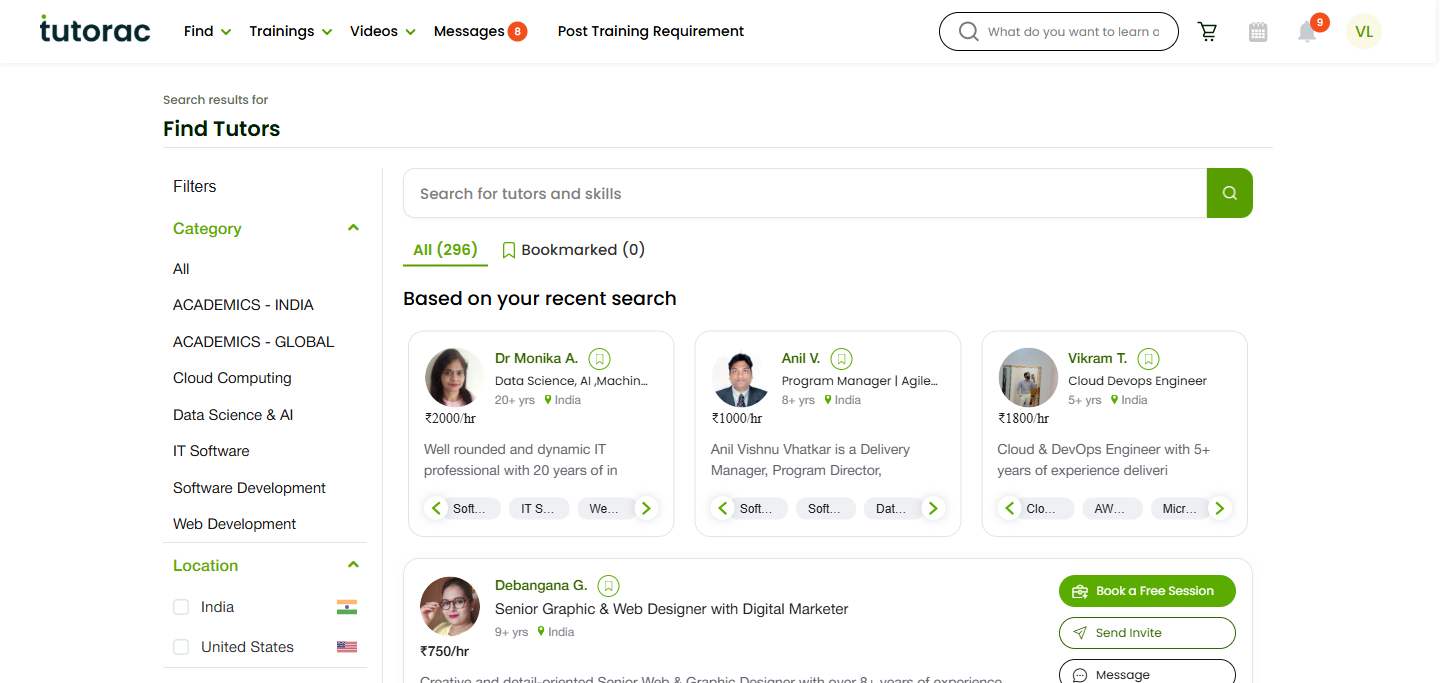
Sign in to Tutorac and open the Find Tutors page (tutorac.com/find-tutors). Use Category, Location, and Language filters to narrow the list. (See How to find a tutor on Tutorac.) You can also message any tutor from their full profile page.
Step 2: Click Message
On the tutor’s card, click the Message button (one of three actions, alongside Book a Free Session and Send Invite). The Send Direct Message modal opens with the tutor’s name, headline, years of experience, and location displayed at the top.
Step 3: (Optional) link a Training Requirement
If you have a posted Training Requirement that’s relevant, open the Choose a Training Requirement (optional) dropdown and pick it. Linking gives the tutor immediate context. If your question is general or you have no requirement posted yet, just leave this blank.
Step 4: Write a clear message
Tutorac shows a few suggested prompts in the message box to get you started. You can use one as a template or write your own:
- “I need help with [specific topic/skill].”
- “I’m looking to learn more about [technology/technique].”
- “I want to improve my knowledge in [concept/field].”
- “I’m preparing for [exam/certification] and would appreciate expert guidance.”
- “I’m interested in upskilling in [specific domain/technology].”
A useful first message usually covers four things in a few short lines:
- Your goal (what you want to learn or achieve).
- Your level (beginner, intermediate, working professional, etc.).
- Your schedule (weekdays after 7pm IST, weekends, etc.).
- A specific question (so the tutor has something concrete to reply to).
Step 5: Send the message
Click the green Send message button. Tutorac creates a new chat thread and routes the message to the tutor. To stop without sending, click Cancel.
What happens after you send
- The tutor sees your message in their inbox and is notified by email.
- You see a confirmation that the message has been sent.
- Tutorac creates a new chat thread between you and the tutor, ready to continue any time.
- Most tutors reply within a day. The reply appears in the same chat thread.
Resume the conversation from the Messages tab
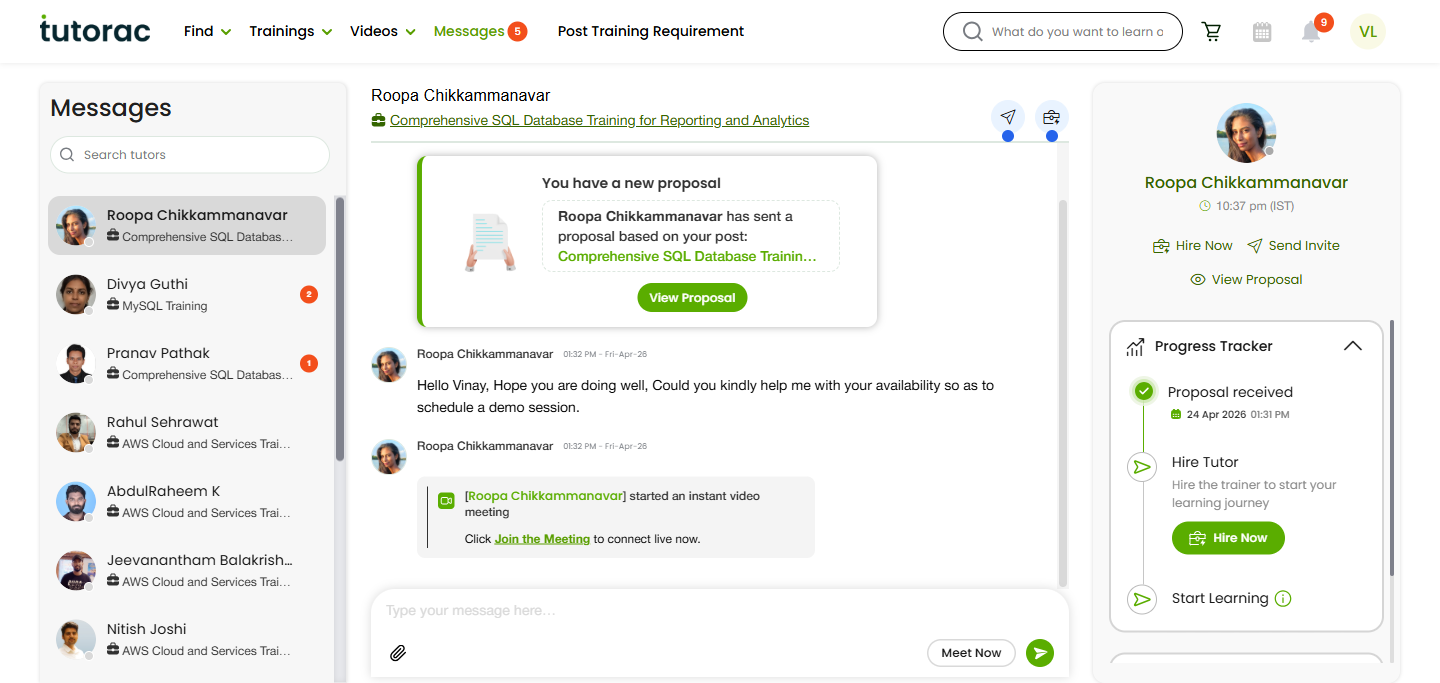
You don’t have to go back to the tutor’s card to keep talking. Click Messages in the top nav (the badge shows the number of unread messages) and Tutorac opens your full Messages hub.
- Left sidebar — All your conversations grouped by Training Requirement. Each row shows the tutor’s name, the linked requirement, and an unread badge.
- Middle panel — The selected conversation thread with the full message history, timestamps, and any system notifications (for example, “You have a new proposal”).
- Right sidebar — Quick actions and a Progress Tracker that shows where this engagement sits in the journey (Proposal received → Hire Tutor → Start Learning) along with safety reminders.
Click any conversation on the left to open it. You can come back days or weeks later — the full thread stays here.
What you can do from a chat thread
The Messages hub is more than just chat — it’s where the whole hiring conversation happens. From an open thread you can:
- Send messages and share files — Continue the conversation, attach screenshots, notes, sample data, or syllabi the tutor needs to see.
- View Proposal — If the tutor has sent a proposal, click View Proposal to read the scope, pricing, milestones, and schedule on a single page.
- Hire Now — Accept a proposal and start a Training Contract directly from the chat. Payment is held safely in escrow until training is complete.
- Schedule Free Session — Open the Demo booking modal for this tutor without leaving Messages.
- Send Invite — Invite this tutor to one of your Training Requirements if you haven’t already.
- Join an instant video meeting — If the tutor starts an instant call, you’ll see a Meet Now button right in the thread.
- Track progress — The Progress Tracker on the right shows where you are in the journey: Proposal received → Hire Tutor → Start Learning.
- Stay safe — The safety panel reminds you to keep chat, booking, and payment on Tutorac so your funds stay protected in escrow until training is complete.
Message vs Free Demo vs Invite
- Message — Best for a quick question or first contact. No commitment. Free.
- Book a Free Session — Best when you want to evaluate the tutor on a 30-minute call before paying anything. Free.
- Send Invite — Best when you have a posted Training Requirement and want a tailored paid proposal for it.
A common path is: Message → Book a Free Session → Send Invite → Training Contract.
FAQs
Is messaging a tutor free?
Yes. You can message as many tutors as you like before hiring — there is no charge for messaging or for the reply.
Do I need a Training Requirement to message a tutor?
No. The Training Requirement dropdown in the modal is optional. Linking one is helpful when you have a specific scope ready, but you can message a tutor without one.
How fast will the tutor reply?
Most tutors reply within a day. Response time varies by tutor and time zone — you can usually see how active a tutor is from the cues on their profile.
Where do I see replies?
Click Messages in the top nav. All your tutor conversations are listed there in one place. The badge on the Messages icon shows your unread count. You also get email notifications.
Can I share files in chat?
Yes. Once the chat thread is open under Messages, you can attach files (notes, screenshots, sample data) to help the tutor understand your need.
Can I hire a tutor without leaving the Messages tab?
Yes. Once a tutor has sent a proposal, you can click View Proposal to read it and then Hire Now to accept and start a Training Contract — all from the chat thread.
Can a tutor start a video call from chat?
Yes. When a tutor starts an instant video meeting, you’ll see a Meet Now button in the chat thread. Click it to join the live call without leaving Tutorac.
Should I share my email or phone number in the message?
No. Keep all communication inside Tutorac messaging while you’re still evaluating. That keeps you protected by Tutorac’s policies and payment protection. You can share contact details after you’ve started a Training Contract.
Can I block or report a tutor from chat?
Yes. From the chat thread in Messages, use the report option if any conversation breaks Tutorac’s community guidelines. Tutorac reviews reports and acts on them.
Related articles
- How to find a tutor on Tutorac
- How to book a Free Demo Session with a tutor on Tutorac
- How to send an Invite to a tutor on Tutorac
- Messages, Drive & Resources
Last updated: 20 May 2026