Tutorac lists hundreds of expert tutors across Cloud, Data Science, Web Development, Multimedia, and more. This guide shows you how to search, filter, and read a tutor card so you can shortlist the right person quickly.
In this article
- Two ways to start your search
- Step 1: Open the Find Tutors page
- Step 2: Narrow results with filters
- Step 3: Switch between Global and India
- Step 4: Read a tutor card
- Step 5: Choose your next step
- Bookmarking tutors for later
- FAQs
Two ways to start your search
You can find tutors in two ways:
- Top-bar search: Type what you want to learn (for example, “Python” or “Tableau”) in the What do you want to learn or teach? box at the top of any page and press Enter.
- Find menu: Click Find in the main nav and choose Find Tutors.
Both routes land you on the Find Tutors listing page.
Step 1: Open the Find Tutors page
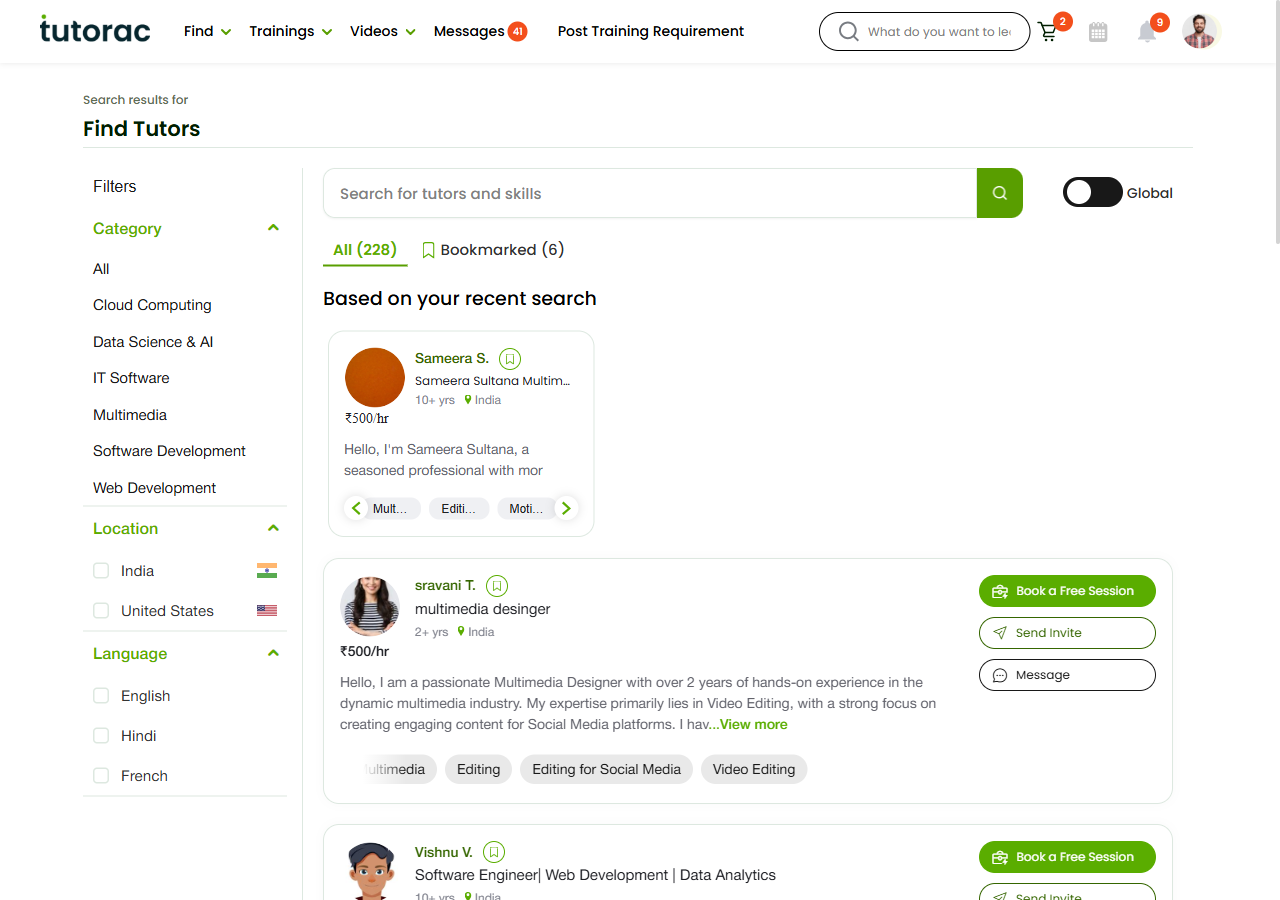
Sign in to Tutorac, then go to tutorac.com/find-tutors — or use the Find → Find Tutors menu. The page header shows Search results for … if you arrived from a search, and the total tutor count appears in the tab control (for example, All (228)).
Step 2: Narrow results with filters
The Filters sidebar on the left lets you cut down the list to tutors that fit your needs:
- Category — Pick a domain: Cloud Computing, Data Science & AI, IT Software, Multimedia, Software Development, Web Development, or stay on All.
- Location — Choose India or United States to see tutors based in that country.
- Language — Filter by the language the tutor teaches in: English, Hindi, French.
Filters update the results immediately. The tab count (All (n)) refreshes to match. Combine filters to be more specific — for example, Data Science & AI + India + English shows only Indian Data Science tutors who teach in English.
Step 3: Switch between Global and India
Above the tutor list you will see two tabs:
- Global — Tutors from anywhere in the world that Tutorac currently supports.
- India — India-based tutors only (handy for time-zone alignment and INR pricing).
To the right you will also see All and Bookmarked counts. Switch to Bookmarked to view tutors you have saved for later.
Step 4: Read a tutor card
Every tutor card on the listing shows the same information so it’s easy to compare:
- Name & profile photo — Click the name or photo to open the full profile.
- Headline — A short title the tutor wrote (for example, “Full Stack Developer” or “Sr. Multimedia Designer”).
- Years of experience — Tutorac shows tutors with 1+, 2+, 5+, 10+ years.
- Location — Country (and sometimes city).
- Hourly rate — In your preferred currency (₹ for India). This is the starting rate — final pricing can be agreed during hiring.
- Bio snippet — A few lines about the tutor. Click View more to read the rest on the full profile.
- Skill tags — The topics the tutor teaches (Python, AWS, Azure, etc.).
Each card also shows three action buttons at the bottom: Book a Free Session, Send Invite, and Message. See Step 5 below to decide which one to use.
Step 5: Choose your next step
Once you have shortlisted a tutor, pick one of these three actions:
- Book a Free Session — A complimentary Demo session so you can meet the tutor before hiring. Best when you want to confirm fit, communication style, and depth before committing.
- Send Invite — Invite the tutor to send you a custom training offer. Best when you have a specific requirement in mind (topic, schedule, duration) and want a tailored proposal.
- Message — Start a Tutorac chat with the tutor without committing to a demo or invite. Best for quick questions about availability, syllabus, or pricing.
You can do all three with the same tutor at different times — messaging first, then booking a demo, then sending an invite.
Bookmarking tutors for later
If you are still comparing options, use the bookmark icon on each tutor card to save them. Bookmarked tutors appear under the Bookmarked tab at the top of the list, so you can return without re-running the filters.
FAQs
Is browsing tutors free?
Yes. Browsing the Find Tutors page, using filters, reading profiles, and messaging tutors are all free. Charges only begin when you book a paid session or accept a training offer.
Why don’t I see tutors for the topic I want?
Make sure you have selected All in the Category filter and the right Location/Language. If the topic is very niche and you still see no results, post a Training Requirement instead — tutors who match will send you proposals.
Can I trust the hourly rate shown on the card?
That is the tutor’s standard rate. Final pricing for a Training Contract may differ based on duration, group size, milestones, and any discounts. The exact amount is confirmed in the proposal or checkout step before you pay.
How are tutors ranked by default?
Tutorac uses a relevance ranking based on the search term, your Learning Interests, recent activity, and tutor quality signals. You can refine the list by combining filters; that has more impact than the default order alone.
Can I message a tutor before booking a session?
Yes. Click Message on the tutor card to start a chat. Tutors usually reply within a day. This is a good way to check syllabus, schedule, and any custom requests before committing.
What is the difference between “Book a Free Session” and “Send Invite”?
Book a Free Session is a no-cost Demo to evaluate the tutor. Send Invite requests a tailored paid training offer for your specific need. Use Free Session first when you want to evaluate; use Invite when you are ready to scope and price the actual training.
Related articles
- More Finding & Hiring Tutors articles
- How to set up your learner profile on Tutorac
- How to enroll in a Live Course on Tutorac
- How to post a Training Requirement
Last updated: 20 May 2026