Sending an Invite asks a specific tutor to send you a custom proposal for one of your posted Training Requirements. This guide walks through the prerequisites, the modal fields, and what happens after you invite a tutor.
In this article
- What is an Invite?
- Before you start: post a Training Requirement
- Step 1: Find the tutor
- Step 2: Click Send Invite
- Step 3: Pick a Training Requirement
- Step 4: Add a short message (optional)
- Step 5: Send the invite
- What happens next
- FAQs
What is an Invite?
An Invite is a direct request to a specific tutor asking them to send you a proposal for one of your existing Training Requirements. Use it when you have already shortlisted a tutor and want a tailored offer for a defined need (topic, schedule, milestones, price). It is more targeted than waiting for organic proposals on a public Training Requirement post.
Before you start: post a Training Requirement
The Invite is tied to a Training Requirement, so you must have at least one Training Requirement posted on your account before you can invite a tutor. You can post one from the Post Training Requirement button in the top nav, or from the Trainings menu.
If you have not posted one yet, do that first. See How to post a Training Requirement on Tutorac for the full walkthrough. You can have several Training Requirements active at the same time and invite different tutors to different requirements.
Step 1: Find the tutor
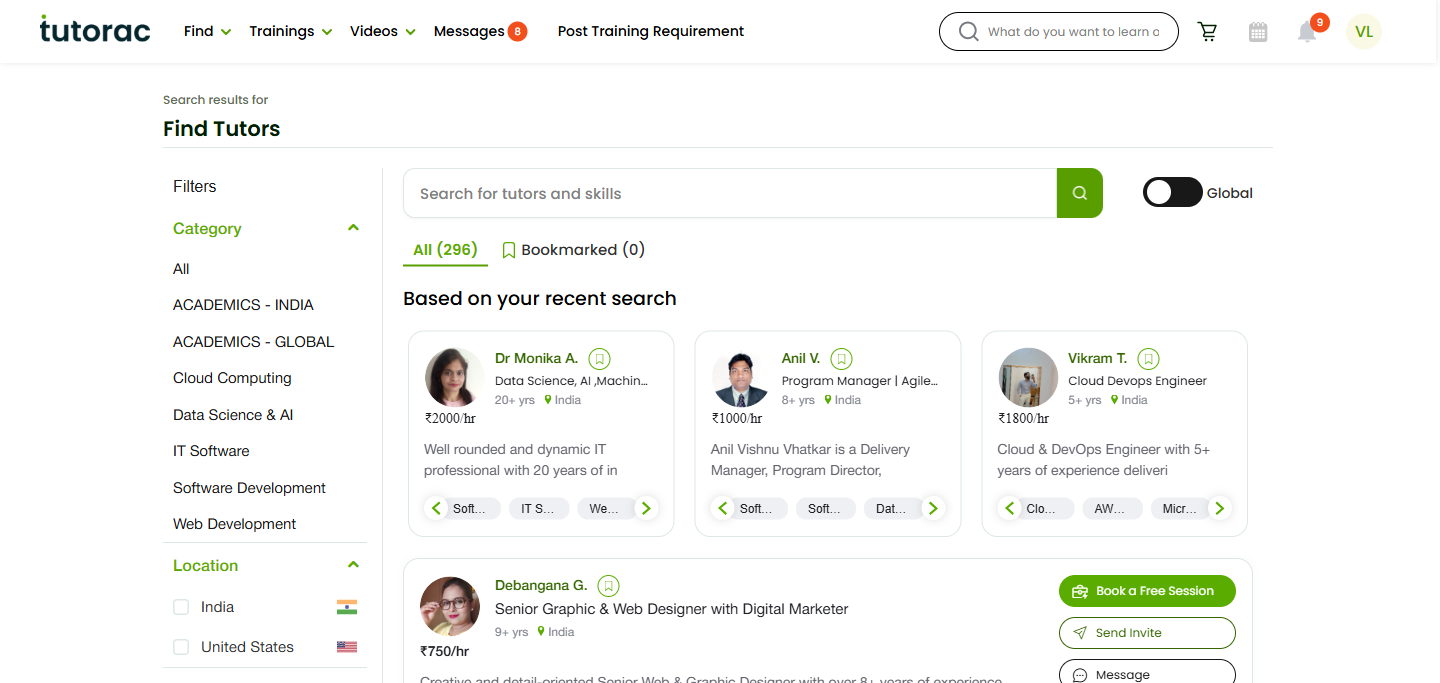
Sign in to Tutorac and open the Find Tutors page (tutorac.com/find-tutors). Use Category, Location, and Language filters to narrow the list. Read tutor cards to shortlist someone whose skills, experience, and hourly rate fit your needs. (See How to find a tutor on Tutorac.)
Step 2: Click Send Invite
On the tutor’s card, click the Send Invite button (one of three actions, alongside Book a Free Session and Message). The Invite Tutor to Training Requirement modal opens with the tutor’s name, headline, years of experience, and location displayed at the top so you can confirm you’ve picked the right person.
Step 3: Pick a Training Requirement
Open the Select a Training Requirement dropdown and pick the requirement you want this tutor to bid on. Only your currently active Training Requirements appear here. If the dropdown is empty, go back and post a Training Requirement first.
Step 4: Add a short message (optional)
Use the Message field to add a personal note. A few useful things to mention:
- Why you picked this tutor (specific skill, project, or background).
- Your preferred start date and weekly schedule.
- The level you’re at and the outcome you want.
- Any constraints (budget cap, language, time zone).
A clear message gets a sharper proposal back and saves a round of back-and-forth.
Step 5: Send the invite
Click the green Yes, Invite! button at the bottom of the modal. Tutorac confirms the invitation has been sent. To stop without sending, click Cancel.
What happens next
- The tutor receives an invitation notification on their dashboard and by email.
- If they’re interested, they reply with a proposal — scope, milestones, price, schedule.
- You see new proposals against your Training Requirement under Trainings, with each tutor’s offer alongside.
- If they’re not available or not a fit, they may decline or simply not respond. You can invite other tutors in parallel.
- Once a proposal looks right, you can accept it to create a Training Contract, or use Message to negotiate first.
FAQs
How many tutors can I invite to one Training Requirement?
You can invite multiple tutors to the same requirement and compare proposals side by side. Inviting 3 to 5 tutors usually gives you a healthy spread of pricing, scope, and approach.
Can I invite the same tutor to more than one Training Requirement?
Yes. Open the Send Invite modal again on that tutor and pick a different requirement from the dropdown.
Does sending an Invite cost anything?
No. Invites and the proposals you receive are free. Charges only begin once you accept a proposal and start a Training Contract.
What if the tutor doesn’t reply?
If you don’t hear back within a few days, send the tutor a Message for a nudge, or invite other tutors in parallel. There is no penalty for inviting widely.
Can I cancel an Invite after sending it?
You can’t un-send the invitation, but you don’t have to accept any proposal that comes back. If the tutor sends a proposal you don’t want, just decline or ignore it — nothing is committed until you start a Training Contract.
What’s the difference between Send Invite and Book a Free Session?
Book a Free Session is a no-cost 30-minute Demo to evaluate a tutor before you commit. Send Invite is the next step — you have a specific requirement and want a tailored paid proposal for it. Many learners do a Demo first, then send an Invite to the tutor they liked most.
Can the tutor see my full Training Requirement?
Yes. When you invite a tutor, they can read the full Training Requirement you selected so they can write an accurate, scoped proposal. Keep that in mind when writing the requirement — clarity helps both sides.
Related articles
- How to find a tutor on Tutorac
- How to book a Free Demo Session with a tutor on Tutorac
- How to post a Training Requirement on Tutorac
- More Training Requirements & Proposals articles
Last updated: 20 May 2026