After you post a Training Requirement, tutors respond with proposals. This guide walks through the My Training Posts hub, opening a Training Requirement, comparing proposals side by side, and deciding what to do next.
In this article
- Where proposals appear
- Open My Training Posts
- Anatomy of a Training Post card
- Status tabs: All, Draft, Active, Hired, Closed
- Open a Training Requirement to see proposals
- Anatomy of a proposal card
- Filter and sort proposals
- What to compare across proposals
- Next steps: Message, Bookmark, Hire, Invite more
- FAQs
Where proposals appear
Every proposal a tutor sends is attached to one of your Training Requirements. You can read them in two places:
- My Training Posts — the hub that lists all your Training Requirements and shows proposal counts at a glance. This is where you go to compare proposals side by side.
- Messages — if a tutor sends a proposal with a message, the conversation also appears under the Messages tab, grouped by Training Requirement. (See How to message a tutor before hiring on Tutorac.)
Open My Training Posts
Sign in to Tutorac, then in the top nav click Trainings → My Trainings Posts. The page lives at tutorac.com/student/job-post and shows every Training Requirement you’ve created.
Anatomy of a Training Post card
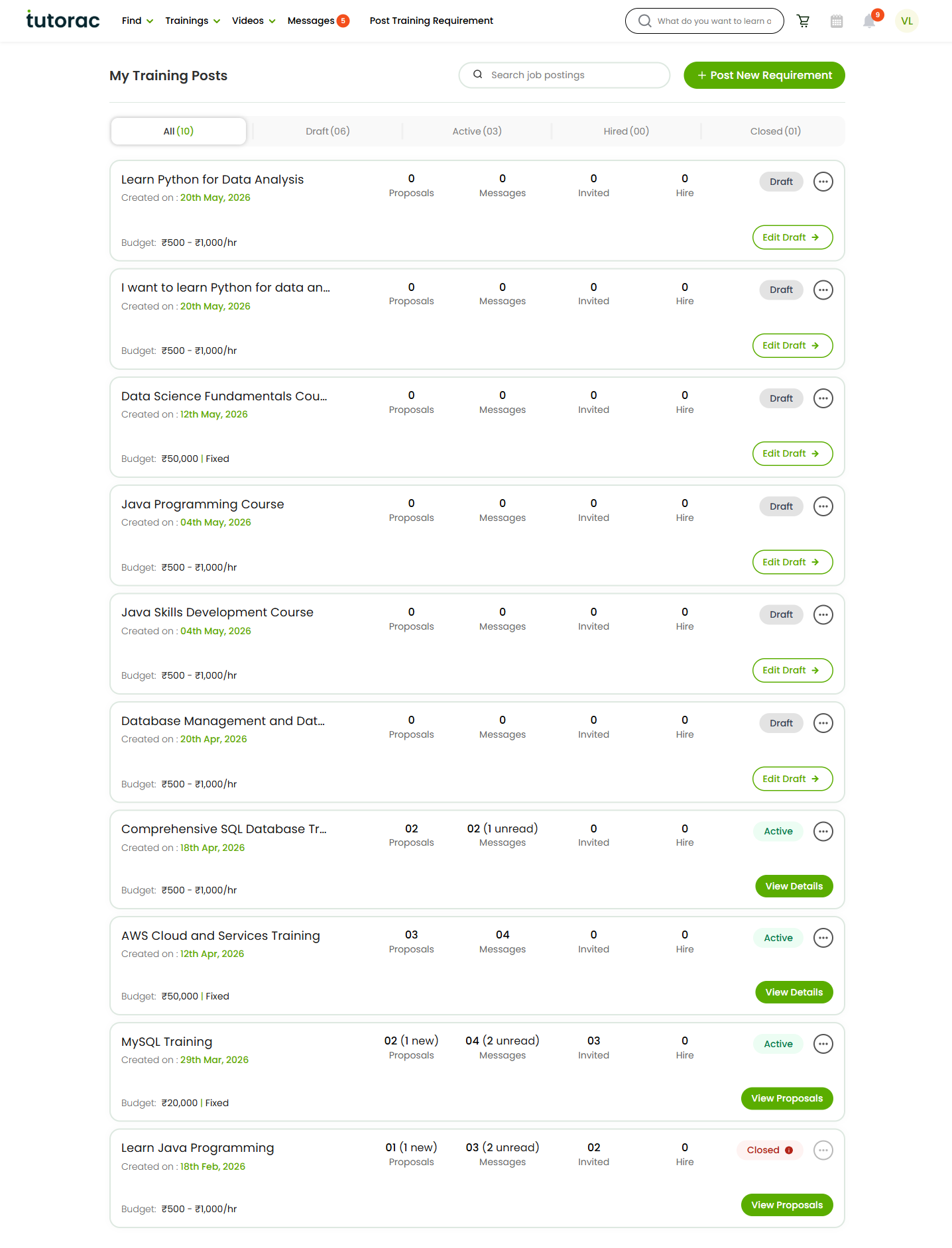
Each card on the My Training Posts page summarises one Training Requirement:
- Title and Created on date.
- Four counters: Proposals, Messages, Invited, Hire. “1 new” and “unread” tags appear next to the counter when there’s something you haven’t looked at yet.
- A status badge: Draft, Active, Hired, or Closed.
- Budget: either an hourly range or a fixed amount.
- A primary action: Edit Draft, View Details, or View Proposals depending on the state.
Status tabs: All, Draft, Active, Hired, Closed
At the top of the page, status tabs let you filter quickly:
- All — every Training Requirement on your account.
- Draft — saved but not yet posted. Tutors can’t see drafts. Click Edit Draft to keep working.
- Active — live and receiving proposals.
- Hired — you’ve already hired a tutor for this requirement and training is in progress.
- Closed — the requirement has been closed (either by you or automatically after hiring) and isn’t accepting new proposals.
Open a Training Requirement to see proposals
Click View Proposals (or View Details) on any Active card. Tutorac opens the Training Requirement’s proposals view at /student/job-post/proposals?id=…. Across the top, three tabs let you switch context:
- Proposals — the list of proposals tutors have sent. The count next to the tab matches the badge on the card.
- Search & Invite — find more tutors and send Invites for this same Training Requirement.
- Hired — tutors you’ve already hired against this requirement.
A View Post link at the top of the page jumps to the public Training Requirement so you can review the brief you wrote.
Anatomy of a proposal card
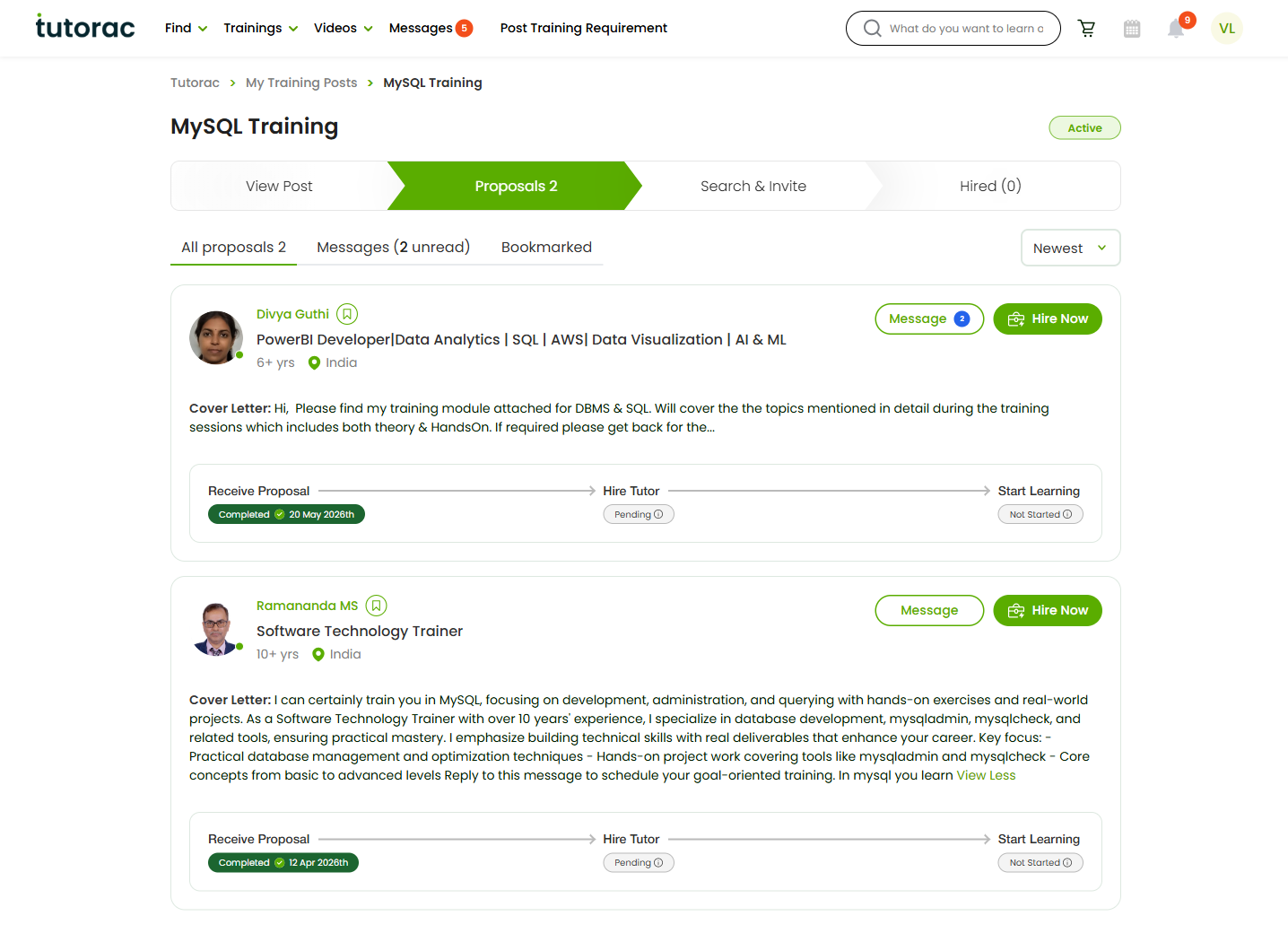
Each proposal card lays out the tutor’s offer in a consistent format so you can scan and compare quickly:
- Tutor name and a one-line headline describing their specialisation.
- Years of experience and location.
- Message button (with an unread badge when there are new messages) to open the chat thread with this tutor.
- Hire Now button to accept and start a Training Contract.
- Cover Letter — the tutor’s pitch: what they’ll cover, their teaching approach, deliverables. Use View More / View Less to expand or collapse.
- Progress timeline at the bottom: Receive Proposal (completed) → Hire Tutor (pending) → Start Learning (not started). This shows where you are in the journey for that tutor.
Filter and sort proposals
Above the proposals list:
- All proposals — show every proposal received.
- Messages (with an unread count) — filter to proposals where the conversation has new messages waiting.
- Bookmarked — show only proposals you’ve marked to revisit.
- Newest / Oldest — toggle sort order.
What to compare across proposals
When you have two or more proposals open, look at these signals in this order:
- Fit to your scope — does the cover letter directly address the topic, level, and outcome in your Training Requirement, or does it read generic?
- Relevant experience — years of experience matter, but the right kind of experience matters more. A 6-year Data Analyst is a stronger fit for a SQL-for-analytics goal than a 15-year DBA.
- Teaching approach — does the proposal explain how the tutor teaches: lectures, hands-on labs, projects, recorded sessions, doubt-clearing?
- Deliverables and milestones — clear weekly milestones, capstone project, and reviewable artefacts beat a vague “will teach end-to-end.”
- Price vs your budget — check the tutor’s hourly rate against the range you posted. Significantly higher or lower than the range deserves a conversation in chat.
- Time-zone and availability — even a great tutor doesn’t help if your schedules don’t overlap.
- Communication so far — if you’ve already exchanged messages or done a demo with the tutor, that history is at hand under Messages.
Next steps: Message, Bookmark, Hire, Invite more
From any proposal card you can move forward in several ways:
- Message the tutor to clarify scope, schedule, or price before deciding.
- Bookmark a proposal you want to come back to. Bookmarked proposals show up under the Bookmarked filter.
- Schedule a Free Demo with the tutor to evaluate their teaching style before committing. (See How to book a Free Demo Session.)
- Hire Now to accept a proposal and start a Training Contract. Payment goes into escrow and is released to the tutor as milestones complete.
- Search & Invite — if none of the current proposals fit, switch to the Search & Invite tab to send invitations to additional tutors for this same Training Requirement. (See How to send an Invite to a tutor.)
- Edit or close the Training Requirement — if your needs have changed, tighten the brief or close the post. The card on My Training Posts has the controls.
FAQs
Why is the proposal count higher than the number of cards I see?
Filters and the Hired tab can hide proposals. Switch the filter back to All proposals if you’re looking for a specific one. Make sure you’re on the Proposals tab, not Hired.
Can I respond to a proposal without hiring?
Yes. Click Message on the proposal card to open a chat with the tutor. You can ask questions, negotiate scope or price, request a demo, or politely pass — no commitment until you click Hire Now.
What does the Progress Tracker mean?
The three-step timeline on each proposal card (Receive Proposal → Hire Tutor → Start Learning) reflects where this specific tutor’s engagement is. Receive Proposal is marked Completed as soon as their proposal arrives; the next two steps light up once you hire and once training begins.
Can I have multiple tutors hired against one Training Requirement?
The Hired (n) tab and the Hire counter on the post card support more than one hire if your training needs it (for example, separate modules with different tutors). Most learners hire one tutor per Training Requirement.
How do I know which proposals have new messages?
Two signals: the Messages (n unread) filter at the top of the proposals page, and an unread badge next to the Message button on each card. The Messages tab in the top nav has a global unread count across all conversations.
Can I see the proposal again after hiring?
Yes. Once you hire, the tutor moves to the Hired tab on that Training Requirement, and the original proposal stays attached — you can review the cover letter, scope, and price you agreed to at any time.
I’m not getting any proposals. What should I do?
Two things usually help: (1) tighten the brief — specific title, clearly stated level, realistic budget — and (2) actively Search & Invite tutors who match your topic. Inviting 3 to 5 well-matched tutors typically generates several proposals within a day.
Related articles
- How to post a Training Requirement on Tutorac
- How to send an Invite to a tutor on Tutorac
- How to message a tutor before hiring on Tutorac
- More Training Requirements & Proposals articles
Last updated: 20 May 2026