Every Training Batch on Tutorac comes with its own Drive — a file workspace organised by your course curriculum. This is where your tutor uploads slide decks, datasets, code samples, and worksheets, and where you upload assignment submissions. This article explains how to find and use it.
In this article
- What is the Drive?
- How to open the Drive
- Drive layout: Global Folder and section folders
- Upload a file
- Download or open a file
- “No Files attached” — what it means
- Tips for working with Drive
- FAQs
What is the Drive?
The Drive is a shared file storage area scoped to a single Training Batch. Everyone in the batch (you, the tutor, and any other co-learners if it’s a group batch) can see and download files. Files added to Drive are organised by the curriculum sections of your course, so you can always find “the slides from Section 4 on Linux” without scrolling through chat history.
How to open the Drive
- Sign in to Tutorac and go to Trainings → My Training Batches.
- Click the batch you want to open.
- You’re now on the batch workspace. At the top you’ll see tabs: Sessions, Curriculum, Drive, Quizzes & Assignments, Messages, reports, payment, Alerts.
- Click Drive.
The Drive URL has the form tutorac.com/student/classes/drive?id=….
Drive layout: Global Folder and section folders
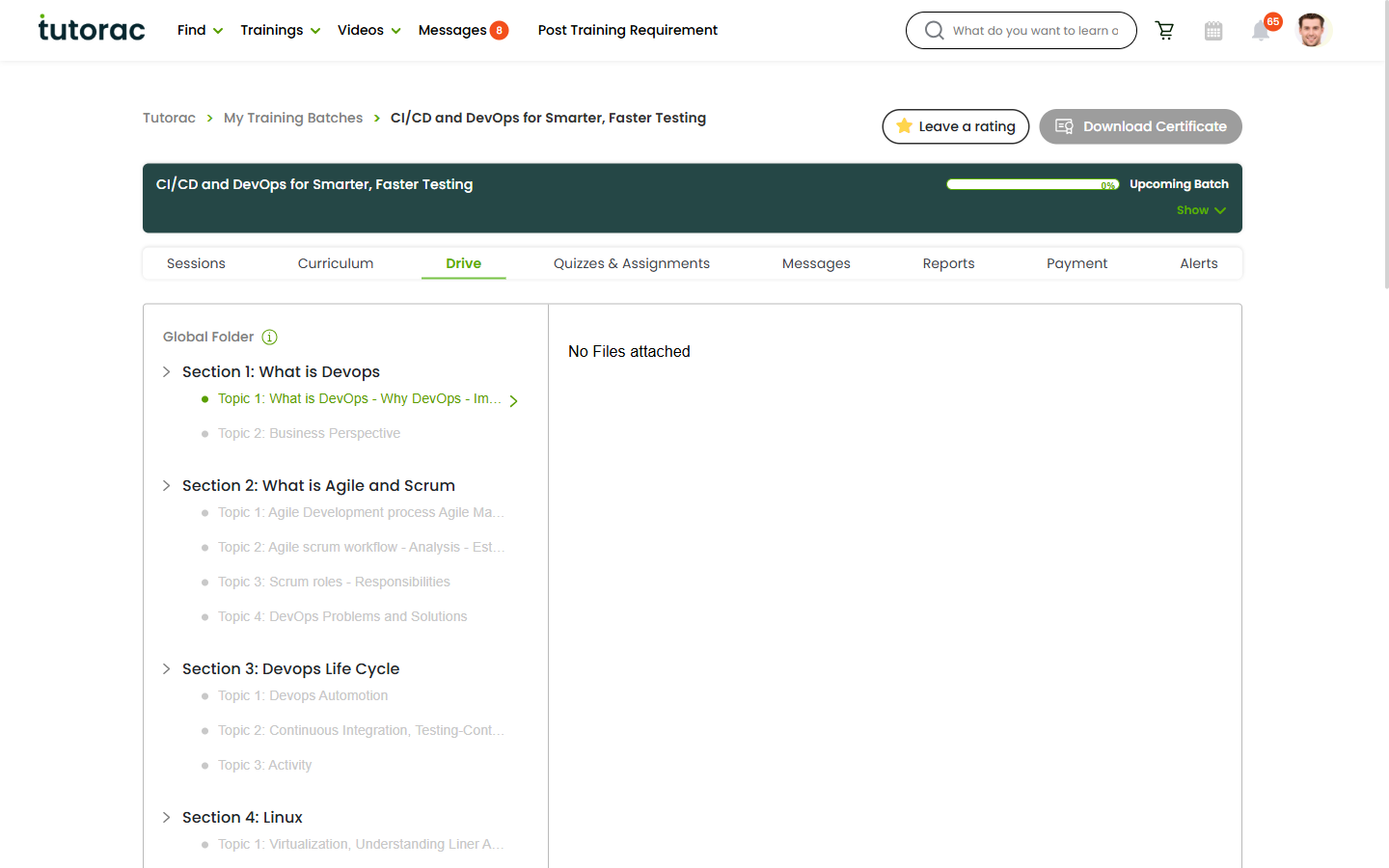
Drive is organised into two layers:
- Global Folder — at the top of the list. Use this for files that apply to the whole course (welcome doc, course outline, project brief).
- Section folders — one folder for each section in the curriculum, named after the section (e.g., “Section 1: What is DevOps”, “Section 4: Linux”). Files relevant to a topic go inside the matching section folder.
The section folders mirror the structure of the Curriculum tab, so anything taught in Section 4 has its materials in the Section 4 folder.
Upload a file
- On the Drive tab, click the folder you want to upload into (Global Folder, or a specific section).
- Click the upload button or the upload area inside the folder.
- Choose a file from your computer.
- The file appears in the folder once the upload finishes.
The tutor sees your upload too, in the same folder. There’s no separate “learner files” or “tutor files” section — the Drive is shared.
Download or open a file
- Click a file’s name to preview it (PDFs, images) or open in a new tab.
- Click the download icon to save it locally.
- Right-click and copy the link to share it inside chat or paste into your notes.
“No Files attached” — what it means
If a folder is empty you’ll see No Files attached. That means neither you nor the tutor have uploaded to it yet. The folder still exists in the structure — just add a file and it’ll appear.
It’s normal for a brand-new batch to show empty folders — the tutor will typically upload materials before or during the first session.
Tips for working with Drive
- Put files in the right section folder — otherwise you and the tutor will end up scrolling for them.
- Use clear filenames — e.g.,
assignment-2-section-4.ziprather thanfinal.zip. - Don’t use Drive for chat-style back-and-forth — use the Messages tab for that. Drive is for keeper materials, not conversation.
- Check Drive before sessions — tutors often pre-upload the slides for the next class so you can skim them in advance.
FAQs
Is Drive the same as my computer’s file system?
No. Drive is a cloud workspace inside Tutorac specific to one Training Batch. It’s only accessible to people enrolled in that batch.
Will my files still be there after the contract ends?
Yes — Drive files persist for the lifetime of the batch record. Even after a contract completes, the batch workspace remains accessible to you (read-only) for future reference. Download anything you want to keep locally just in case.
Who can see files I upload to Drive?
Only people in the batch — the tutor and any co-learners. Tutorac admin staff may access them for moderation or support purposes when required.
Can I create my own folders?
The folder structure is driven by the course curriculum and isn’t user-customisable. Each curriculum section gets its own folder automatically, plus a Global Folder.
What if Drive is empty even though we’ve had classes?
Ask the tutor in the batch’s Messages tab if they can upload the materials they’ve been using. Keeping Drive up to date helps you review later.
Related articles
- How to access curriculum, sessions, and quizzes in a Training Batch
- How to attach files and share resources in a Tutorac chat
- A tour of Tutorac Messages: your chat hub explained
Last updated: 27 May 2026