Sometimes a screenshot of an error, a syllabus PDF, or a sample of your existing work explains more than a paragraph of text. Tutorac Messages lets you attach files directly to any chat with a tutor. Here’s how.
In this article
- Attach a file step by step
- Supported file types
- File size and limits
- Viewing and downloading shared files
- Tips for sharing resources well
- When to use Drive instead
- FAQs
Attach a file step by step
- Open Messages from the top navigation, or go directly to
tutorac.com/messages/profile. - Select the conversation with the tutor you want to send a file to.
- Look at the message input bar at the bottom of the chat thread. Next to Type your message here… you’ll see a paperclip icon.
- Click the paperclip. Your file picker opens.
- Select the file(s) you want to attach. The selected files appear above the input bar as small preview chips.
- (Optional) Type a message describing what you’re sending — “Here’s the error log from yesterday’s session.”
- Press Enter (or click the send icon) to send.
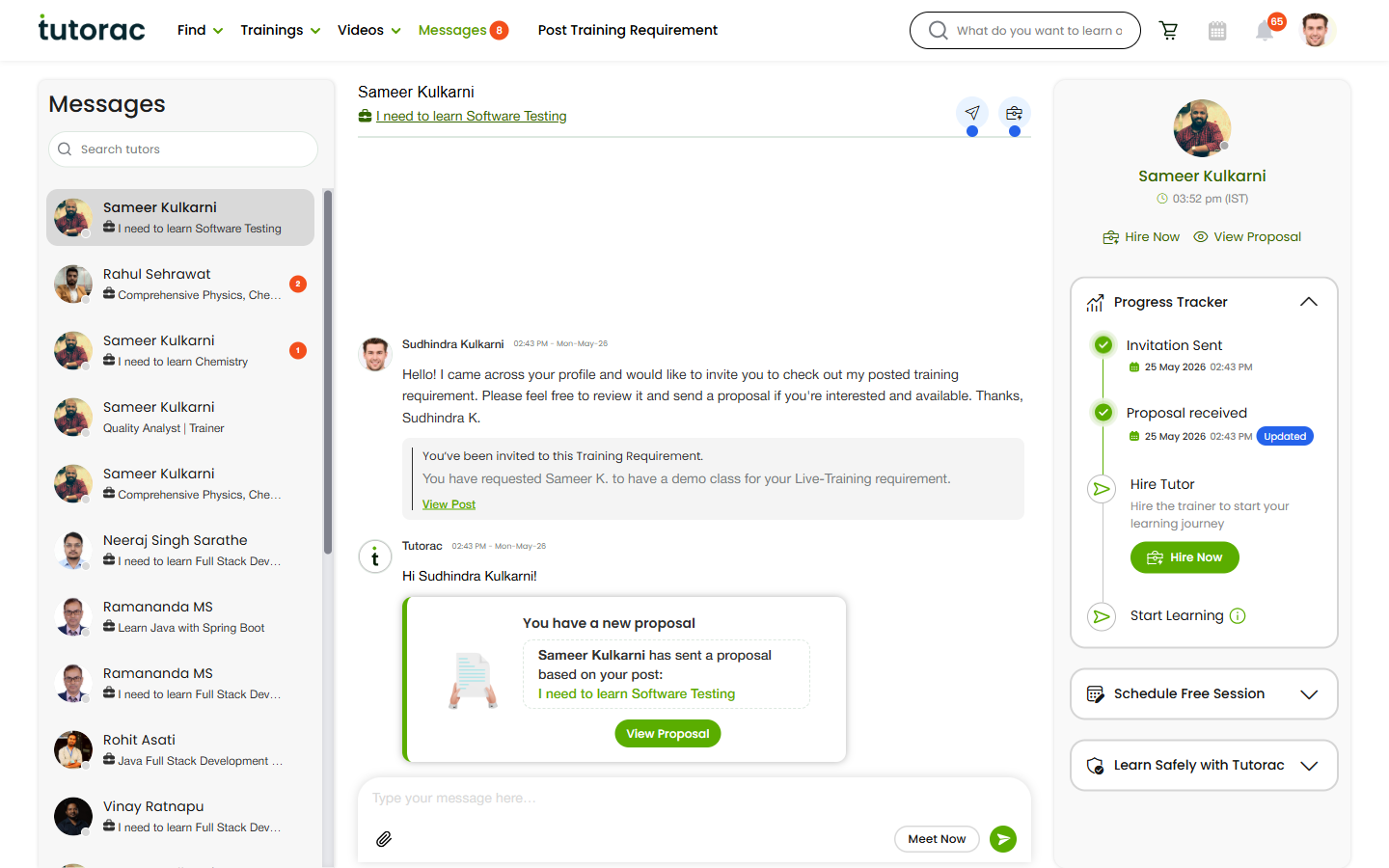
The attached file appears in the chat thread as a downloadable card showing the filename, file type and size. The tutor can click it to view or download.
Supported file types
You can attach the file types you’d typically share in a learning context:
- Documents — PDF, DOC, DOCX, TXT, RTF
- Spreadsheets — XLS, XLSX, CSV
- Presentations — PPT, PPTX
- Images — PNG, JPG, JPEG, GIF, WEBP
- Code/text — most plain-text-based formats
- Archives — ZIP
Executable files and other risky formats are blocked for safety.
File size and limits
- Per-file limit: Tutorac enforces a per-file size cap (typically up to 25 MB). If your file is larger, compress it into a ZIP or split it into smaller parts.
- Per-message: you can attach multiple files in a single message.
- Daily/total: there is no hard cap on the total number of files you can share over time.
If an upload fails, check the file size and try again. Very large videos are better hosted elsewhere and shared as a link.
Viewing and downloading shared files
Files stay attached to their original chat message forever, so you can scroll back and find them later. To view or save one:
- Images open in a viewer overlay when you click them.
- PDFs and documents open in a new tab.
- All file types can be downloaded to your device via the download icon on the file card.
Tips for sharing resources well
- Add context: a one-line message explaining what the file is saves your tutor a guess. e.g., “Selenium script that’s failing on the click step.”
- Name files clearly: rename
screenshot1.pngtologin-error-2026-05-27.pngbefore uploading. - Don’t share sensitive data: blur or redact any credentials, API keys, or personal IDs before screenshotting.
- Use Drive for batch-wide reference material — see the next section.
When to use Drive instead
If you’re already inside an active Training Batch and the file is a reference you’ll want to come back to throughout your training (slide decks, datasets, assignment templates), the Drive tab inside the batch is a better home for it than a chat message. Drive is organised by curriculum sections, so you and your tutor can both find files weeks later. See How to use the Drive in your Training Batch.
Use chat attachments for ad-hoc questions and quick exchanges; use Drive for the canonical resources of the course.
FAQs
Can I delete a file after I’ve sent it?
Chat messages, including attachments, are part of the conversation record and aren’t individually deletable from the learner side. If something was shared in error, message the tutor and ask them to disregard it — and reach out to Tutorac Support for sensitive cases.
Can my tutor send me files too?
Yes — tutors have the same attachment capability. Their files appear in the same thread.
Does an attached file count against my milestone payment?
No. Messaging and attachments are free and unmetered.
Where can I see all the files a tutor and I have exchanged?
They’re inline in the chat thread — scroll back through Messages. Inside a Training Batch, the Drive tab also keeps curriculum-linked files in one place.
Is what I share private?
Files shared in a chat are visible only to you and the tutor in that conversation. Drive files in a Training Batch are visible to everyone in that batch (in 1-to-1 batches, just you and the tutor; in group batches, all enrolled learners and the tutor).
Related articles
- A tour of Tutorac Messages: your chat hub explained
- How to use the Drive in your Training Batch
- Understanding chat features: Meet Now, Hire Now, Progress Tracker, and safety panel
Last updated: 27 May 2026