Once you’ve applied, My Proposals is where you track everything. This article explains the tabs, statuses, and where invitations appear.
In this article
Opening My Proposals
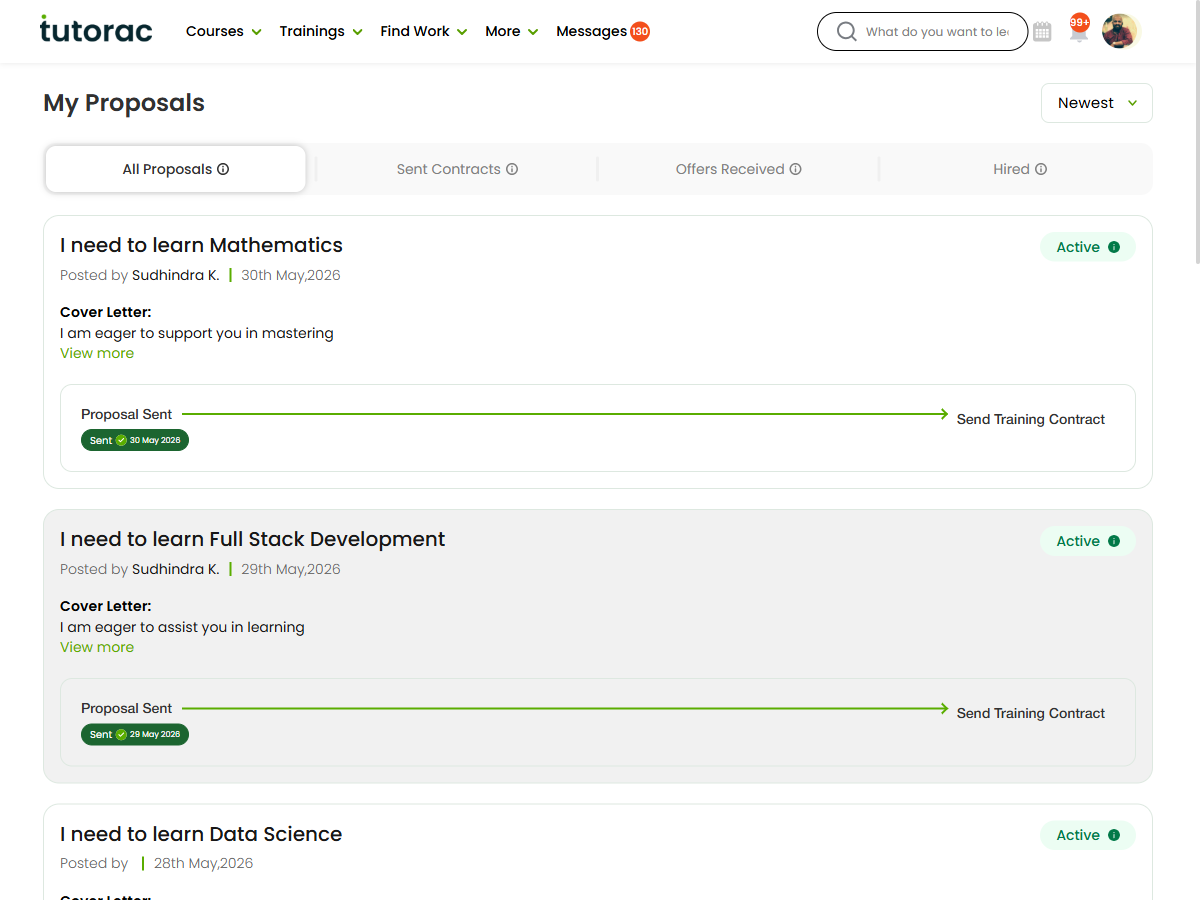
Open My Proposals to see every proposal you’ve sent. You can sort by Newest or Oldest, and open any proposal to view its cover letter and current stage.
The tabs
- All Proposals — everything you’ve submitted.
- Sent Contracts — proposals where you’ve sent a training contract.
- Offers Received — posts where the learner has sent you an offer.
- Hired — proposals that turned into confirmed work.
Proposal statuses
Each proposal moves through clear stages, for example:
- Proposal Sent — your application has been submitted.
- Send Training Contract — you can send the learner a contract.
- Offer Received — the learner has made you an offer; Review & Accept Offer.
- Accepted / Hired — the work is confirmed.
You may also see labels like Active, Awaiting Your Action, or Post Closed, which tell you whether something needs your attention.
Invitations
When a learner invites you to their training post, it appears under the Invited tab in Find Work. Open the invitation and submit a proposal just as you would for any post.
FAQs
What does “Awaiting Your Action” mean?
Something needs you — often an offer to review and accept. Open the proposal to see the next step.
What does “Post Closed” mean?
The learner’s post is no longer open. You may still have been hired from it if the status also shows Hired.
Where do offers from learners show up?
Under Offers Received, with a Review & Accept Offer action. See the Offers & Contracts section.
Related articles
Last updated: 8 June 2026