Tutorac’s Video Courses library has hundreds of pre-recorded IT and tech courses. This article shows you the fastest ways to find the course you need — by category, by search, or by browsing the full catalogue.
In this article
- Open the Videos menu
- Browse by category
- Browse the full catalogue
- Use search
- What’s on the course detail page
- FAQs
Open the Videos menu
Sign in to Tutorac. In the top navigation, hover over Videos to reveal three options:
- Home — the Video Courses landing page with featured courses and category tiles.
- All Courses — the full catalogue with filters and sorting.
- My Courses — the courses you’ve already started, bookmarked, or purchased.
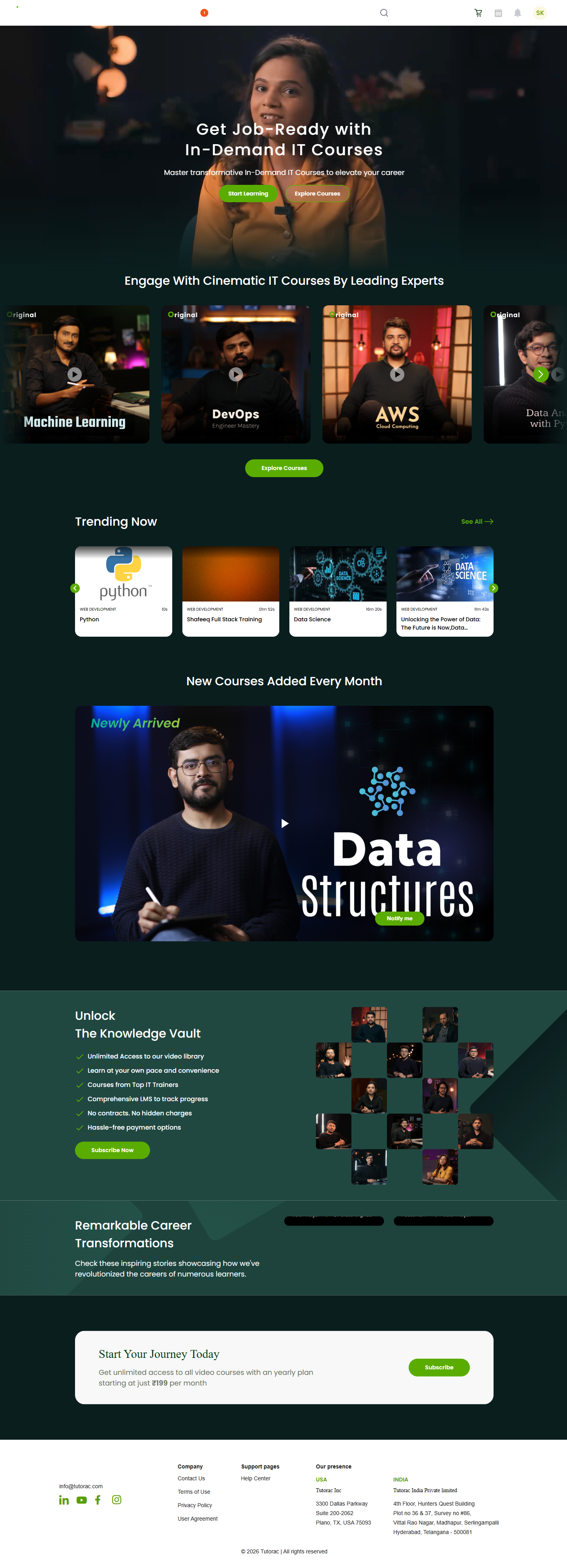
Browse by category
The Videos landing page and the All Courses page group courses into six topic categories. Click any tile to see only the courses in that area:
- Cloud Computing — AWS, Azure, GCP, DevOps and infrastructure.
- Data Science & AI — Python for data, machine learning, analytics, AI/ML tools.
- IT Software — system administration, networking, certifications.
- Multimedia — design, video, audio, and creative tools.
- Software Development — programming languages, software engineering, testing.
- Web Development — frontend, backend, frameworks, full-stack.
Browse the full catalogue
Click Videos → All Courses to see every video course in one place. The page is paginated and shows each course as a tile with:
- The course thumbnail and title.
- The trainer who created it.
- Course length and total lessons.
- The price for individual purchase.
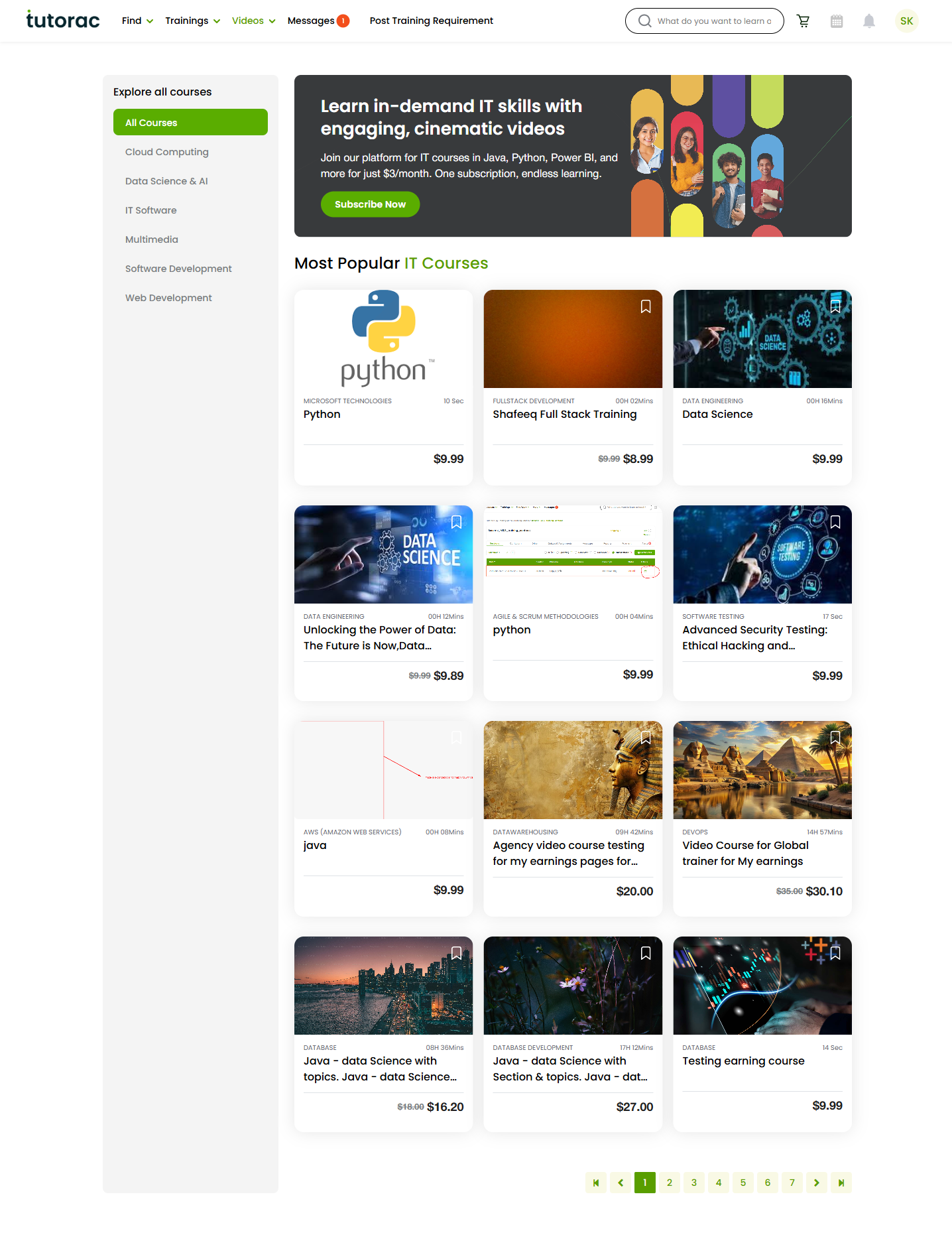
Use the page filters to narrow your results by category or course length. Click any tile to open the course detail page.
Use search
The search bar in the top navigation (“What do you want to learn?”) is the fastest way to find a specific topic. Type a keyword — for example, Python, Kubernetes, React, or AWS — and pick a result to jump straight to a matching course or to a search results page.
Tip: search matches course titles, descriptions, and skill keywords, so even broad terms like “data analysis” or “cybersecurity” will surface relevant courses.
What’s on the course detail page
When you open a course, you’ll see everything you need to decide if it’s right for you:
- Course player preview — a sample lesson at the top.
- About and Skills — what the course covers.
- Who should take this course — the intended audience and prerequisites.
- What will you learn — the learning outcomes.
- Curriculum — the full lesson breakdown.
- About tutor — the instructor’s background.
- Course Highlights — features such as unlimited access, progress tracking, and completion certificates.
- Your Certificate Awaits — a preview of the certificate you’ll receive on completion.
At the top, three action buttons let you start learning: Start Subscription, Add to cart, and Buy now.
FAQs
Do I need to sign in to browse courses?
You can browse the catalogue, search, and view course details without signing in. You only need an account when you’re ready to subscribe or purchase.
How many video courses are available?
The library has hundreds of IT and tech video courses across six categories, and new courses are added regularly. The All Courses page always shows the current total at the top.
Can I preview a course before buying?
Yes. Most courses include a preview lesson on the course detail page so you can sample the trainer’s teaching style before you commit.
Is there a way to save courses for later?
Yes. Use Add to cart on the course detail page to keep a list of courses you’re considering, or once you start a course you can bookmark individual lessons.
Can I take more than one course at the same time?
Absolutely. With a subscription you can switch between any courses in the library, and individual purchases stay in your My Courses for whenever you want to come back.
Related articles
- Video Courses on Tutorac: an overview
- How to subscribe to Tutorac Video Courses
- How to buy a single video course on Tutorac
Last updated: 29 May 2026