Every milestone payment you make on Tutorac generates a receipt — in ₹ if you’re on an India account, in $ if you’re on a US or any other country account. This article shows you where to find them — per-batch, across all contracts, and via email — so you can download invoices for reimbursement, tax filing, or your own records.
In this article
- Per-batch receipts (payment tab)
- All payments view: Contracts page
- Email receipts
- Download an invoice / receipt
- What an invoice contains
- FAQs
Per-batch receipts (payment tab)
Each Training Batch keeps its own payment history on the payment tab.
- Sign in to Tutorac.
- Go to Trainings → My Training Batches.
- Open the batch you’re interested in.
- Click the payment tab.
You’ll see each milestone with its amount (in your account currency — ₹ or $), payment status (paid, in escrow, pending), and a receipt link once paid.
All payments view: Contracts page
For payments across all batches, use the contracts pages:
- Sent Offers —
/student/sent-contracts— contracts you’ve sent. - Received Contracts —
/student/received-contracts— contracts tutors sent to you that you accepted.
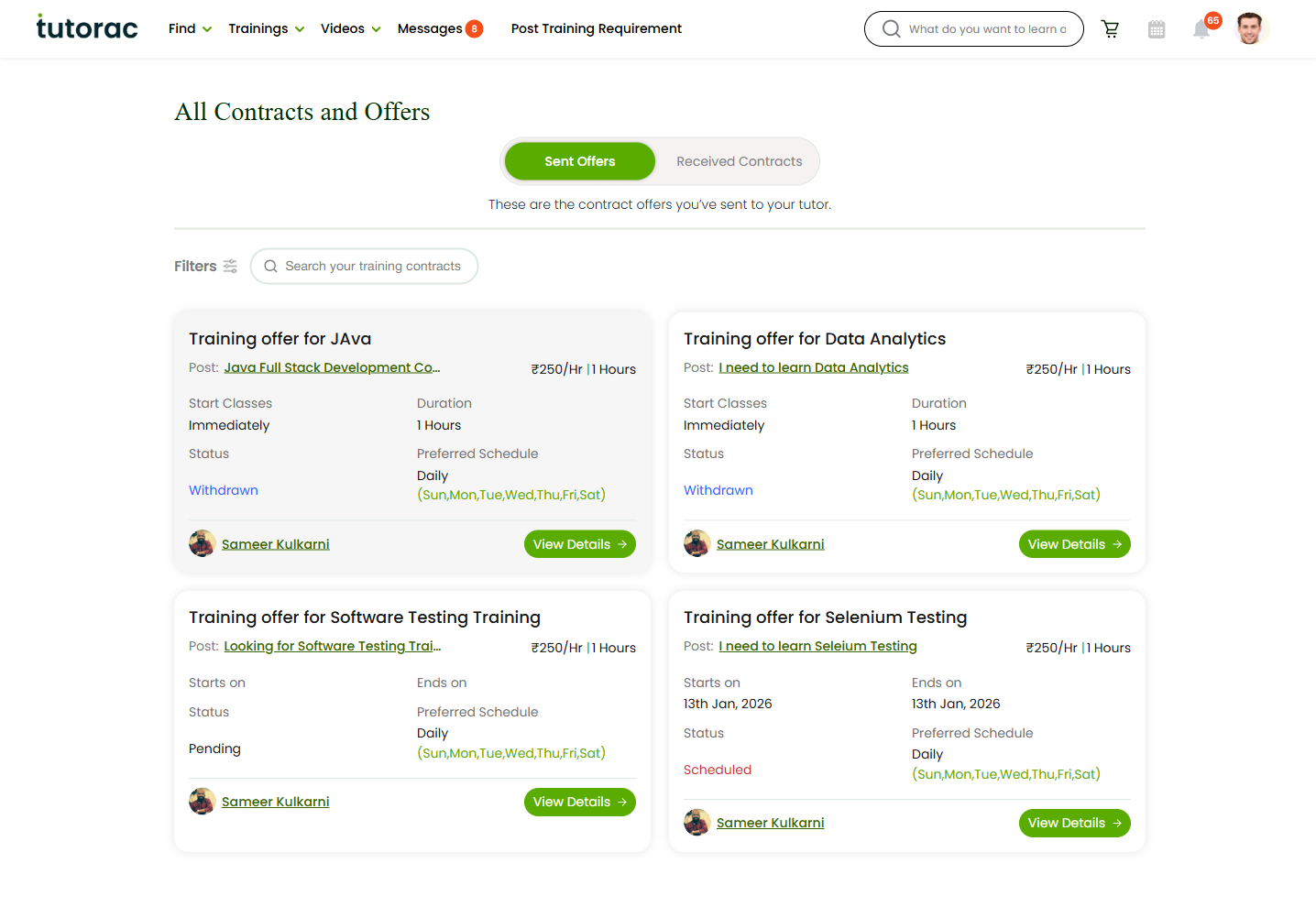
Click into any contract to see its full milestone payment history with timestamps and amounts.
Email receipts
Every milestone payment also triggers a receipt email to the address on your Tutorac account. Subject lines usually read “Payment confirmation — [Batch Name] — Milestone N”.
If you’re missing receipts:
- Check your spam / promotions folder.
- Search your inbox for “Tutorac payment”.
- Verify your email address under Profile → Basic Information is current.
- Add
no-reply@tutorac.com(and any sender domain Tutorac uses) to your safe senders.
Download an invoice / receipt
- From the batch’s payment tab (or a contract’s detail view), find the milestone you want a receipt for.
- Click the Download / Receipt link on that milestone.
- The PDF opens or downloads to your device.
For multi-payment summary (e.g., for an entire course), download each milestone receipt individually and bundle them.
What an invoice contains
- Your billing name & address (from your billing address profile setting).
- Tax ID, if you provided one — GSTIN for India, VAT / EIN / ABN etc. for other regions.
- Tutorac’s legal entity, address, and (where applicable) tax registration number.
- Tutor / training name and milestone description.
- Amount, tax breakup, and total — in your account currency (₹ for India accounts, $ for all other accounts).
- Payment method (card last 4 digits or wallet) and transaction ID.
- Invoice number and date.
FAQs
Can I get a single consolidated invoice for the full course?
Tutorac issues one invoice per milestone payment, not one for the whole course. If you need a consolidated record, download each milestone receipt and combine them.
My employer is reimbursing me — what do I send them?
The milestone invoice PDF. Make sure your billing address and tax ID (GSTIN, VAT, EIN, ABN — whichever applies to your country) were correct before you paid — invoices lock in those details at the moment of payment.
Can I get the invoice in a different currency than my account?
No. Invoices are issued in the account’s billing currency: ₹ for India accounts, $ for all other accounts. If you’re claiming reimbursement in another currency, use your bank’s FX rate from the transaction date.
Can Tutorac email me a copy of a missing receipt?
Yes — contact Tutorac Support with your batch name and the milestone in question, and they can re-send.
How long are receipts stored?
Indefinitely, while your account is active. Download copies for your own archive anyway, especially if you change email addresses or close the account.
Where are refund credit notes?
If you receive a refund (e.g., after cancellation), Tutorac issues a credit note linked to the original payment, in the same currency. It appears on the same payment tab / contract detail view, marked as a refund.
Related articles
- How to update your billing address on Tutorac
- How payments work on Tutorac: milestones, escrow, and releasing funds
- Troubleshooting failed payments and refunds
Last updated: 28 May 2026