Your billing address appears on every invoice Tutorac generates for your milestone payments. Keep it accurate so receipts, tax records, and payment confirmations all match the address you use for tax filing and reimbursements — whether you’re in India (INR invoices) or anywhere else (USD invoices).
In this article
- Where to find Billing Address
- Update your billing address
- Why your billing address matters
- Tax IDs (GSTIN for India, VAT / EIN / SSN elsewhere)
- FAQs
Where to find Billing Address
- Sign in to Tutorac.
- Click your avatar in the top right.
- Choose My Profile.
- In the left sidebar, click BILLING ADDRESS (URL:
/student/profile/billing-address).
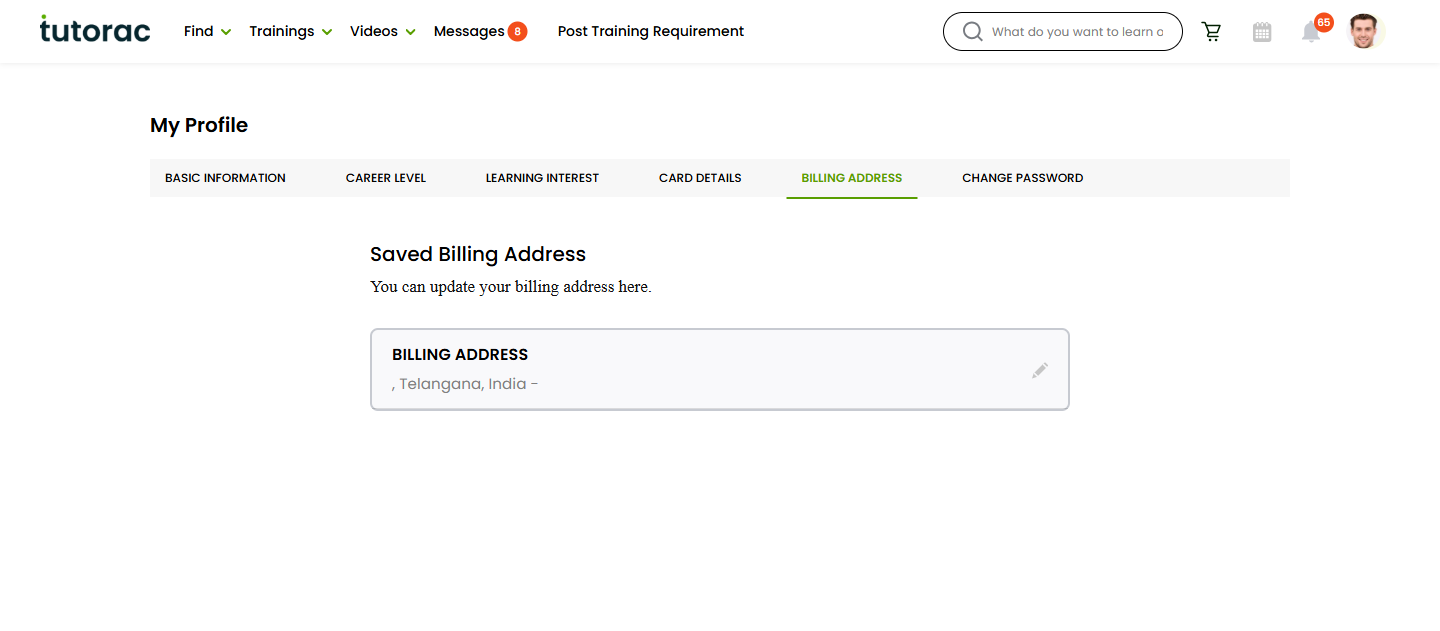
Update your billing address
- On the Billing Address page, fill in or update:
- Full name on the invoice.
- Address line 1 / line 2.
- City / Town.
- State / Province.
- PIN / ZIP / Postal code.
- Country.
- If your country requires a tax ID, enter it in the tax ID field so it appears on tax invoices — e.g., GSTIN for India, VAT number for EU / UK / UAE, EIN for a US business, ABN for Australia.
- Click Save.
The page confirms the update. From the next milestone payment onward, this address appears on your invoices and receipts — in ₹ for India accounts, in $ for everyone else.
Why your billing address matters
- Invoices and receipts — the address printed on every PDF receipt for your milestone payments.
- Tax compliance — jurisdictions like India require correct address + GSTIN for input credit; the EU / UK need a valid VAT number for reverse charge; US businesses need EIN for 1099 records.
- Reimbursement claims — if your employer is reimbursing your training, the address must match what they have on file.
- Payment processor checks — some card issuers run AVS (address verification) on transactions; a mismatch can decline the payment.
Tax IDs (GSTIN for India, VAT / EIN / SSN elsewhere)
India accounts (INR invoices)
- If you’re a business in India (or your employer is) and you need GST input credit on tutoring payments, enter the company’s GSTIN on the Billing Address page.
- Make sure the Name and Address match the GST registration exactly.
- Save the change before making the next milestone payment — invoices already generated cannot be edited retroactively.
Non-India accounts (USD invoices)
- EU / UK / UAE / GCC businesses — enter your VAT number so reverse charge applies and the invoice carries it.
- US business — enter your EIN; if you’re paying as an individual, leave the tax ID blank.
- Australia — enter your ABN.
- Other countries — enter the local business tax ID if you need it on the invoice; otherwise leave blank.
- Match the Name and Address to your tax registration. Save before paying the next milestone.
FAQs
Can I have a different billing address per payment?
The billing address on your profile applies to all future invoices. If you need a different address for a specific milestone payment, update the address before paying that milestone, then change it back afterwards.
Can I edit an invoice that was already generated?
No. Invoices are point-in-time records and lock in the billing address that was on file when the payment was made. Update your address before paying the next milestone to ensure the new invoice carries the correct details.
Does the billing address have to match my card’s address?
It usually should, especially for international cards where AVS (address verification) is enforced. A mismatch can cause the bank to decline the charge.
Does my billing address change which currency I’m charged in?
No. The charge currency is set by the country on the account (India → INR, everywhere else → USD), not by the billing address you enter. If you change the address from India to the US without changing the underlying account, you’ll still be billed in INR. To switch currencies you’d typically need a fresh account — contact Tutorac Support first.
Where will my invoices appear after I update?
Receipts are visible in the batch’s payment tab and listed under your contracts. See Where to find invoices, receipts, and payment history.
I’m a learner but my company pays. Whose address goes here?
If the company will claim tax input credit (GST, VAT, etc.) or reimburse the cost, use the company’s registered address and tax ID. If you’ll claim reimbursement personally, use your home address.
Related articles
- How to add or remove a payment card on Tutorac
- Where to find invoices, receipts, and payment history
- How payments work on Tutorac: milestones, escrow, and releasing funds
Last updated: 28 May 2026