Your learner dashboard is the command center for everything you do on Tutorac — finding tutors, posting Training Requirements, managing contracts, joining sessions, and messaging. This tour walks you through every section so you know exactly where to click.
In this article
- How to open the dashboard
- The top navigation bar
- The Find menu
- The Trainings menu
- Post Training Requirement
- The avatar menu
- The dashboard body
- FAQs
How to open the dashboard
Once you’re signed in, you land on the dashboard automatically. You can also open it any time by clicking the Tutorac logo in the top-left of any signed-in page, or by going directly to tutorac.com/student/dashboard.
The top navigation bar
The top bar is sticky — it stays visible as you scroll. Left to right, you’ll see:
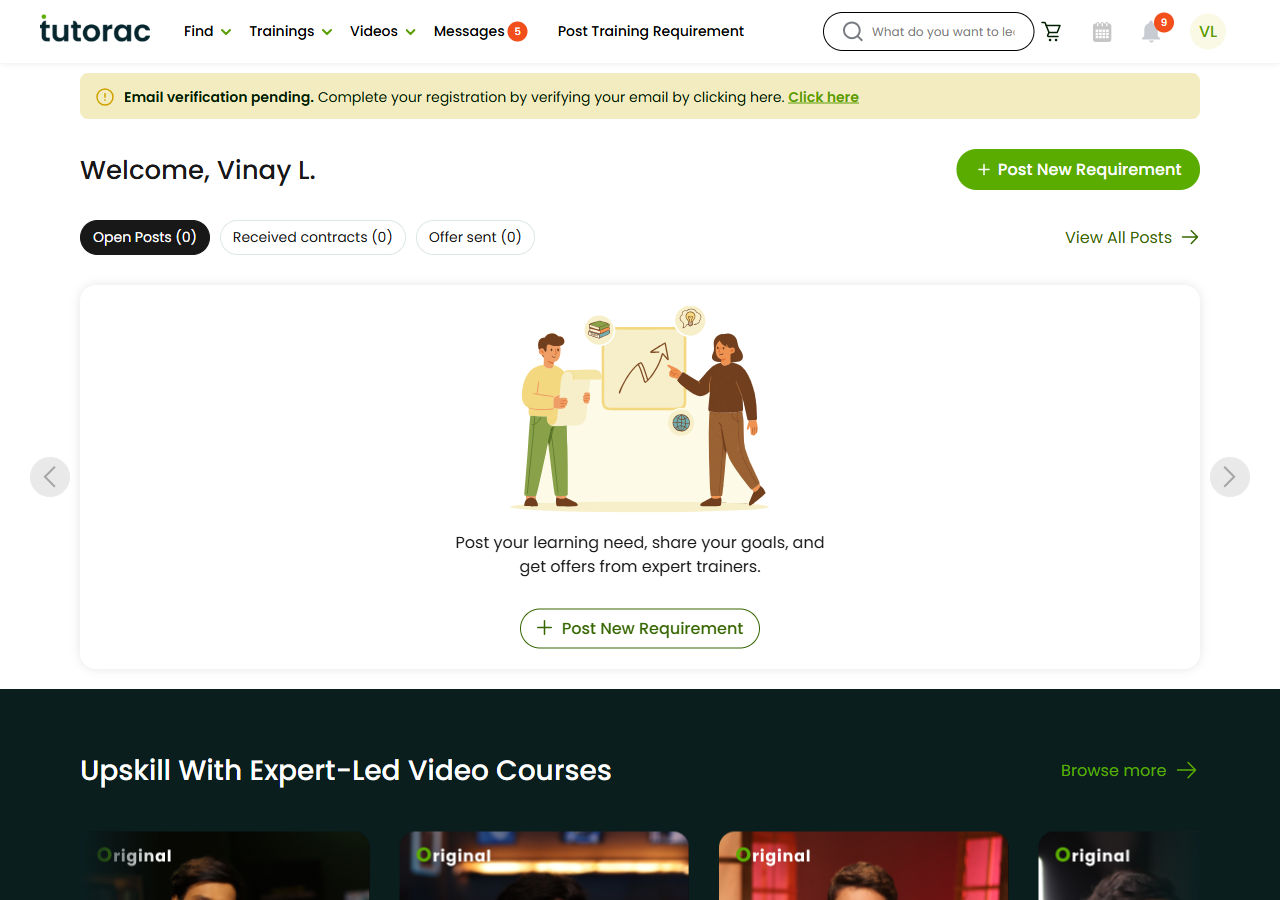
- Tutorac logo — takes you back to the dashboard.
- Find — dropdown to discover tutors and live courses.
- Trainings — dropdown for your requirements, batches, contracts, and demos.
- Videos — access video courses you’ve enrolled in.
- Messages — opens your chat hub with all tutors.
- Post Training Requirement — primary CTA to post a new requirement.
- Avatar (your profile photo or initials) — menu for profile, settings, and sign-out.
The Find menu
Hover or tap Find:
- Find Live Courses — browse cohort-based programs you can enrol in directly. (
/student/live-courses) - Find Tutors — browse all verified tutors with filters for category, location, language. (
/find-tutors)
This is where most discovery starts.
The Trainings menu
Hover or tap Trainings. This is your work hub:
- My Training Posts — all the Training Requirements you’ve posted (Draft / Active / Hired / Closed).
- My Training Batches — live training sessions you’re currently part of.
- All Contracts — every Training Offer and contract you’ve sent or received.
- My 1-to-1 Requests — one-to-one tutoring requests.
- My Demos — free demo sessions you’ve booked or held.
If you’ve never posted a requirement before, most of these will be empty — that’s normal.
Post Training Requirement
The green Post Training Requirement button in the nav is your fastest way to start a new search. Click it any time you have a learning need — it opens the requirement editor with two paths (AI-assisted or manual 5-step). See How to post a Training Requirement on Tutorac.
The avatar menu
Click your avatar in the top-right. You get:
- Profile — edit personal info, learning interests, career level, billing details. (
/student/profile/personal-info) - Change Password — for email/password accounts.
- Settings — account preferences and notifications.
- Log Out — ends your session.
The dashboard body
Below the top bar, the dashboard summarises your activity:
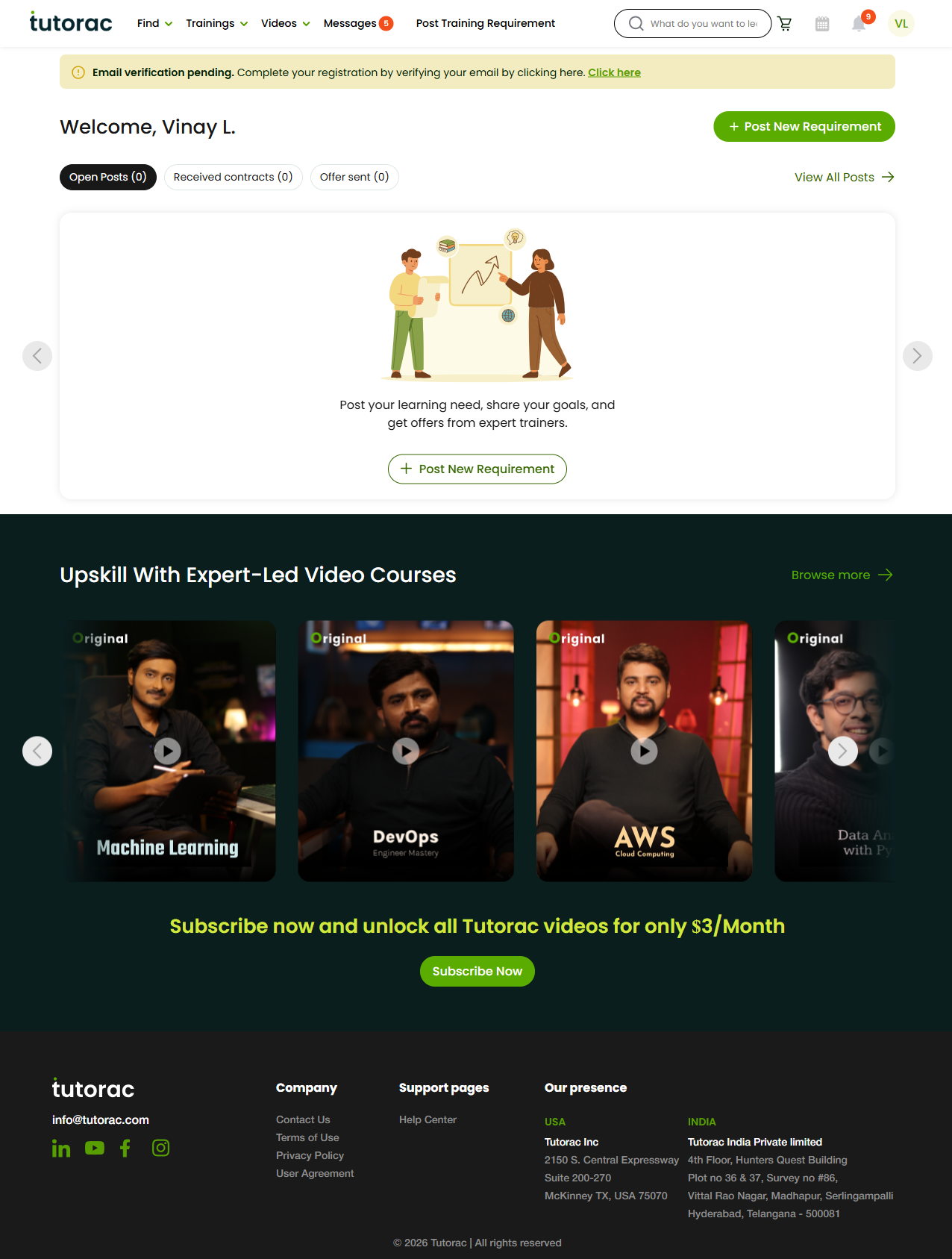
- Greeting + quick stats — how many active Training Requirements you have, how many proposals you’ve received, upcoming sessions.
- Recent activity feed — the latest proposals, messages, and session updates.
- Recommended actions — suggested next steps based on where you are in your learning journey (e.g., “Complete your profile” or “Review 3 new proposals”).
- Quick links — shortcuts to Post Training Requirement, Find Tutors, and Messages.
The dashboard fills out as you start posting, hiring, and learning. A brand-new account will mostly show prompts to get started.
FAQs
I see a tutor dashboard instead of a learner dashboard. Why?
You probably signed up as a Tutor or Trainer. Tutor and learner are separate roles in Tutorac. See Picking your role on Tutorac for how to switch or create a second account.
The dashboard looks empty — is something wrong?
No. A new learner account starts with no requirements, contracts, or sessions. As you post and hire, content fills in.
Where do I see all my unread messages?
Click Messages in the top nav. Unread threads show a counter next to the menu item.
Can I customise the dashboard layout?
Not at this time. Sections are arranged for what most learners need at each stage.
Does the mobile dashboard show the same things?
Yes — the top nav collapses into a hamburger menu, but every section is available.
Related articles
- What is Tutorac? A learner’s overview
- How to set up your learner profile on Tutorac
- How to find a tutor on Tutorac
- How to post a Training Requirement on Tutorac
Last updated: 27 May 2026