When a proposal is the right fit, the next step is to hire the tutor. Hiring on Tutorac means sending a Training Offer with agreed title, schedule, and price, paying into Tutorac Payment Protection (escrow), and starting a Training Contract once the tutor accepts. This guide walks through the entire Send Training Offer page field by field.
In this article
- What is a Training Contract?
- Open Hire Now from a proposal
- The Send Training Offer page
- Field: Link to a Training Post
- Field: Title
- Field: Price type — Hourly or Fixed
- Field: Training Schedule
- Field: Description and attachments
- Agreement and right-side Contract Terms
- Proceed to Payment
- What happens after the tutor accepts
- Cancellation and Payment Protection
- FAQs
What is a Training Contract?
A Training Contract is the formal agreement between you and your tutor on Tutorac. It captures the title of the engagement, the price, the schedule, and a description of what will be taught. You fund the contract through Tutorac Payment Protection (escrow): money is held safely and released to the tutor as the training proceeds. Once the contract is active, a training batch is created so you can join sessions, share files, and track progress.
Open Hire Now from a proposal
From My Training Posts → (your Training Requirement) → Proposals, find the tutor you want to hire and click the green Hire Now button on their proposal card. (See How to view and compare proposals on Tutorac for how to get there.) Tutorac opens the Send Training Offer page at /hire-tutor/{tutor-slug}?id=…&pid=….
The Send Training Offer page
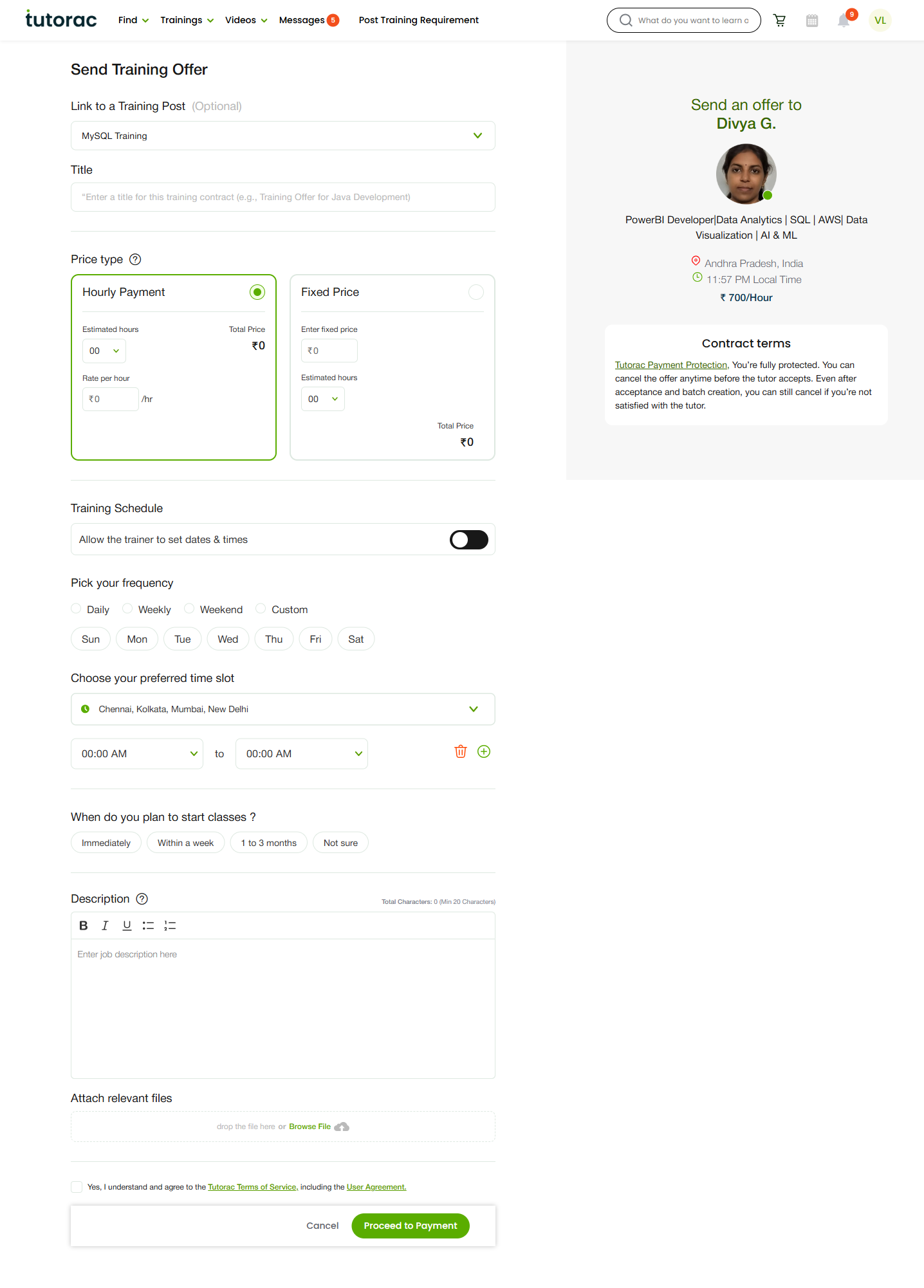
The page is split into two columns. On the left you fill out the offer terms. On the right Tutorac shows the tutor you’re sending the offer to (name, headline, location, local time, hourly rate) and a Contract Terms note about Payment Protection.
Field: Link to a Training Post
Optional. Use the dropdown to link this offer back to the Training Requirement that sparked it. When you opened Hire Now from a proposal, this is already linked for you. You can switch it to a different active Training Requirement if you want to hire the same tutor for a different need.
Field: Title
A short, clear title for this contract. Keep it specific (for example, “MySQL Training — weekday evenings, 8 weeks”). The title appears on your Trainings dashboard, the tutor’s dashboard, and on every invoice.
Field: Price type — Hourly or Fixed
Pick one of two billing models:
- Hourly Payment — You pay per hour the tutor teaches. Set the Rate per hour (the tutor’s rate from their profile is suggested; you can override after agreeing with them) and the Estimated hours for the engagement. Tutorac calculates the Total Price. Use this for ongoing or open-ended learning.
- Fixed Price — One agreed amount for the whole engagement. Enter the Fixed price and the Estimated hours (for planning, not billing). Use this for a clearly scoped outcome — a certification, a syllabus, a finished project.
Whichever option you pick, the Total Price is the amount that will move into Payment Protection at checkout.
Field: Training Schedule
Two scheduling modes:
- Allow the trainer to set dates & times — Hand scheduling over to the tutor. They’ll propose times after accepting and you confirm.
- Pick your frequency — You set it: choose Daily, Weekly, Weekend, or Custom, then tick the specific days (Sun–Sat) and a preferred time slot (from → to) in your timezone. The timezone defaults to your profile city (for example, Chennai, Kolkata, Mumbai, New Delhi).
Finally, pick When do you plan to start classes? — Immediately, Within a week, 1 to 3 months, or Not sure. This sets the tutor’s expectation on kickoff.
Field: Description and attachments
Write the Description in your own words (minimum 20 characters). State scope, the level you’re at, the outcome you want, and any milestones you’ve agreed with the tutor in chat. Clear scope here prevents disagreements later.
Use the Attach relevant files area (drag and drop, or Browse File) to add a syllabus, sample dataset, project brief, or any reference material the tutor will need.
Agreement and right-side Contract Terms
At the bottom of the form, tick the box: “Yes, I understand and agree to the Tutorac Terms of Service, including the User Agreement.”
The right-hand sidebar shows you who you’re sending the offer to and the contract’s safety net:
- Tutor summary: name, one-line headline, location, current local time, and hourly rate.
- Contract terms: “Tutorac Payment Protection. You’re fully protected. You can cancel the offer anytime before the tutor accepts. Even after acceptance and batch creation, you can still cancel if you’re not satisfied with the tutor.”
Proceed to Payment
Click Proceed to Payment. Tutorac takes you to a secure checkout to fund the contract. The amount moves into Tutorac Payment Protection (escrow) — the tutor only receives funds as agreed milestones complete. If you change your mind before payment, click Cancel to discard the offer.
What happens after the tutor accepts
- The tutor receives the offer with all the fields you set and either Accepts, Declines, or sends a counter via chat.
- On acceptance, a training batch is created — this is where sessions, recordings, and shared files live.
- The Training Requirement’s proposal moves to the Hired tab on My Training Posts.
- The contract appears under Trainings → All Contracts.
- You and the tutor coordinate kickoff. From Messages, you can also click Meet Now for an instant video call when needed.
Cancellation and Payment Protection
Two layers of safety apply:
- Before the tutor accepts — you can cancel the offer any time. Funds in Payment Protection are released back to you in full.
- After acceptance and batch creation — you can still cancel if you’re not satisfied. Tutorac mediates and refunds the unused balance per the Cancellation & Refunds policy.
Funds never go directly tutor-to-learner outside Tutorac — that’s the heart of Payment Protection.
FAQs
Do I have to pay the tutor’s listed rate?
The tutor’s profile rate is a starting point. You agree the actual rate in chat (and inside their proposal). Whatever you both agree to goes into the Rate per hour field on the offer.
Can I hire more than one tutor for the same Training Requirement?
Yes. Send a separate Training Offer to each tutor from the same Training Requirement — useful when you want different tutors for different modules (e.g., one for SQL, one for Power BI).
What if the tutor declines or doesn’t respond?
If they decline, the offer closes and funds in Payment Protection are returned to you in full. If there’s no response in a few days, message the tutor in chat for a nudge or cancel the offer and consider another proposal.
Hourly or Fixed — which should I pick?
Hourly is best for ongoing or open-ended training where total hours might shift. Fixed is best when there’s a clear, bounded outcome (a certification, a defined syllabus, a deliverable). When in doubt, ask the tutor what fits the scope better.
Can I change the schedule after the contract is active?
Yes. Schedule changes are coordinated with the tutor in chat, and the contract’s batch reflects the new slots. As long as both sides agree, Tutorac doesn’t restrict updates.
Is the tutor paid as soon as I fund the contract?
No. Funds sit in Tutorac Payment Protection. The tutor is paid as agreed milestones complete — for example, after each session block on hourly contracts or after each milestone on fixed contracts. Tutorac releases the funds; you don’t need to wire anything manually.
Where do I see all my active contracts?
From the top nav, go to Trainings → All Contracts (/student/sent-contracts) for the full list. Sessions and recordings for each contract live under My Training Batches.
Can I cancel after the tutor accepts?
Yes. Tutorac Payment Protection lets you cancel even after acceptance and batch creation if you’re not satisfied. Tutorac refunds the unused balance based on the Cancellation & Refunds policy.
Related articles
- How to view and compare proposals from tutors on Tutorac
- How to post a Training Requirement on Tutorac
- How to message a tutor before hiring on Tutorac
- More Training Requirements & Proposals articles
Last updated: 20 May 2026