A Live Course on Tutorac is an instructor-led training delivered in real-time over scheduled sessions with a verified tutor. This article shows you how to find a Live Course, review its details and schedule, choose a batch, and complete enrollment.
In this article
- Before you start
- Step 1: Find a Live Course
- Step 2: Filter the catalog
- Step 3: Review the course details
- Step 4: Pick a batch (or request 1-to-1)
- Step 5: Click Pay Now and complete payment
- Step 6: Access your enrolled course
- Frequently asked questions
Before you start
- You need a Tutorac learner account. Sign in at tutorac.com/sign-in using your email or phone number.
- Have a valid payment method ready — payments are processed securely through Razorpay (cards, UPI, net banking, and wallets supported).
- Check that your time zone is set correctly so Live Course session times display accurately for you.
Step 1: Find a Live Course
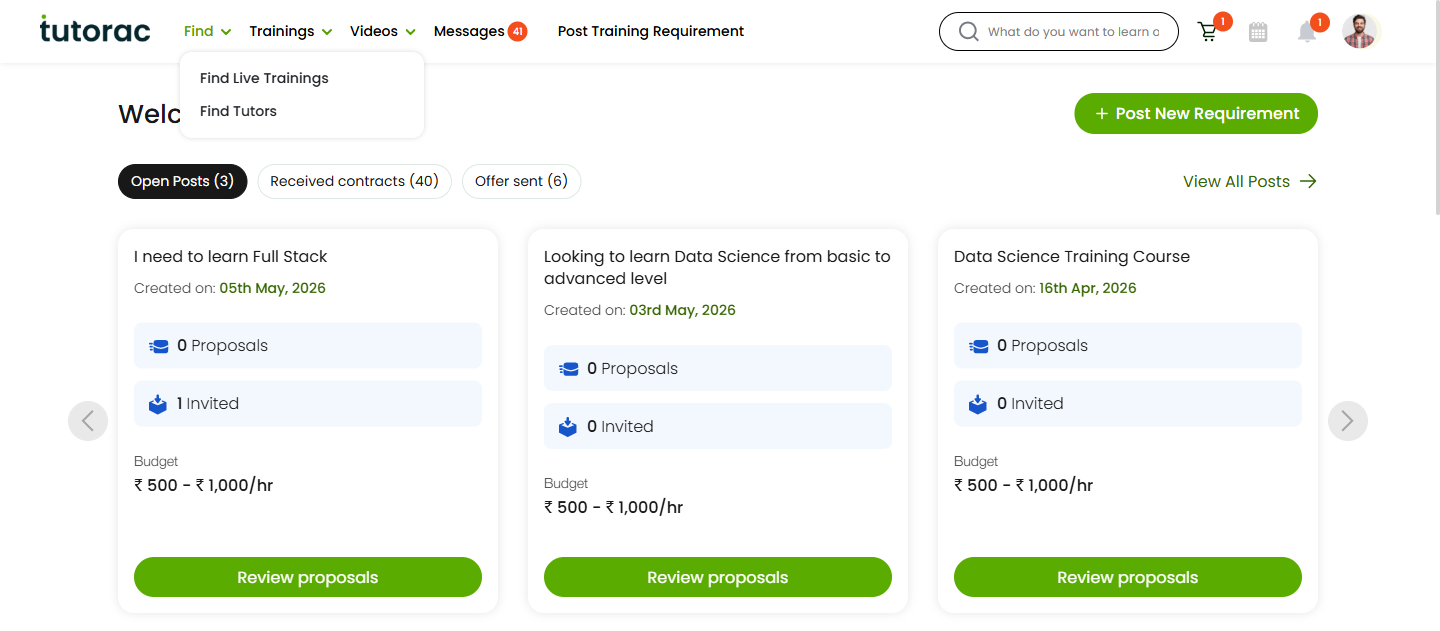
After signing in, open the Find menu in the top navigation and click Find Live Courses. This opens the Live Courses catalog where you can browse all available courses.
Step 2: Filter the catalog
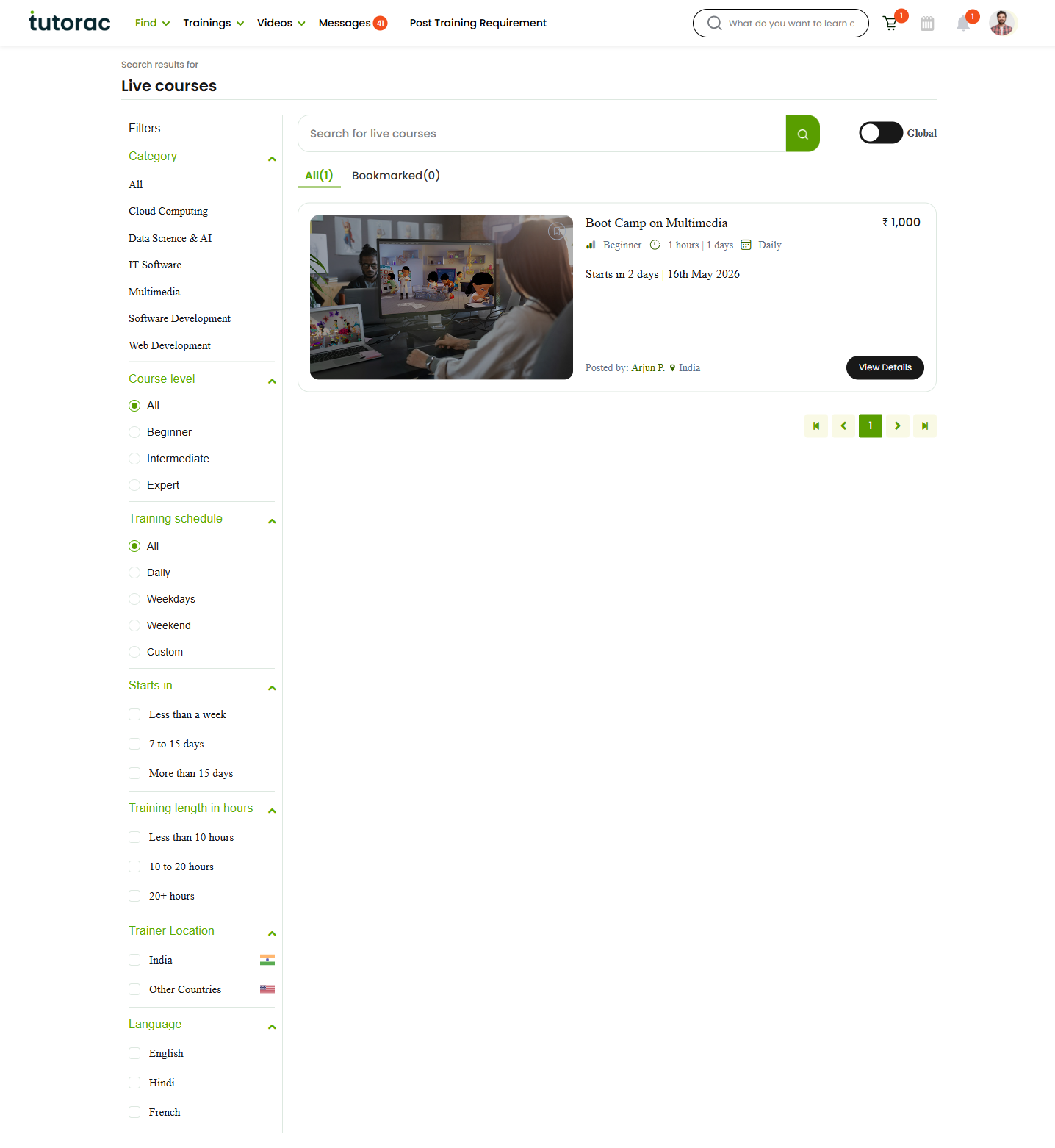
Use the filters on the left to narrow down to courses that match what you’re looking for:
- Category — for example, Cloud Computing, Data Science & AI, IT Software, Software Development, Web Development
- Course level — Beginner, Intermediate, or Expert
- Training schedule — Daily, Weekdays, Weekend, or Custom
- Starts in — Less than a week, 7 to 15 days, or More than 15 days
- Training length in hours — Less than 10 hours, 10 to 20 hours, or 20+ hours
- Trainer Location — India or Other Countries
- Language — English, Hindi, French, and more
You can also use the search box at the top of the catalog to find courses by keyword.
Step 3: Review the course details
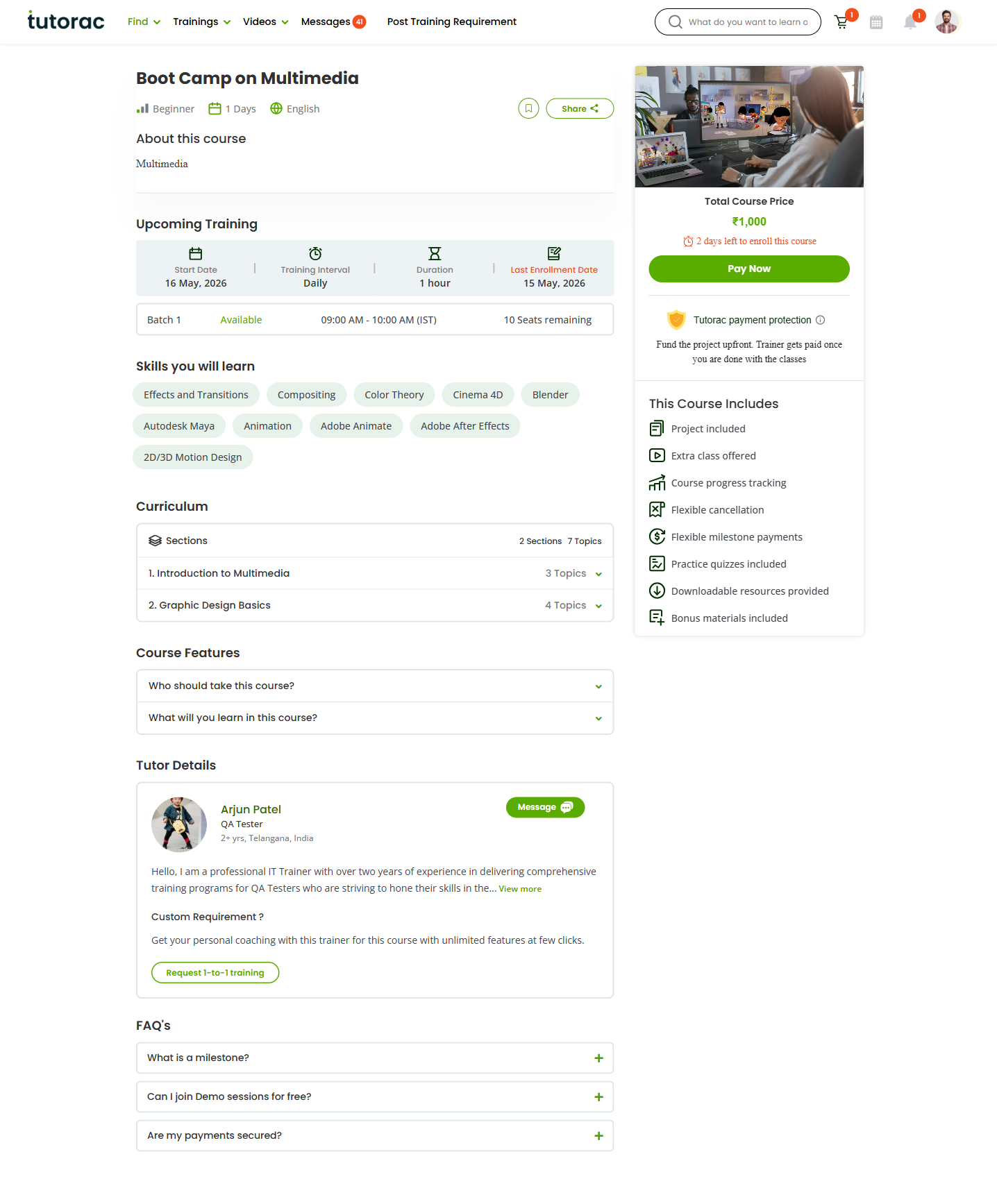
Click any course tile to open its detail page. Take time to review:
- About this course — a summary of what the course covers
- Total Course Price and the deadline to enroll (“X days left to enroll this course”)
- Tutorac payment protection — the badge on the right-hand pricing card. It means “fund the project upfront, trainer gets paid once you are done with the classes” — your money is held by Tutorac and released to the trainer as the course progresses
- This Course Includes — what’s bundled with your enrollment, such as Project included, Course progress tracking, Flexible cancellation, Flexible milestone payments, Practice quizzes, Downloadable resources, and Bonus materials
- Upcoming Training — Start Date, Training Interval (Daily / Weekdays / Weekend / Custom), Duration per session, and Last Enrollment Date
- Batches — available batches with their time slots (with time zone) and remaining seats
- Skills you will learn — the specific skills covered
- Curriculum — sections and topics, expandable to see what each lesson covers
- Course Features — “Who should take this course?” and “What will you learn in this course?”
- Tutor Details — the tutor’s profile, experience, and a Message button to ask questions before enrolling
Step 4: Pick a batch (or request 1-to-1)
Tutorac gives you two ways to learn from the same tutor:
- Join an existing batch — the standard option. Each batch shows the time slot (with time zone) and seats remaining. If you only need to glance at batches, you can do it from the detail page. The actual batch selection happens on the next screen after you click Pay Now.
- Request 1-to-1 training — if you’d prefer personal coaching with the same tutor on a custom schedule, click Request 1-to-1 training under Tutor Details. The tutor will respond with a custom offer.
Step 5: Click Pay Now and complete payment
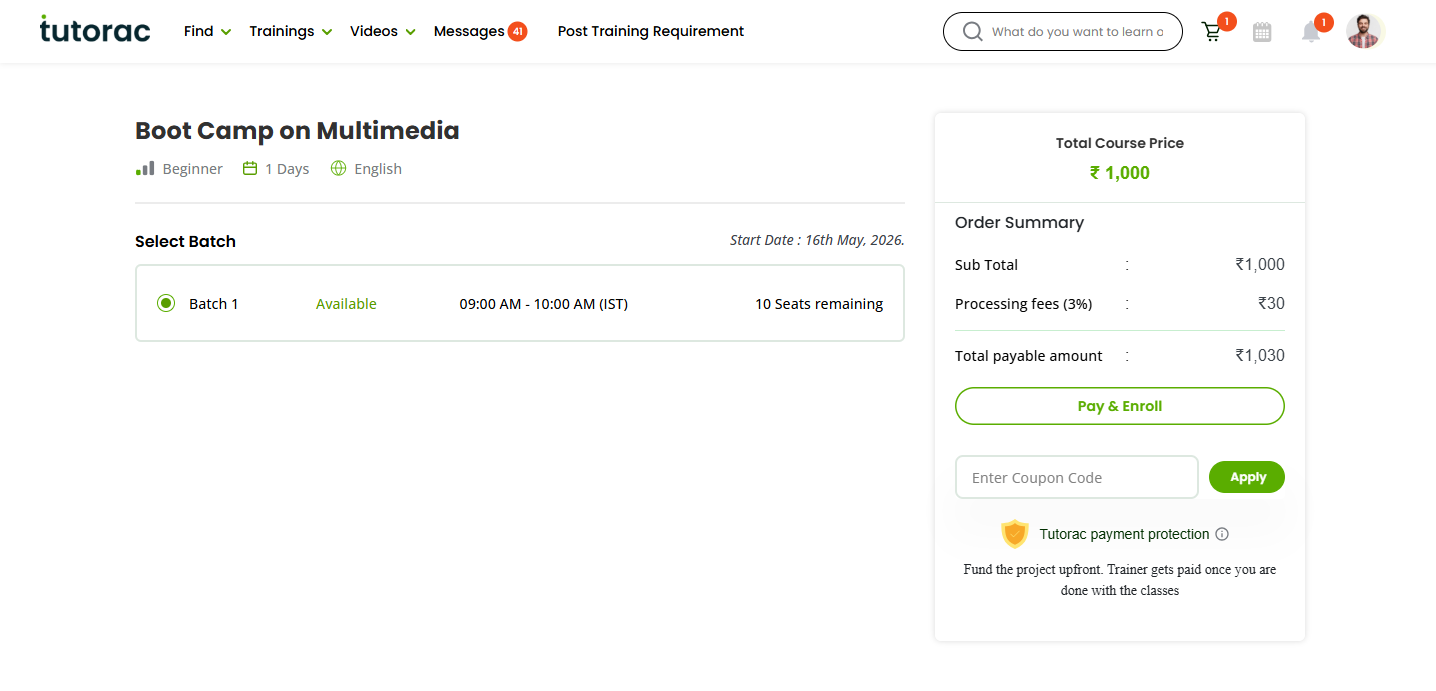
When you’re ready to enroll, click Pay Now next to the Total Course Price. You’ll be taken to the checkout page where you can:
- Select your batch — pick the time slot that works for you. If only one batch is available, it’s pre-selected.
- Review the Order Summary — Sub Total, Processing fees (3%), and Total payable amount.
- Apply a coupon — if you have a promo code, enter it under Enter Coupon Code and click Apply.
- Confirm with Pay & Enroll — click the button to open the secure payment window.
Tutorac processes payments through Razorpay. In the payment window:
- Enter your mobile number and click Continue.
- Pick your payment method — Credit/Debit Card, UPI, Net Banking, or Wallet.
- Complete the payment.
Your funds are now held under Tutorac payment protection: “fund the project upfront, trainer gets paid once you are done with the classes.” Your enrollment is confirmed as soon as payment succeeds.
Step 6: Access your enrolled course
Once enrolled, your Live Course appears under Trainings → My Training Batches in the top navigation. From there you can:
- See upcoming session dates and times
- Join sessions directly when they go live
- Message your tutor
- Access shared learning materials
Frequently asked questions
What is a milestone?
A milestone is a checkpoint within a Live Course where a portion of your payment is released to the tutor as that part of the course is delivered. Under Tutorac payment protection, your funds stay with Tutorac and are released to the tutor in line with course progress.
Can I join Demo sessions for free?
Yes, many tutors offer free Demo sessions. You can book one in three ways: from the tutor’s profile page, from the Live Course detail page, or directly through a chat message with the tutor.
Are my payments secured?
Yes. Every Live Course is covered by Tutorac payment protection — “fund the project upfront, trainer gets paid once you are done with the classes.” Payments are processed through Razorpay, and unreleased funds are refundable under Tutorac’s Cancellation & Refunds policy.
What is the processing fee?
Tutorac adds a 3% processing fee on top of the course price. You’ll see it as a separate line in the Order Summary on the checkout page before you pay.
What if I miss a session?
Message your tutor through the Live Course or via Messages in the top navigation. Most tutors share session recordings or schedule a catch-up.
Can I cancel after enrolling?
Yes — Live Courses include Flexible Cancellation. See Cancellation & Refunds for the full terms.
Related articles
- How Tutorac payment protection and milestones work
- How to book a Demo session with a tutor
- Payment methods accepted on Tutorac
- Cancellation & Refunds policy for learners
Last updated: 14 May 2026