A Public Ad puts your training in front of learners browsing Tutorac. This article explains how to create one and what it’s tied to.
In this article
Where to start
You can begin in two places:
- From your dashboard, choose Create Public Training Ad.
- Or open My Public Ads and choose + Create Public Ad.
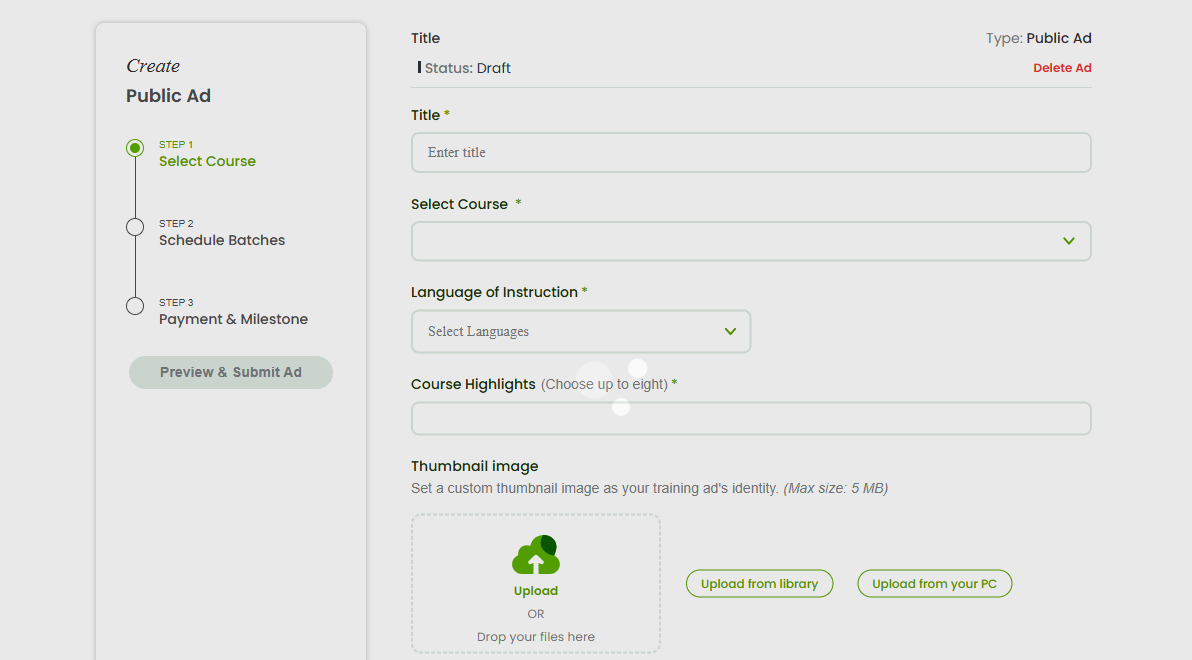
Tutorac then guides you through the steps to set up the ad.
A Public Ad promotes a course
A Public Ad advertises a live training course you offer. Have your course ready first — see the Live Courses section for creating one — so your ad can showcase it to learners.
Add your intro video
Your course’s introduction video is what displays in the Public Ad, so make sure it’s uploaded on the course. A clear, welcoming intro video is the single biggest factor in whether a browsing learner stops and engages.
Create and publish
Follow the on-screen steps and create the ad. Once live, it appears to learners browsing Tutorac and is listed under My Public Ads, where you can manage it.
FAQs
Do I need a course before creating a Public Ad?
Yes — a Public Ad promotes a live training course, so set up your course first.
Why does my ad need an intro video?
The course’s introduction video is what’s shown in the Public Ad. Without it, your ad can’t display properly.
Where do I find my ads after creating them?
Under My Public Ads. See “Managing your Public Ads.”
Related articles
- What are Public Ads and Training Contracts?
- Managing your Public Ads
- Training Contracts for specific opportunities
Last updated: 8 June 2026