When you enrol in a live course, Tutorac creates a training batch — your all-in-one workspace for that course. This article tours the batch dashboard and explains what each tab is for, so you always know where to find things.
In this article
Opening your training batch
Go to My Training Batches from your student account. You’ll see every course you’ve enrolled in, with its status (such as Ongoing, Completed, or Cancelled). Select a batch to open its dashboard, where the tools are organised into tabs along the top.
The batch tabs explained
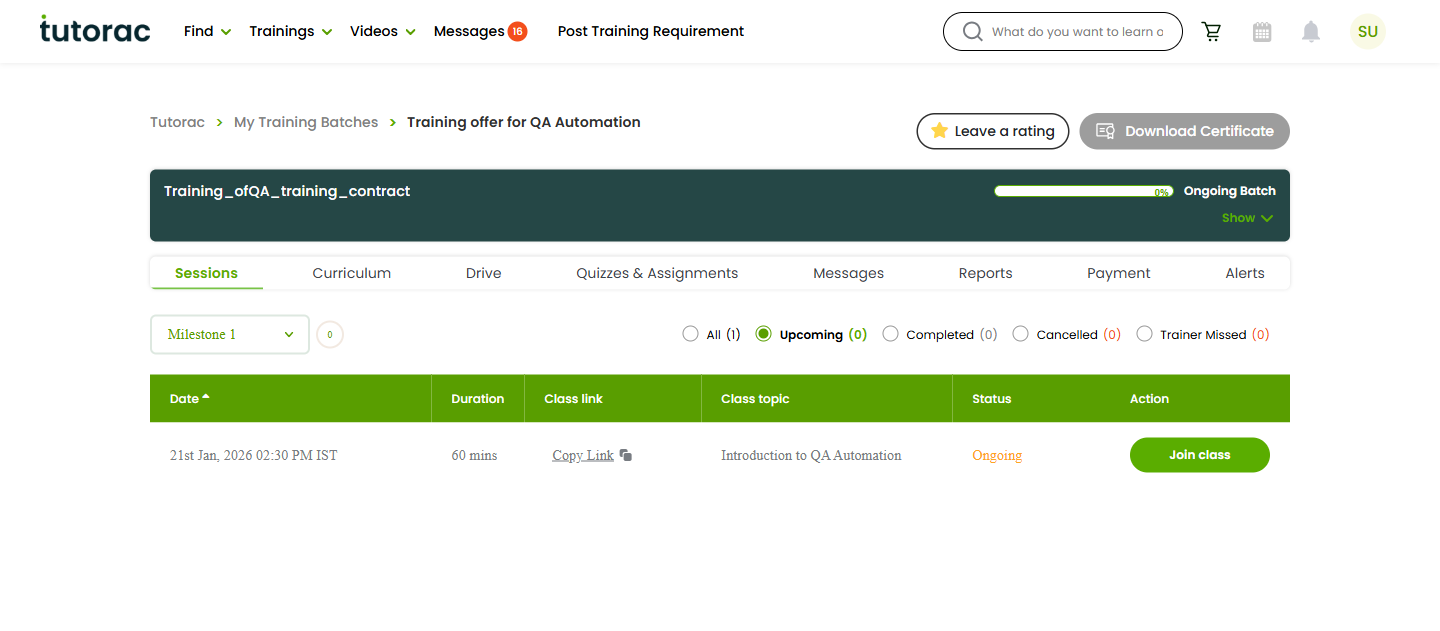
Sessions
Your scheduled live classes. This is where you see upcoming and past sessions and join a class when it’s time.
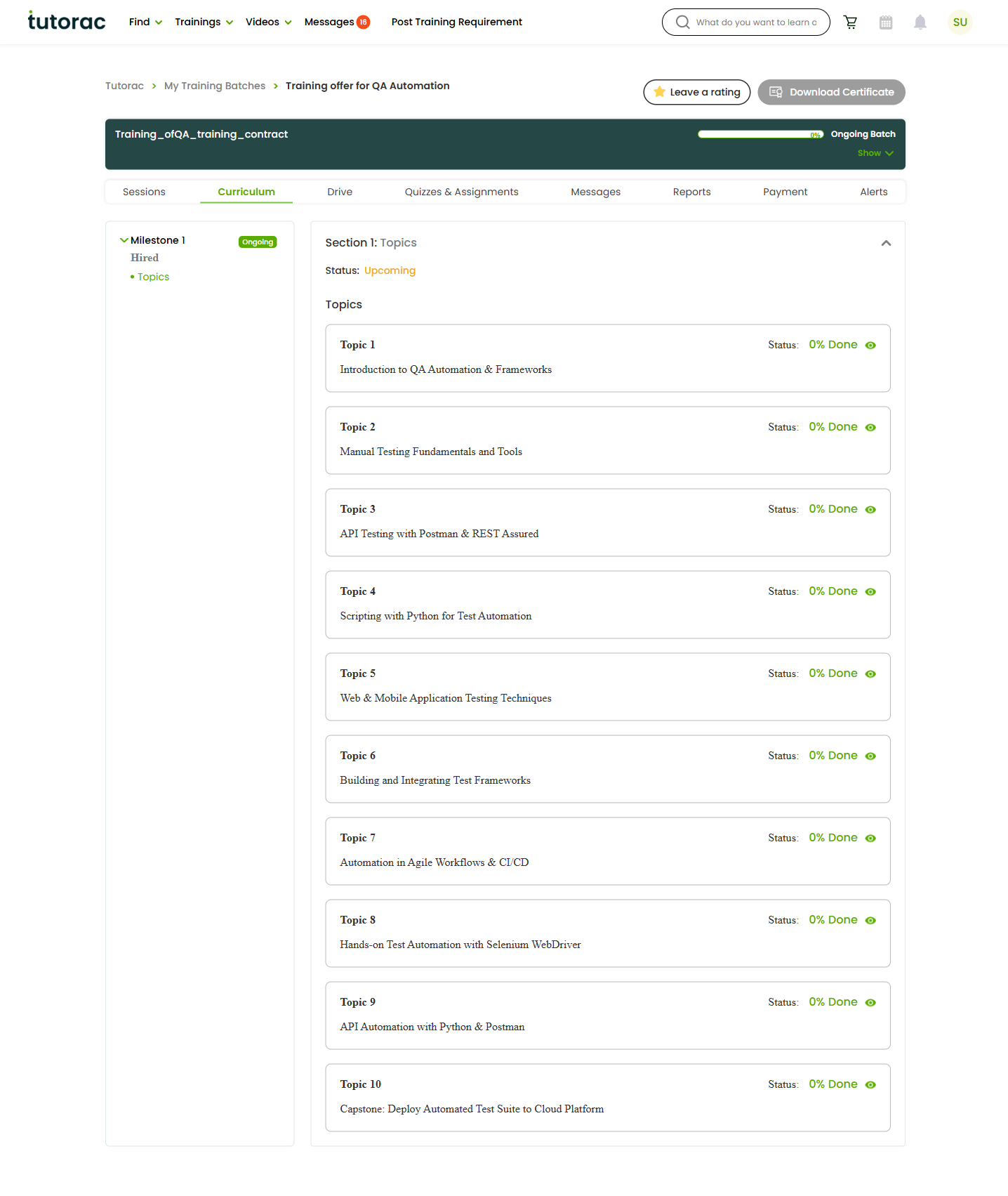
Curriculum
The structured plan of topics your course covers. You can follow along to see what’s been covered and what’s coming next.
Drive
Shared files and resources for the course — materials your tutor uploads, and anything shared within the batch.
Quizzes & Assignments
Tasks set by your tutor to test and reinforce your learning. You complete and submit them here.
Messages
Your conversation with the tutor for this batch, kept on-platform so everything stays in one place.
Reports
Your progress in the course — a summary of how you’re tracking against the curriculum and tasks.
Payment
The milestones for your course, their payment status, and your invoices. This is where you release milestone payments as work is completed.
Alerts
Notifications and important updates for the batch, so you don’t miss schedule changes or new tasks.
FAQs
Why can’t I see a particular tab or item?
Some tabs only show content once your tutor adds it — for example, the Curriculum or Quizzes & Assignments tab may be empty until the tutor sets things up. Check back after your first session.
Where do I find my invoices?
Open the batch and go to the Payment tab. Each completed milestone shows its payment status and a corresponding invoice.
Does a completed or cancelled batch still appear?
Yes. Past batches remain under My Training Batches with their status shown, so you can revisit sessions, files, and reports later.
Related articles
- Live Courses on Tutorac: an overview
- Joining and attending your live sessions on Tutorac
- Following your curriculum and milestones in a live batch
Last updated: 3 June 2026