Change your Tutorac password when you suspect it’s been seen by someone else, after a long stretch on the same one, or any time you want a stronger one. This guide covers both the in-app change (when you remember the current password) and the forgot-password reset.
In this article
- Where to change your password
- Change your password (signed in)
- Forgot password reset
- Choosing a strong password
- FAQs
Where to change your password
- Sign in to Tutorac.
- Click your avatar in the top right.
- Choose My Profile.
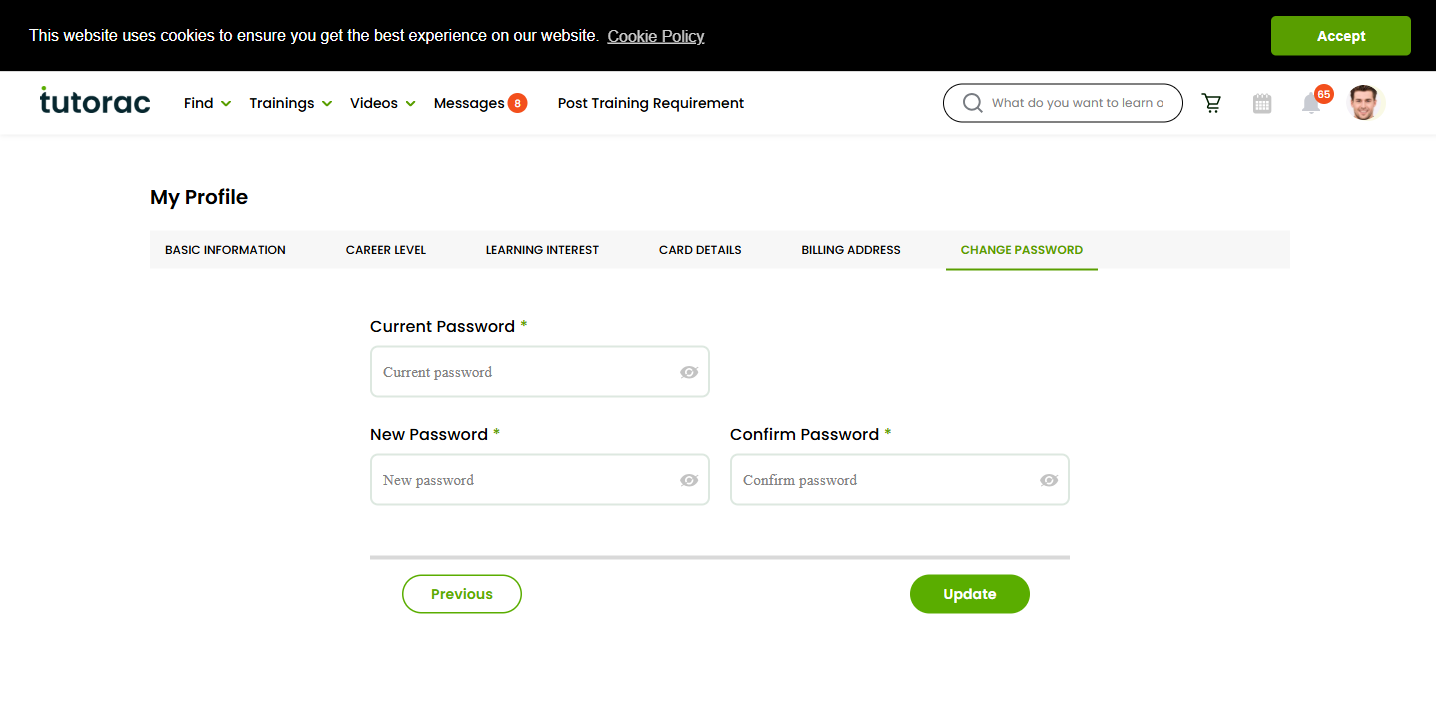
- In the left sidebar, click CHANGE PASSWORD (URL:
/student/profile/change-password).
Change your password (signed in)
- Enter your Current Password.
- Enter a New Password.
- Re-enter it in Confirm Password — the two must match.
- Click Update.
A confirmation message appears once the change is saved. Your new password takes effect immediately — the next time you sign in (or are signed out for any reason), use the new one.
Forgot password reset
If you can’t sign in because you don’t remember the current password, use the forgot-password flow instead:
- Go to
tutorac.com/forgot-password. - Enter the email address registered on your Tutorac account.
- Submit and check your inbox for a reset email from Tutorac.
- Click the reset link in the email. It opens a secure page where you set a new password.
- Set and confirm the new password, then sign in.
Reset links typically expire after a short time for security. If yours expires, just submit the forgot-password form again.
Choosing a strong password
- At least 10 characters, longer is better.
- Mix of uppercase, lowercase, digits, and at least one symbol.
- Don’t reuse passwords from other sites — if those sites are breached, your Tutorac account is exposed too.
- Avoid obvious patterns like
Password@123, your name, or your birthdate. - Use a password manager (1Password, Bitwarden, your browser’s built-in one, etc.) to generate and store a unique password.
FAQs
Will changing my password sign me out of other devices?
Yes — you’ll generally need to re-sign-in everywhere with the new password. This is a good thing if you suspect unauthorised access: it forces the intruder out.
I signed up with Google / LinkedIn — do I have a Tutorac password?
If you only used Google or LinkedIn sign-in, you don’t have a separate Tutorac password — your authentication runs through that provider. To “change” security, change the password on your Google or LinkedIn account. If you want a Tutorac password too, use the forgot-password flow to set one.
The reset email isn’t arriving. What now?
Check your spam / promotions folder. Confirm the email you entered matches the one registered on your account. Add no-reply@tutorac.com to your safe senders. If it still doesn’t arrive after 10 minutes, contact Tutorac Support with the email address you used.
Can I reuse an old password?
Technically you can if the platform doesn’t block it, but you shouldn’t. The whole point of changing is to land on a password that isn’t already compromised — reusing defeats that.
Does Tutorac store my password in plain text?
No. Passwords are hashed before storage. Tutorac staff cannot see your actual password — not even when helping with account issues. If someone asks you for your password via email or chat, it’s phishing; report it.
How often should I change my password?
Whenever you have reason to think it’s been exposed, or after a known breach of a site where you used a similar password. Calendar-based rotation (every 90 days etc.) isn’t necessary if your password is already strong and unique.
Related articles
- How to update your Basic Information on Tutorac
- How to set your Career Level on Tutorac
- How to set your Learning Interests on Tutorac
Last updated: 29 May 2026