Signing in to Tutorac unlocks your dashboard, training contracts, messages, and demo bookings. This article shows you where to sign in, the three sign-in methods, what to do if you forgot your password, and how to sign out safely.
In this article
- Where to sign in
- Sign in with email and password
- Sign in with Google
- Sign in with LinkedIn
- Forgot your password
- How to sign out
- Troubleshooting
- FAQs
Where to sign in
Go to tutorac.com/sign-in. You can also click Sign In in the top-right of any page on tutorac.com.
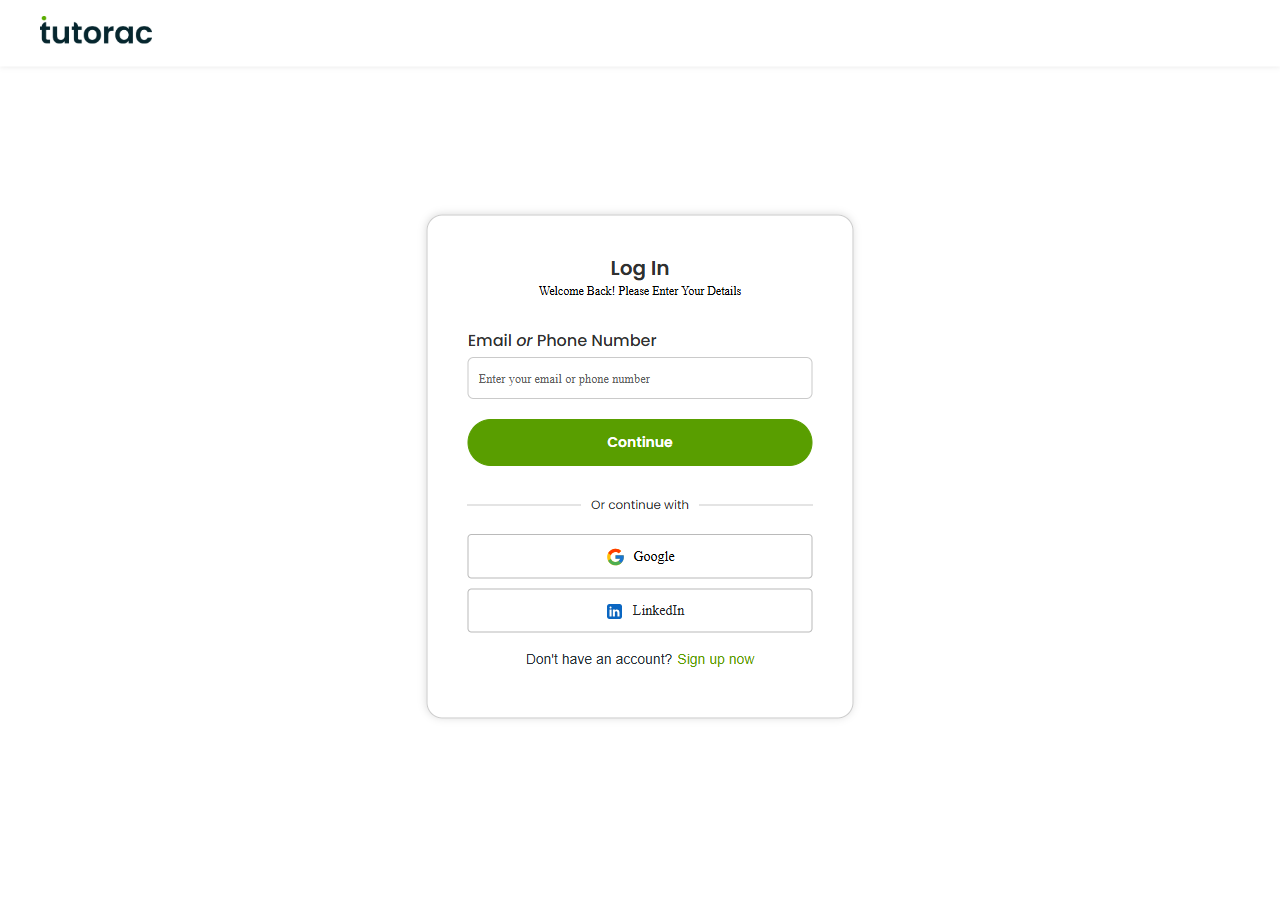
You can sign in three ways:
- Email or phone + password
Whichever method you choose first becomes the primary way you sign in. You can’t mix methods on the same account (for example, a Google-created account isn’t accessible with email/password unless you set a password later in account settings).
Sign in with email and password
- Open tutorac.com/sign-in.
- Type your registered email address or phone number.
- Click Continue.
- Enter your password.
- Click Login.
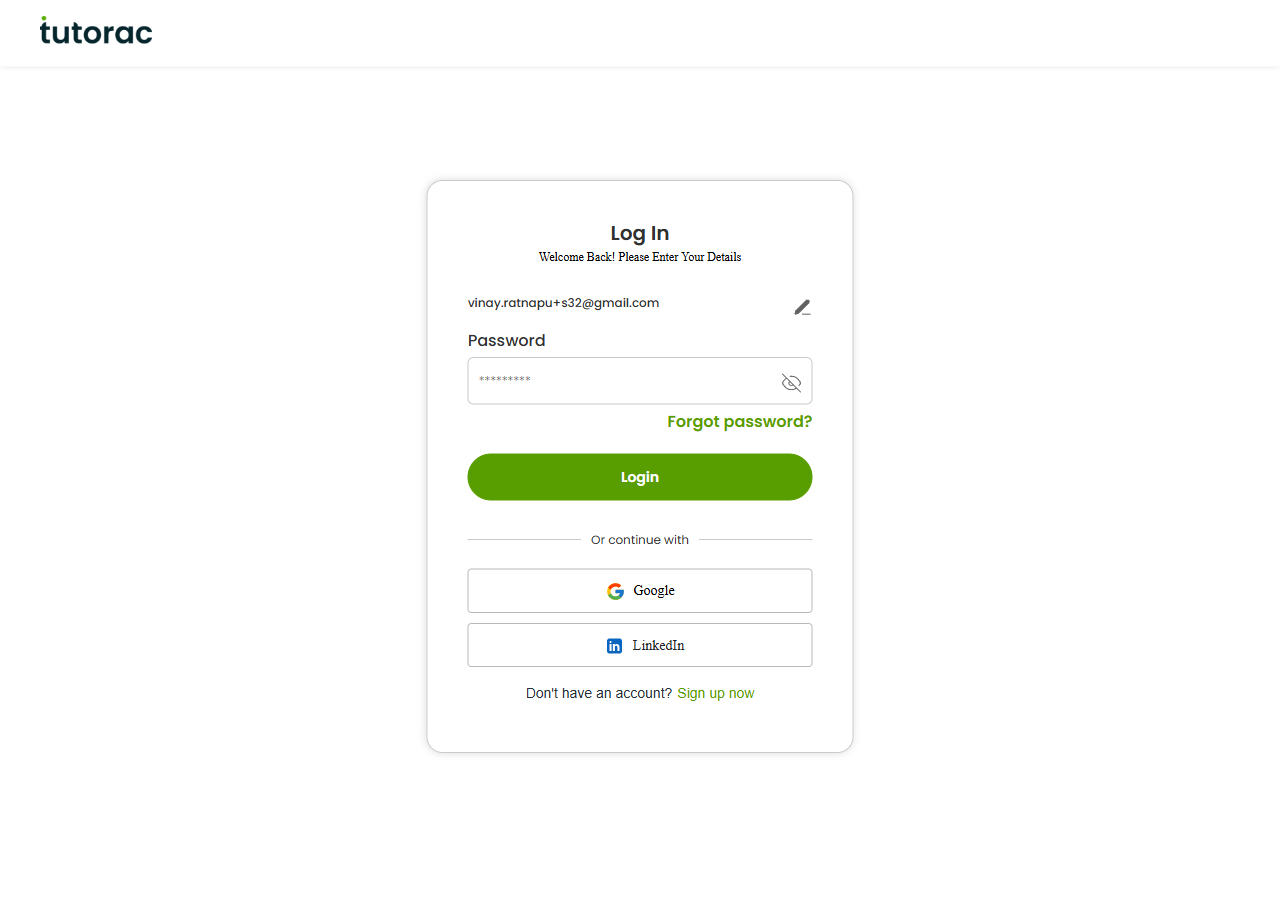
Tutorac uses a two-step sign-in (identifier first, then password). This lets the platform route you correctly if you originally signed up with Google or LinkedIn — instead of asking for a password you never set, it sends you to the right provider.
Sign in with Google
- On the sign-in page, click Continue with Google.
- Choose your Google account in the popup.
- Approve Tutorac to access your basic profile (name, email) if it’s your first time.
You’ll land on your learner dashboard. No Tutorac password needed.
Sign in with LinkedIn
- On the sign-in page, click Continue with LinkedIn.
- Sign in to LinkedIn if prompted.
- Approve Tutorac to access your basic profile.
LinkedIn sign-in is handy if you want your Tutorac profile to mirror your professional identity from the start.
Forgot your password
- Click Forgot Password? on the sign-in page (or open tutorac.com/forgot-password).
- Enter the email associated with your Tutorac account.
- Submit, then check your inbox for a reset link.
- Click the link and set a new password.
- Sign in with the new password.
If you originally signed up with Google or LinkedIn, you won’t have a password yet — use the corresponding social button instead.
How to sign out
- From any signed-in page, click your avatar (top-right corner of the navigation bar).
- Scroll to the bottom of the menu.
- Click Log Out.
Always sign out on shared or public computers. On your own device, staying signed in is fine and lets you respond to tutor messages faster.
Troubleshooting
“User not found” or “Invalid credentials”
- Confirm you’re typing the email or phone you signed up with (not a personal alias).
- Try the social sign-in buttons — you may have signed up with Google or LinkedIn.
- Reset your password if the email is correct but the password isn’t.
Reset email not arriving
- Check Spam, Promotions, or Updates folders.
- Wait 5 minutes and try again. Don’t spam-submit — only the latest reset link works.
- If still missing after 10 minutes, contact Tutorac Support with the email address you used.
Google/LinkedIn popup blocked
Allow popups from tutorac.com in your browser settings and try the social button again.
FAQs
Can I use both Google and email/password for the same account?
Yes — if you signed up with Google, you can set a Tutorac password later from Profile › Change Password. After that, either method works.
I have two Tutorac accounts by accident. What do I do?
Contact Tutorac Support with both email addresses. They can merge your training history and keep the right account.
Is sign-in via phone number supported?
Yes — type your registered phone number in the same identifier field on the sign-in page, then enter your password.
How long does a session last?
Roughly two weeks of inactivity. After that, you’ll be asked to sign in again. Sensitive actions (changing password, releasing payments) can require re-authentication earlier.
Should I stay signed in?
On your personal device, yes — it makes responding to tutors faster. On public/shared devices, always sign out.
Related articles
- What is Tutorac? A learner’s overview
- How to change your password on Tutorac
- How to set up your learner profile on Tutorac
Last updated: 27 May 2026