Update your Tutorac password any time from your profile. This guide walks you through the Change Password screen and what to do if you have forgotten your current password.
In this article
- When to change your password
- Step 1: Open the Change Password tab
- Step 2: Enter your current and new password
- Step 3: Save the change
- Tips for a strong password
- Forgot your current password?
- FAQs
When to change your password
Change your Tutorac password right away if you suspect someone else has accessed your account, if you have signed in from a shared or public device, or simply as a routine security refresh every few months. You only need your current password to do it — no support ticket required.
Step 1: Open the Change Password tab
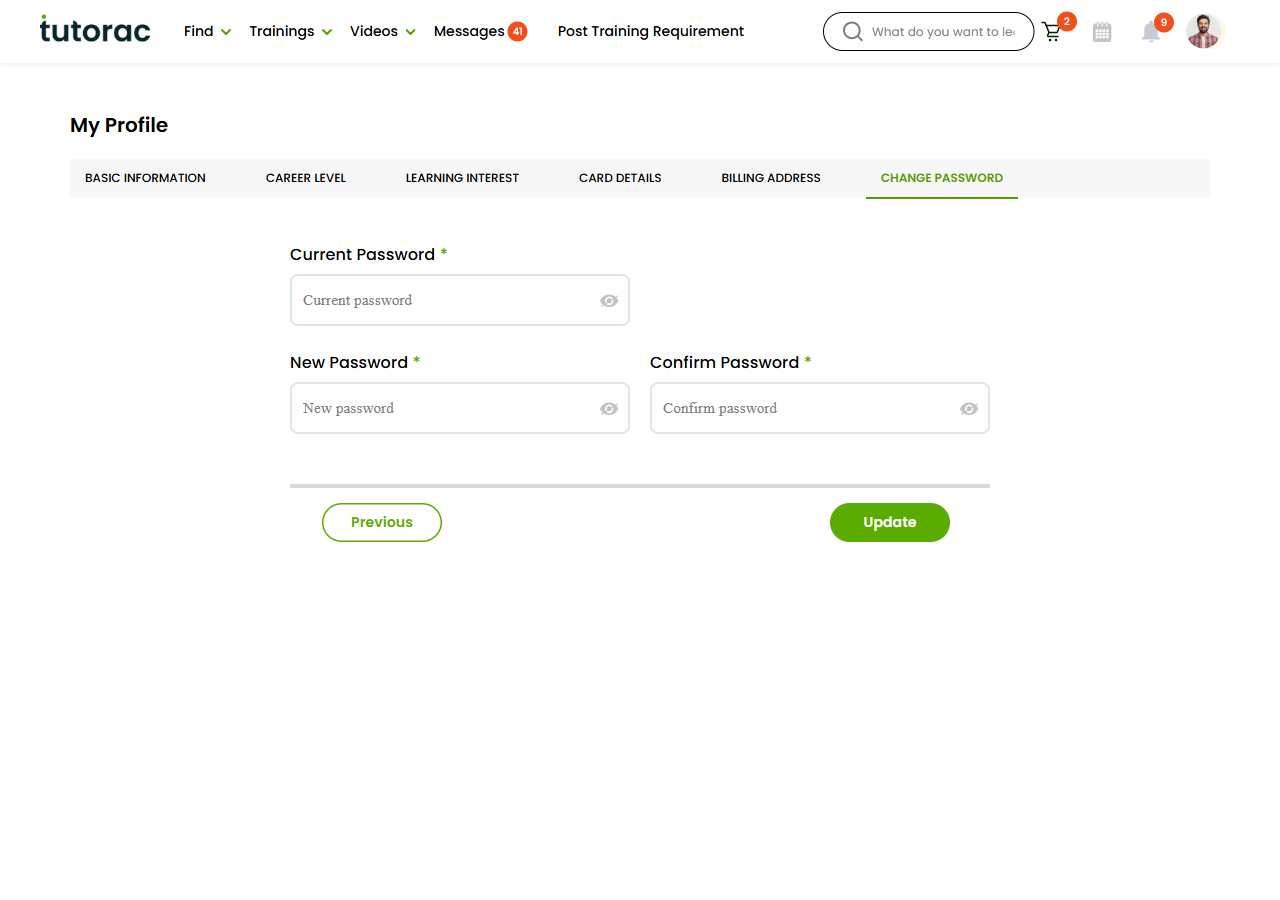
Click your avatar in the top-right corner of any Tutorac page and choose My Profile. In the left sidebar, click CHANGE PASSWORD (the last item in the list). You can also go directly to tutorac.com/student/profile/change-password.
Step 2: Enter your current and new password
Fill in the three fields on the Change Password screen:
- Current Password — The password you use right now to sign in. Use the eye icon on the right of the field to reveal what you have typed if needed.
- New Password — The new password you want to set. Make it different from your current one.
- Confirm Password — Type the new password again exactly. This catches typos before they lock you out.
Step 3: Save the change
Click the green Update button. If the current password is correct and the two new password entries match, your password is updated immediately. You stay signed in on this device, but you will need the new password the next time you sign in.
If the page shows an error, the most common reasons are:
- The current password is incorrect — double-check, or use the Forgot Password flow below.
- The new password and confirmation do not match — re-type both fields slowly.
- The new password is the same as the current one — pick something different.
Tips for a strong password
- Use at least 10 characters. Longer is stronger.
- Mix uppercase letters, lowercase letters, numbers, and a symbol or two.
- Avoid words found in a dictionary, your name, your date of birth, or your mobile number.
- Do not reuse a password you have used on another site — if that site is breached, your Tutorac account would be at risk.
- Consider using a password manager (1Password, Bitwarden, Apple Keychain, Google Password Manager) to generate and store a unique password for Tutorac.
Forgot your current password?
If you cannot remember your current password, you cannot use the Change Password screen — it requires your existing password. Instead, sign out and use the Forgot Password flow:
- Go to tutorac.com/sign-in.
- Click Forgot password? below the password field.
- Enter the email or phone number on your Tutorac account.
- Follow the reset link or OTP sent to your registered email/phone to create a new password.
Once the reset is complete, you are signed in with the new password and can update it again later from Change Password.
FAQs
Will changing my password sign me out on other devices?
You stay signed in on the device you used to change the password. On other devices where you were already signed in, you may stay signed in until that session expires. To be safe, change your password and then sign out everywhere by clearing your sessions or signing in on each device with the new password.
How often should I change my password?
There is no hard rule. A unique, strong password used only on Tutorac is more important than rotation. Change it immediately if you suspect compromise.
Can I use the same password as before?
No. Your new password must be different from your current password. Pick something fresh.
I signed up with Google or LinkedIn — how do I change my password?
If you sign in to Tutorac through Google or LinkedIn, your password is managed by that provider, not by Tutorac. Change it inside your Google or LinkedIn account settings. The Change Password screen on Tutorac only applies to accounts created with an email and password.
What if I think someone else has accessed my account?
Change your password right away. If you are unable to sign in, use the Forgot Password flow to reset it. After the reset, contact Tutorac support from the Help Center so we can review recent account activity with you.
Related articles
- How to set up your learner profile on Tutorac
- More Account & Profile articles
- Safety & Trust on Tutorac
- Policies for learners
Last updated: 20 May 2026