Search results for: “demo”

  • How to negotiate a proposal with a tutor on Tutorac

    A tutor’s first proposal is rarely their final one. Price, scope, schedule, and milestones are all negotiable on Tutorac, and a short, respectful back-and-forth in chat often produces a much better fit. This guide covers what to negotiate, how to ask for changes, and when to move forward.

    In this article

    Why negotiate a proposal?

    Most proposals are written from a snapshot of your Training Requirement — the tutor hasn’t spoken to you yet. A short conversation usually clarifies your level, your real outcome, and your constraints, and the tutor responds with a sharper offer. Negotiating isn’t about haggling on price; it’s about getting to a clear, mutually agreed scope before you hire.

    What you can negotiate

    • Scope and outcomes — what exactly you’ll cover, what you’ll know or be able to do at the end.
    • Hours and duration — total estimated hours, weeks of training, weekly pace.
    • Price and price type — hourly rate, fixed price, switching between hourly and fixed where it fits the scope better.
    • Milestones and deliverables — weekly checkpoints, a capstone project, recorded sessions, written notes.
    • Schedule — days of the week, time slot, timezone, start date.
    • Teaching approach — lectures, hands-on labs, projects, doubt-clearing sessions, mock interviews.
    • Tools and platform — specific software, datasets, sandbox environments.

    Things that are not typically negotiable: Tutorac platform terms, Payment Protection (escrow), and the tutor’s safety policies.

    Open the chat from a proposal

    From My Training Posts → Proposals, find the tutor whose proposal you want to discuss. On their proposal card, click the Message button (the one with the chat-bubble icon, often showing an unread badge if the tutor has already messaged you).
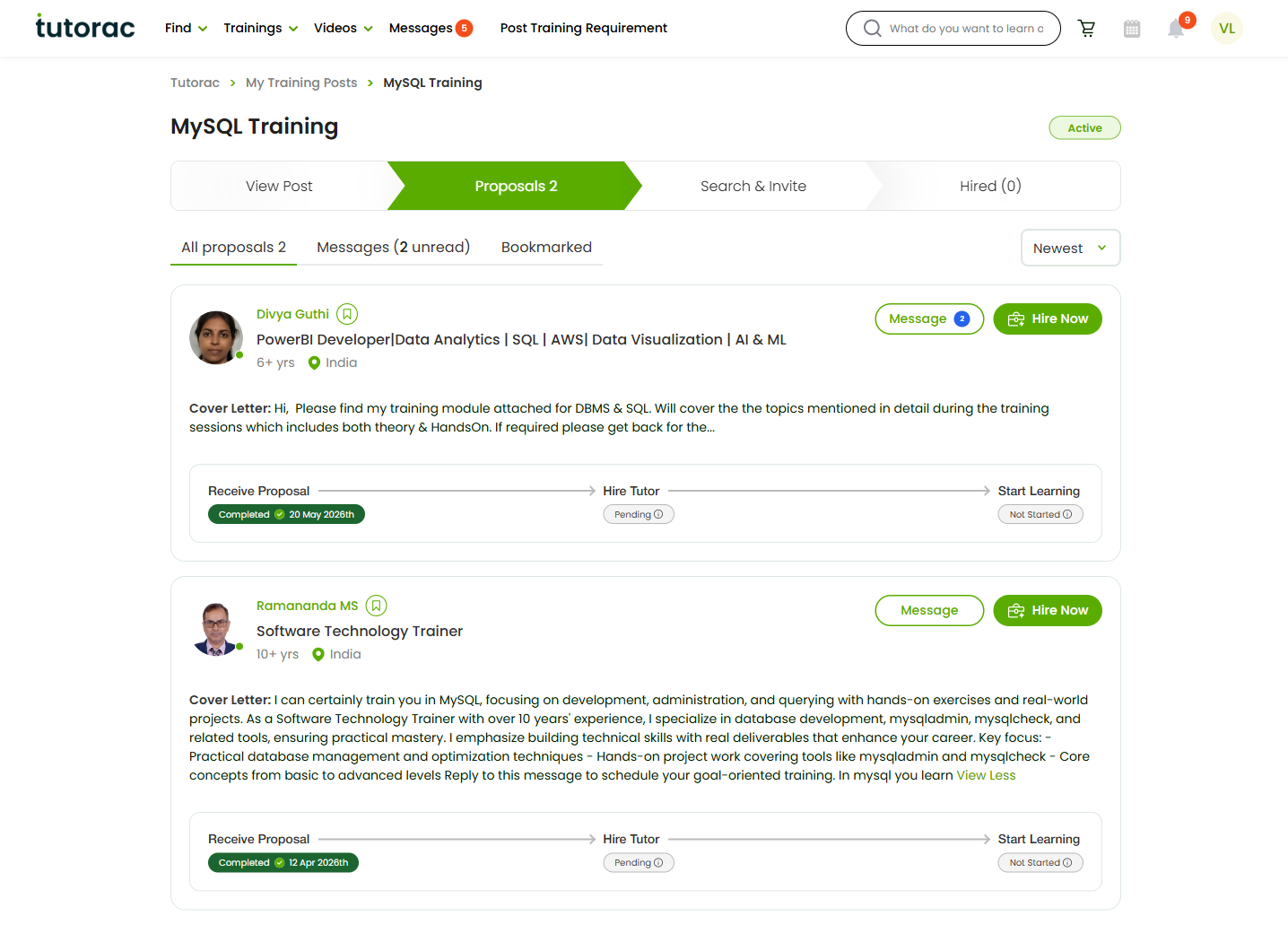
    Tutorac proposal card showing the Message button (with unread badge) next to the Hire Now button, alongside the tutor’s cover letter and Receive Proposal / Hire Tutor / Start Learning progress timeline.

    Tutorac opens the conversation in the Messages hub, with the original proposal pinned in the right-hand panel. From the chat thread you can: send text messages, share files, click View Proposal to re-read the full offer, Schedule a Free Session, click Meet Now for an instant video call, or click Hire Now once you’re aligned. (See How to message a tutor before hiring on Tutorac for a tour of the Messages hub.)

    How to ask for changes

    A useful negotiation message has four parts:

    • What you like about the proposal — sets a constructive tone.
    • The change you want — specific, not vague (“30 hours total”, not “a bit shorter”).
    • Why — one line of context (budget cap, deadline, real-world project).
    • A clear ask — for example, “Could you send a revised proposal?”

    Keep messages short. Two or three crisp paragraphs is plenty.

    Message templates you can copy

    Lower the price within scope

    “Hi [name], thanks for the detailed proposal — the syllabus looks great. My ceiling for this is ₹X total. Could we make this work by trimming [topic Y] or moving to a fixed price? Happy to keep the core scope and capstone project the same. Could you send a revised proposal?”

    Tighten scope and reduce hours

    “Hi [name], great proposal. I’d like to focus this engagement on [specific outcome] only — we can skip [topic Z] for now. I’m guessing that takes us to around 20 hours instead of 40. Could you send a revised proposal at that scope?”

    Switch to fixed price for a defined outcome

    “Hi [name], I’d prefer a fixed price for this since the outcome is clear — clearing the AZ-900 certification. Could you send a fixed-price proposal with weekly milestones and a final mock test?”

    Adjust schedule and start date

    “Hi [name], the rate works for me. I can only do weekday evenings (IST 7–9 pm) and I’d like to start in two weeks. Does that fit your calendar? If yes, please send a revised proposal with that schedule.”

    Ask for stronger milestones

    “Hi [name], I like the syllabus. Could the proposal include weekly milestones — for example, end of week 2: build a working CRUD app; end of week 4: deploy to AWS — so we both have clear checkpoints? Please send a revised proposal with those.”

    When the tutor sends a revised proposal

    If the tutor agrees to revise, a new proposal arrives in your chat thread as a system notification (you’ll also see it on the Proposals page for that Training Requirement). Two ways to confirm:

    • Click View Proposal from the chat to compare the new version to the previous one side by side.
    • Read carefully — check that all the changes you discussed are reflected (price, hours, scope, schedule, milestones).

    If anything is still off, message back with the remaining gap. If everything matches, you’re ready to hire (see How to hire a tutor and start a Training Contract).

    Use a Free Demo or Meet Now to close the gap

    Text negotiation works for most things, but sometimes a 10-minute call clears up more than ten messages. Two options:

    • Schedule a Free Demo — a 30-minute slot the tutor offers at no cost so you can see them teach a sample concept and align on approach. (See How to book a Free Demo Session.)
    • Meet Now — the instant video call button in the chat thread, useful for a quick scope or scheduling chat without booking a slot.

    After the call, message back a short summary of what you both agreed — that becomes the brief for the revised proposal.

    When to walk away

    Negotiation works only when both sides are willing to move. If a tutor:

    • Doesn’t respond after a polite nudge,
    • Holds firm on a price well outside your range without offering a scope change,
    • Doesn’t address the specific change you asked for, or
    • Pushes you to communicate or pay outside Tutorac,

    … politely pass and look at other proposals. You can also Search & Invite additional tutors for the same Training Requirement (see How to send an Invite to a tutor). There is no obligation to hire from your current shortlist.

    After you agree

    • Click Hire Now on the revised proposal. Tutorac opens the Send Training Offer page with the agreed terms.
    • Confirm Title, Price type, Schedule, Description, and Terms.
    • Click Proceed to Payment — funds move into Tutorac Payment Protection (escrow).
    • The tutor accepts and a training batch is created so you can start sessions.

    Keep the chat thread open during training — it’s also where you’ll discuss any scope or schedule adjustments later.

    FAQs

    Is haggling on price acceptable?

    Yes — respectful price negotiation is normal on Tutorac. The cleanest framing is to tie price to scope: ask for a lower price and propose what comes out of scope to match it. That feels fair to the tutor and usually gets a yes.

    How many times can a tutor revise their proposal?

    As many times as it takes to agree. Each new proposal lands in the chat thread and on the Proposals page, so you can always compare versions before hiring.

    Can I negotiate with multiple tutors at once?

    Absolutely. Many learners run two or three negotiations in parallel and hire whoever lands the best fit. It’s also polite, once you hire one, to send a short note to the others letting them know you’ve gone with someone else.

    What if the tutor only agrees on a call?

    That’s fine for the conversation, but make sure the agreement ends up in writing — either as a revised proposal or summarised in chat — before you hire. Written terms protect both sides.

    Can I switch from Hourly to Fixed price (or vice versa)?

    Yes. Ask in chat and have the tutor send a revised proposal in the new format. Hourly suits open-ended training; fixed suits a clearly bounded outcome like a certification or a defined project.

    Do negotiations show up to anyone else?

    No. The chat thread is private between you and that one tutor. Other tutors who proposed for the same Training Requirement can’t see your messages or the revised proposals.

    Should I share my budget upfront?

    Your budget range is already on the Training Requirement, so tutors see it. In chat, stating a firm ceiling (when you have one) speeds things up — tutors can quickly decide whether they can fit and what to trim if needed.


    Related articles

    Last updated: 21 May 2026
  • How to view and compare proposals from tutors on Tutorac

    After you post a Training Requirement, tutors respond with proposals. This guide walks through the My Training Posts hub, opening a Training Requirement, comparing proposals side by side, and deciding what to do next.

    In this article

    Where proposals appear

    Every proposal a tutor sends is attached to one of your Training Requirements. You can read them in two places:

    • My Training Posts — the hub that lists all your Training Requirements and shows proposal counts at a glance. This is where you go to compare proposals side by side.
    • Messages — if a tutor sends a proposal with a message, the conversation also appears under the Messages tab, grouped by Training Requirement. (See How to message a tutor before hiring on Tutorac.)

    Open My Training Posts

    Sign in to Tutorac, then in the top nav click Trainings → My Trainings Posts. The page lives at tutorac.com/student/job-post and shows every Training Requirement you’ve created.

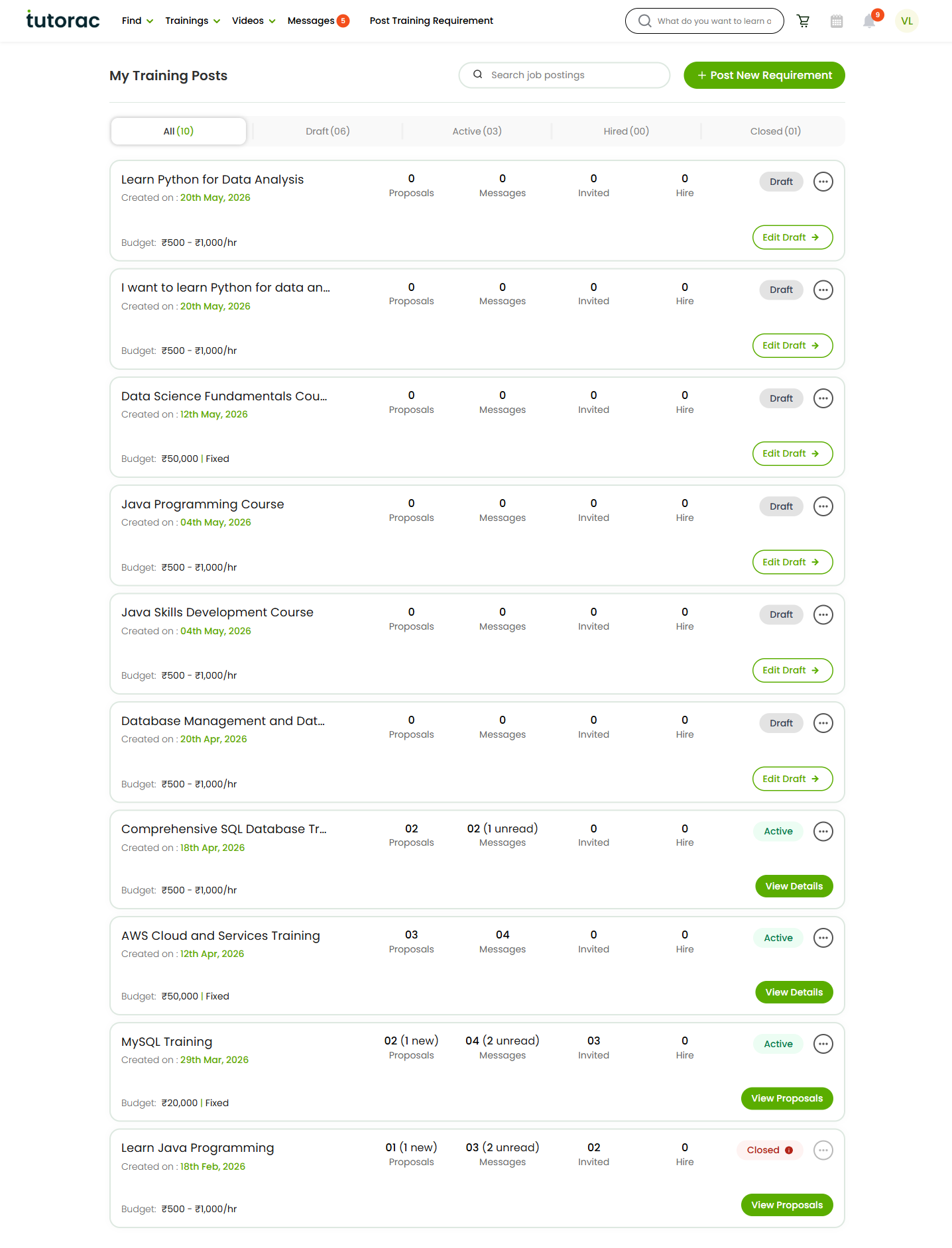
    Tutorac My Training Posts hub showing status tabs (All, Draft, Active, Hired, Closed) and cards for each Training Requirement with proposal, message, invited and hire counts.

    Anatomy of a Training Post card

    Each card on the My Training Posts page summarises one Training Requirement:

    • Title and Created on date.
    • Four counters: Proposals, Messages, Invited, Hire. “1 new” and “unread” tags appear next to the counter when there’s something you haven’t looked at yet.
    • A status badge: Draft, Active, Hired, or Closed.
    • Budget: either an hourly range or a fixed amount.
    • A primary action: Edit Draft, View Details, or View Proposals depending on the state.

    Status tabs: All, Draft, Active, Hired, Closed

    At the top of the page, status tabs let you filter quickly:

    • All — every Training Requirement on your account.
    • Draft — saved but not yet posted. Tutors can’t see drafts. Click Edit Draft to keep working.
    • Active — live and receiving proposals.
    • Hired — you’ve already hired a tutor for this requirement and training is in progress.
    • Closed — the requirement has been closed (either by you or automatically after hiring) and isn’t accepting new proposals.

    Open a Training Requirement to see proposals

    Click View Proposals (or View Details) on any Active card. Tutorac opens the Training Requirement’s proposals view at /student/job-post/proposals?id=…. Across the top, three tabs let you switch context:

    • Proposals — the list of proposals tutors have sent. The count next to the tab matches the badge on the card.
    • Search & Invite — find more tutors and send Invites for this same Training Requirement.
    • Hired — tutors you’ve already hired against this requirement.

    A View Post link at the top of the page jumps to the public Training Requirement so you can review the brief you wrote.

    Tutorac proposals page for a Training Requirement showing two proposal cards with tutor name, headline, years of experience, location, cover letter, Message and Hire Now buttons, and a Receive Proposal / Hire Tutor / Start Learning progress timeline.

    Anatomy of a proposal card

    Each proposal card lays out the tutor’s offer in a consistent format so you can scan and compare quickly:

    • Tutor name and a one-line headline describing their specialisation.
    • Years of experience and location.
    • Message button (with an unread badge when there are new messages) to open the chat thread with this tutor.
    • Hire Now button to accept and start a Training Contract.
    • Cover Letter — the tutor’s pitch: what they’ll cover, their teaching approach, deliverables. Use View More / View Less to expand or collapse.
    • Progress timeline at the bottom: Receive Proposal (completed) → Hire Tutor (pending) → Start Learning (not started). This shows where you are in the journey for that tutor.

    Filter and sort proposals

    Above the proposals list:

    • All proposals — show every proposal received.
    • Messages (with an unread count) — filter to proposals where the conversation has new messages waiting.
    • Bookmarked — show only proposals you’ve marked to revisit.
    • Newest / Oldest — toggle sort order.

    What to compare across proposals

    When you have two or more proposals open, look at these signals in this order:

    • Fit to your scope — does the cover letter directly address the topic, level, and outcome in your Training Requirement, or does it read generic?
    • Relevant experience — years of experience matter, but the right kind of experience matters more. A 6-year Data Analyst is a stronger fit for a SQL-for-analytics goal than a 15-year DBA.
    • Teaching approach — does the proposal explain how the tutor teaches: lectures, hands-on labs, projects, recorded sessions, doubt-clearing?
    • Deliverables and milestones — clear weekly milestones, capstone project, and reviewable artefacts beat a vague “will teach end-to-end.”
    • Price vs your budget — check the tutor’s hourly rate against the range you posted. Significantly higher or lower than the range deserves a conversation in chat.
    • Time-zone and availability — even a great tutor doesn’t help if your schedules don’t overlap.
    • Communication so far — if you’ve already exchanged messages or done a demo with the tutor, that history is at hand under Messages.

    Next steps: Message, Bookmark, Hire, Invite more

    From any proposal card you can move forward in several ways:

    • Message the tutor to clarify scope, schedule, or price before deciding.
    • Bookmark a proposal you want to come back to. Bookmarked proposals show up under the Bookmarked filter.
    • Schedule a Free Demo with the tutor to evaluate their teaching style before committing. (See How to book a Free Demo Session.)
    • Hire Now to accept a proposal and start a Training Contract. Payment goes into escrow and is released to the tutor as milestones complete.
    • Search & Invite — if none of the current proposals fit, switch to the Search & Invite tab to send invitations to additional tutors for this same Training Requirement. (See How to send an Invite to a tutor.)
    • Edit or close the Training Requirement — if your needs have changed, tighten the brief or close the post. The card on My Training Posts has the controls.

    FAQs

    Why is the proposal count higher than the number of cards I see?

    Filters and the Hired tab can hide proposals. Switch the filter back to All proposals if you’re looking for a specific one. Make sure you’re on the Proposals tab, not Hired.

    Can I respond to a proposal without hiring?

    Yes. Click Message on the proposal card to open a chat with the tutor. You can ask questions, negotiate scope or price, request a demo, or politely pass — no commitment until you click Hire Now.

    What does the Progress Tracker mean?

    The three-step timeline on each proposal card (Receive Proposal → Hire Tutor → Start Learning) reflects where this specific tutor’s engagement is. Receive Proposal is marked Completed as soon as their proposal arrives; the next two steps light up once you hire and once training begins.

    Can I have multiple tutors hired against one Training Requirement?

    The Hired (n) tab and the Hire counter on the post card support more than one hire if your training needs it (for example, separate modules with different tutors). Most learners hire one tutor per Training Requirement.

    How do I know which proposals have new messages?

    Two signals: the Messages (n unread) filter at the top of the proposals page, and an unread badge next to the Message button on each card. The Messages tab in the top nav has a global unread count across all conversations.

    Can I see the proposal again after hiring?

    Yes. Once you hire, the tutor moves to the Hired tab on that Training Requirement, and the original proposal stays attached — you can review the cover letter, scope, and price you agreed to at any time.

    I’m not getting any proposals. What should I do?

    Two things usually help: (1) tighten the brief — specific title, clearly stated level, realistic budget — and (2) actively Search & Invite tutors who match your topic. Inviting 3 to 5 well-matched tutors typically generates several proposals within a day.


    Related articles

    Last updated: 20 May 2026

  • How to post a Training Requirement on Tutorac

    A Training Requirement is your learning need posted on Tutorac as a job for verified tutors to bid on. This guide walks through both ways to post one — the quick AI-assisted flow and the detailed manual wizard — and what happens after you click Post Now.

    In this article

    What is a Training Requirement?

    A Training Requirement is a structured post that describes what you want to learn, your level, schedule, and budget. Verified tutors see it and send you proposals — tailored offers with scope, milestones, price, and schedule. You compare proposals, talk to tutors, optionally book a free demo, and hire when you’re ready. It’s the standard way to convert a learning goal into a contract on Tutorac.

    Open the Post Training Requirement page

    Sign in to Tutorac, then click the green Post Training Requirement button in the top navigation. You can also reach it from your Dashboard. Tutorac opens the entry page at tutorac.com/student/job-post/requirement.

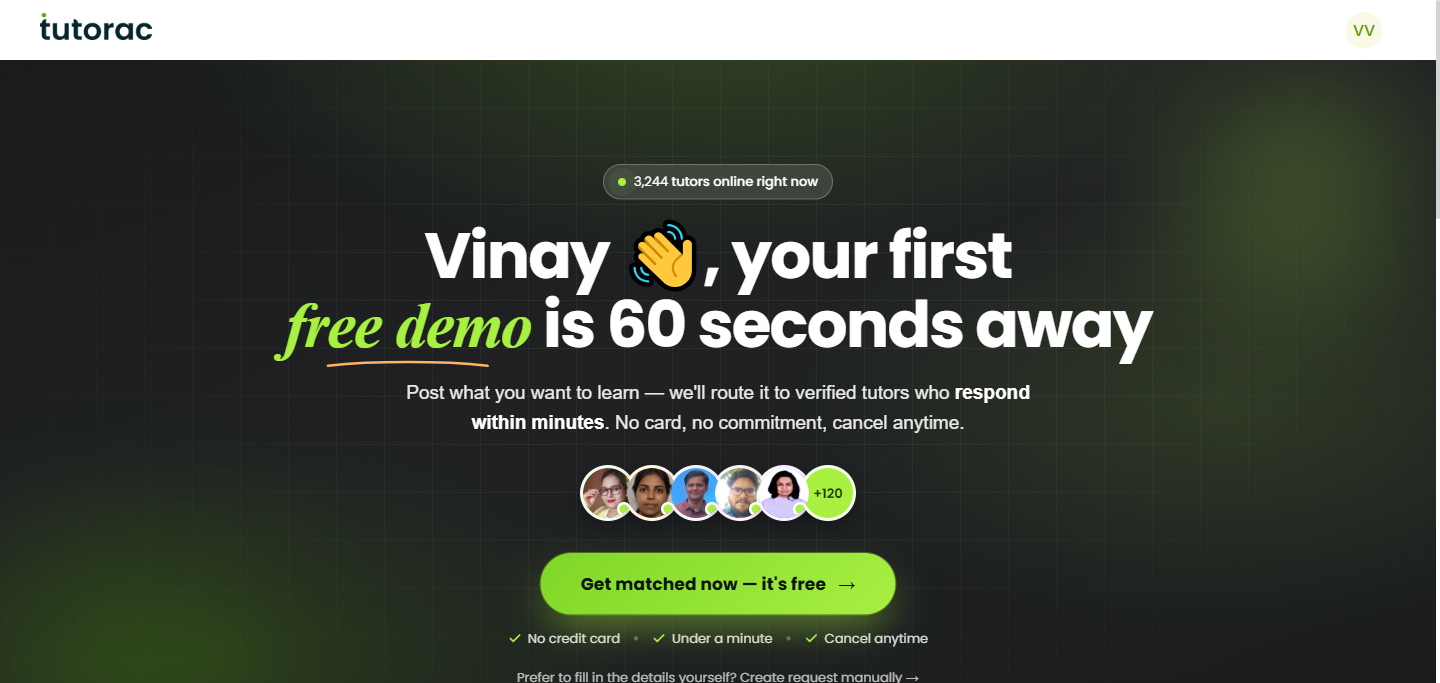
    Tutorac Post Training Requirement landing page with personalized greeting, Get matched now button, Create request manually link, and a 4-step explainer (Share your goal, Get proposals, Join a free demo, Hire when ready).

    Two ways to post: AI-assisted or Manual

    The entry page gives you two starting points:

    • Get matched now — The AI-assisted flow. You answer two short questions and Tutorac drafts the full listing for you. Fastest path; you can still edit everything before posting.
    • Create request manually — A 5-step wizard that walks you through Title, Skills, Description, Schedule, and Budget. Use this when you have a precise scope in mind or want full control of every field.

    Both paths end at the same Review Details & Post page, so the choice is just about speed vs. control.

    Path A: AI-assisted (Get matched now)

    Step 1: Describe what you want to learn

    Click Get matched now. Tutorac asks you to tell us what you want to learn — just a sentence or two. The box accepts up to 150 characters. A good example: “I want to learn Python for data analysis as a beginner.” Click Continue.

    Step 2: Set your budget

    Pick a billing type, then enter a price range:

    • Hourly rate — You pay for each hour the tutor teaches. Best for ongoing training or open-ended learning.
    • Fixed price — One agreed amount for the full engagement. Best for a defined scope (for example, a certification prep).

    Enter From and To values in rupees. Tutorac shows a recommended range for similar Training Requirements (for example, ₹500 – ₹1000/hr) so you can stay competitive. Click Next.

    Step 3: Tutorac drafts the listing

    You’ll see “Please hold on, we’re currently preparing your job listing” for a few seconds. Tutorac’s AI uses your sentence and budget to fill in title, description, skills, training level, duration, and timings. Then it drops you on the Review Details & Post page.

    Path B: Manual 5-step wizard

    Click Create request manually →. Tutorac walks you through five short screens:

    • 1/5 Details — Title. A clear, specific title (for example, “Need a tutor for Python programming with real-world projects”). Example titles are shown.
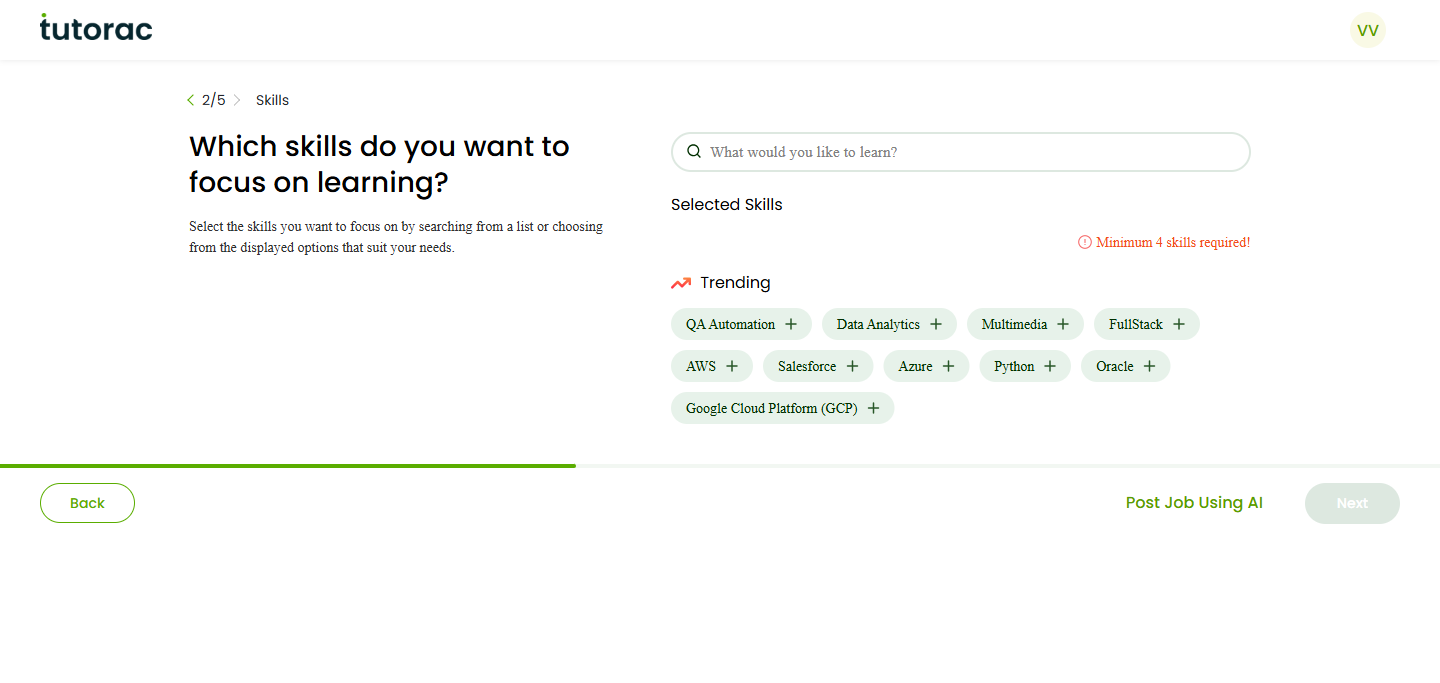
    • 2/5 Skills. Pick at least 4 skills for accurate matching. Trending skills are shown as quick-pick chips (Python, AWS, Data Analytics, FullStack, Salesforce, Azure, QA Automation, Oracle, GCP, Multimedia…) and you can search for more.
    • 3/5 Description. Write a paragraph or two explaining what you want to learn, why, your level, and any specific outcomes.
    • 4/5 Schedule. Set your training level (Beginner / Intermediate / Advanced), start time (Immediately, This week, Next month, etc.), and weekly availability.
    • 5/5 Budget. Hourly or Fixed price, with a range.

    At any step you can click Post Job Using AI to switch to the AI-assisted path, or Back to revise an earlier step.

    Tutorac manual Training Requirement wizard at step 2/5 (Skills) showing trending skill chips like Python, AWS, Data Analytics, FullStack, Salesforce, Azure, with a minimum-4-skills requirement and a Next button.

    Review and Post

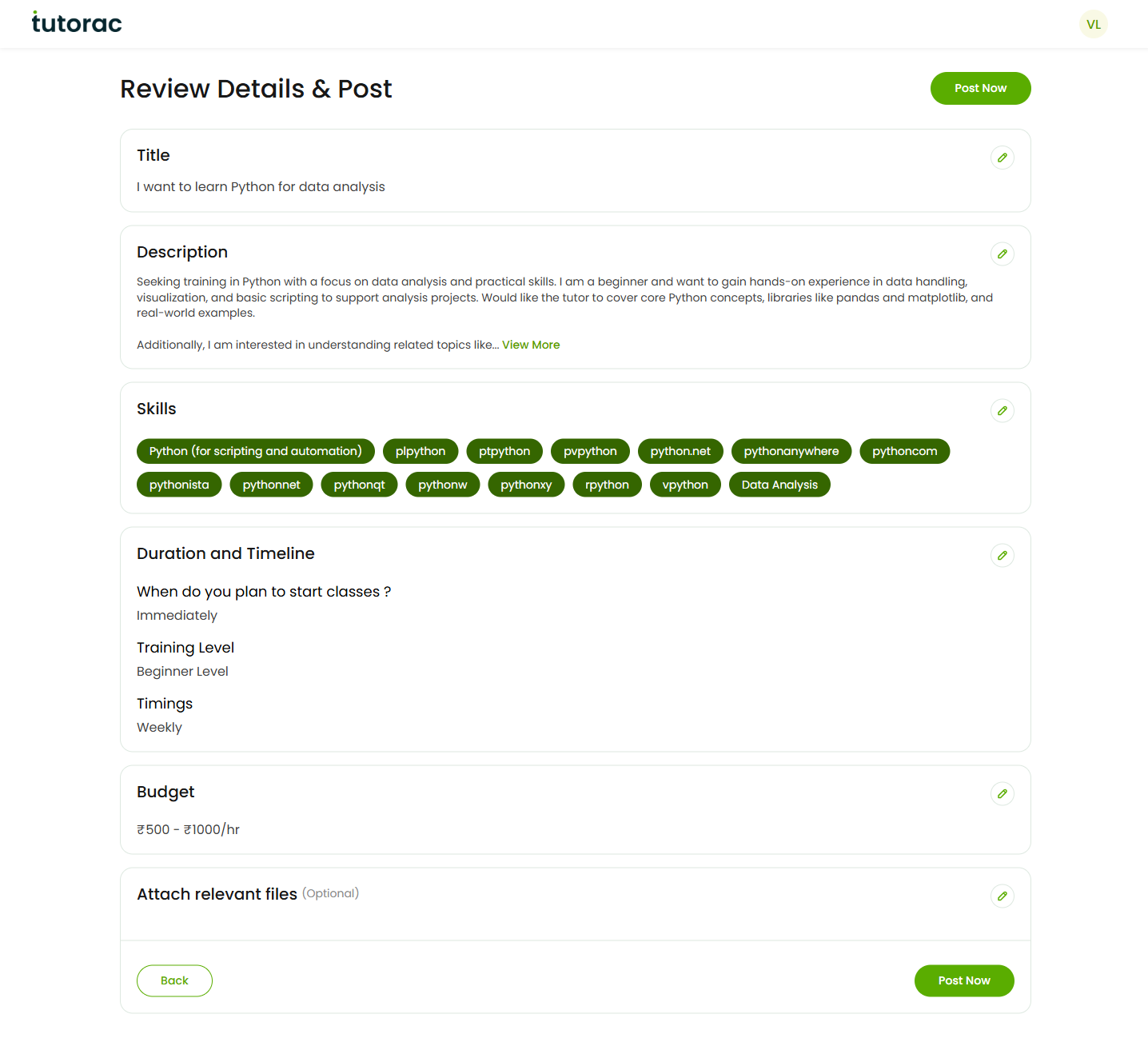
    Both paths end at the Review Details & Post page. Here you can see and edit every field before going live:

    • Title — the headline tutors see first.
    • Description — the full brief.
    • Skills — tags Tutorac uses for matching.
    • Duration and Timeline — when you plan to start.
    • Training Level — Beginner, Intermediate, or Advanced.
    • Timings — weekly availability.
    • Budget — hourly or fixed, with a range.
    • Attach relevant files (optional) — sample data, a syllabus you found online, a brief from your employer, etc.

    If the AI-drafted version isn’t quite right, edit any field inline. When everything looks good, click the green Post Now button at the top right.

    Tutorac Review Details and Post page showing AI-generated Title, Description, Skills, Duration and Timeline, Training Level, Timings, Budget range, and an optional file-attach area, with a Post Now button.

    What happens after you post

    • Tutorac matches your Training Requirement with verified tutors who handle those skills.
    • Within a few minutes you start receiving proposals — on Tutorac the average first proposal arrives in under 4 minutes, and most learners get 3+ proposals the same day.
    • Proposals appear under Trainings > My Trainings (and conversations show up under Messages).
    • You can compare proposals side by side, message tutors with questions, book a free demo with shortlisted tutors, and send invites to additional tutors you want to bid on the same Training Requirement.
    • When a proposal looks right, click Hire Now to start a Training Contract. Payment is held in escrow until milestones are complete.
    • You can edit or close the Training Requirement at any time from My Trainings.

    Tips for a strong Training Requirement

    • Be specific in the title. “Need a tutor for Python with real-world data analysis projects” beats “Need Python help.”
    • State your level honestly. Beginners and advanced learners need very different tutors.
    • Name the outcome. Certification, a project you’re building, interview prep, a real dataset at work — whichever applies.
    • Pick a realistic budget. Use Tutorac’s recommended range as a baseline. Very low ranges may attract fewer or less experienced tutors.
    • Add 4–8 skills, mixing the headline topic (e.g., Python) with related ones (Pandas, NumPy, Data Visualization).
    • Attach supporting files if you have a syllabus, sample data, or a job description — better context, better proposals.

    FAQs

    Is posting a Training Requirement free?

    Yes. Posting a Training Requirement, receiving proposals, messaging tutors, and booking free demos are all free. You only pay when you accept a proposal and start a Training Contract.

    How many Training Requirements can I have open at once?

    You can have multiple Training Requirements open in parallel — for example, one for Python, one for SQL, one for AWS. Each gets its own set of proposals and chat threads.

    How quickly will I receive proposals?

    Most learners receive their first proposal within a few minutes of posting; on Tutorac the average is around 4 minutes. Most well-written Training Requirements get 3+ proposals the same day.

    What if no tutor sends a good proposal?

    Two things you can do: edit your Training Requirement to make the scope, level, or budget clearer, and send Invites directly to specific tutors from Find Tutors. (See How to send an Invite to a tutor on Tutorac.) You can also close the Training Requirement and re-post later.

    Can I edit or close my post later?

    Yes. Go to Trainings > My Trainings (or My Posts) to edit the title, description, skills, schedule, or budget, or to close the Training Requirement when you’ve hired a tutor.

    How does the AI flow decide the title, skills, and description?

    The AI uses the sentence you typed plus your budget range to draft a structured listing. Everything it produces is editable on the Review page before you click Post Now, so treat it as a starting draft rather than a final version.

    Should I pick Hourly or Fixed price?

    Hourly works best when the scope is open-ended or ongoing — you pay only for time the tutor teaches. Fixed price works best for a clearly bounded outcome, like clearing a certification, finishing a defined syllabus, or shipping a specific project.

    Can tutors see my contact details from the post?

    No. Tutors only see the Training Requirement details. All communication happens inside Tutorac messaging until you start a Training Contract, which keeps you protected by Tutorac’s policies and payment protection.


    Related articles

    Last updated: 20 May 2026

  • How to message a tutor before hiring on Tutorac

    Messaging is the lowest-commitment way to start a conversation with a tutor on Tutorac. This guide walks through the Send Direct Message modal, how to resume the conversation later from the Messages tab, what you can do from there, and how messaging differs from a Free Demo or an Invite.

    In this article

    Why message a tutor first

    A direct message is the simplest way to make first contact — no booking, no proposal, no commitment. Use it when you want to:

    • Ask a quick question about availability, syllabus, or pricing.
    • Check if the tutor handles a specific tool or version you need.
    • Confirm time-zone or language fit before booking a Demo.
    • Discuss a custom requirement that doesn’t fit neatly into a Training Requirement yet.

    Messaging is free and creates a chat thread you can return to under Messages in the top nav.

    Step 1: Find the tutor

    Sign in to Tutorac and open the Find Tutors page (tutorac.com/find-tutors). Use Category, Location, and Language filters to narrow the list. (See How to find a tutor on Tutorac.) You can also message any tutor from their full profile page.

    Step 2: Click Message

    On the tutor’s card, click the Message button (one of three actions, alongside Book a Free Session and Send Invite). The Send Direct Message modal opens with the tutor’s name, headline, years of experience, and location displayed at the top.

    Tutorac Send Direct Message modal with tutor info, optional Training Requirement dropdown, Message textarea with suggested prompts, and Cancel / Send message buttons.

    Step 3: (Optional) link a Training Requirement

    If you have a posted Training Requirement that’s relevant, open the Choose a Training Requirement (optional) dropdown and pick it. Linking gives the tutor immediate context. If your question is general or you have no requirement posted yet, just leave this blank.

    Step 4: Write a clear message

    Tutorac shows a few suggested prompts in the message box to get you started. You can use one as a template or write your own:

    • “I need help with [specific topic/skill].”
    • “I’m looking to learn more about [technology/technique].”
    • “I want to improve my knowledge in [concept/field].”
    • “I’m preparing for [exam/certification] and would appreciate expert guidance.”
    • “I’m interested in upskilling in [specific domain/technology].”

    A useful first message usually covers four things in a few short lines:

    • Your goal (what you want to learn or achieve).
    • Your level (beginner, intermediate, working professional, etc.).
    • Your schedule (weekdays after 7pm IST, weekends, etc.).
    • A specific question (so the tutor has something concrete to reply to).

    Step 5: Send the message

    Click the green Send message button. Tutorac creates a new chat thread and routes the message to the tutor. To stop without sending, click Cancel.

    What happens after you send

    • The tutor sees your message in their inbox and is notified by email.
    • You see a confirmation that the message has been sent.
    • Tutorac creates a new chat thread between you and the tutor, ready to continue any time.
    • Most tutors reply within a day. The reply appears in the same chat thread.

    Resume the conversation from the Messages tab

    You don’t have to go back to the tutor’s card to keep talking. Click Messages in the top nav (the badge shows the number of unread messages) and Tutorac opens your full Messages hub.

    • Left sidebar — All your conversations grouped by Training Requirement. Each row shows the tutor’s name, the linked requirement, and an unread badge.
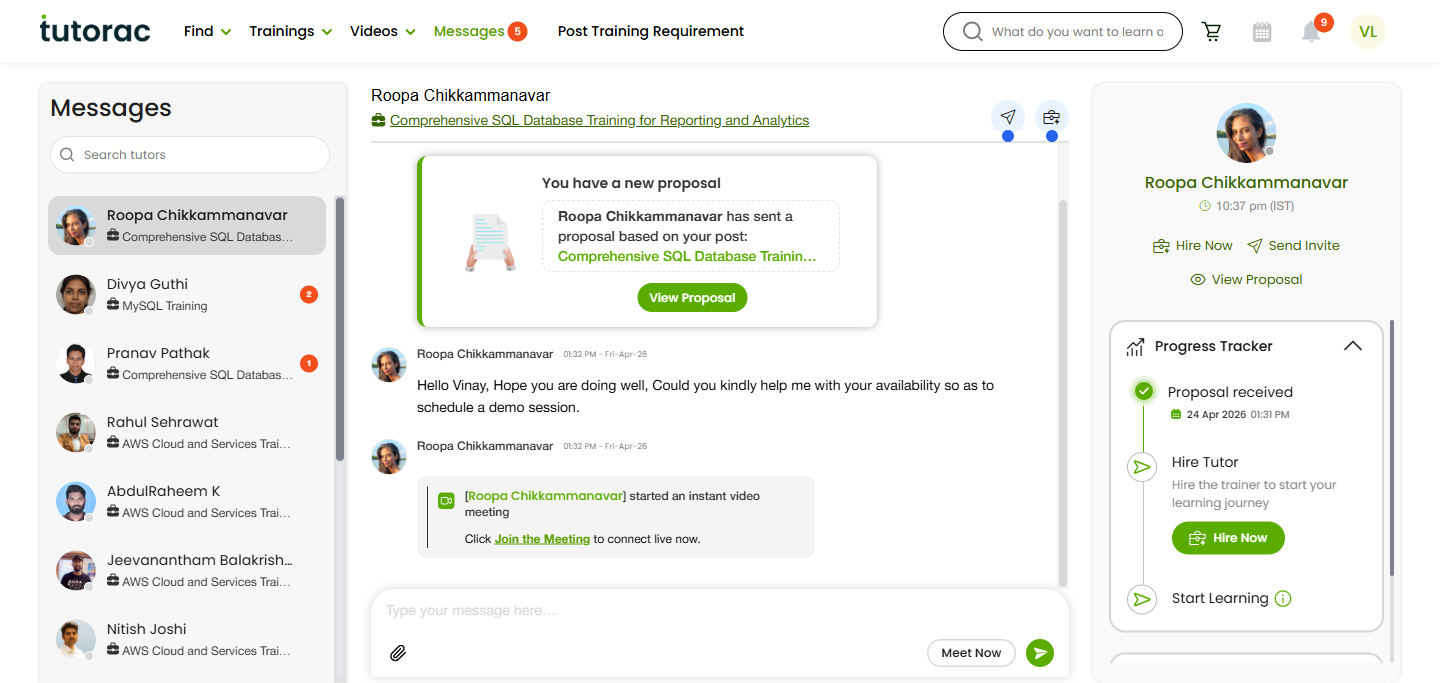
    • Middle panel — The selected conversation thread with the full message history, timestamps, and any system notifications (for example, “You have a new proposal”).
    • Right sidebar — Quick actions and a Progress Tracker that shows where this engagement sits in the journey (Proposal received → Hire Tutor → Start Learning) along with safety reminders.

    Click any conversation on the left to open it. You can come back days or weeks later — the full thread stays here.

    Tutorac Messages hub showing conversation list on the left grouped by Training Requirement, an open chat thread in the middle with proposal and meeting notifications, and quick actions plus Progress Tracker on the right.

    What you can do from a chat thread

    The Messages hub is more than just chat — it’s where the whole hiring conversation happens. From an open thread you can:

    • Send messages and share files — Continue the conversation, attach screenshots, notes, sample data, or syllabi the tutor needs to see.
    • View Proposal — If the tutor has sent a proposal, click View Proposal to read the scope, pricing, milestones, and schedule on a single page.
    • Hire Now — Accept a proposal and start a Training Contract directly from the chat. Payment is held safely in escrow until training is complete.
    • Schedule Free Session — Open the Demo booking modal for this tutor without leaving Messages.
    • Send Invite — Invite this tutor to one of your Training Requirements if you haven’t already.
    • Join an instant video meeting — If the tutor starts an instant call, you’ll see a Meet Now button right in the thread.
    • Track progress — The Progress Tracker on the right shows where you are in the journey: Proposal received → Hire Tutor → Start Learning.
    • Stay safe — The safety panel reminds you to keep chat, booking, and payment on Tutorac so your funds stay protected in escrow until training is complete.

    Message vs Free Demo vs Invite

    • Message — Best for a quick question or first contact. No commitment. Free.
    • Book a Free Session — Best when you want to evaluate the tutor on a 30-minute call before paying anything. Free.
    • Send Invite — Best when you have a posted Training Requirement and want a tailored paid proposal for it.

    A common path is: Message → Book a Free Session → Send Invite → Training Contract.

    FAQs

    Is messaging a tutor free?

    Yes. You can message as many tutors as you like before hiring — there is no charge for messaging or for the reply.

    Do I need a Training Requirement to message a tutor?

    No. The Training Requirement dropdown in the modal is optional. Linking one is helpful when you have a specific scope ready, but you can message a tutor without one.

    How fast will the tutor reply?

    Most tutors reply within a day. Response time varies by tutor and time zone — you can usually see how active a tutor is from the cues on their profile.

    Where do I see replies?

    Click Messages in the top nav. All your tutor conversations are listed there in one place. The badge on the Messages icon shows your unread count. You also get email notifications.

    Can I share files in chat?

    Yes. Once the chat thread is open under Messages, you can attach files (notes, screenshots, sample data) to help the tutor understand your need.

    Can I hire a tutor without leaving the Messages tab?

    Yes. Once a tutor has sent a proposal, you can click View Proposal to read it and then Hire Now to accept and start a Training Contract — all from the chat thread.

    Can a tutor start a video call from chat?

    Yes. When a tutor starts an instant video meeting, you’ll see a Meet Now button in the chat thread. Click it to join the live call without leaving Tutorac.

    Should I share my email or phone number in the message?

    No. Keep all communication inside Tutorac messaging while you’re still evaluating. That keeps you protected by Tutorac’s policies and payment protection. You can share contact details after you’ve started a Training Contract.

    Can I block or report a tutor from chat?

    Yes. From the chat thread in Messages, use the report option if any conversation breaks Tutorac’s community guidelines. Tutorac reviews reports and acts on them.


    Related articles

    Last updated: 20 May 2026

  • How to send an Invite to a tutor on Tutorac

    Sending an Invite asks a specific tutor to send you a custom proposal for one of your posted Training Requirements. This guide walks through the prerequisites, the modal fields, and what happens after you invite a tutor.

    In this article

    What is an Invite?

    An Invite is a direct request to a specific tutor asking them to send you a proposal for one of your existing Training Requirements. Use it when you have already shortlisted a tutor and want a tailored offer for a defined need (topic, schedule, milestones, price). It is more targeted than waiting for organic proposals on a public Training Requirement post.

    Before you start: post a Training Requirement

    The Invite is tied to a Training Requirement, so you must have at least one Training Requirement posted on your account before you can invite a tutor. You can post one from the Post Training Requirement button in the top nav, or from the Trainings menu.

    If you have not posted one yet, do that first. See How to post a Training Requirement on Tutorac for the full walkthrough. You can have several Training Requirements active at the same time and invite different tutors to different requirements.

    Step 1: Find the tutor

    Sign in to Tutorac and open the Find Tutors page (tutorac.com/find-tutors). Use Category, Location, and Language filters to narrow the list. Read tutor cards to shortlist someone whose skills, experience, and hourly rate fit your needs. (See How to find a tutor on Tutorac.)

    Step 2: Click Send Invite

    On the tutor’s card, click the Send Invite button (one of three actions, alongside Book a Free Session and Message). The Invite Tutor to Training Requirement modal opens with the tutor’s name, headline, years of experience, and location displayed at the top so you can confirm you’ve picked the right person.

    Tutorac Invite Tutor to Training Requirement modal showing tutor info, Select a Training Requirement dropdown, Message field, and Cancel / Yes, Invite! buttons.

    Step 3: Pick a Training Requirement

    Open the Select a Training Requirement dropdown and pick the requirement you want this tutor to bid on. Only your currently active Training Requirements appear here. If the dropdown is empty, go back and post a Training Requirement first.

    Step 4: Add a short message (optional)

    Use the Message field to add a personal note. A few useful things to mention:

    • Why you picked this tutor (specific skill, project, or background).
    • Your preferred start date and weekly schedule.
    • The level you’re at and the outcome you want.
    • Any constraints (budget cap, language, time zone).

    A clear message gets a sharper proposal back and saves a round of back-and-forth.

    Step 5: Send the invite

    Click the green Yes, Invite! button at the bottom of the modal. Tutorac confirms the invitation has been sent. To stop without sending, click Cancel.

    What happens next

    • The tutor receives an invitation notification on their dashboard and by email.
    • If they’re interested, they reply with a proposal — scope, milestones, price, schedule.
    • You see new proposals against your Training Requirement under Trainings, with each tutor’s offer alongside.
    • If they’re not available or not a fit, they may decline or simply not respond. You can invite other tutors in parallel.
    • Once a proposal looks right, you can accept it to create a Training Contract, or use Message to negotiate first.

    FAQs

    How many tutors can I invite to one Training Requirement?

    You can invite multiple tutors to the same requirement and compare proposals side by side. Inviting 3 to 5 tutors usually gives you a healthy spread of pricing, scope, and approach.

    Can I invite the same tutor to more than one Training Requirement?

    Yes. Open the Send Invite modal again on that tutor and pick a different requirement from the dropdown.

    Does sending an Invite cost anything?

    No. Invites and the proposals you receive are free. Charges only begin once you accept a proposal and start a Training Contract.

    What if the tutor doesn’t reply?

    If you don’t hear back within a few days, send the tutor a Message for a nudge, or invite other tutors in parallel. There is no penalty for inviting widely.

    Can I cancel an Invite after sending it?

    You can’t un-send the invitation, but you don’t have to accept any proposal that comes back. If the tutor sends a proposal you don’t want, just decline or ignore it — nothing is committed until you start a Training Contract.

    What’s the difference between Send Invite and Book a Free Session?

    Book a Free Session is a no-cost 30-minute Demo to evaluate a tutor before you commit. Send Invite is the next step — you have a specific requirement and want a tailored paid proposal for it. Many learners do a Demo first, then send an Invite to the tutor they liked most.

    Can the tutor see my full Training Requirement?

    Yes. When you invite a tutor, they can read the full Training Requirement you selected so they can write an accurate, scoped proposal. Keep that in mind when writing the requirement — clarity helps both sides.


    Related articles

    Last updated: 20 May 2026

  • How to find a tutor on Tutorac

    Tutorac lists hundreds of expert tutors across Cloud, Data Science, Web Development, Multimedia, and more. This guide shows you how to search, filter, and read a tutor card so you can shortlist the right person quickly.

    In this article

    Two ways to start your search

    You can find tutors in two ways:

    • Top-bar search: Type what you want to learn (for example, “Python” or “Tableau”) in the What do you want to learn or teach? box at the top of any page and press Enter.
    • Find menu: Click Find in the main nav and choose Find Tutors.

    Both routes land you on the Find Tutors listing page.

    Step 1: Open the Find Tutors page

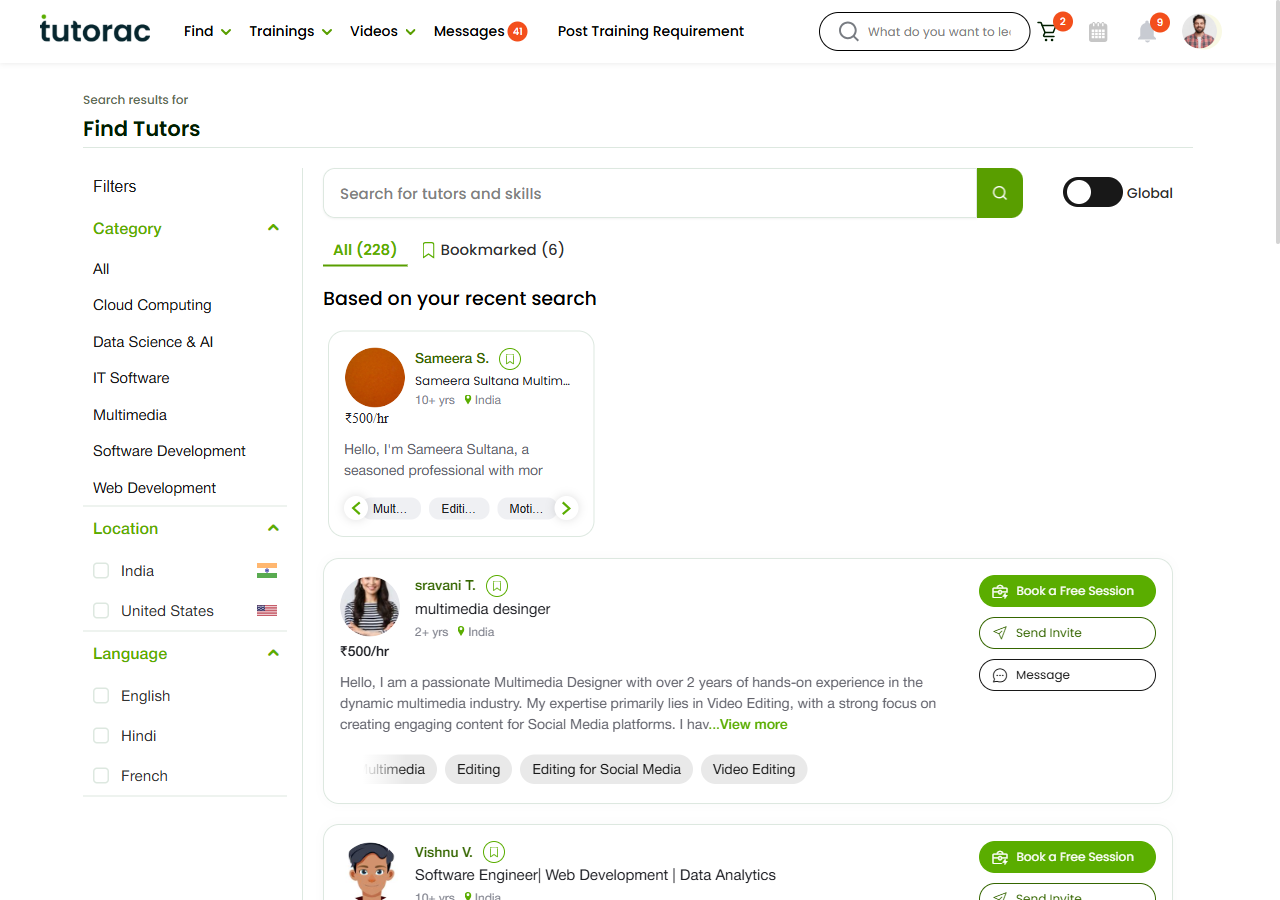
    Sign in to Tutorac, then go to tutorac.com/find-tutors — or use the Find → Find Tutors menu. The page header shows Search results for … if you arrived from a search, and the total tutor count appears in the tab control (for example, All (228)).

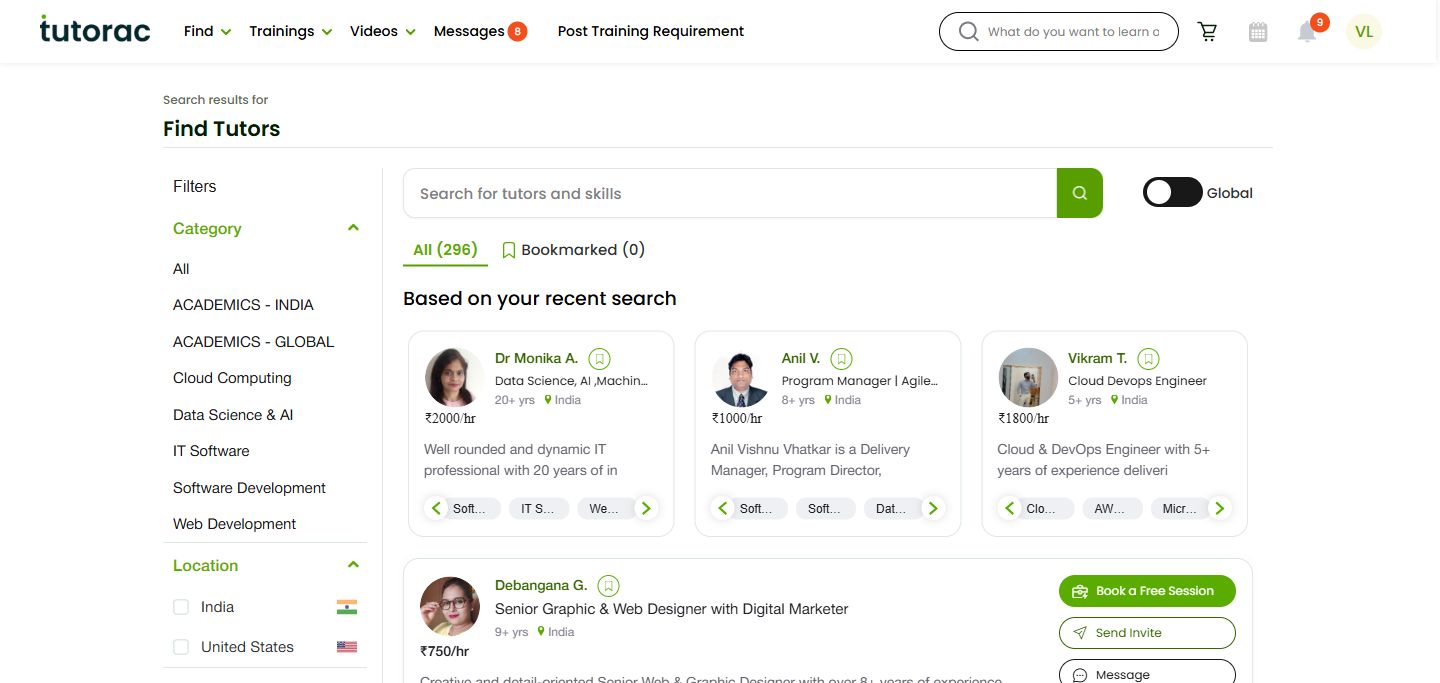
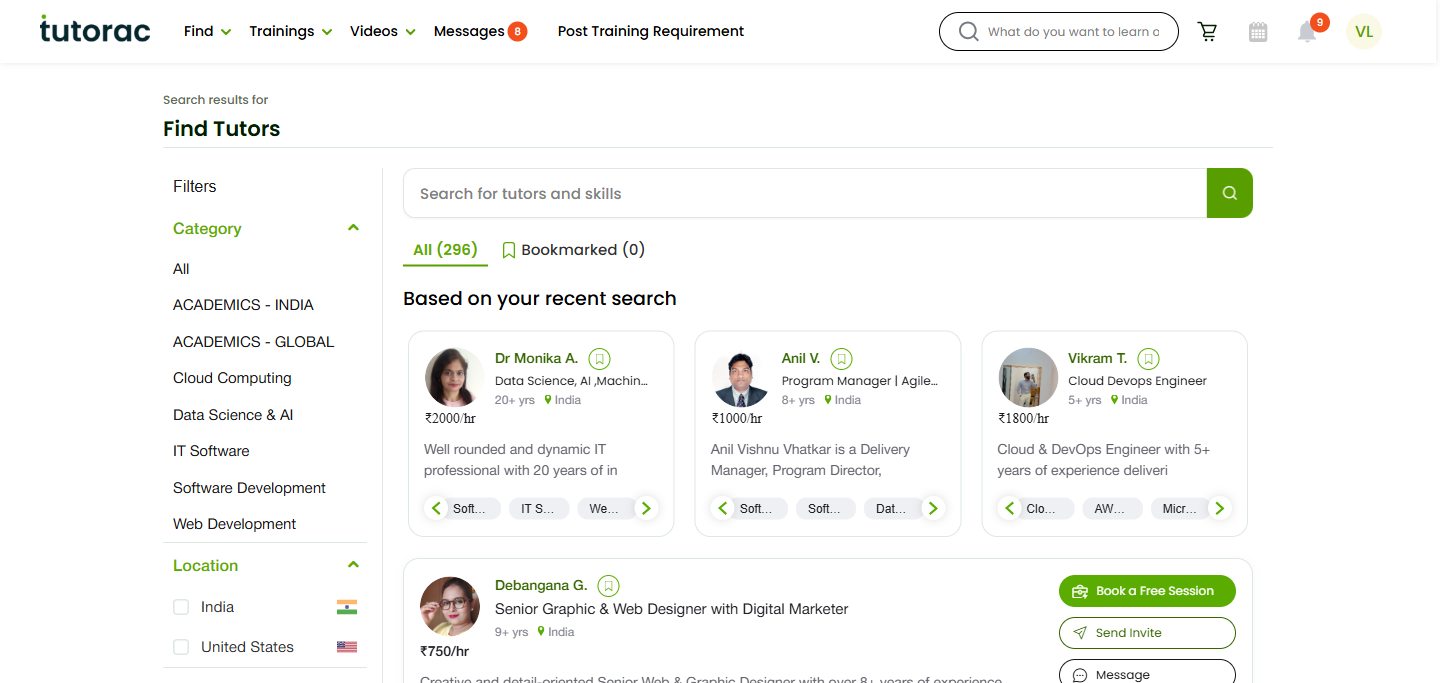
    Tutorac Find Tutors page with the Filters sidebar on the left (Category, Location, Language), Global/India tab control, All/Bookmarked counts, and tutor cards on the right showing photo, headline, experience, hourly rate, bio, skill tags, and the three action buttons.

    Step 2: Narrow results with filters

    The Filters sidebar on the left lets you cut down the list to tutors that fit your needs:

    • Category — Pick a domain: Cloud Computing, Data Science & AI, IT Software, Multimedia, Software Development, Web Development, or stay on All.
    • Location — Choose India or United States to see tutors based in that country.
    • Language — Filter by the language the tutor teaches in: English, Hindi, French.

    Filters update the results immediately. The tab count (All (n)) refreshes to match. Combine filters to be more specific — for example, Data Science & AI + India + English shows only Indian Data Science tutors who teach in English.

    Step 3: Switch between Global and India

    Above the tutor list you will see two tabs:

    • Global — Tutors from anywhere in the world that Tutorac currently supports.
    • India — India-based tutors only (handy for time-zone alignment and INR pricing).

    To the right you will also see All and Bookmarked counts. Switch to Bookmarked to view tutors you have saved for later.

    Step 4: Read a tutor card

    Every tutor card on the listing shows the same information so it’s easy to compare:

    • Name & profile photo — Click the name or photo to open the full profile.
    • Headline — A short title the tutor wrote (for example, “Full Stack Developer” or “Sr. Multimedia Designer”).
    • Years of experience — Tutorac shows tutors with 1+, 2+, 5+, 10+ years.
    • Location — Country (and sometimes city).
    • Hourly rate — In your preferred currency (₹ for India). This is the starting rate — final pricing can be agreed during hiring.
    • Bio snippet — A few lines about the tutor. Click View more to read the rest on the full profile.
    • Skill tags — The topics the tutor teaches (Python, AWS, Azure, etc.).

    Each card also shows three action buttons at the bottom: Book a Free Session, Send Invite, and Message. See Step 5 below to decide which one to use.

    Step 5: Choose your next step

    Once you have shortlisted a tutor, pick one of these three actions:

    • Book a Free Session — A complimentary Demo session so you can meet the tutor before hiring. Best when you want to confirm fit, communication style, and depth before committing.
    • Send Invite — Invite the tutor to send you a custom training offer. Best when you have a specific requirement in mind (topic, schedule, duration) and want a tailored proposal.
    • Message — Start a Tutorac chat with the tutor without committing to a demo or invite. Best for quick questions about availability, syllabus, or pricing.

    You can do all three with the same tutor at different times — messaging first, then booking a demo, then sending an invite.

    Bookmarking tutors for later

    If you are still comparing options, use the bookmark icon on each tutor card to save them. Bookmarked tutors appear under the Bookmarked tab at the top of the list, so you can return without re-running the filters.

    FAQs

    Is browsing tutors free?

    Yes. Browsing the Find Tutors page, using filters, reading profiles, and messaging tutors are all free. Charges only begin when you book a paid session or accept a training offer.

    Why don’t I see tutors for the topic I want?

    Make sure you have selected All in the Category filter and the right Location/Language. If the topic is very niche and you still see no results, post a Training Requirement instead — tutors who match will send you proposals.

    Can I trust the hourly rate shown on the card?

    That is the tutor’s standard rate. Final pricing for a Training Contract may differ based on duration, group size, milestones, and any discounts. The exact amount is confirmed in the proposal or checkout step before you pay.

    How are tutors ranked by default?

    Tutorac uses a relevance ranking based on the search term, your Learning Interests, recent activity, and tutor quality signals. You can refine the list by combining filters; that has more impact than the default order alone.

    Can I message a tutor before booking a session?

    Yes. Click Message on the tutor card to start a chat. Tutors usually reply within a day. This is a good way to check syllabus, schedule, and any custom requests before committing.

    What is the difference between “Book a Free Session” and “Send Invite”?

    Book a Free Session is a no-cost Demo to evaluate the tutor. Send Invite requests a tailored paid training offer for your specific need. Use Free Session first when you want to evaluate; use Invite when you are ready to scope and price the actual training.


    Related articles

    Last updated: 20 May 2026

  • How to enroll in a Live Course on Tutorac

    A Live Course on Tutorac is an instructor-led training delivered in real-time over scheduled sessions with a verified tutor. This article shows you how to find a Live Course, review its details and schedule, choose a batch, and complete enrollment.


    In this article


    Before you start

    • You need a Tutorac learner account. Sign in at tutorac.com/sign-in using your email or phone number.
    • Have a valid payment method ready — payments are processed securely through Razorpay (cards, UPI, net banking, and wallets supported).
    • Check that your time zone is set correctly so Live Course session times display accurately for you.

    Step 1: Find a Live Course

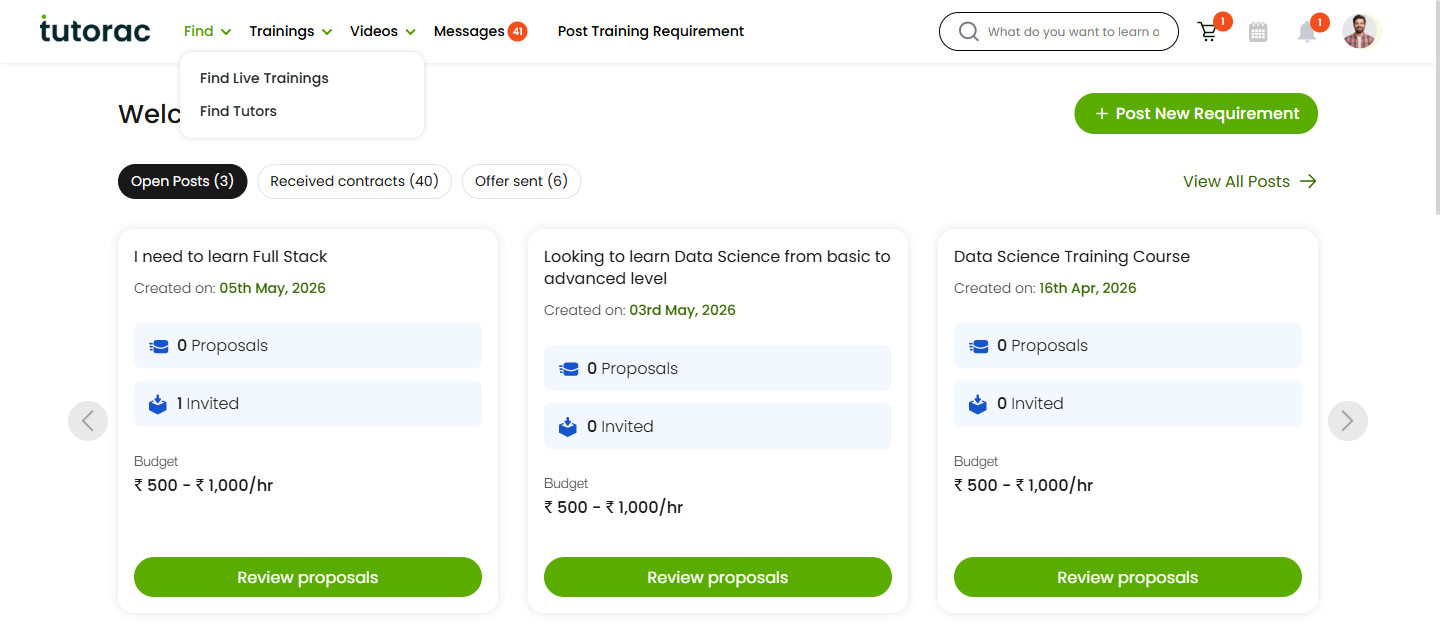
    After signing in, open the Find menu in the top navigation and click Find Live Courses. This opens the Live Courses catalog where you can browse all available courses.

    Top navigation with the Find menu open, showing Find Live Courses option

    Step 2: Filter the catalog

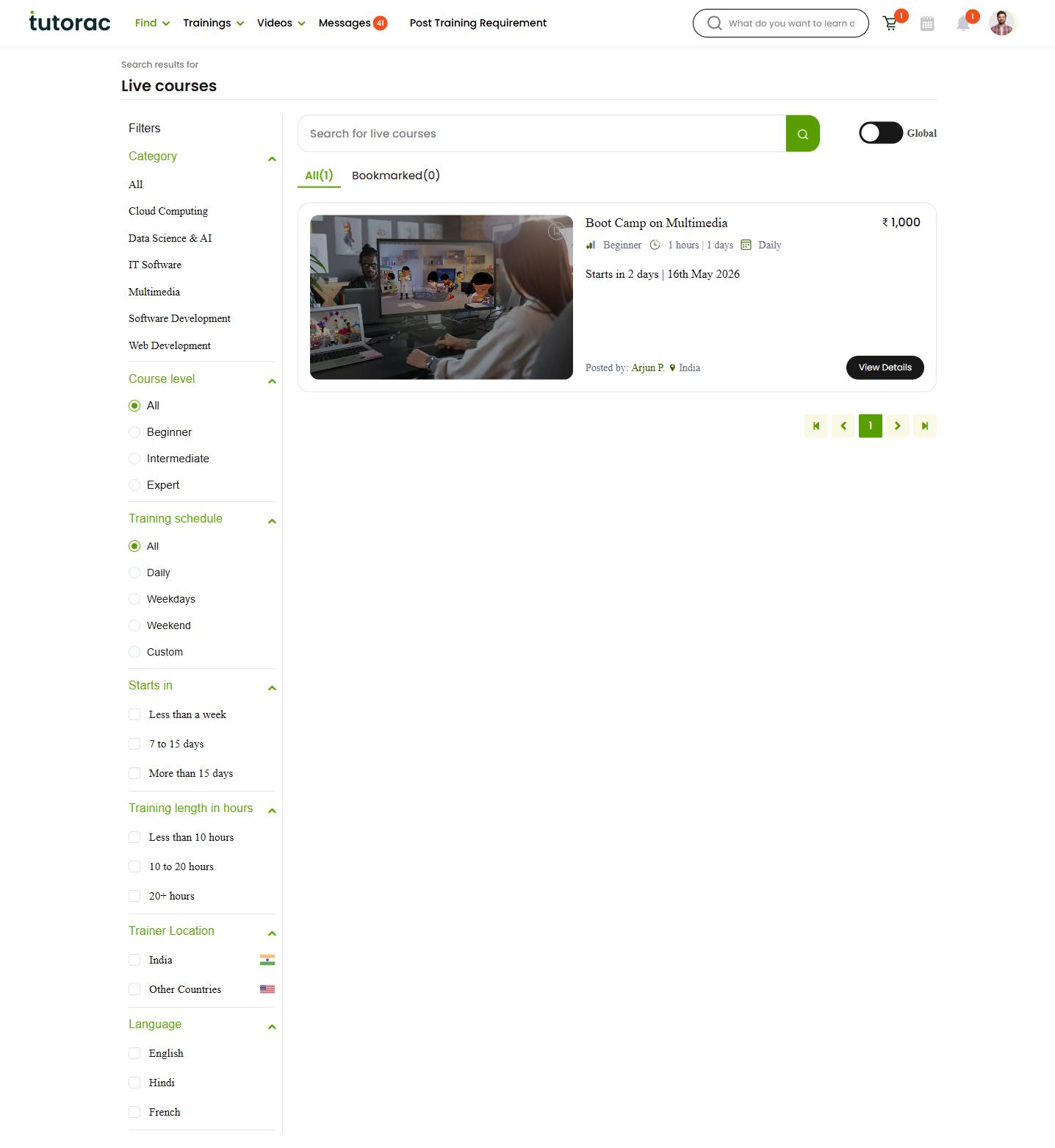
    Use the filters on the left to narrow down to courses that match what you’re looking for:

    • Category — for example, Cloud Computing, Data Science & AI, IT Software, Software Development, Web Development
    • Course level — Beginner, Intermediate, or Expert
    • Training schedule — Daily, Weekdays, Weekend, or Custom
    • Starts in — Less than a week, 7 to 15 days, or More than 15 days
    • Training length in hours — Less than 10 hours, 10 to 20 hours, or 20+ hours
    • Trainer Location — India or Other Countries
    • Language — English, Hindi, French, and more

    You can also use the search box at the top of the catalog to find courses by keyword.

    Live Courses catalog page with the filters panel on the left and course tiles on the right

    Step 3: Review the course details

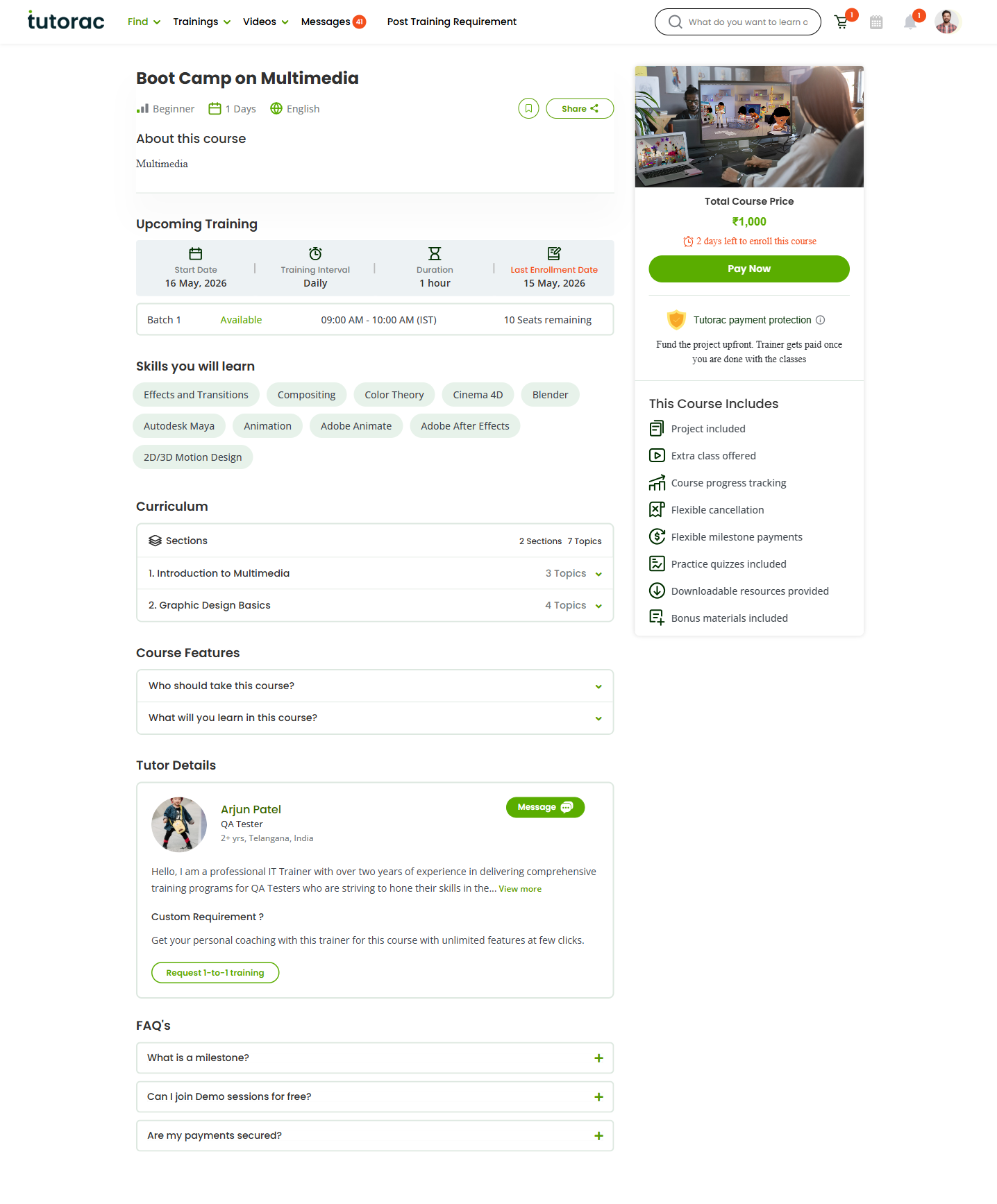
    Click any course tile to open its detail page. Take time to review:

    • About this course — a summary of what the course covers
    • Total Course Price and the deadline to enroll (“X days left to enroll this course”)
    • Tutorac payment protection — the badge on the right-hand pricing card. It means “fund the project upfront, trainer gets paid once you are done with the classes” — your money is held by Tutorac and released to the trainer as the course progresses
    • This Course Includes — what’s bundled with your enrollment, such as Project included, Course progress tracking, Flexible cancellation, Flexible milestone payments, Practice quizzes, Downloadable resources, and Bonus materials
    • Upcoming Training — Start Date, Training Interval (Daily / Weekdays / Weekend / Custom), Duration per session, and Last Enrollment Date
    • Batches — available batches with their time slots (with time zone) and remaining seats
    • Skills you will learn — the specific skills covered
    • Curriculum — sections and topics, expandable to see what each lesson covers
    • Course Features — “Who should take this course?” and “What will you learn in this course?”
    • Tutor Details — the tutor’s profile, experience, and a Message button to ask questions before enrolling
    Live Course detail page with Total Course Price, Pay Now button, and Tutorac payment protection badge on the right

    Step 4: Pick a batch (or request 1-to-1)

    Tutorac gives you two ways to learn from the same tutor:

    • Join an existing batch — the standard option. Each batch shows the time slot (with time zone) and seats remaining. If you only need to glance at batches, you can do it from the detail page. The actual batch selection happens on the next screen after you click Pay Now.
    • Request 1-to-1 training — if you’d prefer personal coaching with the same tutor on a custom schedule, click Request 1-to-1 training under Tutor Details. The tutor will respond with a custom offer.

    Step 5: Click Pay Now and complete payment

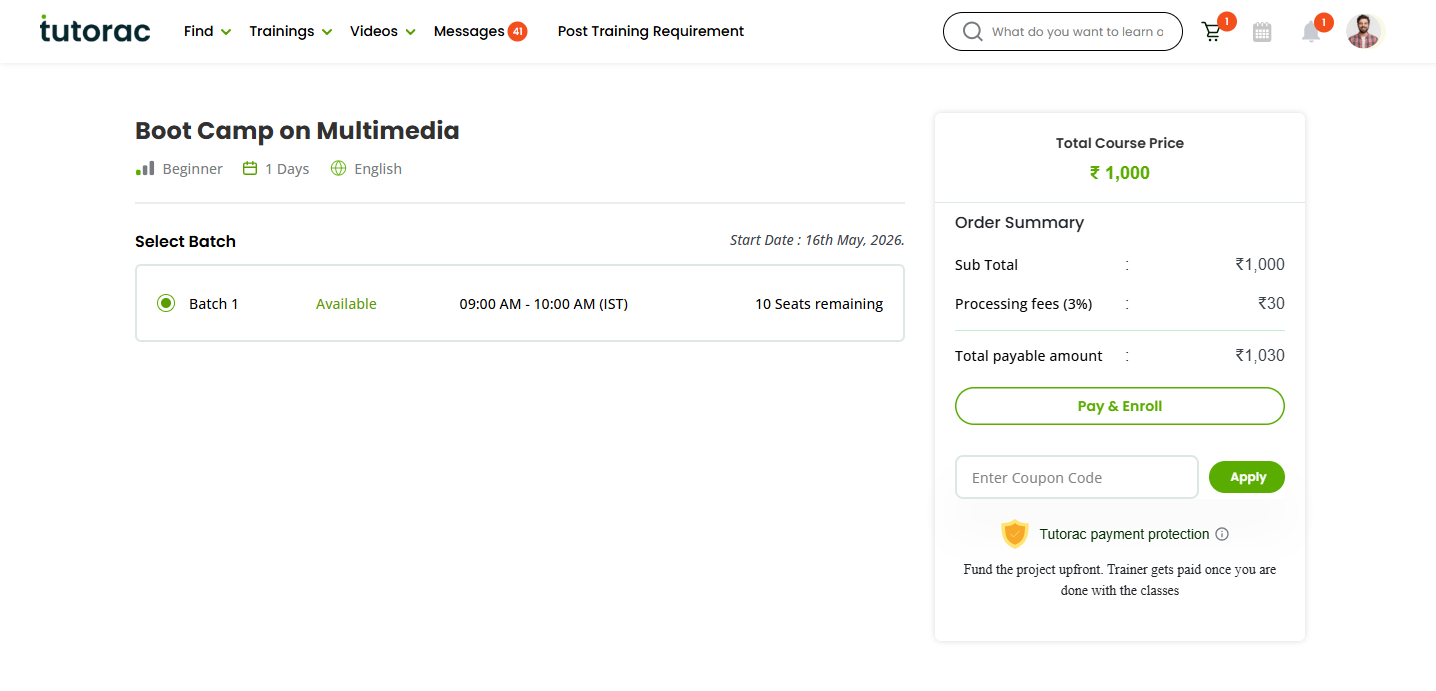
    When you’re ready to enroll, click Pay Now next to the Total Course Price. You’ll be taken to the checkout page where you can:

    • Select your batch — pick the time slot that works for you. If only one batch is available, it’s pre-selected.
    • Review the Order Summary — Sub Total, Processing fees (3%), and Total payable amount.
    • Apply a coupon — if you have a promo code, enter it under Enter Coupon Code and click Apply.
    • Confirm with Pay & Enroll — click the button to open the secure payment window.

    Tutorac processes payments through Razorpay. In the payment window:

    • Enter your mobile number and click Continue.
    • Pick your payment method — Credit/Debit Card, UPI, Net Banking, or Wallet.
    • Complete the payment.

    Your funds are now held under Tutorac payment protection: “fund the project upfront, trainer gets paid once you are done with the classes.” Your enrollment is confirmed as soon as payment succeeds.

    Checkout page with Select Batch, Order Summary including Processing fees 3%, Coupon Code input, and Pay and Enroll button

    Step 6: Access your enrolled course

    Once enrolled, your Live Course appears under Trainings → My Training Batches in the top navigation. From there you can:

    • See upcoming session dates and times
    • Join sessions directly when they go live
    • Message your tutor
    • Access shared learning materials

    Frequently asked questions

    What is a milestone?

    A milestone is a checkpoint within a Live Course where a portion of your payment is released to the tutor as that part of the course is delivered. Under Tutorac payment protection, your funds stay with Tutorac and are released to the tutor in line with course progress.

    Can I join Demo sessions for free?

    Yes, many tutors offer free Demo sessions. You can book one in three ways: from the tutor’s profile page, from the Live Course detail page, or directly through a chat message with the tutor.

    Are my payments secured?

    Yes. Every Live Course is covered by Tutorac payment protection — “fund the project upfront, trainer gets paid once you are done with the classes.” Payments are processed through Razorpay, and unreleased funds are refundable under Tutorac’s Cancellation & Refunds policy.

    What is the processing fee?

    Tutorac adds a 3% processing fee on top of the course price. You’ll see it as a separate line in the Order Summary on the checkout page before you pay.

    What if I miss a session?

    Message your tutor through the Live Course or via Messages in the top navigation. Most tutors share session recordings or schedule a catch-up.

    Can I cancel after enrolling?

    Yes — Live Courses include Flexible Cancellation. See Cancellation & Refunds for the full terms.


    Related articles

    Last updated: 14 May 2026

  • Help Center

    HELP CENTER

    Find answers fast.

    Search hundreds of help articles on Tutorac

    Choose your role for personalized help

    Still need help?

    Our support team is here to help with any questions about Tutorac.