Search results for: “demo”

  • Managing notifications and unread message counts on Tutorac

    Tutorac surfaces what needs your attention in two places: the bell-icon Notifications feed and the unread message counts in Messages. This article explains both, how to clear them, and how to stay on top of important updates without information overload.

    In this article

    The Notifications page

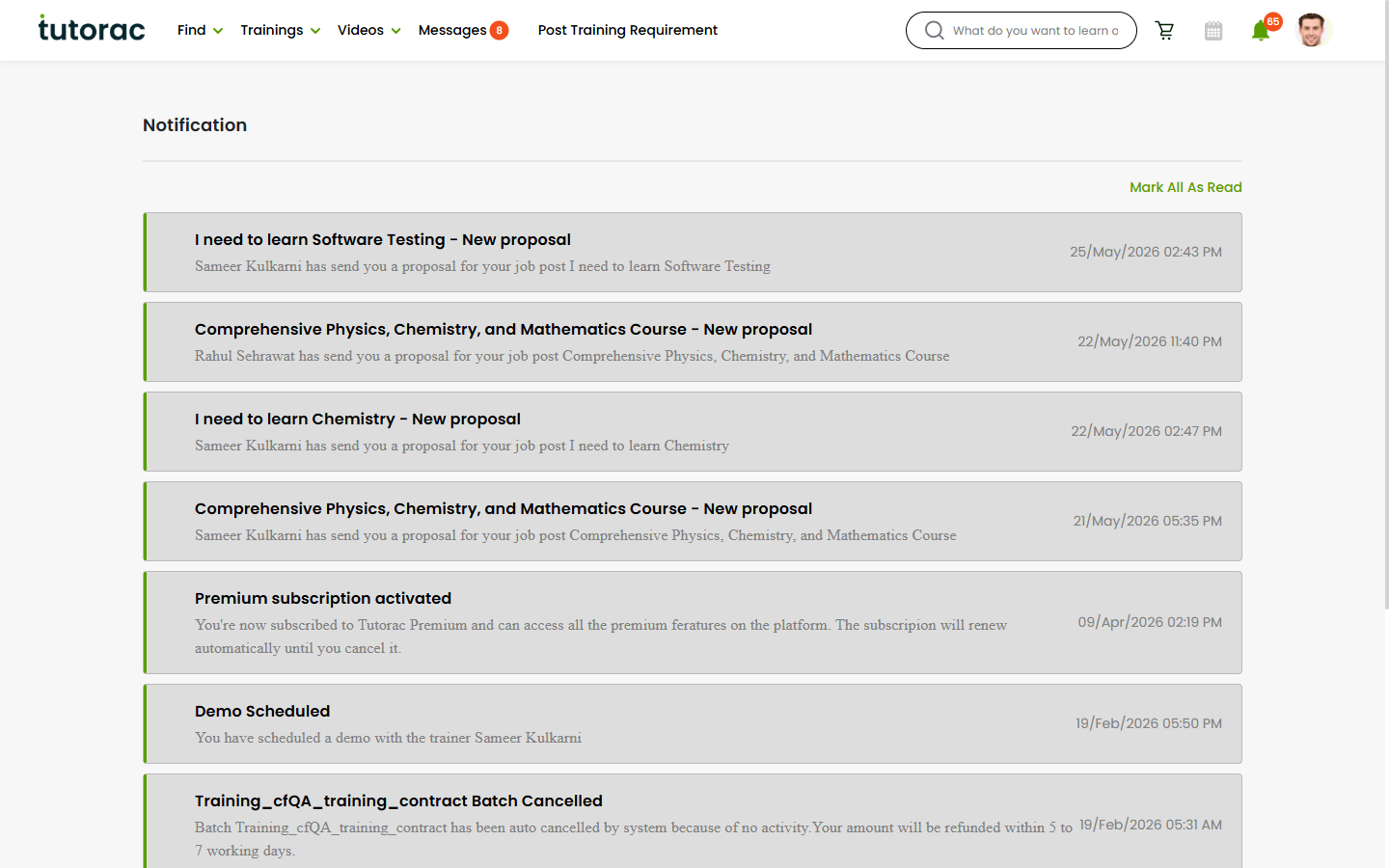
    Tutorac collects every event the platform thinks you should know about into a single feed at tutorac.com/notification. The bell icon in the top bar opens this page and shows an unread badge when there are new items.

    Tutorac Notifications page showing the chronological feed of platform events.

    Each notification has a title, a short message, a timestamp, and (when relevant) a link that takes you to the page where you can act on it.

    What triggers a notification

    Common notification types for learners include:

    • Proposals — “A tutor sent a proposal on your Training Requirement.”
    • Invitations — “You sent an invite to [Tutor Name].”
    • Sessions — reminders before scheduled sessions; “Session starting in 15 minutes”; recordings posted; missed session alerts.
    • Hiring — “Your Training Contract with [Tutor] is active.”
    • Payments — milestone payment due, payment received, refund processed.
    • Free demos — demo scheduled, demo starting soon, demo completed.
    • Cancellations — contract cancelled, refund issued.
    • Quizzes & Assignments — new item published, graded.

    Some notifications also appear as inline system messages inside the relevant chat thread — for example, a hire notification shows up both on the Notifications page and inside the chat with the tutor.

    Unread message counts

    Chat messages are tracked separately from notifications. Unread message counts appear in three spots:

    • Top navigation Messages button — total unread count across all tutor conversations.
    • Each conversation row in the left pane of Messages — per-conversation unread count.
    • Inside a Training Batch, the Messages tab also has its own unread badge for batch-scoped chat.

    Opening a conversation marks all its messages as read. There’s no separate “mark unread” control — once you’ve opened it, it’s read.

    Marking notifications as read

    • Visiting the Notifications page marks items as seen, which removes them from the bell badge.
    • Clicking through a notification (to a session, proposal, or batch) marks that specific notification as read.
    • Old notifications stay in the feed as a history — nothing is deleted automatically.

    Email notifications

    For high-importance events (hiring, payments, scheduled sessions, refunds, password changes), Tutorac also emails you at the address on your account. Make sure:

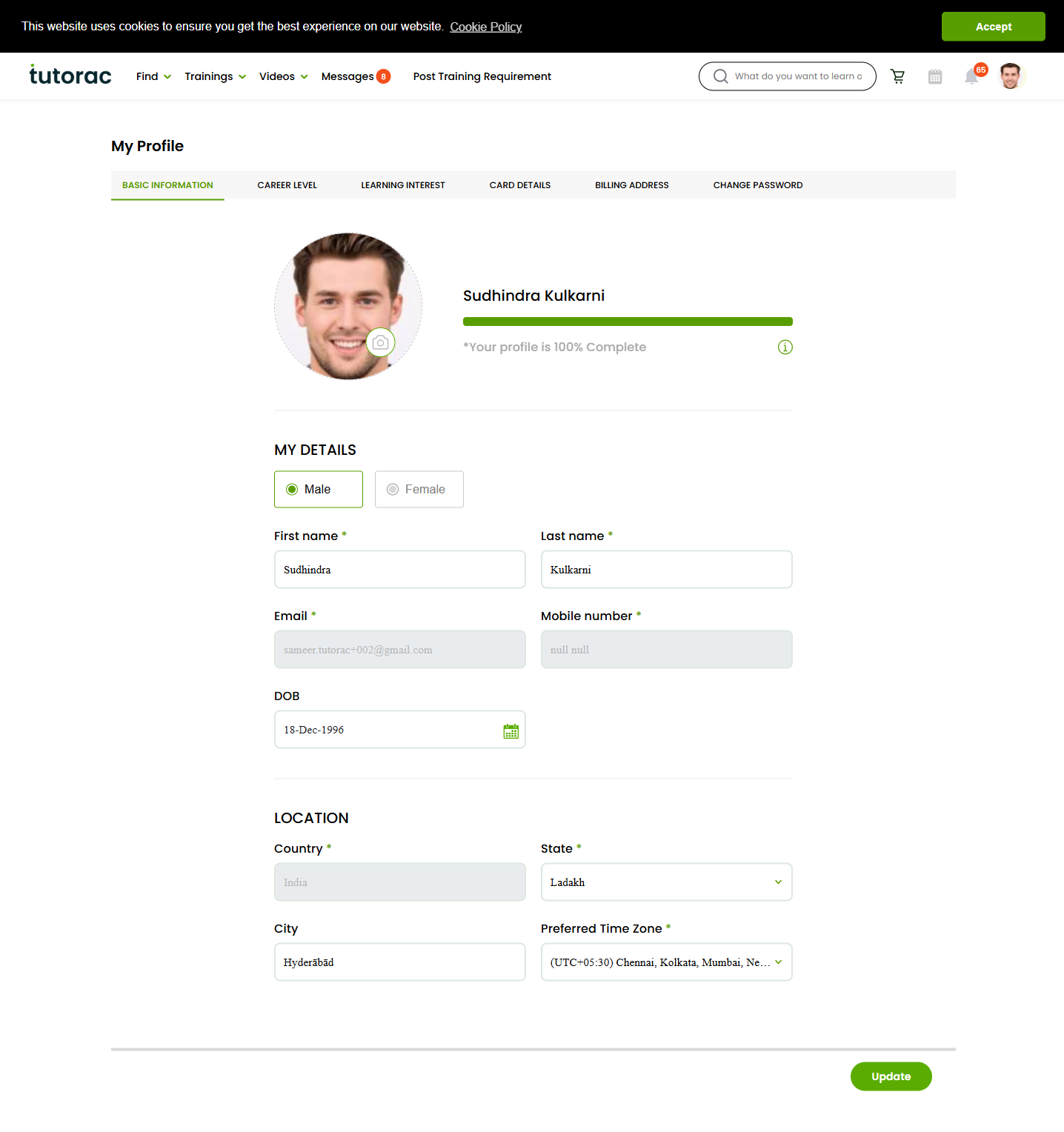
    • Your email in Profile → Basic Information is current.
    • Tutorac’s sender domain is whitelisted/not in spam (search for emails from @tutorac.com).
    • Calendar invites for scheduled sessions and demos are added to your calendar.

    Low-priority chatter (every chat message) is not emailed by default to avoid noise.

    Tips for staying on top of updates

    • Check the bell at the start of each session — tutors often update materials or send a note just before class.
    • Use the Messages unread badge as your inbox — if the badge is zero, you’re caught up.
    • Pin scheduled sessions to your calendar via the email invite for back-up.
    • Don’t rely on email alone — the most accurate, real-time view is always on tutorac.com.

    FAQs

    Can I turn notifications off?

    You can’t fully disable in-app notifications — they’re core to using the platform safely (you need to know when a session is starting, when a payment is due). Per-channel preferences (e.g., email versus in-app) may be available in account settings; if you don’t see a control there, reach out to Tutorac Support.

    My unread badge says 2 but I’ve read every conversation.

    Try refreshing the page. If the badge persists, scroll the conversation list — an unread message may be in a thread that’s lower down. New tutor responses to old conversations bump the count, even on chats you opened weeks ago.

    Why am I not getting email notifications?

    Check your spam folder, verify the email on your profile, and look for filters that may auto-archive messages. If everything looks right, contact Tutorac Support.

    Are notifications shared between devices?

    Yes — your account’s notification state is the same on every browser/device you sign in to. Read on phone, and the badge clears on desktop too.

    How long does Tutorac keep notification history?

    Notifications remain in the feed indefinitely as a history. Only the unread badge changes; the items themselves don’t expire.


    Related articles

    Last updated: 27 May 2026

  • Understanding chat features: Meet Now, Hire Now, Progress Tracker, and safety panel

    A Tutorac chat does more than carry messages back and forth. The right-side panel and the chat input bar surface contextual actions — Meet Now, Hire Now, View Proposal, Progress Tracker, Schedule Free Session, and a safety panel. This article explains what each one does and when it appears.

    In this article

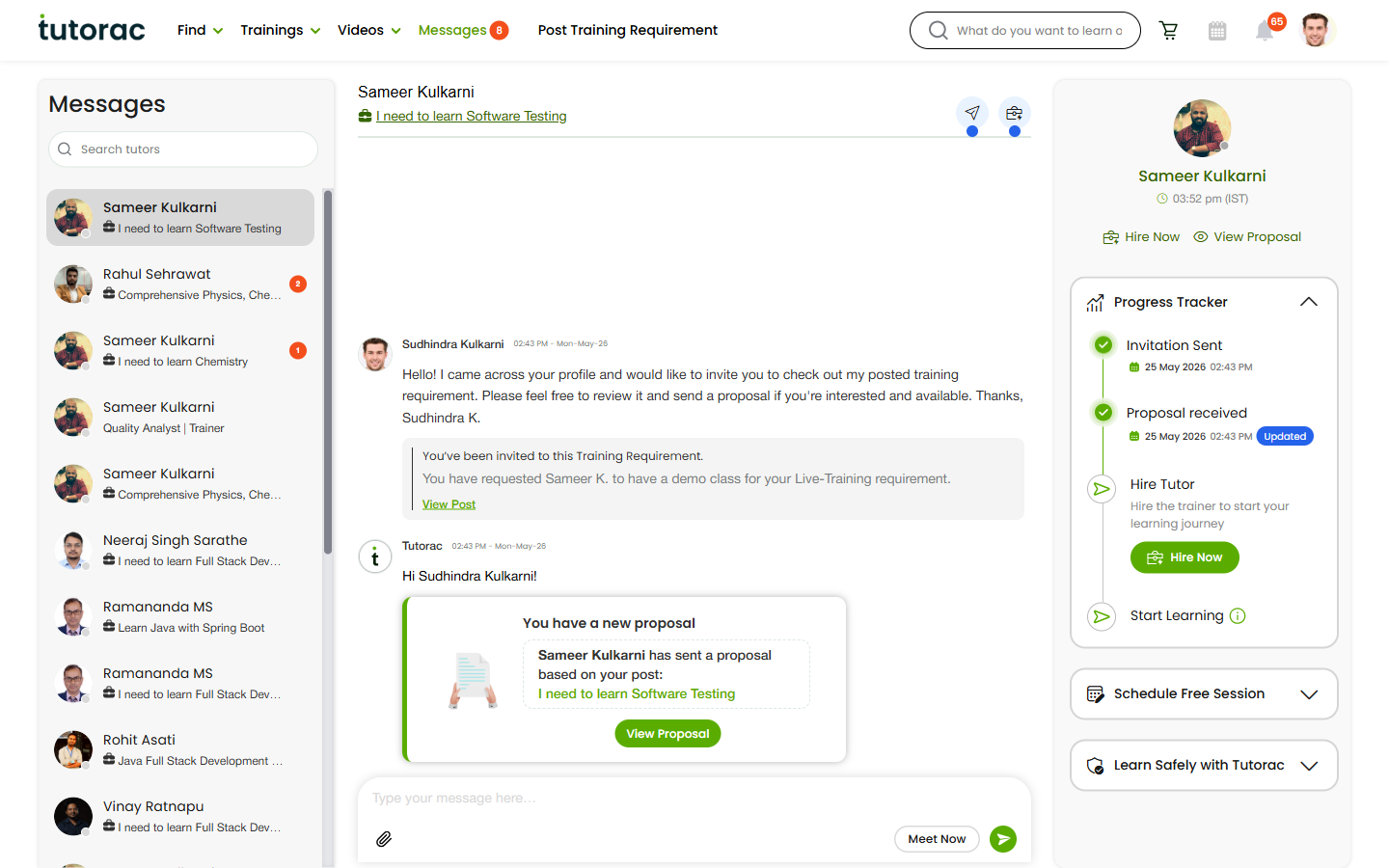
    Tutorac chat right panel with action buttons: Hire Now, View Proposal, Schedule Free Session, and the Learn Safely with Tutorac safety panel.

    Meet Now

    The Meet Now button sits next to your message input box. Clicking it starts an instant video meeting with the tutor — useful when you want to clarify something quickly without scheduling a demo.

    • The tutor receives an alert that you’ve started a meeting.
    • If they’re online, they can join right away.
    • If they’re offline, leave a message and try later, or use Schedule Free Session instead.

    Hire Now

    Hire Now opens the Send Training Offer page where you set the training scope, milestones, schedule, and price — the contract you want to start with this tutor. It’s only shown before you’ve hired them for this Training Requirement. For the full hiring walkthrough see How to hire a tutor.

    View Proposal

    If a tutor has sent you a proposal for a Training Requirement, View Proposal jumps straight to that proposal — price, schedule, milestones, and the tutor’s message — so you can review it without leaving Messages. From the proposal page you can Hire, Negotiate, or message the tutor with questions.

    Schedule Free Session

    Tutorac lets every learner book a 30-minute free demo with a tutor before hiring. The Schedule Free Session action in the right panel opens the booking modal with date and time pickers. Once scheduled, a system message appears in the chat with the confirmed slot. See How to book a Free Demo Session.

    Progress Tracker

    After you hire a tutor, the right panel switches into post-hire mode and a Progress Tracker appears in place of the Hire Now / View Proposal buttons. It shows:

    • The milestones in your active Training Contract with this tutor.
    • Which milestone you’re currently on.
    • Completed sessions vs. remaining sessions per milestone.
    • A quick link into the Training Batch workspace.

    This means you can check on your training’s health without leaving the chat thread.

    Learn Safely with Tutorac (safety panel)

    Below the action buttons, the Learn Safely with Tutorac panel is a persistent reminder of the protections that only apply when you stay on the platform:

    • Flexible cancellations — if things don’t work out, you can cancel based on milestone progress.
    • Instant refunds — refunds calculated automatically by the cancellation policy.
    • Try before you hire — the free 30-minute demo, no payment required.
    • Escrow protection — your payments are held by Tutorac until you confirm milestone completion.

    The panel also reminds you to avoid moving conversations or payments off Tutorac — doing so removes all of these protections. You may see a “Stay Protected on Tutorac” pop-up the first time you open Messages reinforcing this point.

    Which buttons appear when

    • You haven’t hired this tutor yet — Hire Now + Schedule Free Session + safety panel. View Proposal appears only if the tutor sent you one.
    • You’ve hired this tutor — Progress Tracker + link to the Training Batch + safety panel.
    • Contract completed/cancelled — the chat stays open as a record. You can still message but action buttons related to that contract are removed.

    Meet Now is always available, regardless of hire status.

    FAQs

    Does Meet Now cost anything?

    No. Meet Now is a quick instant call. Paid sessions only happen inside an active Training Batch (Sessions tab).

    If I click Hire Now do I commit to anything?

    No. Hire Now opens the Send Training Offer page. You’re only committed once you complete payment for the first milestone, at which point funds go into escrow.

    Why is the Hire Now button missing?

    Either you’ve already hired this tutor for this Training Requirement (look for Progress Tracker instead), or there’s no Training Requirement attached to this chat yet. Post a Training Requirement first and the action returns.

    Can I have multiple Progress Trackers with the same tutor?

    Yes — if you have multiple active Training Contracts with the same tutor (e.g., one for QA, one for Selenium). Each conversation row in Messages tracks its own contract.

    Does the safety panel ever go away?

    No — the Learn Safely panel stays in every chat as a permanent reminder.


    Related articles

    Last updated: 27 May 2026

  • A tour of Tutorac Messages: your chat hub explained

    Messages is where every conversation with every tutor lives — from your first “hello” before a free demo, through hiring, to ongoing chat with the tutor running your training. This tour walks you through the chat hub at tutorac.com/messages/profile and explains every section.

    In this article

    How to open Messages

    Click Messages in the top navigation bar of any signed-in page, or go directly to tutorac.com/messages/profile. The Messages button shows an unread counter when you have new messages.

    The 3-pane layout

    Tutorac Messages hub showing the 3-pane layout: conversations list on the left, chat thread in the middle, tutor context panel on the right.

    Messages is split into three columns:

    • Left — your conversations list, grouped by tutor and Training Requirement.
    • Middle — the chat thread for the conversation you’ve selected.
    • Right — a context panel about the selected tutor with quick actions (different actions depending on where you are in the hiring journey).

    Left pane: your conversations

    Each row is one tutor + Training Requirement combination. So if the same tutor messaged you about two different requirements, you’ll see two rows. Each row shows:

    • Tutor name and profile photo.
    • The Training Requirement or topic this conversation is about (e.g., “I need to learn Software Testing”).
    • An unread count badge if there are messages you haven’t read yet.

    Use the Search tutors box at the top of the left pane to quickly find a conversation.

    Middle pane: the chat thread

    The chat thread shows your full message history with this tutor for this Training Requirement. Features:

    • Your messages appear on the right; tutor messages on the left.
    • Timestamps on every message.
    • Type your message here… — the input box at the bottom. Press Enter to send.
    • Attachment icon (paperclip) lets you attach files to your message.
    • Meet Now button starts an instant video meeting with the tutor.

    Files attached to messages also appear in the conversation history and are downloadable later.

    Right pane: tutor context

    The right pane shows the tutor’s profile summary at the top (name, photo, local time) and a set of action buttons that change based on where you are in the hiring journey:

    • Before hiring — you’ll see Hire Now, View Proposal (if they sent one), Schedule Free Session, and the Learn Safely with Tutorac safety panel.
    • After hiring — you’ll see a Progress Tracker showing milestone progress, plus links back to the active Training Contract and batch.

    This panel saves you from leaving Messages to take the next step — you can hire, schedule a demo, or jump to your batch directly from chat.

    System messages

    Some messages in the thread come from Tutorac itself rather than you or the tutor. They appear in the centre of the thread and announce events like:

    • “Tutor sent you a proposal”
    • “You hired this tutor”
    • “Free demo session scheduled for [date/time]”
    • “Session ended” / “Session missed”
    • Safety advisories (e.g., reminders to keep payments on Tutorac)

    These are a record of what happened — they don’t need a reply.

    Unread message counts

    Tutorac surfaces unread messages in three places:

    • The Messages item in the top navigation shows a total unread badge.
    • The Messages icon in the second top bar shows the same total.
    • Each conversation row in the left pane has its own unread badge.

    Opening a conversation marks all its messages as read.

    FAQs

    Can I have multiple chats with the same tutor?

    Yes — one per Training Requirement (or one general chat if you’re not yet tied to a requirement). Each appears as a separate row in the left pane.

    Where do I find old messages with a tutor I worked with last year?

    Scroll through the conversations list or use the Search tutors box. Past conversations stay even after a contract completes.

    Will the tutor see when I’ve read their message?

    Read receipts are not currently displayed to tutors. Online status indicators and timestamps are visible to both sides.

    Can I message a tutor before booking a demo or sending an invite?

    Yes. Use the Send Direct Message button on any tutor card from Find Tutors. See How to message a tutor before hiring.

    Are tutor chats different from Training Batch chats?

    Yes — Messages is the platform-wide chat with the tutor. After hiring, each Training Batch also has its own Messages tab inside the batch workspace, scoped to that specific batch.


    Related articles

    Last updated: 27 May 2026

  • New learner checklist: first 5 things to do on Tutorac

    You just signed up for Tutorac. What now? Here are the first 5 things every new learner should do — in under 30 minutes — to get the most out of the platform.

    In this article

    1. Complete your profile basics

    Open your Profile › Basic Information page. Add:

    • Full name (as you want it to appear to tutors).
    • Profile photo — a clear, friendly headshot. Tutors respond more often to learners with real photos.
    • Time zone and country — so session times shown to you are local.

    This takes about 5 minutes. See How to set up your learner profile for the full walkthrough.

    2. Add your learning interests

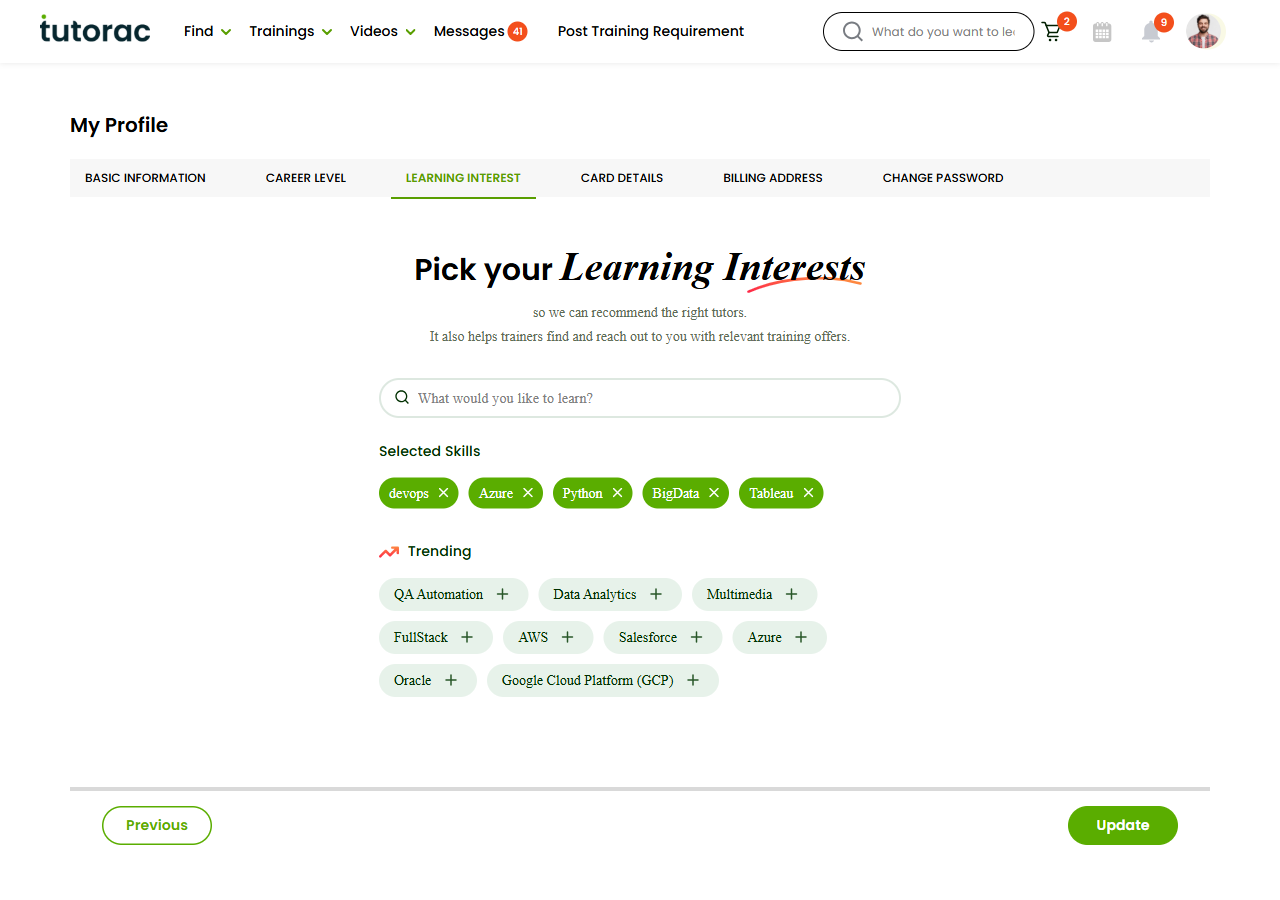
    In Profile › Learning Interest, pick the topics you want to learn. Tutorac uses these to:

    Tutorac learner profile Learning Interest section showing topic chips you can select.
    • Recommend relevant tutors and courses.
    • Match you with tutors when you post Training Requirements.
    • Send you notifications about new courses in your area of interest.

    Pick 3–5 specific topics rather than broad categories — “React.js” works better than just “Web Development”.

    3. Explore the Find Tutors marketplace

    Open Find Tutors. Browse a few profiles to get a feel for:

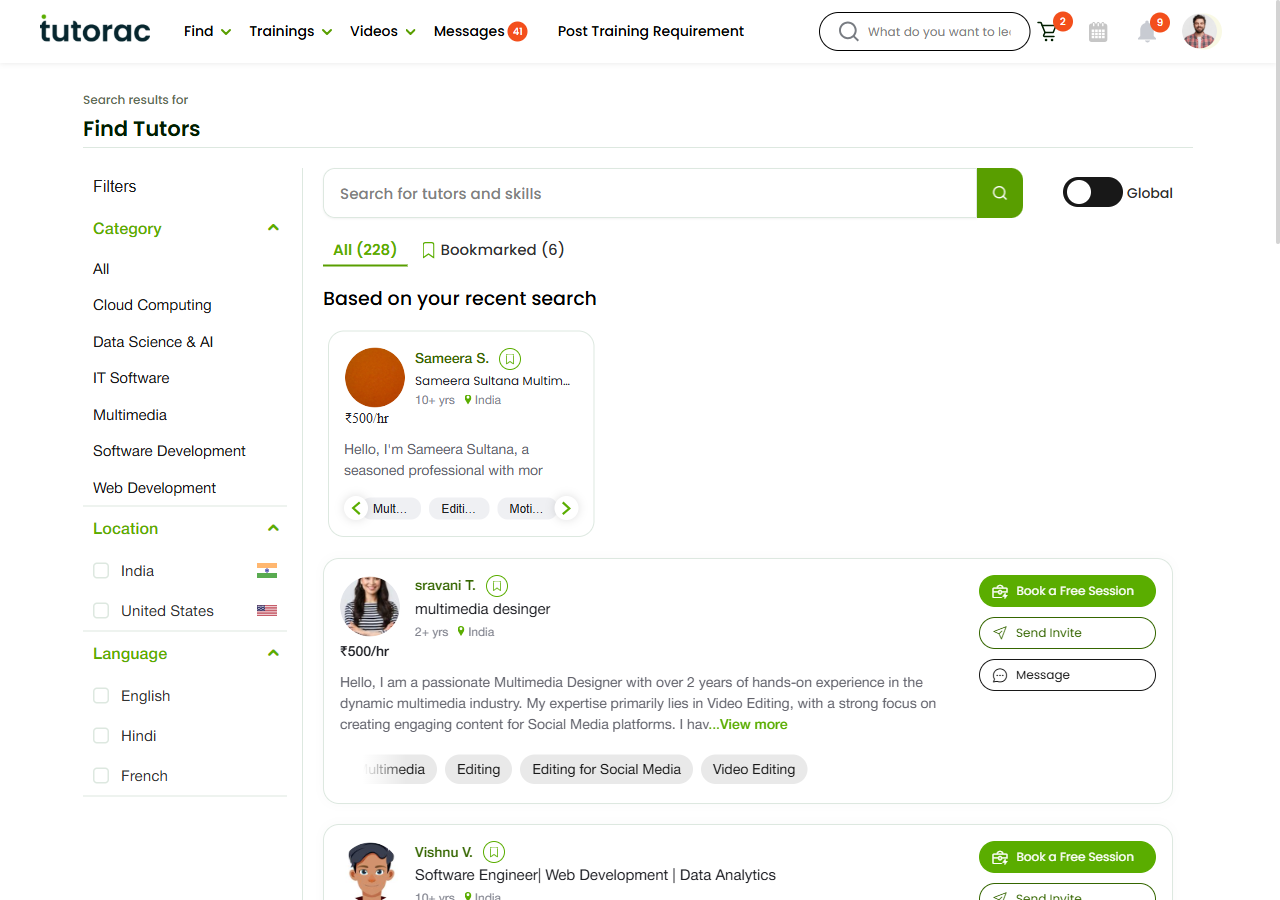
    Tutorac Find Tutors marketplace with category, location, language filters and tutor cards.
    • Available categories and locations.
    • How experienced tutors describe themselves.
    • Pricing across different specialisations.
    • The kinds of headlines and reviews you find compelling.

    Even if you’re not ready to hire, this calibrates your expectations.

    4. Book a free demo session

    Pick one tutor you’re interested in and book a free 30-minute demo session. Click Book a Free Session on any tutor card — no credit card needed.

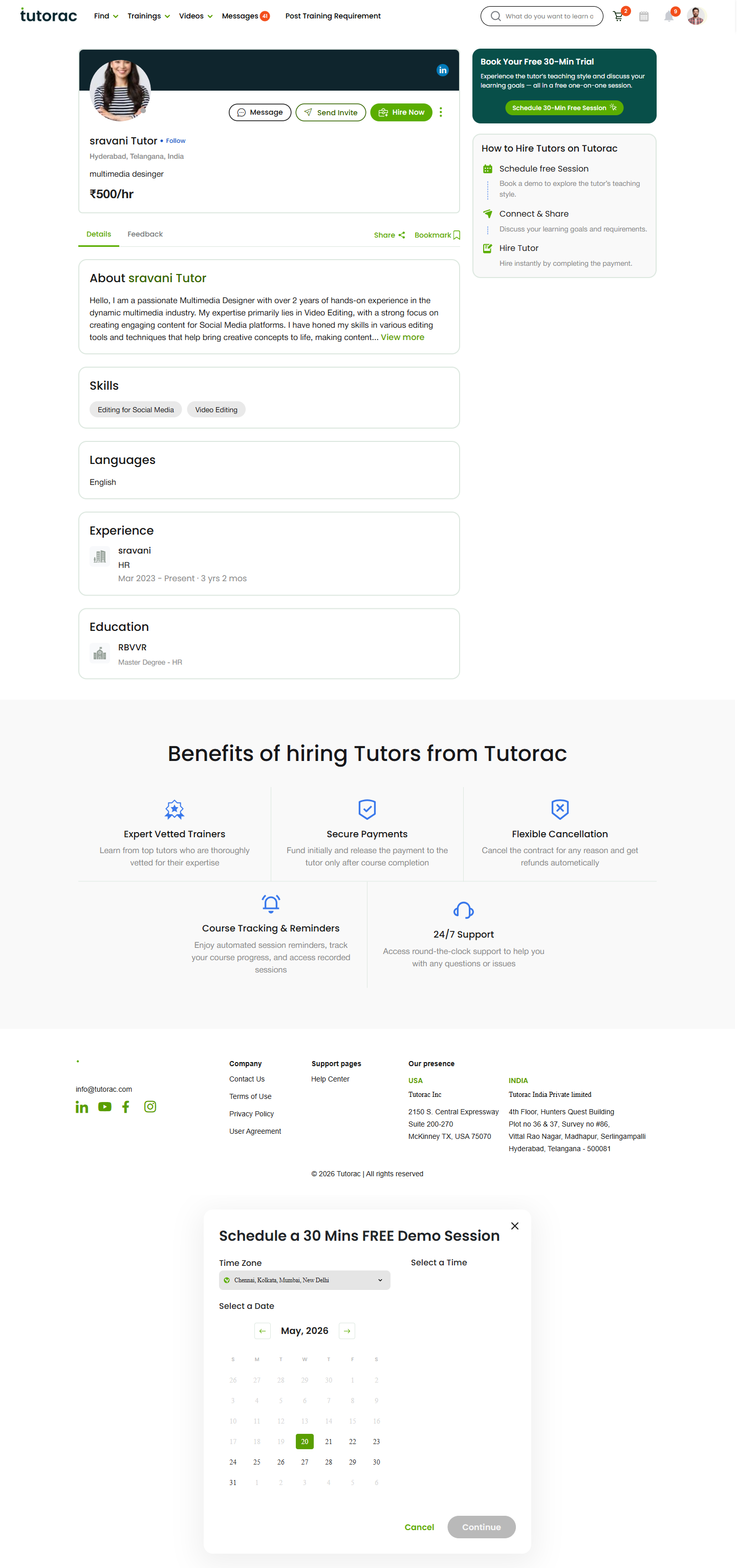
    Tutorac Schedule a 30 Mins FREE Demo Session modal on a tutor profile.

    This is the single best way to discover whether Tutorac (and live tutoring in general) fits your learning style. See How to book a Free Demo.

    5. Post your first Training Requirement (optional but recommended)

    If you have a clear learning goal, post a Training Requirement. It’s free, takes about 3–5 minutes, and tutors will start sending proposals — sometimes within an hour. Use the green Post Training Requirement button in the top nav.

    Two paths:

    • AI-assisted — type a one-line description plus your budget; Tutorac drafts the full requirement for you.
    • Manual 5-step wizard — title, skills, description, schedule, budget. Best when you want full control.

    See How to post a Training Requirement.

    Bonus: bookmark these pages

    • Dashboard — tutorac.com/student/dashboard
    • My Training Posts — tutorac.com/student/job-post
    • Messages — tutorac.com/messages/profile
    • Find Tutors — tutorac.com/find-tutors
    • Profile — tutorac.com/student/profile/personal-info

    FAQs

    Do I have to post a Training Requirement to use Tutorac?

    No. You can also enrol in Live Courses or hire tutors directly from Find Tutors. Posting a requirement is best when your goal is specific and you want tutors to compete for it.

    How many demos can I book?

    As many as you need. Each tutor offers a free 30-minute demo. Booking 2–3 demos before hiring is normal and recommended.

    When should I add my payment method?

    Only when you’re about to hire a tutor and start a contract. Tutorac doesn’t charge for browsing, demos, posting requirements, or receiving proposals.

    What if I’m not sure what I want to learn?

    Browse Live Courses for inspiration, or book demos with tutors in adjacent fields. A 30-minute conversation often clarifies your goal faster than research alone.

    How long should I wait for proposals after posting a requirement?

    Usually within a few hours for in-demand topics. Within 24 hours for most others. If you have nothing after 48 hours, your requirement may be too narrow — edit it to broaden scope or budget.


    Related articles

    Last updated: 27 May 2026

  • Picking your role on Tutorac: Learner, Tutor, Agency, or Business

    Tutorac has four roles — Learner, Tutor, Agency, and Business. You pick one when you sign up, and that choice shapes everything you see afterwards. This article explains what each role does, how to pick the right one, and what to do if you picked the wrong one.

    In this article

    Why your role matters

    Roles aren’t cosmetic. The Tutorac dashboard, navigation, billing, contracts, and even the actions available to you all change depending on your role. A Learner can post a Training Requirement and hire a tutor — a Tutor can’t. A Business can manage team-wide training and bulk invoicing — a Learner can’t. Picking the right role at sign-up saves you from creating a second account later.

    The role picker

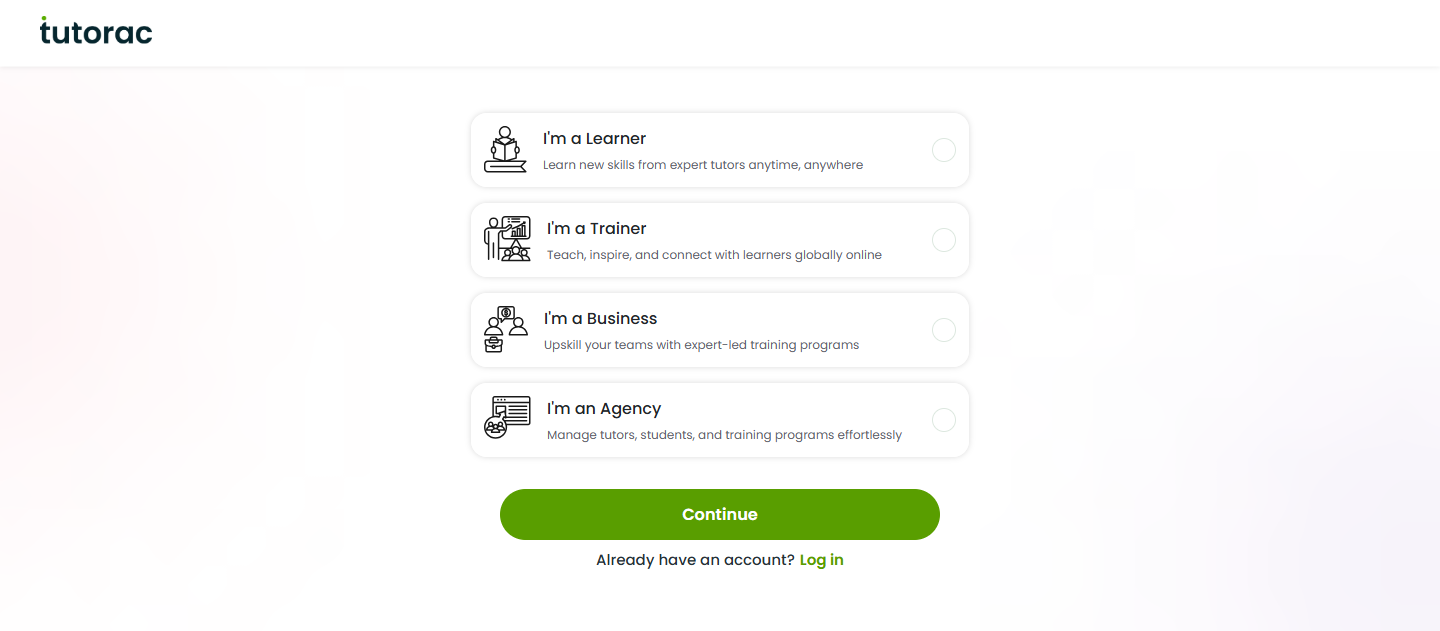
    The first page of sign-up is tutorac.com/signup/role. It shows four cards: I’m a Learner, I’m a Trainer (this is what Tutorac calls tutors during signup), I’m a Business, and I’m an Agency. Click the one that matches you. The rest of the sign-up flow is tailored to that role.

    Tutorac signup role picker showing four cards: I'm a Learner, I'm a Trainer, I'm a Business, I'm an Agency.

    Note on naming: at sign-up Tutorac uses the label “Trainer” for tutors. Everywhere else in the product — Find Tutors, tutor profiles, the Help Center — the same role is called “Tutor”. They are the same thing.

    I’m a Learner

    Pick this if you want to learn — take live courses, hire tutors for one-to-one training, or post requirements and hire from proposals.

    What you can do as a Learner:

    • Browse Live Courses and enrol.
    • Browse the tutor marketplace and book free demos.
    • Post Training Requirements and receive proposals.
    • Hire tutors and start Training Contracts.
    • Join sessions, message tutors, get a Tutorac certificate on supported tracks.

    This is the role most individuals want.

    I’m a Tutor (Trainer)

    Pick this if you want to teach — offer your expertise to learners as a paid tutor.

    What you can do as a Tutor:

    • Build a profile showcasing your skills, experience, and certifications.
    • Get matched to learner Training Requirements and send proposals.
    • Offer free demo sessions.
    • Accept Training Offers, run live sessions, and receive payouts via Tutorac Payment Protection.
    • Build a rating and reputation on the platform.

    Tutor verification is required before you can list publicly. See the For Tutors section of this Help Center.

    I’m a Business

    Pick this if you’re sourcing training for your employees — team upskilling, certifications, onboarding programs.

    What you can do as a Business:

    • Post Training Requirements at the company level.
    • Hire tutors or agencies for team-wide programs.
    • Manage multiple training contracts under one billing account.
    • Get consolidated invoices and tax documents for your business.

    The Business role assumes a company is paying, not an individual.

    I’m an Agency

    Pick this if you represent multiple tutors — a training company, consultancy, or institute that fields tutors for engagements on Tutorac.

    What you can do as an Agency:

    • Add tutors to your agency and manage their profiles.
    • Send proposals on agency letterhead.
    • Track multiple ongoing engagements across tutors.
    • Centralised billing, payouts, and reporting.

    Which role should I pick?

    • “I want to learn something new” → Learner.
    • “I want to get certified and have job-oriented training” → Learner.
    • “I want to teach” → Tutor.
    • “I want to upskill my team / company” → Business.
    • “I run a training company / consultancy” → Agency.

    When unsure, pick Learner — it’s the most common starting point and you can always create a second account later.

    Can I change my role later?

    Roles are tied to the account itself, so you can’t flip a Learner account into a Tutor account from the settings. Two options:

    • Create a second account with a different email and pick the new role at the role picker. (Many people legitimately have both a Learner account and a Tutor account.)
    • Contact Tutorac Support if you signed up as the wrong role by mistake and have no activity yet — they can sometimes change the role on the existing account.

    FAQs

    I’m a student paying for myself, not a company. Which role?

    Learner. The Business role is only for companies paying for employees.

    I’m a freelance trainer working solo. Tutor or Agency?

    Tutor. Agency is for when you represent multiple tutors.

    Can I be both a Learner and a Tutor?

    Yes, but on separate accounts (different email addresses). Many active members do exactly this.

    Why does Tutorac call tutors “Trainers” at signup?

    It’s a labelling quirk — the signup card says “I’m a Trainer” while the rest of the product uses “Tutor”. The role is the same. Pick “I’m a Trainer” if you want to teach.

    Are there separate apps for each role?

    No — same site and login, but the experience adapts based on your role.

    Will my data move if Support changes my role?

    If you have no contracts or earnings yet, Support can usually switch the role cleanly. Once you have activity, it’s safer to open a fresh account in the right role.


    Related articles

    Last updated: 27 May 2026

  • A tour of the Tutorac learner dashboard

    Your learner dashboard is the command center for everything you do on Tutorac — finding tutors, posting Training Requirements, managing contracts, joining sessions, and messaging. This tour walks you through every section so you know exactly where to click.

    In this article

    How to open the dashboard

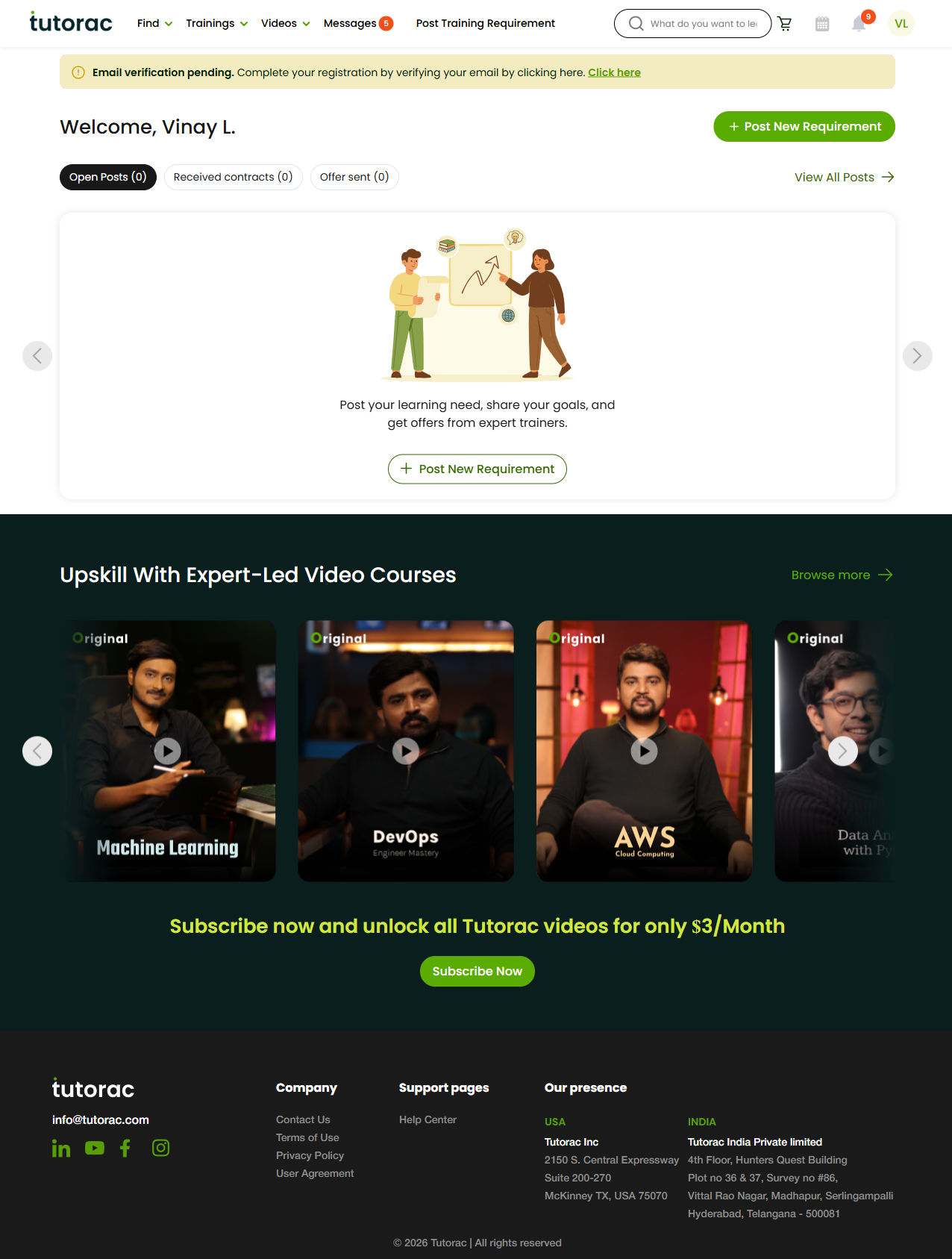
    Once you’re signed in, you land on the dashboard automatically. You can also open it any time by clicking the Tutorac logo in the top-left of any signed-in page, or by going directly to tutorac.com/student/dashboard.

    The top navigation bar

    The top bar is sticky — it stays visible as you scroll. Left to right, you’ll see:

    Tutorac learner top navigation bar showing Find, Trainings, Videos, Messages, Post Training Requirement, and avatar.
    • Tutorac logo — takes you back to the dashboard.
    • Find — dropdown to discover tutors and live courses.
    • Trainings — dropdown for your requirements, batches, contracts, and demos.
    • Videos — access video courses you’ve enrolled in.
    • Messages — opens your chat hub with all tutors.
    • Post Training Requirement — primary CTA to post a new requirement.
    • Avatar (your profile photo or initials) — menu for profile, settings, and sign-out.

    The Find menu

    Hover or tap Find:

    • Find Live Courses — browse cohort-based programs you can enrol in directly. (/student/live-courses)
    • Find Tutors — browse all verified tutors with filters for category, location, language. (/find-tutors)

    This is where most discovery starts.

    The Trainings menu

    Hover or tap Trainings. This is your work hub:

    • My Training Posts — all the Training Requirements you’ve posted (Draft / Active / Hired / Closed).
    • My Training Batches — live training sessions you’re currently part of.
    • All Contracts — every Training Offer and contract you’ve sent or received.
    • My 1-to-1 Requests — one-to-one tutoring requests.
    • My Demos — free demo sessions you’ve booked or held.

    If you’ve never posted a requirement before, most of these will be empty — that’s normal.

    Post Training Requirement

    The green Post Training Requirement button in the nav is your fastest way to start a new search. Click it any time you have a learning need — it opens the requirement editor with two paths (AI-assisted or manual 5-step). See How to post a Training Requirement on Tutorac.

    The avatar menu

    Click your avatar in the top-right. You get:

    • Profile — edit personal info, learning interests, career level, billing details. (/student/profile/personal-info)
    • Change Password — for email/password accounts.
    • Settings — account preferences and notifications.
    • Log Out — ends your session.

    The dashboard body

    Below the top bar, the dashboard summarises your activity:

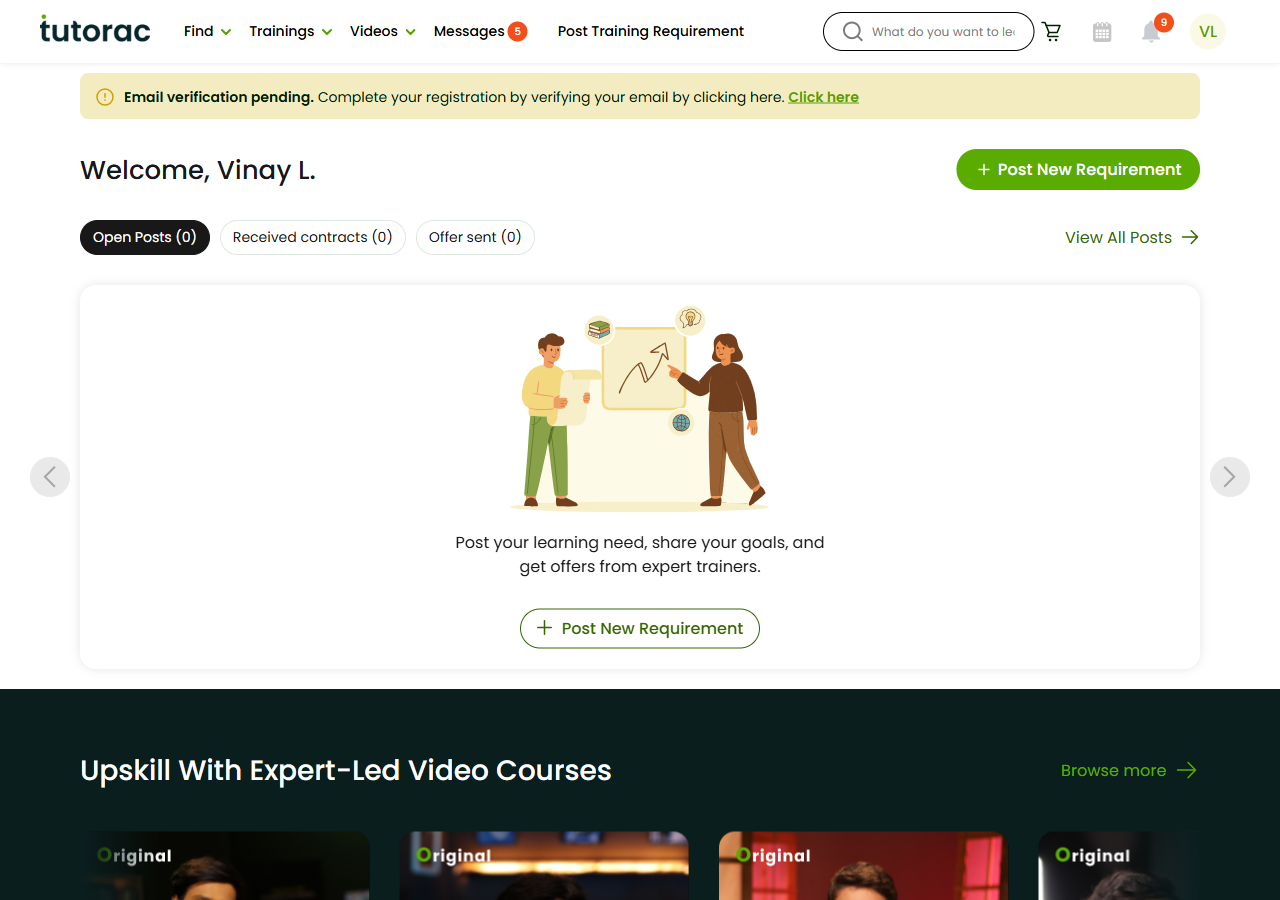
    Tutorac learner dashboard showing greeting, quick stats, recent activity, and recommended actions.
    • Greeting + quick stats — how many active Training Requirements you have, how many proposals you’ve received, upcoming sessions.
    • Recent activity feed — the latest proposals, messages, and session updates.
    • Recommended actions — suggested next steps based on where you are in your learning journey (e.g., “Complete your profile” or “Review 3 new proposals”).
    • Quick links — shortcuts to Post Training Requirement, Find Tutors, and Messages.

    The dashboard fills out as you start posting, hiring, and learning. A brand-new account will mostly show prompts to get started.

    FAQs

    I see a tutor dashboard instead of a learner dashboard. Why?

    You probably signed up as a Tutor or Trainer. Tutor and learner are separate roles in Tutorac. See Picking your role on Tutorac for how to switch or create a second account.

    The dashboard looks empty — is something wrong?

    No. A new learner account starts with no requirements, contracts, or sessions. As you post and hire, content fills in.

    Where do I see all my unread messages?

    Click Messages in the top nav. Unread threads show a counter next to the menu item.

    Can I customise the dashboard layout?

    Not at this time. Sections are arranged for what most learners need at each stage.

    Does the mobile dashboard show the same things?

    Yes — the top nav collapses into a hamburger menu, but every section is available.


    Related articles

    Last updated: 27 May 2026

  • How to sign in to and out of Tutorac

    Signing in to Tutorac unlocks your dashboard, training contracts, messages, and demo bookings. This article shows you where to sign in, the three sign-in methods, what to do if you forgot your password, and how to sign out safely.

    In this article

    Where to sign in

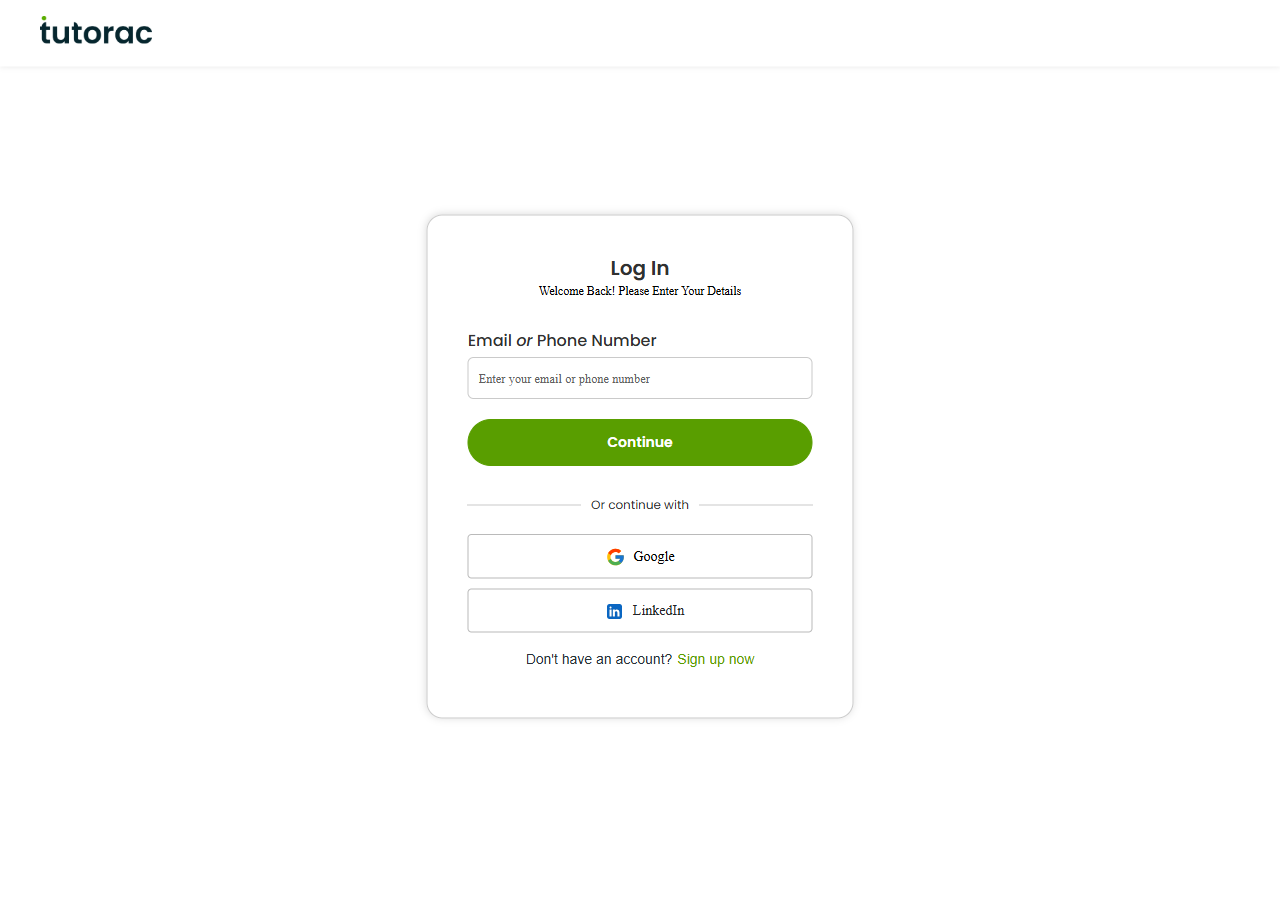
    Go to tutorac.com/sign-in. You can also click Sign In in the top-right of any page on tutorac.com.

    Tutorac sign-in page with email/phone field and Google and LinkedIn sign-in buttons.

    You can sign in three ways:

    • Email or phone + password
    • Google
    • LinkedIn

    Whichever method you choose first becomes the primary way you sign in. You can’t mix methods on the same account (for example, a Google-created account isn’t accessible with email/password unless you set a password later in account settings).

    Sign in with email and password

    1. Open tutorac.com/sign-in.
    2. Type your registered email address or phone number.
    3. Click Continue.
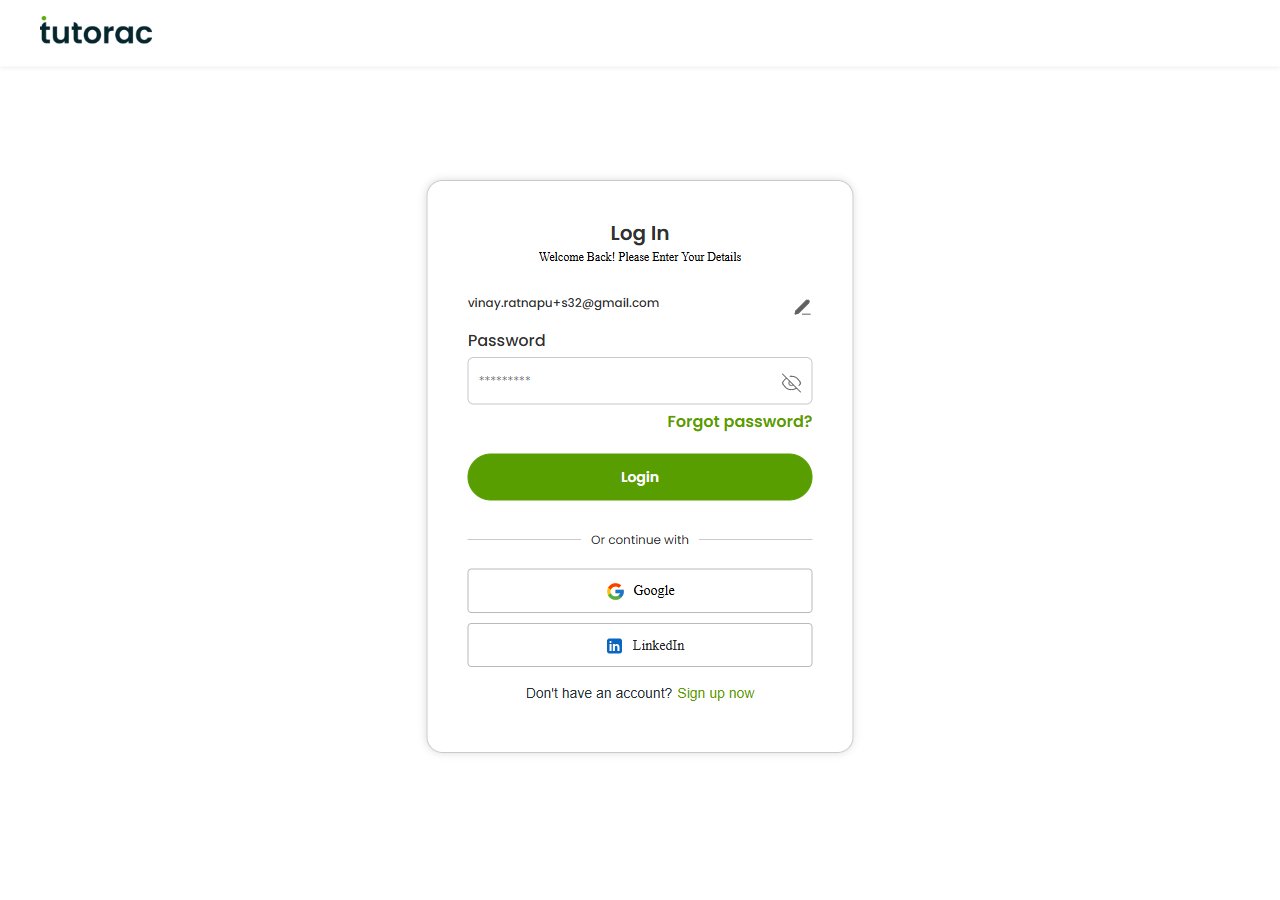
    4. Enter your password.
    5. Click Login.
    Tutorac sign-in password step showing the password field and Login button after entering your email.

    Tutorac uses a two-step sign-in (identifier first, then password). This lets the platform route you correctly if you originally signed up with Google or LinkedIn — instead of asking for a password you never set, it sends you to the right provider.

    Sign in with Google

    1. On the sign-in page, click Continue with Google.
    2. Choose your Google account in the popup.
    3. Approve Tutorac to access your basic profile (name, email) if it’s your first time.

    You’ll land on your learner dashboard. No Tutorac password needed.

    Sign in with LinkedIn

    1. On the sign-in page, click Continue with LinkedIn.
    2. Sign in to LinkedIn if prompted.
    3. Approve Tutorac to access your basic profile.

    LinkedIn sign-in is handy if you want your Tutorac profile to mirror your professional identity from the start.

    Forgot your password

    1. Click Forgot Password? on the sign-in page (or open tutorac.com/forgot-password).
    2. Enter the email associated with your Tutorac account.
    3. Submit, then check your inbox for a reset link.
    4. Click the link and set a new password.
    5. Sign in with the new password.

    If you originally signed up with Google or LinkedIn, you won’t have a password yet — use the corresponding social button instead.

    How to sign out

    1. From any signed-in page, click your avatar (top-right corner of the navigation bar).
    2. Scroll to the bottom of the menu.
    3. Click Log Out.

    Always sign out on shared or public computers. On your own device, staying signed in is fine and lets you respond to tutor messages faster.

    Troubleshooting

    “User not found” or “Invalid credentials”

    • Confirm you’re typing the email or phone you signed up with (not a personal alias).
    • Try the social sign-in buttons — you may have signed up with Google or LinkedIn.
    • Reset your password if the email is correct but the password isn’t.

    Reset email not arriving

    • Check Spam, Promotions, or Updates folders.
    • Wait 5 minutes and try again. Don’t spam-submit — only the latest reset link works.
    • If still missing after 10 minutes, contact Tutorac Support with the email address you used.

    Google/LinkedIn popup blocked

    Allow popups from tutorac.com in your browser settings and try the social button again.

    FAQs

    Can I use both Google and email/password for the same account?

    Yes — if you signed up with Google, you can set a Tutorac password later from Profile › Change Password. After that, either method works.

    I have two Tutorac accounts by accident. What do I do?

    Contact Tutorac Support with both email addresses. They can merge your training history and keep the right account.

    Is sign-in via phone number supported?

    Yes — type your registered phone number in the same identifier field on the sign-in page, then enter your password.

    How long does a session last?

    Roughly two weeks of inactivity. After that, you’ll be asked to sign in again. Sensitive actions (changing password, releasing payments) can require re-authentication earlier.

    Should I stay signed in?

    On your personal device, yes — it makes responding to tutors faster. On public/shared devices, always sign out.


    Related articles

    Last updated: 27 May 2026

  • What is Tutorac? A learner’s overview

    Tutorac is an online marketplace that connects learners with verified tutors for live, one-to-one and small-group training. This guide explains what Tutorac is, the three ways to learn on it, and how the platform protects you from sign-up to certificate.

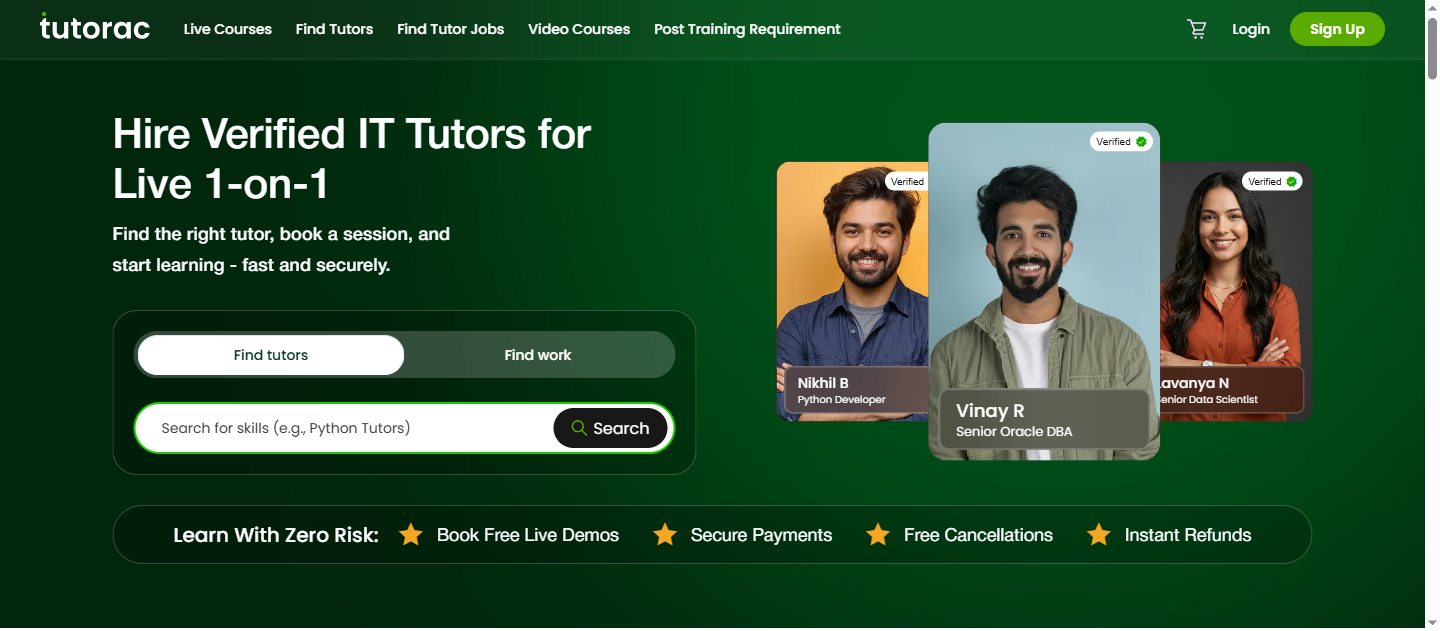
    Tutorac homepage showing the live-tutoring marketplace with browse, find tutors, and live courses navigation.

    In this article

    What is Tutorac?

    Tutorac is a job-oriented online learning marketplace built around live training with real human tutors. Instead of pre-recorded courses, you learn through scheduled live sessions, hands-on labs, and projects with a tutor who has industry experience. Tutorac covers IT, cloud, data, software development, AI, and many academic and professional subjects, and operates primarily in India and the United States.

    Three ways to learn on Tutorac

    • Live Courses — pre-scheduled cohort programs that a tutor runs on a fixed calendar. You enrol, join the batch, and learn alongside other students. Good for structured curricula like cloud certifications or full-stack bootcamps.
    • Find Tutors — browse the marketplace, shortlist a tutor, book a free 30-minute demo, and hire them for one-to-one training. Good when you have a specific topic and want a tailored engagement.
    • Training Requirements — post your learning need and let verified tutors send you proposals (price, scope, schedule, milestones). Compare proposals and hire the best fit. Good for project-based or outcome-driven learning.

    All three paths use the same payment protection, messaging, and training-batch infrastructure under the hood.

    Who Tutorac is for

    • Working professionals upskilling for a new role, certification, or technology stack.
    • Students looking for help with academics or interview prep beyond the classroom.
    • Career-switchers needing structured, job-oriented training in IT, data, cloud, or software.
    • Employers and agencies sourcing tutors for team training (separate Business and Agency roles).

    If you’re a tutor wanting to teach on Tutorac, see the For Tutors section of this Help Center.

    How tutors are verified

    Every tutor goes through identity and credential checks before they can list themselves on the marketplace. Profiles show:

    • Verified name, location, and contact.
    • Years of experience and specialisations.
    • Skills and certifications relevant to their teaching.
    • Past Tutorac engagements, ratings, and reviews.
    • Demo session availability so you can evaluate them before paying.

    Tutors with patterns of complaints or policy violations are removed.

    Tutorac Payment Protection

    When you hire a tutor, the money you pay goes into Tutorac Payment Protection (escrow) — not directly to the tutor. Funds are released to the tutor only as agreed milestones complete (per session on hourly contracts, per milestone on fixed-price contracts). You can:

    • Cancel the offer any time before the tutor accepts — full refund.
    • Cancel even after acceptance if you’re not satisfied — Tutorac mediates and refunds the unused balance per the Cancellation & Refunds policy.
    • Always keep payments inside Tutorac. Asking to pay outside the platform is a policy violation and a red flag.

    What you get as a learner

    • Live one-to-one or small-group sessions with the tutor on a video call.
    • A training batch workspace for every contract — schedule, session history, shared files, recordings (where applicable).
    • A persistent chat thread with each tutor for questions, follow-ups, and rescheduling.
    • A Tutorac certificate on supported tracks once the training completes.
    • Free 30-minute demo sessions with any tutor before you commit.

    How pricing works

    • Browsing, posting Training Requirements, receiving proposals, messaging tutors, and booking demos are all free.
    • You pay only when you accept a proposal and start a Training Contract.
    • Pick between Hourly Payment (best for open-ended training) and Fixed Price (best for a clearly bounded outcome).
    • Prices are negotiated with the tutor and shown in your local currency (often ₹ for India).

    Getting started in 5 steps

    1. Sign up or sign in at tutorac.com/sign-in.
    2. Set up your learner profile — name, learning interests, time zone. (See How to set up your learner profile.)
    3. Pick your path — enrol in a Live Course, find a tutor, or post a Training Requirement.
    4. Book a free demo with the tutor before hiring. (See How to book a Free Demo.)
    5. Hire and start a Training Contract when you’re ready. (See How to hire a tutor and start a Training Contract.)

    FAQs

    Is Tutorac a course platform like Coursera or Udemy?

    No. Coursera and Udemy are mostly pre-recorded video libraries. Tutorac is a live-tutoring marketplace — you learn in real-time with a human tutor scheduled around your calendar, with chat, shared files, and recordings layered on top.

    Where does Tutorac operate?

    Primarily in India and the United States, with tutors and learners in other countries as well. Both Global and India-specific tutor pools are available on the Find Tutors page.

    Is there a free trial?

    Yes — every tutor offers a free 30-minute demo session so you can evaluate teaching style and fit before paying for any contract.

    What subjects can I learn on Tutorac?

    The strongest categories are IT software, cloud computing, data science and AI, software and web development, and academics. The Find Tutors page filters cover the live list.

    What if I’m not satisfied with a tutor?

    You can cancel the offer before the tutor accepts, or cancel mid-engagement under Tutorac Payment Protection and recover unused funds. You can also rate the tutor so future learners benefit from your experience.

    Are Tutorac certificates recognised?

    Tutorac certificates are issued on supported tracks. They demonstrate completion of a structured engagement with a verified tutor and are widely accepted as a credible signal in resumes and LinkedIn profiles. They are independent of formal academic accreditation.

    Can I learn part-time around a job?

    Yes. Most learners pick weekday evenings or weekends. You set the time slot on your Training Requirement, and tutors propose against your availability.


    Related articles

    Last updated: 27 May 2026

  • Understanding the proposal structure on Tutorac

    A proposal is more than a price quote — it’s a structured offer the tutor sends in response to your Training Requirement. This guide breaks down every part of a Tutorac proposal so you know exactly what to read, what to compare, and what good looks like.

    In this article

    What is a proposal on Tutorac?

    A proposal is a tutor’s formal response to your Training Requirement. It bundles the tutor’s pitch, scope, price, schedule, and milestones into a single card on your Proposals page. You can have many proposals against one Training Requirement; comparing them well comes down to reading each section carefully.

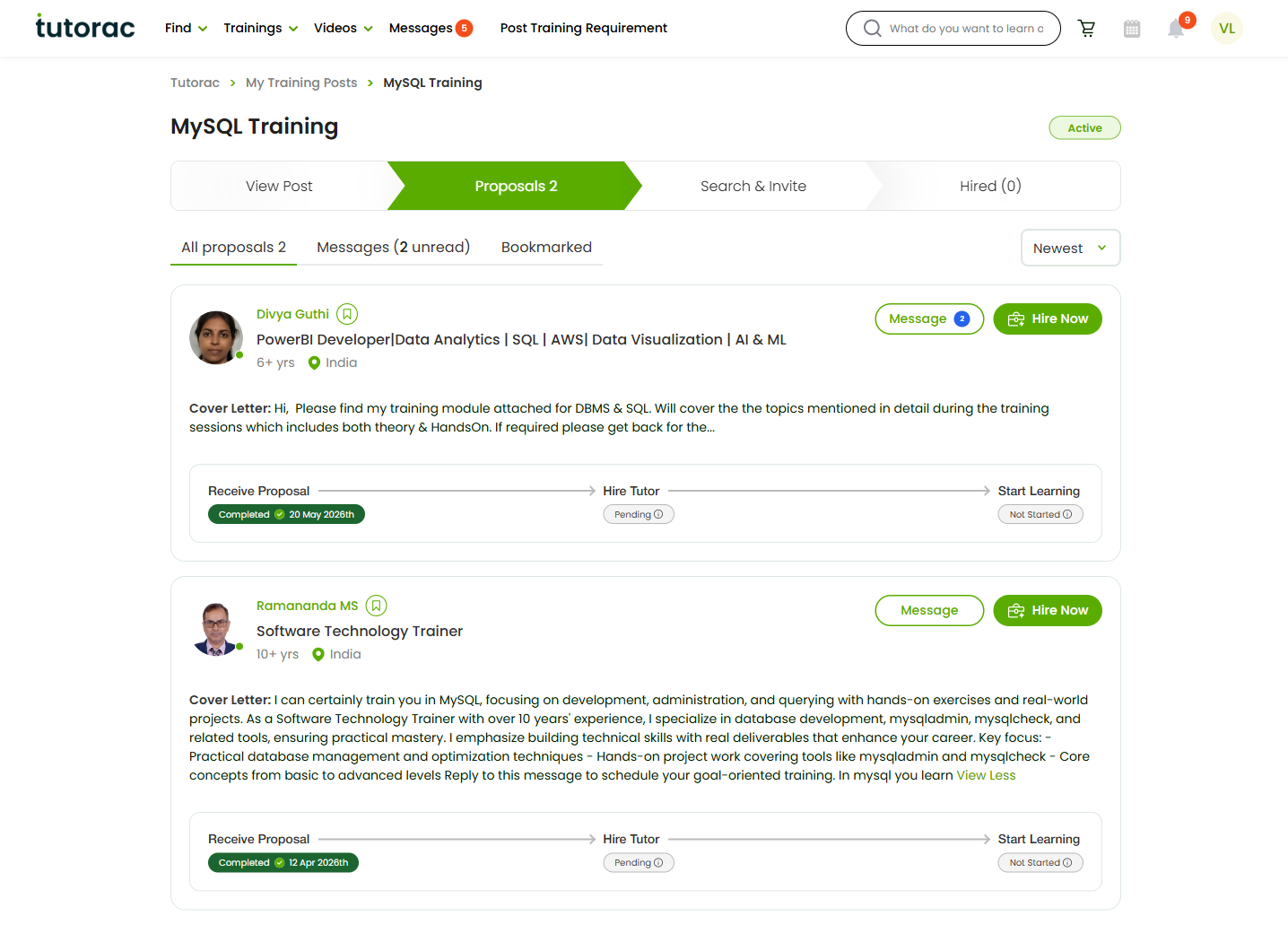
    Tutorac proposal cards showing tutor header (name, headline, years of experience, location), Message and Hire Now buttons, expanded cover letter, and the Receive Proposal / Hire Tutor / Start Learning progress timeline.

    The top strip of each proposal card identifies the tutor:

    • Name — clickable; opens the tutor’s full Tutorac profile in a new tab.
    • Headline — the one-line specialisation the tutor wrote (e.g., “PowerBI Developer | Data Analytics | SQL | AWS”). Read this first to decide if their specialisation matches your need.
    • Years of experience — total years working in the field (e.g., 6+ yrs, 10+ yrs).
    • Location — country and sometimes city. Useful for timezone alignment.

    Use the header to shortlist — not to decide. The cover letter and scope are where you actually evaluate fit.

    2. Cover letter

    The Cover Letter is the tutor’s pitch. It typically covers:

    • How they understood your Training Requirement.
    • What they propose to cover (a syllabus or outline).
    • Their teaching approach — lectures, hands-on labs, projects, doubt-clearing, mock interviews.
    • Why they’re a fit (relevant experience, similar engagements, specialisations).
    • Any prerequisites or expectations.

    Use the View More / View Less toggle to expand the full text. A strong cover letter quotes specifics from your requirement (your topic, level, outcome). A weak one is generic and could be sent to anyone.

    3. Price and price type

    Each proposal has a price expressed in one of two forms:

    • Hourly rate (e.g., ₹700/hour) — you pay per hour of teaching. Best when scope is open-ended or evolving.
    • Fixed price (e.g., ₹20,000 total) — one agreed amount for the entire engagement. Best when the outcome is clearly bounded (e.g., a certification, a defined syllabus, a finished project).

    Tutors sometimes set their rate slightly above what they’ll actually accept — price is negotiable. Compare each tutor’s price against the budget range you posted on the Training Requirement. (See How to negotiate a proposal with a tutor.)

    4. Scope, hours, and duration

    Most proposals state an estimated number of hours and a duration (in weeks). On hourly proposals these drive the total cost; on fixed proposals they set the expected effort.

    Watch for two patterns:

    • Under-scoped — the price looks low but the hours are too few to actually deliver the outcome.
    • Over-scoped — the hours and duration are inflated relative to what comparable proposals quote.

    If hours feel off, raise it in the chat (“could you walk me through the 40 hours?”). A confident tutor can break their estimate down by topic.

    5. Schedule and start date

    The proposal usually states:

    • Frequency — daily, weekly, weekend, or custom.
    • Days of the week — for example, Mon – Wed – Fri.
    • Time slot — a window (e.g., 7:00 – 9:00 pm IST) with the tutor’s timezone.
    • Start date — immediately, within a week, in 1–3 months, or to be agreed.

    Even if everything else is perfect, schedule mismatch is the most common reason a great tutor doesn’t work out. Verify your timezone overlap and your weekly availability against theirs before hiring.

    6. Milestones and deliverables

    The strongest proposals include milestones — concrete checkpoints with deliverables and dates. Typical examples:

    • End of Week 1: SQL basics — CRUD on a sample database.
    • End of Week 2: JOINs and aggregations — build a sales report.
    • End of Week 4: Window functions — finish a real-world analytics project.
    • Final: A capstone project the learner can put in a portfolio.

    Milestones help both sides:

    • You know what to expect each week.
    • The tutor knows what to prepare.
    • For fixed-price contracts, milestones determine when payments are released from Tutorac Payment Protection (escrow).

    If a proposal has no milestones, ask the tutor in chat to add them — the proposal can be revised before you hire.

    7. Attachments (if any)

    Some tutors attach supporting documents alongside the proposal:

    • A detailed syllabus or course outline.
    • A sample lesson plan or recording link.
    • Their CV or a project portfolio.
    • References from previous Tutorac learners.

    Click any attachment to preview or download. Attachments are a strong positive signal — they show the tutor invested time in your Training Requirement.

    8. Action buttons

    Every proposal card carries the same set of actions:

    • Message — opens the chat thread with this tutor in the Messages hub. An unread badge appears when the tutor has sent something new.
    • Hire Now — opens the Send Training Offer page so you can create a Training Contract. (See How to hire a tutor and start a Training Contract.)
    • View More / View Less — expand or collapse the cover letter.
    • Bookmark — mark this proposal so you can return to it via the Bookmarked filter at the top of the page.

    9. Progress timeline

    At the bottom of every card you’ll see a three-step progress tracker:

    • Receive Proposal — Completed the moment the tutor sends the proposal.
    • Hire Tutor — Pending until you click Hire Now and the tutor accepts the offer.
    • Start Learning — Not Started until the first session is held.

    The tracker is per-tutor, not per Training Requirement. You can have one tutor at Hire Tutor: Pending while another is at Start Learning: Not Started for the same Training Requirement.

    What a strong proposal looks like vs. a weak one

    Signs of a strong proposal

    • References your topic, level, and outcome by name.
    • Breaks scope into a clear week-by-week or topic-by-topic syllabus.
    • Lists concrete milestones with deliverables.
    • Names the teaching approach (labs, projects, mocks, recorded sessions).
    • Quotes a price that maps cleanly to hours and outcomes.
    • Suggests a realistic schedule with the right timezone.
    • Includes an attachment or two with supporting material.

    Signs of a weak proposal

    • Generic cover letter that could have been sent to any learner.
    • No specifics on scope — just “I can teach this end-to-end.”
    • No milestones or deliverables.
    • Price feels arbitrary — either far above or far below comparable proposals.
    • Schedule is vague (“flexible” with no concrete time slot).
    • Asks you to communicate or pay outside Tutorac — a red flag; politely decline and report if pushy.

    FAQs

    Can a proposal change after the tutor sends it?

    Yes. The tutor can send a revised proposal based on chat negotiation. Each new version appears as a system notification in the chat thread and replaces the previous version on the Proposals page.

    What if the proposal doesn’t show milestones?

    Ask for them in the chat. Most tutors are happy to add weekly checkpoints — it’s in their interest too, especially on fixed-price contracts where milestones drive payments.

    Are hours an estimate or a commitment?

    On hourly contracts, hours are a planning estimate — you pay for actual hours taught. On fixed contracts, hours are an effort estimate — the total price is locked regardless.

    How do I view the tutor’s full profile?

    Click the tutor’s name in the proposal header. Tutorac opens their full profile in a new tab, with bio, skills, ratings, past trainings, and free-demo availability.

    Is the price what I’ll actually pay?

    On a hourly contract, your total depends on hours actually taught. On a fixed contract, the price is exactly what you’ll pay. In both cases, you pay into Tutorac Payment Protection, and funds are released to the tutor as milestones complete.

    Can the tutor see I’ve read their proposal?

    Tutors see when you reply to their chat or interact with their proposal (bookmark, hire), but they don’t get a read receipt for opening the card itself. You’re free to compare quietly before responding.

    What’s the difference between a proposal and a Training Contract?

    A proposal is the tutor’s offer — non-binding until you accept. A Training Contract is created when you click Hire Now and fund the offer through Payment Protection; that’s when the engagement officially starts.


    Related articles

    Last updated: 21 May 2026