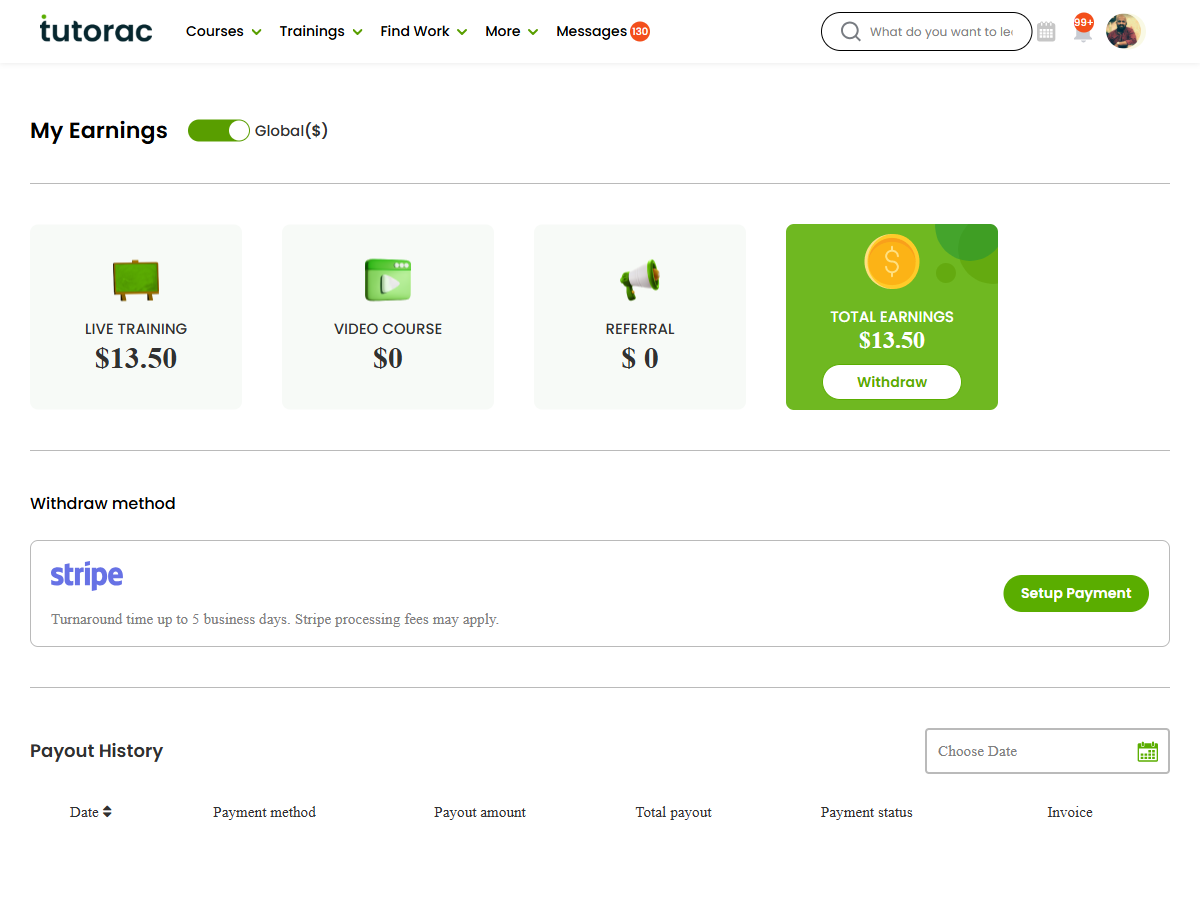
When learners enrol in and pay for your live course batches, you earn from that training. The more strong, well-reviewed courses you run, the more opportunities you create to earn.
Tracking your earnings
Open My Earnings from the profile menu to see your earnings in one place. This is where you review what you’ve earned across your training activity on Tutorac.
Getting paid out
Payouts go to the bank details on your profile, so make sure your Bank Details are complete and accurate. See the Earnings & Payouts section for how payouts work in detail.
Pricing, taxes, and more
How you price your training and any discounts you offer are covered in the Pricing & Discounts section. For tax-related details and your financial documents, see the Taxes & Financial Documents section.
FAQs
Where do I see my earnings?
Open My Earnings from the profile menu.
How do I get paid?
Payouts use the Bank Details on your profile. Keep them up to date. The Earnings & Payouts section explains the process.
Where do I set my course price?
Pricing and discounts are covered in the Pricing & Discounts section.
Once your live course is built, you run it with learners through batches. This article covers publishing your course, managing batches, and keeping your schedule organised.
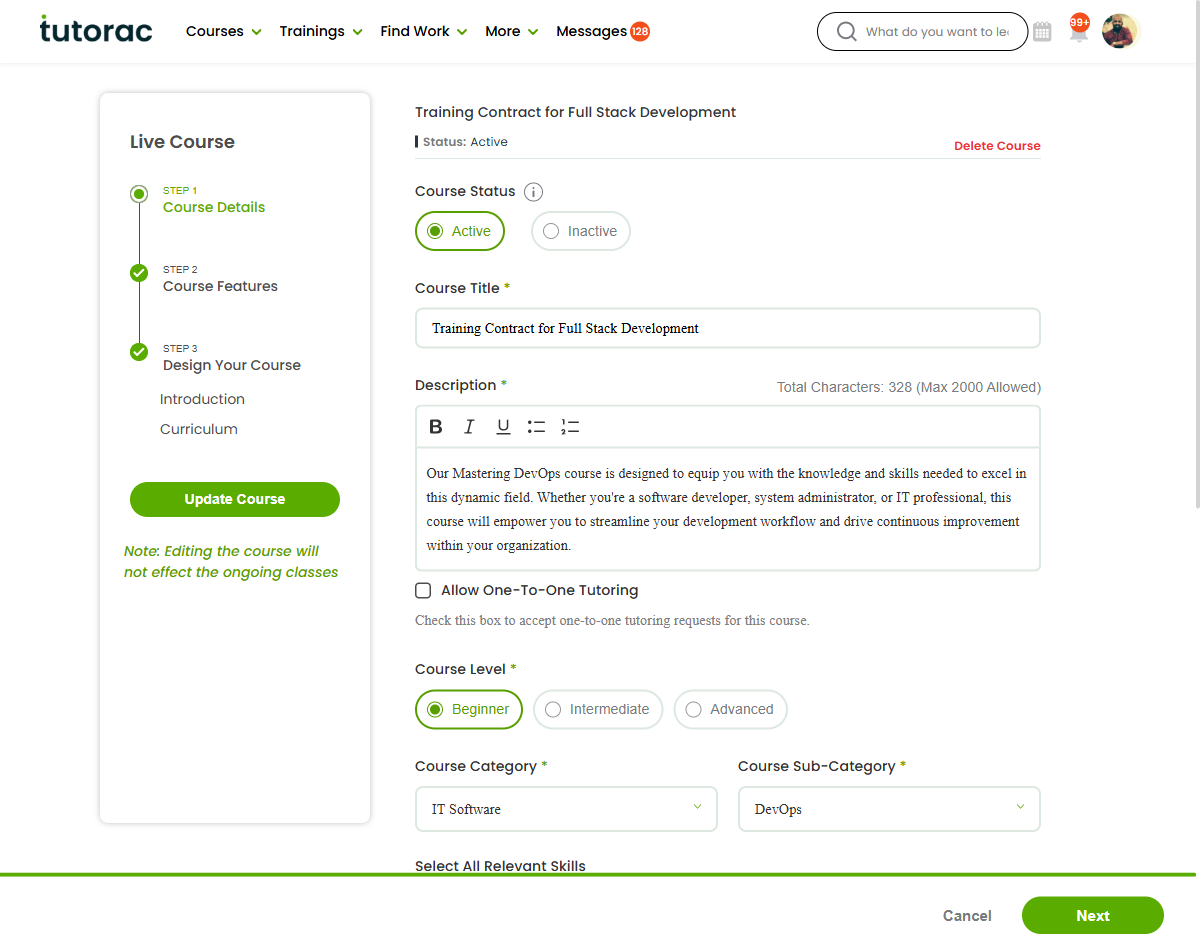
When your course is ready, set its Course Status to Active and save with Update Course. Active courses are available to learners; keep a course Inactive while you’re still working on it. Courses you haven’t finished appear under your Draft courses.
What batches are
A batch is a scheduled run of your live course with a group of learners. One course can have multiple batches over time. Your courses list shows the number of batches against each course, so you can see activity at a glance.
Managing your batches
From your dashboard, use Go to My Batches to open your batches list. From there you can see your batches and the learners in them, and manage each one. This is your home base for everything happening in your live courses day to day.
Keeping track of your schedule
Use your Calendar to keep your sessions organised and avoid clashes. Checking it regularly — alongside your notifications — helps you stay on top of upcoming sessions and respond to learners promptly.
FAQs
How do I make my course visible to learners?
Set its Course Status to Active and save with Update Course.
Where do I manage my batches?
Use Go to My Batches from your dashboard to open your batches list.
Can one course have more than one batch?
Yes. A course can run as multiple batches over time, each with its own group of learners.
Once you’ve started a live training course, you’ll move through four steps to build it: Details, Features, Video, and Curriculum. Here’s what to enter in each.
Allow One-To-One Tutoring — tick this to accept one-to-one requests for the course.
Course Level — Beginner, Intermediate, or Advanced.
Course Category and Course Sub-Category (required).
Relevant skills — select the skills this course covers.
Click Next to continue.
Step 2: Features
On the Features step, fill in two fields (each up to 2000 characters):
Who should take this course? — describe your ideal learner.
What will you learn in this course? — the outcomes and skills learners gain.
Step 3: Video
On the Video step:
Upload an introduction video — a brief MP4 outlining the course’s purpose, curriculum, and outcomes. This video is needed to display your course in a public ad.
Thumbnail image — upload an image that matches your course title to make it visually appealing. You can replace or remove it later.
Step 4: Curriculum
On the Curriculum step, build your sections, topics, quizzes, and assignments. You can:
Add Manually — create sections and topics yourself.
Create with AI — generate a starting curriculum to refine.
Switch between Sections & Topics and Topics only, and use Add Section to expand your outline.
Saving your course
Use Update Course to save your work. Set the Course Status to Active when it’s ready for learners, or keep it Inactive while you finish.
FAQs
Is the introduction video required?
You need an introduction video to display your course in a public ad, so it’s strongly recommended.
Can I generate my curriculum automatically?
Yes — use Create with AI on the Curriculum step, then refine the sections and topics.
Can I edit a course after saving?
Yes. Open the course from your courses list and use the same steps to edit, then Update Course.
Live Courses on Tutorac are real-time, tutor-led training sessions — you learn directly with a tutor on a schedule, rather than watching pre-recorded videos. This overview explains how live courses work, how they differ from video courses, and what your learning journey looks like from start to finish.
A live course is structured, scheduled training delivered by a tutor in real time. You and your tutor agree on what you’ll cover, when sessions happen, and how the training is paid for in milestones. Once you’ve enrolled, everything for that course lives in a training batch — your dedicated workspace for that engagement.
One-to-one vs group training
Live courses come in two formats:
One-to-one — private sessions with the tutor focused entirely on you, with pacing and topics tailored to your goals.
Group — you learn alongside other students in the same batch, usually at a set schedule and shared curriculum.
Both formats use the same training batch tools — sessions, curriculum, quizzes, and progress tracking.
Live courses vs video courses
The key difference is real-time interaction:
Live courses — scheduled sessions with a tutor, two-way interaction, a curriculum tailored to the batch, and milestone-based payment. Best when you want guidance, feedback, and accountability.
Video courses — pre-recorded lessons you watch at your own pace, any time, with no scheduling. Best for self-paced, independent learning.
Your live learning journey
A typical live course follows these stages:
Find and enrol — you find a tutor or training and enrol, agreeing the scope, schedule, and milestones.
Your batch is created — a training batch appears under My Training Batches with all your tools in one place.
Attend sessions — you join live sessions with your tutor on the agreed schedule.
Follow the curriculum and milestones — you work through topics, complete quizzes and assignments, and release milestone payments as work is completed.
Complete the course — once all milestones are done, the batch is marked completed and you can review your reports.
Where you manage everything
All your live courses live under My Training Batches in your student account. Open any batch to find its sessions, curriculum, shared files, quizzes and assignments, messages, progress reports, payments, and alerts — each on its own tab. The next articles in this section walk through each of those areas.
The format is set when you enrol, based on the training you choose. If you want a different format, you can look for another training or discuss options with the tutor before enrolling.
Do I need any special software to attend?
Live sessions are joined from your training batch. Make sure you have a stable internet connection and a device with a working microphone and (where needed) camera. Specific joining details are shown on the Sessions tab of your batch.
How do payments work for live courses?
Live courses are paid in milestones — you release payment as agreed portions of the training are completed. See Understanding milestones on Tutorac.
A Live Course on Tutorac is an instructor-led training delivered in real-time over scheduled sessions with a verified tutor. This article shows you how to find a Live Course, review its details and schedule, choose a batch, and complete enrollment.
You need a Tutorac learner account. Sign in at tutorac.com/sign-in using your email or phone number.
Have a valid payment method ready — payments are processed securely through Razorpay (cards, UPI, net banking, and wallets supported).
Check that your time zone is set correctly so Live Course session times display accurately for you.
Step 1: Find a Live Course
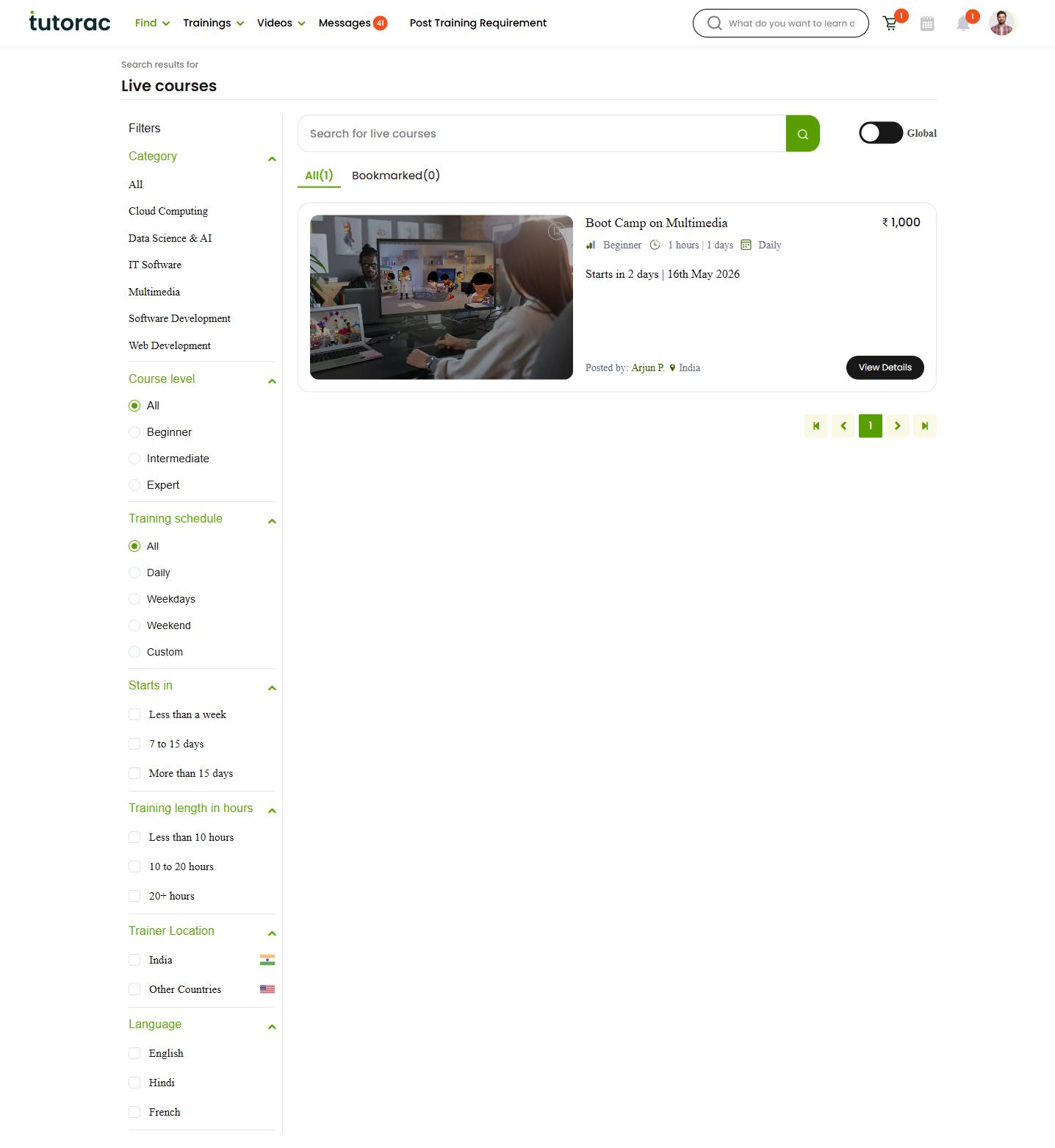
After signing in, open the Find menu in the top navigation and click Find Live Courses. This opens the Live Courses catalog where you can browse all available courses.
Step 2: Filter the catalog
Use the filters on the left to narrow down to courses that match what you’re looking for:
Category — for example, Cloud Computing, Data Science & AI, IT Software, Software Development, Web Development
Course level — Beginner, Intermediate, or Expert
Training schedule — Daily, Weekdays, Weekend, or Custom
Starts in — Less than a week, 7 to 15 days, or More than 15 days
Training length in hours — Less than 10 hours, 10 to 20 hours, or 20+ hours
Trainer Location — India or Other Countries
Language — English, Hindi, French, and more
You can also use the search box at the top of the catalog to find courses by keyword.
Step 3: Review the course details
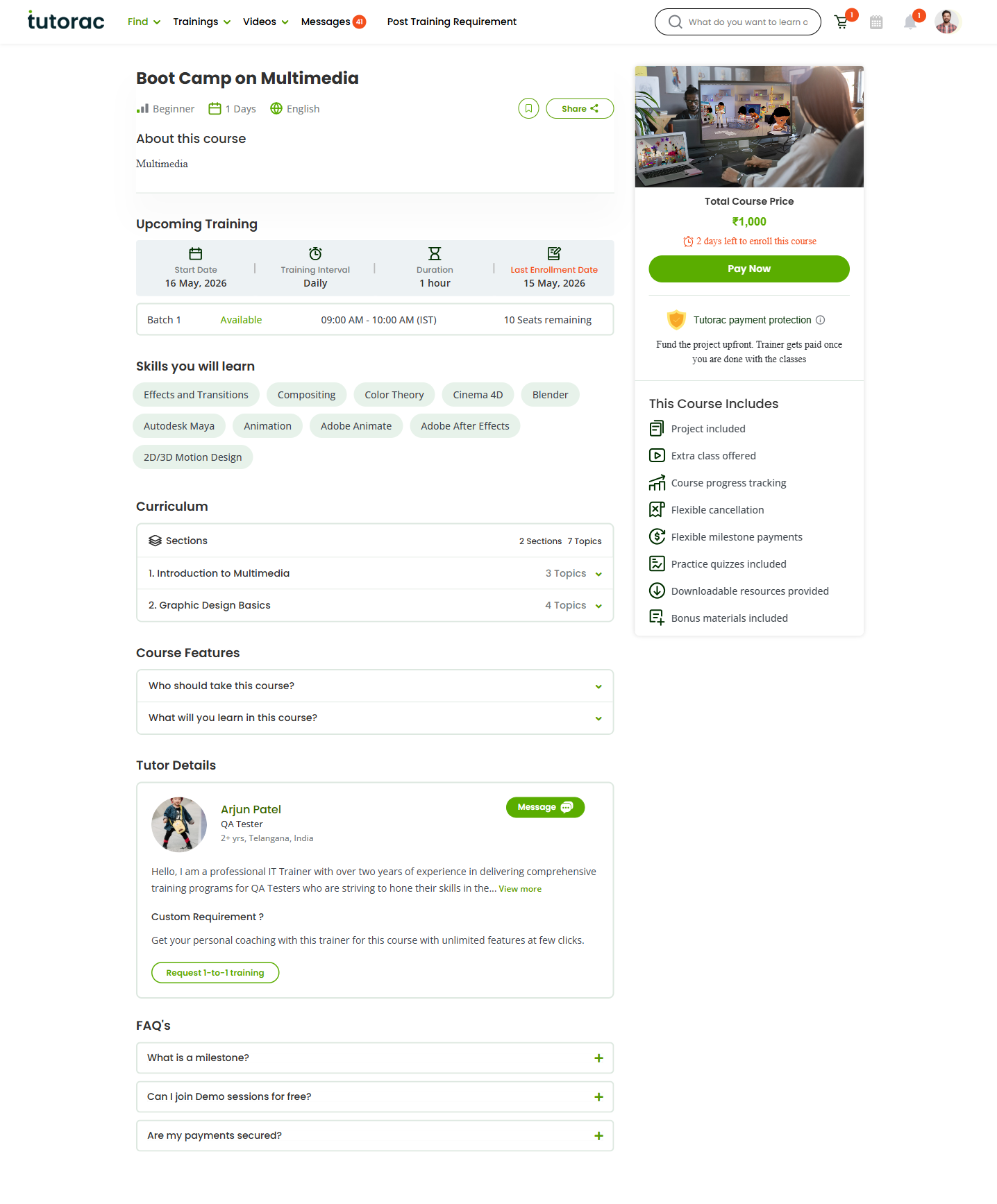
Click any course tile to open its detail page. Take time to review:
About this course — a summary of what the course covers
Total Course Price and the deadline to enroll (“X days left to enroll this course”)
Tutorac payment protection — the badge on the right-hand pricing card. It means “fund the project upfront, trainer gets paid once you are done with the classes” — your money is held by Tutorac and released to the trainer as the course progresses
This Course Includes — what’s bundled with your enrollment, such as Project included, Course progress tracking, Flexible cancellation, Flexible milestone payments, Practice quizzes, Downloadable resources, and Bonus materials
Upcoming Training — Start Date, Training Interval (Daily / Weekdays / Weekend / Custom), Duration per session, and Last Enrollment Date
Batches — available batches with their time slots (with time zone) and remaining seats
Skills you will learn — the specific skills covered
Curriculum — sections and topics, expandable to see what each lesson covers
Course Features — “Who should take this course?” and “What will you learn in this course?”
Tutor Details — the tutor’s profile, experience, and a Message button to ask questions before enrolling
Step 4: Pick a batch (or request 1-to-1)
Tutorac gives you two ways to learn from the same tutor:
Join an existing batch — the standard option. Each batch shows the time slot (with time zone) and seats remaining. If you only need to glance at batches, you can do it from the detail page. The actual batch selection happens on the next screen after you click Pay Now.
Request 1-to-1 training — if you’d prefer personal coaching with the same tutor on a custom schedule, click Request 1-to-1 training under Tutor Details. The tutor will respond with a custom offer.
Step 5: Click Pay Now and complete payment
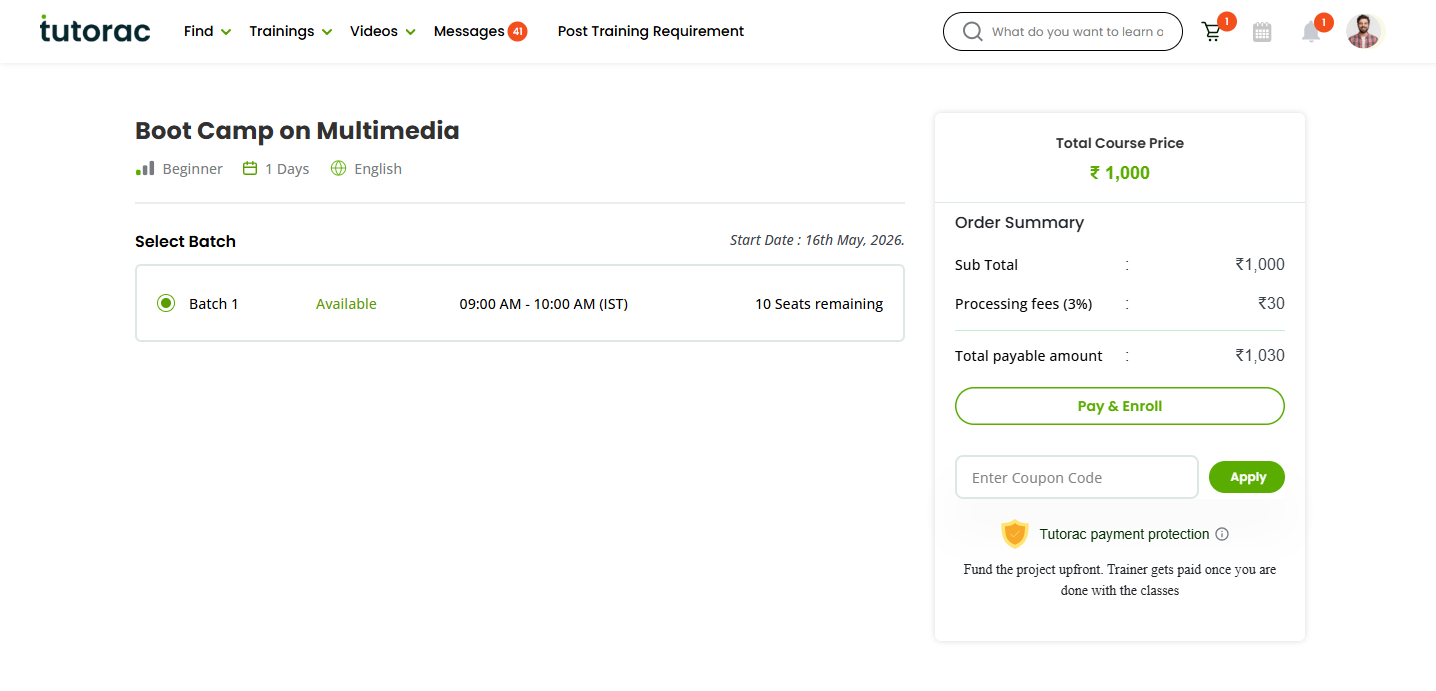
When you’re ready to enroll, click Pay Now next to the Total Course Price. You’ll be taken to the checkout page where you can:
Select your batch — pick the time slot that works for you. If only one batch is available, it’s pre-selected.
Review the Order Summary — Sub Total, Processing fees (3%), and Total payable amount.
Apply a coupon — if you have a promo code, enter it under Enter Coupon Code and click Apply.
Confirm with Pay & Enroll — click the button to open the secure payment window.
Tutorac processes payments through Razorpay. In the payment window:
Enter your mobile number and click Continue.
Pick your payment method — Credit/Debit Card, UPI, Net Banking, or Wallet.
Complete the payment.
Your funds are now held under Tutorac payment protection: “fund the project upfront, trainer gets paid once you are done with the classes.” Your enrollment is confirmed as soon as payment succeeds.
Step 6: Access your enrolled course
Once enrolled, your Live Course appears under Trainings → My Training Batches in the top navigation. From there you can:
See upcoming session dates and times
Join sessions directly when they go live
Message your tutor
Access shared learning materials
Frequently asked questions
What is a milestone?
A milestone is a checkpoint within a Live Course where a portion of your payment is released to the tutor as that part of the course is delivered. Under Tutorac payment protection, your funds stay with Tutorac and are released to the tutor in line with course progress.
Can I join Demo sessions for free?
Yes, many tutors offer free Demo sessions. You can book one in three ways: from the tutor’s profile page, from the Live Course detail page, or directly through a chat message with the tutor.
Are my payments secured?
Yes. Every Live Course is covered by Tutorac payment protection — “fund the project upfront, trainer gets paid once you are done with the classes.” Payments are processed through Razorpay, and unreleased funds are refundable under Tutorac’s Cancellation & Refunds policy.
What is the processing fee?
Tutorac adds a 3% processing fee on top of the course price. You’ll see it as a separate line in the Order Summary on the checkout page before you pay.
What if I miss a session?
Message your tutor through the Live Course or via Messages in the top navigation. Most tutors share session recordings or schedule a catch-up.
Can I cancel after enrolling?
Yes — Live Courses include Flexible Cancellation. See Cancellation & Refunds for the full terms.
Live training courses let you create, schedule, and deliver interactive sessions to groups and individuals. This overview shows how to start one and what the course builder includes.
A live training course is interactive, scheduled training you deliver to groups and individuals — as opposed to a self-paced video course. You build the course once, then run it with learners through batches. (For self-paced video courses, see the Video Courses section.)
Starting a new live course
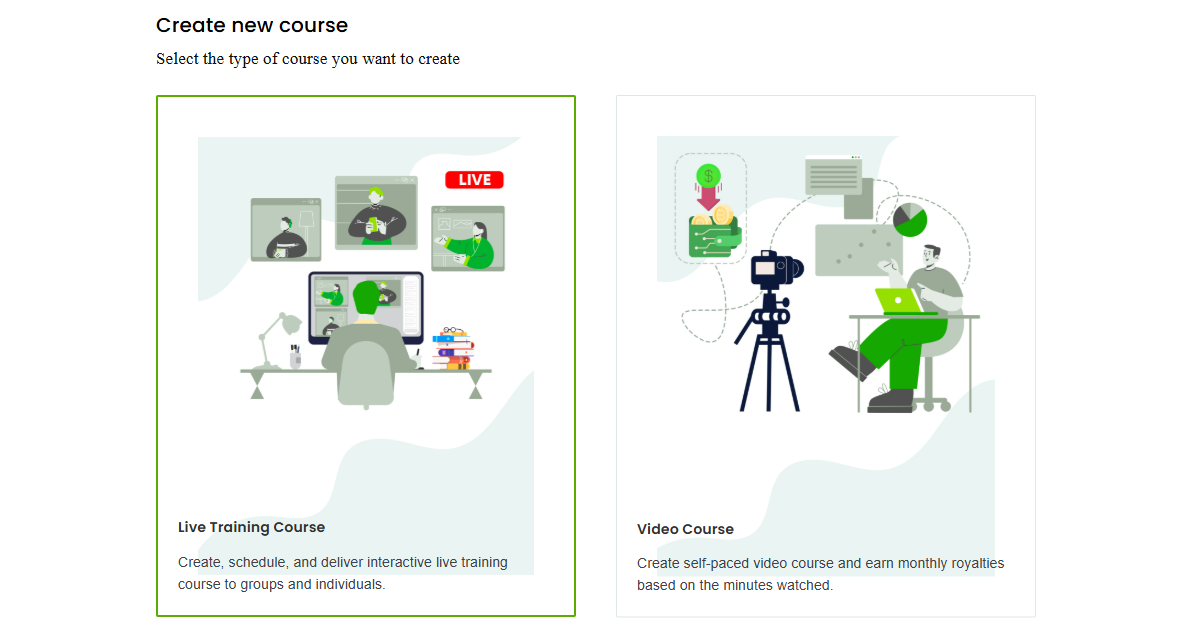
From your dashboard, choose Create Course. On the selection screen, pick Live Training Course (“Create, schedule, and deliver interactive live training course to groups and individuals”) and click Next to open the course builder.
Features — who the course is for and what learners will achieve.
Video — an introduction video and a thumbnail image.
Curriculum — your sections and topics.
The next article walks through each step in detail.
Course status and saving
Each course has a Course Status of Active or Inactive, so you control whether it’s available. Use Update Course to save your changes. You can also Delete Course if you no longer need it. New courses you’re still building appear under your Draft courses until they’re ready.
FAQs
What’s the difference between a live course and a video course?
A live training course is delivered interactively in scheduled sessions. A video course is self-paced and pre-recorded. This section covers live courses; see Video Courses for the other.
Can I offer one-to-one tutoring on a live course?
Yes — the Details step has an Allow One-To-One Tutoring option to accept one-to-one requests for that course.
Where do my courses appear after I create them?
Under your courses list, grouped into Active and Draft. From there you can view and edit each course.
For video courses, you earn monthly royalties based on the minutes learners watch. The more your lessons are watched, the more you earn — so engaging, valuable content directly supports your royalties.
Passive, ongoing earnings
Because video courses are recorded once and watched on demand, a single course can keep earning over time as new learners discover and watch it. This makes video courses a way to build passive income from your video library alongside any live training you offer.
Tracking your earnings
Open My Earnings from the profile menu to review your earnings across your training and video courses in one place.
Getting paid out
Payouts go to the bank details on your profile, so keep your Bank Details complete and accurate. For how payouts are processed, see the Earnings & Payouts section.
FAQs
How are video course earnings calculated?
As monthly royalties based on the minutes learners watch.
Can one course keep earning over time?
Yes. A published video course stays in your library and can keep earning as learners watch it.
Where do I see and receive my earnings?
Track them in My Earnings; payouts use your Bank Details. See the Earnings & Payouts section for the full process.
Once published, your video course joins your video library on Tutorac, where learners can discover and watch it on their own schedule. Because it’s self-paced, the same course can reach many learners over time without you having to deliver it live.
Access through a subscription
Learners access video courses through a subscription rather than booking individual live sessions. This subscription model is what makes your video content available for ongoing, on-demand viewing.
What this means for you
Since learners watch on demand, the quality and engagement of your lessons drive how much they watch — and your earnings are based on minutes watched. Clear, valuable content that keeps learners engaged tends to perform best over time.
FAQs
Do learners book sessions for a video course?
No. Video courses are self-paced; learners watch them on demand through a subscription rather than booking live sessions.
Can the same course reach many learners?
Yes. Once published, your course stays in your video library and can be watched by many learners over time.
How does this affect my earnings?
You earn based on minutes watched, so engaging content that learners keep watching supports your earnings. See “Earning royalties from your video courses.”
Video courses let you record once and earn over time. This overview explains what a video course is, how it differs from a live course, and how to start creating one.
A video course is a self-paced, pre-recorded course that learners watch on their own schedule. You record and publish it once, and it stays available in your video library for learners to access over time.
Video course vs live course
The key difference is how you deliver and earn:
Live training course — interactive sessions you schedule and deliver to learners in batches.
Video course — self-paced and pre-recorded; you earn monthly royalties based on the minutes learners watch.
For live courses, see the Live Courses section.
Starting a video course
There are two ways to begin:
From your dashboard, choose Create Course and select Video Course on the selection screen.
Or open Video Courses from the Courses menu and choose Create Video Course.
A guided, step-by-step process
Tutorac walks you through creating a video course with an easy step-by-step process, even if it’s your first one. The next article covers recording and publishing your course.
FAQs
Do I teach video courses live?
No. Video courses are pre-recorded and self-paced. If you want to teach live, create a live training course instead.
How do I earn from a video course?
You earn monthly royalties based on the minutes learners watch. See “Earning royalties from your video courses” for details.
Where do I start?
Use Create Course → Video Course, or Video Courses → Create Video Course.
Many live courses include quizzes and assignments set by your tutor to test your understanding and reinforce what you’ve learned. This article explains where to find them and how to complete them.
Open your batch from My Training Batches and go to the Quizzes & Assignments tab. Any tasks your tutor has set for the course appear here. If the tab is empty, your tutor hasn’t added any yet — they’re typically set after the relevant topic is covered.
Completing and submitting
Open a quiz or assignment to see the instructions and any due date. Work through it and submit it from the same place. A few tips:
Check whether there’s a deadline and plan accordingly.
For assignments, follow any submission instructions your tutor includes (such as a required format).
Save or note your work before submitting, in case you want to refer back to it.
Submit on time so your tutor can review and give feedback before the next session.
Results and feedback
After you submit, your tutor reviews your work. Depending on the task, you may see a score, comments, or feedback in the same tab, and your tutor may also discuss it in your next session. Your overall progress is reflected on the Reports tab.
FAQs
Do all live courses have quizzes and assignments?
No — it’s up to your tutor. Some courses use them heavily, others rely on live practice. If you’d like more practice tasks, ask your tutor.
Can I resubmit if I made a mistake?
That depends on how your tutor set the task. If you need to resubmit or you missed a deadline, message your tutor through the batch’s Messages tab.
I can’t see any tasks — is something wrong?
Most likely your tutor simply hasn’t set any yet. Tasks usually appear as the course progresses. If you expected one and it’s missing, check with your tutor.