Plans change. Maybe you want to tighten the brief, fix the budget, or close a Training Requirement because you’ve hired someone offline. This guide covers every way to edit a Training Requirement and the right way to close one when you’re done.
In this article
- When to edit vs. when to close
- Open the Training Requirement
- Edit an Active Training Requirement
- Edit a Draft Training Requirement
- Close an Active Training Requirement
- Closing reasons explained
- What happens after you close
- Viewing a Closed Training Requirement
- FAQs
When to edit vs. when to close
- Edit when the goal is still active but the brief needs work — clearer title, refined description, more skills, updated budget, different schedule, or new attachments.
- Close when the goal is no longer active — you’ve hired someone (on or off Tutorac), your plans changed, or you posted by mistake.
Editing keeps the Training Requirement live and continues to attract new proposals. Closing stops new proposals from coming in but leaves the post visible to you and existing applicants.
Open the Training Requirement
Sign in to Tutorac and go to Trainings → My Trainings Posts (tutorac.com/student/job-post). Use the status tabs (All / Draft / Active / Hired / Closed) to find the requirement you want, then click View Details on its card. (See How to view and compare proposals for a walkthrough of this hub.)
Edit an Active Training Requirement
On the Training Requirement details page (the one with Proposals, Search & Invite, and Hired tabs), look just below the tabs — you’ll see two actions:
- A green Edit link (with a pencil icon).
- A red Close link (with an X icon).
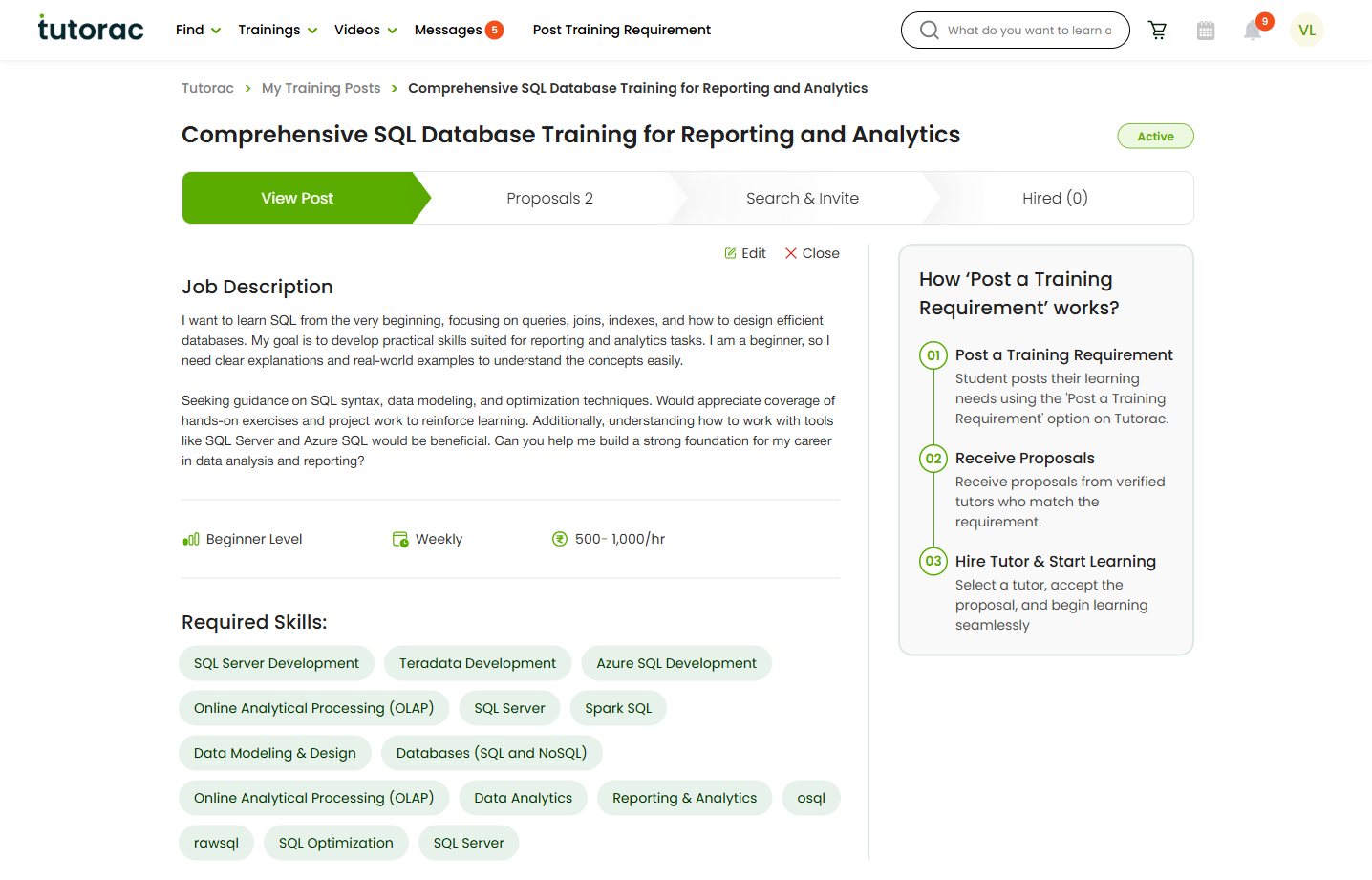
Click Edit. Tutorac takes you to the same Review Details & Post page you saw when posting the requirement, with every field pre-populated. You can change any of the following:
- Title
- Description
- Skills — add, remove, or swap chips (minimum 4 skills).
- Duration and Timeline — when you plan to start.
- Training Level — Beginner, Intermediate, or Advanced.
- Timings — daily, weekly, weekend, custom.
- Budget — hourly range or fixed price.
- Attach relevant files — add or remove files.
Click Post Now to save changes and republish, or use Back to return without saving. Existing proposals and conversations are preserved when you edit.
Edit a Draft Training Requirement
If your Training Requirement is still a Draft (saved but not posted), the listing card shows an Edit Draft button instead of View Details. Click it — Tutorac opens the same Review Details & Post page so you can complete or revise the draft.
Drafts aren’t visible to tutors, so editing a draft has no effect on anyone else until you click Post Now.
Close an Active Training Requirement
From the same details page, click the red Close link. Tutorac opens a Close Requirement confirmation modal:
- What closing does: “Closing this requirement will stop new Proposals and notify current applicants. Your existing hires will not be affected.”
- Reason for closing — pick one of five reasons (see below).
- Two buttons: Cancel (abort) and Yes, Close Requirement (confirm).
Picking a reason helps Tutorac understand outcomes, but it doesn’t change anything visible to tutors beyond the closed status. When you click Yes, Close Requirement, the post moves to the Closed tab and stops accepting new proposals immediately.
Closing reasons explained
- No suitable match found — The proposals you received didn’t fit your scope, level, or budget.
- Requirement was cancelled — The learning goal itself is no longer relevant (course paid for elsewhere, plans changed, etc.).
- Filled through another source — You found a tutor outside Tutorac.
- All positions filled — You hired one or more tutors against this requirement on Tutorac and don’t need more.
- Created by mistake — You posted the requirement accidentally or as a duplicate.
What happens after you close
- The post stops appearing to new tutors and won’t accept new proposals.
- Current applicants are notified that the requirement is closed.
- Existing hires are not affected — any Training Contract you’ve already started continues normally under Trainings → All Contracts.
- The Training Requirement’s card moves to the Closed tab on My Training Posts.
- Inside the closed post, you’ll see a banner: “This post is now closed and will no longer receive new proposals.”
- You can still view the original brief and any proposals you received.
Viewing a Closed Training Requirement
Open the Closed tab on My Training Posts and click View Proposals on any closed card. You’ll see:
- The original Training Requirement (skills, level, budget, description) under the View Post link.
- Every proposal you received, with the same comparison layout as Active requirements.
- The closed-status banner at the top.
Edit and Close actions are not available on a Closed requirement — the post is read-only.
FAQs
Can I reopen a closed Training Requirement?
A closed post stays closed. If your goal becomes active again, the cleanest path is to post a new Training Requirement — you can copy the title, description, skills, and budget from the closed post. Fresh posts attract new proposals faster than reopened ones would.
Will tutors still see my requirement after I close it?
No new tutors will see it in the marketplace. Tutors who already sent a proposal are notified that the requirement is closed, so they know not to expect a hire from this post.
Do existing proposals get deleted when I close?
No. All proposals and message threads remain attached to the closed Training Requirement. You can keep reviewing them and message tutors if needed — only the ability to receive new proposals stops.
If I hire a tutor, does the requirement close automatically?
Hiring a tutor moves their proposal into the Hired tab but doesn’t auto-close the Training Requirement. If you don’t need more proposals, close it yourself with reason “All positions filled”.
Can I edit while proposals are coming in?
Yes. Editing a live Training Requirement updates the brief for new tutors viewing it; existing proposals and conversations are preserved. If you make a significant change (very different scope or budget), it’s polite to message current applicants so they can decide whether to revise their proposal.
What if I close by mistake?
Since reopening isn’t supported, post a new Training Requirement with the same content. Tutorac support can help via the Help Center if you closed an active requirement that had pending proposals you still want to honour.
Why pick a reason for closing?
The reason is mainly for product improvement — Tutorac uses it to refine matching and outreach. It is not shared publicly. The five options cover the most common reasons learners close requirements; pick the closest fit.
Related articles
- How to post a Training Requirement on Tutorac
- How to view and compare proposals from tutors on Tutorac
- How to hire a tutor and start a Training Contract on Tutorac
- More Training Requirements & Proposals articles
Last updated: 21 May 2026